Are you ready to stand out in your next interview? Understanding and preparing for Vector Design Software interview questions is a game-changer. In this blog, we’ve compiled key questions and expert advice to help you showcase your skills with confidence and precision. Let’s get started on your journey to acing the interview.
Questions Asked in Vector Design Software Interview
Q 1. Explain the difference between raster and vector graphics.
Raster and vector graphics represent images fundamentally differently. Think of it like this: raster graphics are like a mosaic – made of tiny squares called pixels. If you zoom in far enough, you’ll see the individual pixels, and the image becomes pixelated and blurry. Vector graphics, on the other hand, are like mathematical equations describing shapes. They’re built from lines, curves, and shapes defined by points and algorithms. Zooming in doesn’t affect the quality because the image is not composed of pixels, but rather calculated and redrawn at any size.
Raster Graphics (e.g., JPEG, PNG): Best for photographs and photorealistic images where subtle color gradations and complex details are important. They are resolution-dependent, meaning their quality degrades when resized.
Vector Graphics (e.g., SVG, AI): Ideal for logos, illustrations, typography, and designs that need to be scalable without losing quality. They are resolution-independent, meaning they can be scaled to any size without losing sharpness.
Q 2. What are the advantages and disadvantages of using vector graphics?
Advantages of Vector Graphics:
- Scalability: The most significant advantage. You can enlarge a vector graphic to billboard size without any loss of quality.
- Editability: Individual components of the design (paths, shapes, text) can be easily edited and manipulated.
- File Size: Generally smaller file sizes compared to raster images of similar complexity.
- Clean Lines: Produces crisp, sharp lines and curves, perfect for logos and illustrations.
Disadvantages of Vector Graphics:
- Not Ideal for Photorealistic Images: They struggle with complex textures and subtle color variations found in photographs.
- Steeper Learning Curve: Mastering vector software requires more technical skill than raster editing software.
- File Compatibility: Not all software can handle all vector file formats.
Q 3. What are some common file formats used for vector graphics?
Common vector graphics file formats include:
- AI (Adobe Illustrator): Adobe’s native format, offering the most comprehensive support for features within Illustrator.
- SVG (Scalable Vector Graphics): An open standard, widely supported by web browsers and other applications. It’s excellent for web graphics.
- EPS (Encapsulated PostScript): A versatile format suitable for print and web; often used for exchanging vector files between different applications.
- PDF (Portable Document Format): Can incorporate vector graphics, offering good compatibility across various platforms.
- DXF (Drawing Exchange Format): Commonly used for CAD applications and exchanging data between different design programs.
Q 4. Describe your experience with Adobe Illustrator (or other vector software).
I have extensive experience with Adobe Illustrator, utilizing it for over eight years in various design projects. My skills encompass creating and manipulating complex vector illustrations, utilizing advanced tools like the pen tool for precise path creation, mastering the use of brushes, blending modes, and effects to achieve visually stunning results. I’m proficient in constructing intricate designs, preparing files for print and web, and optimizing vector graphics for different applications. I’ve worked on projects ranging from logo design and branding to creating illustrations for publications and websites. I’m also familiar with using Illustrator’s scripting capabilities for automating repetitive tasks, enhancing efficiency in my workflow.
For example, I recently used Illustrator to design a series of icons for a mobile application. The client required high scalability and clean, crisp lines. Using Illustrator’s precise tools, I created the icons, ensuring they would look perfect at any size, even when scaled for the highest-resolution screens.
Q 5. How do you create and edit paths in vector software?
Creating and editing paths in vector software is fundamental. Paths are the building blocks of vector graphics. Most vector programs use the Pen Tool for this purpose. Think of the Pen Tool as a way to digitally connect points to form lines and curves. You click to place anchor points, and the software connects them with straight lines or Bézier curves (smooth curves controlled by handles).
Steps to Create a Path:
- Select the Pen Tool.
- Click on your canvas to create the first anchor point.
- Click and drag to create an anchor point with directional handles (controlling the curve).
- Continue clicking and dragging to create your path.
- Close the path by clicking near the first anchor point.
Editing Paths: You can easily adjust individual anchor points, move handles to modify curves, add and delete anchor points, and even convert between corner and smooth points to refine the path’s shape. Direct Selection and Group Selection tools help manage complex paths efficiently.
Q 6. Explain the use of layers and layer styles in vector design.
Layers and layer styles are crucial for organizing and enhancing vector designs. Layers act like transparent sheets stacked on top of each other. Each layer contains distinct elements of your design, allowing you to edit and manipulate individual components without affecting others. This is akin to working with acetate sheets in traditional animation. Layer styles add visual effects to layers, such as drop shadows, glows, bevels, and more, without altering the original artwork.
Practical Application: Imagine designing a logo with text and an icon. You would likely place the text on one layer and the icon on another. This allows for independent editing – you could change the font size or color of the text without affecting the icon, and vice-versa. You could then apply a drop shadow to the text layer to make it pop without modifying the original text shape.
Q 7. How do you manage color palettes in your vector design workflow?
Managing color palettes efficiently is vital for maintaining consistency and brand identity. My workflow typically involves these steps:
- Defining the Palette: I start by determining the core colors of the project, usually based on client guidelines or brand specifications. Tools like Adobe Color can help explore harmonious color schemes.
- Creating Swatches: Within the software (e.g., Illustrator), I create color swatches using the chosen colors. This allows me to easily apply the same color throughout the design and maintain consistency.
- Organizing Swatches: I often group my swatches in logical categories (e.g., primary colors, secondary colors, accents) to improve accessibility and maintain order.
- Utilizing Global Swatches (where available): This is a powerful feature in many vector programs which ensures that any changes to a global swatch are reflected across all instances of that color in the design. This is extremely helpful when making global design changes.
- Exporting Palettes: For consistency across projects, I may export color palettes in formats like ASE (Adobe Swatch Exchange) to be reused later.
Q 8. How do you optimize vector graphics for web and print?
Optimizing vector graphics for web and print involves understanding the distinct needs of each medium. For web, the key is file size reduction without compromising visual quality. Print, on the other hand, prioritizes high resolution and color accuracy for flawless reproduction.
- Web Optimization: Use tools within your vector software to reduce the number of points in complex paths, while carefully avoiding excessive simplification that would lead to visible distortion. Save your files in a compact format like SVG (Scalable Vector Graphics). Compressing the SVG can further reduce file size, but be mindful of artifacts.
- Print Optimization: For print, ensure your vector file is at a sufficiently high resolution (at least 300 DPI). Use a CMYK color profile instead of RGB, as CMYK is the color model used by most printers. Avoid very thin lines or overly complex gradients which can cause issues during the printing process. Consider creating outlines for text for crispness.
For example, a complex logo with many gradients and intricate details might need to be simplified for the web. You might reduce the gradient complexity, combine similar colors, or reduce the number of points in the paths using the software’s simplify tool. For print, however, you’d maintain the detail and ensure colors are accurate for the intended print medium and press.
Q 9. Describe your process for creating a vector logo.
Creating a vector logo is an iterative process. I start with thorough research and client briefing to understand the brand identity and target audience. Then, I sketch several concepts, exploring different visual styles and approaches. Once I settle on promising sketches, I digitize them in my vector software (like Adobe Illustrator or Affinity Designer).
My process typically involves:
- Concept Sketching: I start with rough sketches on paper to explore different ideas. This helps me quickly visualize various options and refine concepts before investing significant time in digital creation.
- Vectorization: I carefully trace my sketches using the pen tool, paying close attention to creating clean, smooth paths and curves.
- Refinement: I iteratively refine the logo design using a variety of tools. This includes adjusting path points, tweaking curves, experimenting with color palettes, and ensuring consistent scaling across different sizes.
- Export and Review: I export the logo in various formats (SVG, AI, EPS) for client review. This iterative feedback process is crucial for achieving the desired outcome.
For example, I once designed a logo for a tech startup that involved a stylized circuit board pattern. I spent considerable time refining the curves and ensuring precise spacing between the circuit lines to achieve a clean and professional look. The final logo was created using a combination of paths, shapes and subtle gradients.
Q 10. How do you handle complex illustrations with numerous elements?
Handling complex illustrations with numerous elements requires a structured and organized approach. I employ techniques such as layering, grouping, and using symbols to maintain control and streamline my workflow.
- Layering: I carefully organize my elements into distinct layers. This makes it easy to select, edit, or hide individual elements without affecting others. For instance, I might have separate layers for background, main subject, details, and text.
- Grouping: I group related elements to treat them as a single unit. This simplifies manipulation and prevents accidentally moving or modifying individual components. For instance, I might group elements in a pattern or a repeating visual motif.
- Symbols: For repeated elements, I create symbols. This ensures consistency; any change made to the symbol will automatically update all instances across the illustration. This is particularly useful in illustrations with repeating patterns or icons.
- Templates: For complex and large projects, I might also build templates with pre-defined layers and styles. This helps standardize the design process and maintain consistency throughout the project.
Imagine designing a detailed map with numerous buildings, roads, and landmarks. Using layers, groups and possibly symbols for recurring elements like houses or trees would make this a much more manageable process, preventing clutter and preserving workflow efficiency.
Q 11. What are some common techniques for creating smooth curves and lines?
Creating smooth curves and lines in vector design is fundamental to achieving a polished and professional look. Several techniques help achieve this:
- Pen Tool Precision: Mastering the pen tool is crucial. By precisely placing anchor points and adjusting their handles, you can create extremely smooth and accurate curves. Experimenting with handle lengths and angles is key to shaping the curve’s flow.
- Live Corners: Many vector software packages offer “Live Corners” or similar features that allow you to effortlessly round off corners of shapes. This makes it easy to create soft, rounded edges.
- Smooth Tool: Some programs have a dedicated “Smooth Tool” which allows you to refine existing paths, smoothing out irregularities in lines and curves.
- Blending Modes: Subtle blending modes can make even hard-edged shapes appear smoother. Experimenting with different blending modes can soften the appearance of lines and curves.
For instance, creating a smooth, flowing curve for a logo might involve using the pen tool to add multiple anchor points, then carefully adjusting the handle lengths and directions of each point to refine the curve’s shape.
Q 12. Explain your understanding of Bézier curves.
Bézier curves are mathematical curves defined by a set of control points. They are the foundation of most vector graphics software and are crucial for creating smooth, organic shapes. A Bézier curve is essentially a smooth curve that passes through a starting point and an ending point and is influenced by two or more control points. These control points don’t necessarily lie on the curve itself, but they determine its shape.
A common type is the cubic Bézier curve, defined by four points: a start point, an end point, and two control points. The location and angle of the control points dictate the curve’s curvature. Moving a control point changes the curve’s shape dynamically. The curve never passes through the control points themselves. Instead, they pull the curve towards them, creating smooth and predictable transitions.
Understanding Bézier curves empowers you to create precisely the curves you envision. You have complete control over every nuance of shape, providing the precision and control that makes vector graphics so versatile.
Q 13. How do you use gradients and blends in your vector designs?
Gradients and blends are powerful tools for adding depth, realism, and visual interest to vector designs. They allow for smooth transitions between colors and shades.
- Linear Gradients: These create a smooth transition between two or more colors along a straight line. They are useful for creating simple shading effects or highlighting specific areas.
- Radial Gradients: These transition colors from a central point outwards, creating a circular gradient effect. They are useful for creating highlights, glows, or simulating light sources.
- Mesh Gradients: Offer the most advanced control, allowing you to place color nodes freely within a shape. This produces incredibly detailed and smooth color transitions. It’s especially effective for creating complex shading and highlights.
- Blends: Blends smoothly transition between two or more shapes or objects. This creates subtle, organic transitions, perfect for creating flowing shapes or textures.
For example, a realistic button design could use a radial gradient for a subtle shine, a linear gradient for depth, and maybe a mesh gradient for extremely subtle shading within a highlight. Blends can also be used to create seamless transitions between shapes which helps to create smooth iconographies.
Q 14. How do you troubleshoot common issues encountered while working with vector graphics?
Troubleshooting vector graphics often involves identifying the source of the issue, whether it’s related to file corruption, software glitches, or design choices. Here’s how I approach common problems:
- File Corruption: If a file opens incorrectly or displays unexpected artifacts, try opening it in a different vector program. If that fails, try recovering a previous version if one exists. As a preventative measure, regularly saving your work and using version control systems is essential.
- Software Glitches: Software bugs can cause unexpected behavior. Try restarting the application or your computer. Consider updating the software to the latest version as updates often include bug fixes.
- Scaling Issues: Vector graphics should scale without losing quality, but problems can arise due to rasterized elements embedded within the vector file (like embedded images). Ensure all elements are true vectors. Also check the resolution if exporting for print.
- Color Profile Issues: Ensure that color profiles are consistently applied throughout the design process and when exporting for print or web, choosing appropriate CMYK or RGB modes.
- Path Issues: Overlapping or poorly-defined paths can lead to unexpected results. Use your software’s path tools to carefully examine and correct any overlapping or erroneous paths.
Systematic problem-solving, combined with a solid understanding of vector graphics principles, is critical for successfully resolving these issues. Careful file management and regular backups greatly reduce stress and allow you to overcome challenges efficiently.
Q 15. What are some of your favorite vector design tools and why?
My favorite vector design tools are Adobe Illustrator, Affinity Designer, and Inkscape. Each offers a unique strength. Illustrator, while expensive, boasts unparalleled industry standard features, robust plugin support, and a vast online community for resources. Affinity Designer provides a powerful, feature-rich alternative at a significantly lower price point, making it a compelling option for budget-conscious individuals and businesses. Inkscape, a free and open-source option, is excellent for learning vector design principles and creating projects where cost is a major factor; however, its interface and features might be slightly less intuitive for advanced users compared to Illustrator or Affinity Designer.
My preference often depends on the project’s scope and client budget. For complex, high-profile projects requiring extensive collaboration and plugin usage, Illustrator is my go-to. For smaller projects or personal work where cost is a primary consideration, Affinity Designer or Inkscape become attractive alternatives.
Career Expert Tips:
- Ace those interviews! Prepare effectively by reviewing the Top 50 Most Common Interview Questions on ResumeGemini.
- Navigate your job search with confidence! Explore a wide range of Career Tips on ResumeGemini. Learn about common challenges and recommendations to overcome them.
- Craft the perfect resume! Master the Art of Resume Writing with ResumeGemini’s guide. Showcase your unique qualifications and achievements effectively.
- Don’t miss out on holiday savings! Build your dream resume with ResumeGemini’s ATS optimized templates.
Q 16. How do you ensure your vector graphics are scalable without losing quality?
Ensuring scalability without quality loss in vector graphics is fundamental. Unlike raster images (like JPEGs or PNGs) made up of pixels, vectors are composed of mathematical equations defining shapes and lines. This means they can be scaled to any size without losing sharpness or detail. The key is to work with vector shapes directly, avoiding rasterizing them. For example, instead of importing a high-resolution photograph and rasterizing it within the vector software, it’s much better to create illustrations or graphics using the vector tools directly. You should avoid embedding raster images unless absolutely necessary and even then, ensure they are high-resolution to mitigate any potential quality loss upon scaling.
Furthermore, always save your work in a native vector format like .AI (Adobe Illustrator), .AFDESIGN (Affinity Designer), or .SVG (Scalable Vector Graphics). These formats preserve the vector data, guaranteeing scalability. Exporting to formats like PNG or JPG should only happen at the final stage when you require a raster image for specific applications such as web use.
Q 17. Describe your experience with using vector software for animation.
I have extensive experience using vector software for animation, primarily utilizing Adobe Illustrator and After Effects in conjunction. Illustrator excels in creating the individual vector assets, such as characters, props, and backgrounds, that I can then import into After Effects for animation. The precision of vector graphics is invaluable for animation, allowing for smooth scaling and transformations without losing quality, especially crucial for creating crisp and detailed animations at higher resolutions.
For instance, I recently animated a logo for a client. I created the logo elements in Illustrator, carefully designing each component as a separate vector shape. This made it simple to animate individual parts, like the rotation of a specific element or the color shift during a transition. The ability to easily manipulate the individual vector components during animation ensured efficiency and high-quality results.
Q 18. Explain your approach to designing responsive vector graphics for various devices.
Designing responsive vector graphics involves creating assets that adapt seamlessly across different screen sizes and devices. This is achieved by using scalable vector formats like SVG and designing with modularity in mind. I avoid hard-coding dimensions and instead employ relative units and flexible layouts. For example, using percentages for sizing elements ensures that they maintain proper proportions regardless of screen resolution. I might use CSS for more complex responsive implementations, particularly when working on web graphics. The responsiveness is built into the vector design itself. By working with vector shapes that are modular and easily scalable, the images will automatically adjust their size while maintaining quality and clarity across various screens.
Furthermore, I carefully consider the use of gradients and effects. Complex effects could slow down rendering or display incorrectly on older devices. Keeping them minimal and simple often ensures better compatibility.
Q 19. How do you collaborate with other designers on vector projects?
Collaboration on vector projects often involves utilizing cloud-based platforms like Adobe Creative Cloud Libraries or cloud storage solutions like Dropbox or Google Drive. This ensures everyone works with the most up-to-date files. For more complex projects, we might use version control systems like Git for tracking changes and collaboration. We also frequently use communication tools like Slack or Microsoft Teams for quick questions, updates, and design discussions. Clear communication and a well-defined workflow are paramount to maintaining consistency and efficiency.
Direct feedback on shared files is also highly valuable. Tools such as Adobe XD or Figma offer in-built commenting tools that make feedback exchange more straightforward and efficient.
Q 20. Describe your workflow for a typical vector design project.
My typical vector design workflow begins with a thorough understanding of the client’s needs and project goals. This often involves a detailed briefing and mood board creation. Next, I create rough sketches or wireframes to establish the overall layout and composition. Then, I move to the vector design software (usually Illustrator), meticulously crafting the individual elements. This stage focuses on precision, ensuring each element is accurately formed and properly layered for easy editing and manipulation. Once the design is finalized, I carefully review for errors, refine details, and finally export the file in the appropriate format for the intended use, whether that’s web, print, or animation.
Throughout the process, I regularly save incremental versions of my work to ensure that I can always revert to an earlier version if necessary. This methodical approach prioritizes accuracy, efficiency, and client satisfaction.
Q 21. How do you maintain consistency in your vector designs?
Maintaining consistency in vector designs relies heavily on establishing a style guide. This document clearly outlines elements like color palettes, fonts, and graphic styles. I often use color palettes generated from tools like Adobe Color or Coolors to ensure color harmony across multiple designs. For font choices, I prioritize a limited selection to avoid visual clutter and maintain a consistent brand voice. Reusing elements throughout multiple projects saves time and ensures visual consistency; however, ensure you have the proper licensing rights if using elements from stock libraries or other sources.
Furthermore, using master files and symbols (in software like Illustrator) to create reusable components significantly helps maintain consistency throughout a project or across projects. This allows for global changes to be propagated seamlessly, ensuring that updates are applied automatically to all instances.
Q 22. How do you handle feedback and revisions on your vector designs?
Handling feedback and revisions is crucial for successful vector design. My approach is systematic and collaborative. First, I ensure I fully understand the client’s feedback, often asking clarifying questions to avoid misinterpretations. I then prioritize revisions based on their impact on the overall design and the project timeline. For example, if a major element needs reworking, I’ll address that first. Minor adjustments can be handled later. I use version control within my vector software (like Adobe Illustrator’s version history or saving multiple versions with descriptive names) to track changes and easily revert if needed. I provide regular updates to the client, showing the progress of revisions and inviting further feedback at each stage. This iterative process ensures the final design meets their expectations. Transparency and clear communication are key.
Q 23. What are some common design principles you apply to vector work?
Several core design principles guide my vector work. Simplicity is paramount; I strive to create clean, uncluttered designs that communicate effectively. Balance is crucial, ensuring visual weight is distributed evenly to create harmony. I use different techniques to achieve balance like symmetrical, asymmetrical, or radial. Hierarchy helps prioritize information; using size, color, and placement to guide the viewer’s eye. Consistency in elements like fonts, colors, and spacing ensures a unified visual identity. For example, if I’m designing a logo, I’ll maintain consistent brand colors and font throughout all applications. Finally, White Space (or negative space) is essential for creating visual breathing room and enhancing readability. It’s not just about what’s on the page, but the space around it.
Q 24. Describe your experience with vector software plugins and extensions.
I have extensive experience with plugins and extensions in various vector software. In Adobe Illustrator, I frequently utilize plugins for tasks like generating complex patterns, creating custom brushes, and automating repetitive tasks. For example, the Astute Graphics suite significantly improves workflow efficiency, particularly for tasks requiring precise control and intricate details. I’m also familiar with plugins for tasks such as color management and image tracing. When exploring a new plugin, I thoroughly assess its functionality and reliability before integrating it into my workflow, ensuring it doesn’t compromise file compatibility or system stability. I understand that not all plugins are created equal and choosing carefully is critical for optimal performance and efficiency. This careful selection ensures a seamless and productive design process.
Q 25. How do you ensure the accessibility of your vector designs?
Accessibility in vector design is crucial. I ensure sufficient color contrast for readability, particularly for those with visual impairments. I use tools built into the software (like Adobe Illustrator’s color contrast checker) to verify that the contrast ratio meets WCAG (Web Content Accessibility Guidelines) standards. I also use alternative text descriptions for images in digital formats to provide context for screen readers. Furthermore, I ensure that all fonts used are easily readable and avoid overly stylistic fonts that can compromise clarity. For complex designs, I consider providing different versions catered for specific accessibility needs—for example, a simpler version with reduced visual complexity alongside the main design.
Q 26. Explain your familiarity with different vector software interfaces.
I’m proficient in multiple vector software interfaces, including Adobe Illustrator, Affinity Designer, and CorelDRAW. While each has its unique interface, my understanding of fundamental vector principles allows me to adapt quickly to any platform. For instance, although the tool palettes and menu structures differ, the underlying concepts of paths, nodes, and layers remain consistent. My experience translates seamlessly across different software, enabling me to leverage the best features of each program for a given project. I prefer Adobe Illustrator for its industry standard features and extensive plugin ecosystem, but am completely comfortable using other software depending on project requirements and client preferences.
Q 27. How do you approach vector design projects with tight deadlines?
Tight deadlines require meticulous planning and efficient workflows. When facing a project with a short turnaround time, my strategy involves breaking down the design into manageable phases. I prioritize the most crucial elements first and create a realistic timeline for each stage. For example, if I need to design a series of icons, I might prioritize the most important icons first, then move onto the secondary set. I make use of templates and reusable assets wherever possible to save time, and I avoid unnecessary complexity in the design. Clear communication with the client is also key to ensure that any unexpected changes or adjustments can be addressed efficiently. Proactive planning and flexible adaptability are essential for navigating the pressures of tight deadlines.
Q 28. What are your strategies for staying updated on the latest vector design trends?
Staying current in vector design trends involves a multi-pronged approach. I regularly follow industry publications, blogs, and online communities like Behance and Dribbble, observing the work of leading designers. I attend online webinars and workshops to learn about new techniques and software updates. I also actively participate in online design forums, exchanging ideas and insights with fellow designers. Staying updated isn’t just about the latest stylistic trends, but also involves understanding evolving technologies and design tools. This continuous learning is vital to ensure my work remains relevant and competitive, and allows me to adapt to emerging design challenges and opportunities.
Key Topics to Learn for Vector Design Software Interview
- Core Principles of Vector Graphics: Understand the fundamental differences between vector and raster graphics, including scalability, file formats (AI, SVG, EPS), and editing techniques.
- Software Proficiency: Demonstrate hands-on experience with the specific Vector Design Software you’re interviewing for. Practice creating various design elements, such as logos, illustrations, and layouts.
- Tool Mastery: Become proficient in using the software’s tools for drawing, shaping, manipulating paths, applying color and gradients, and typography.
- Workflow and Efficiency: Learn to optimize your workflow for maximum efficiency. This includes understanding layers, layer styles, and utilizing keyboard shortcuts.
- File Management and Export: Understand best practices for organizing files, preparing artwork for different output methods (print, web), and using various export options for different file formats.
- Color Theory and Design Principles: Demonstrate a strong understanding of color theory, typography, composition, and other design principles. Be prepared to discuss your design choices and rationale.
- Problem-Solving and Design Thinking: Practice approaching design challenges systematically. Be able to articulate your design process and how you overcome obstacles.
- Design Software Comparison (Optional): If applicable, research and compare the specific software to others in the market, highlighting its unique strengths and features.
Next Steps
Mastering Vector Design Software significantly enhances your career prospects in graphic design, web design, and related fields, opening doors to exciting opportunities and higher earning potential. To maximize your chances of landing your dream job, it’s crucial to present your skills effectively. Creating an ATS-friendly resume is key to getting your application noticed. We recommend using ResumeGemini to build a professional and impactful resume that highlights your expertise in Vector Design Software. ResumeGemini provides examples of resumes tailored to this specific skill set to guide you through the process.

Art Director Resume Sample

Creative Director Resume Sample

Web Designer Resume Sample
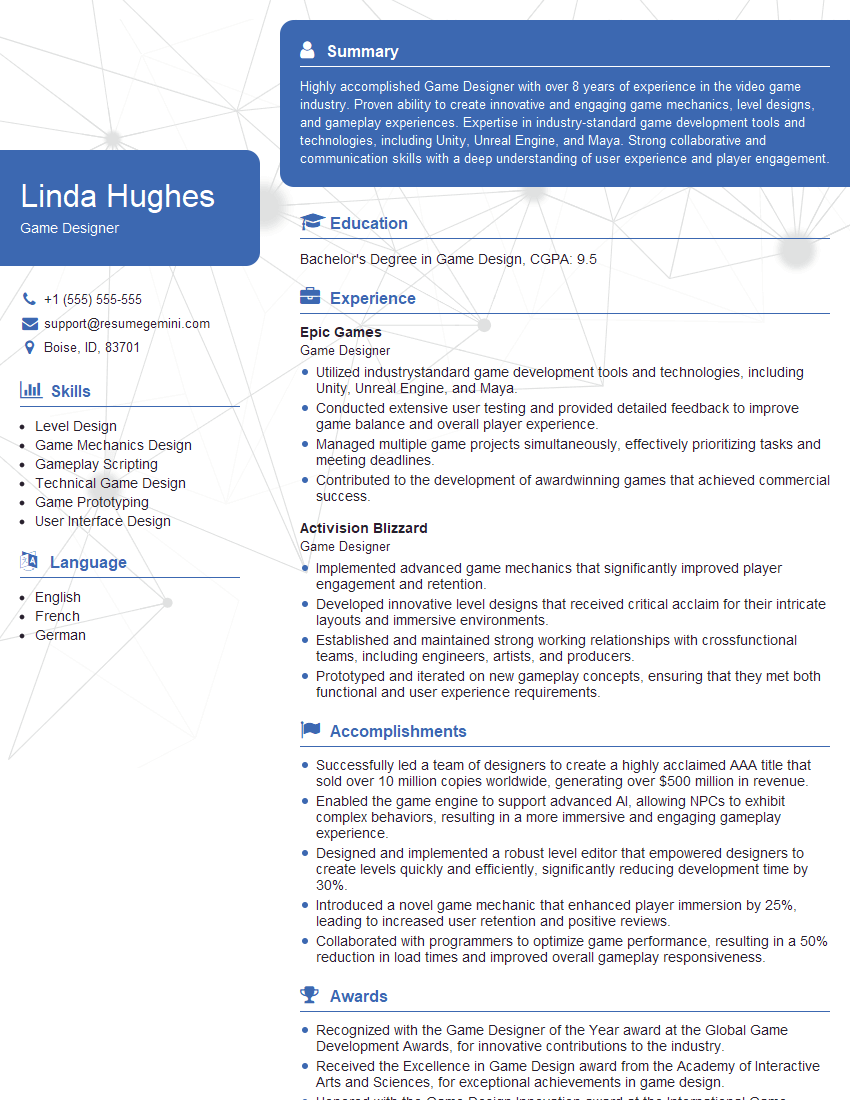
Game Designer Resume Sample
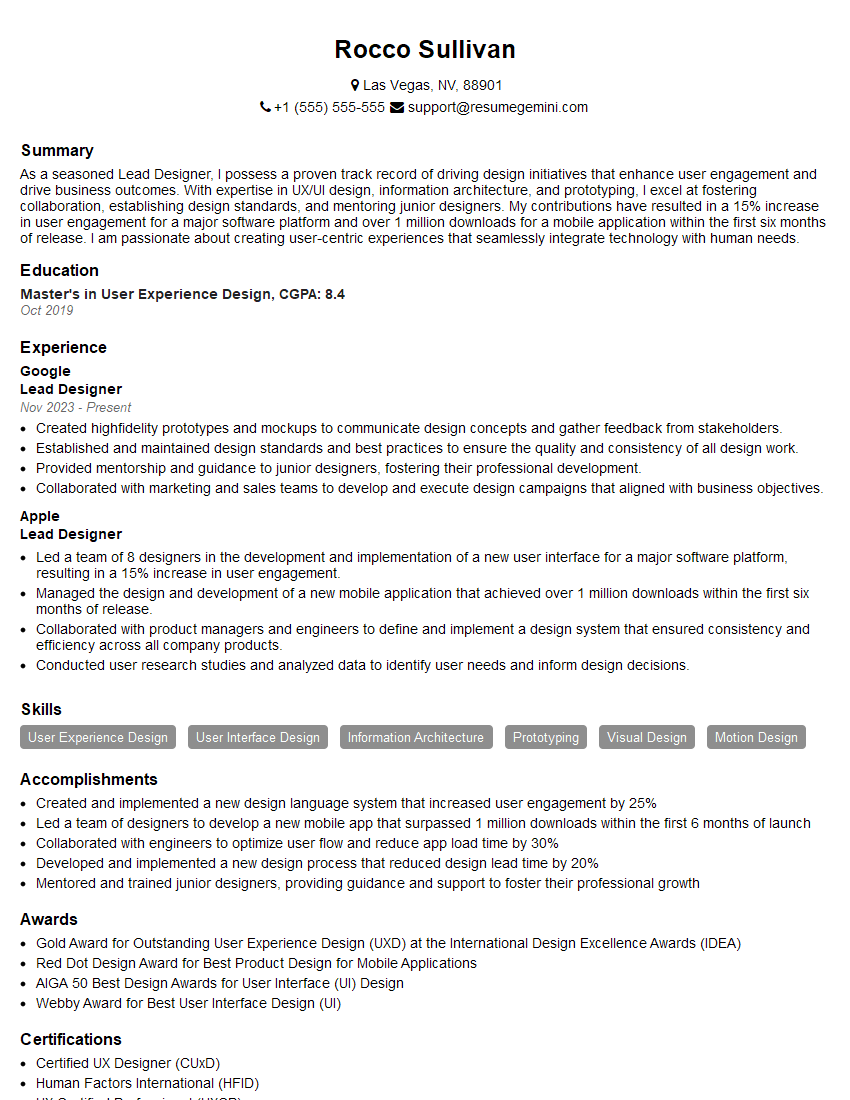
Lead Designer Resume Sample
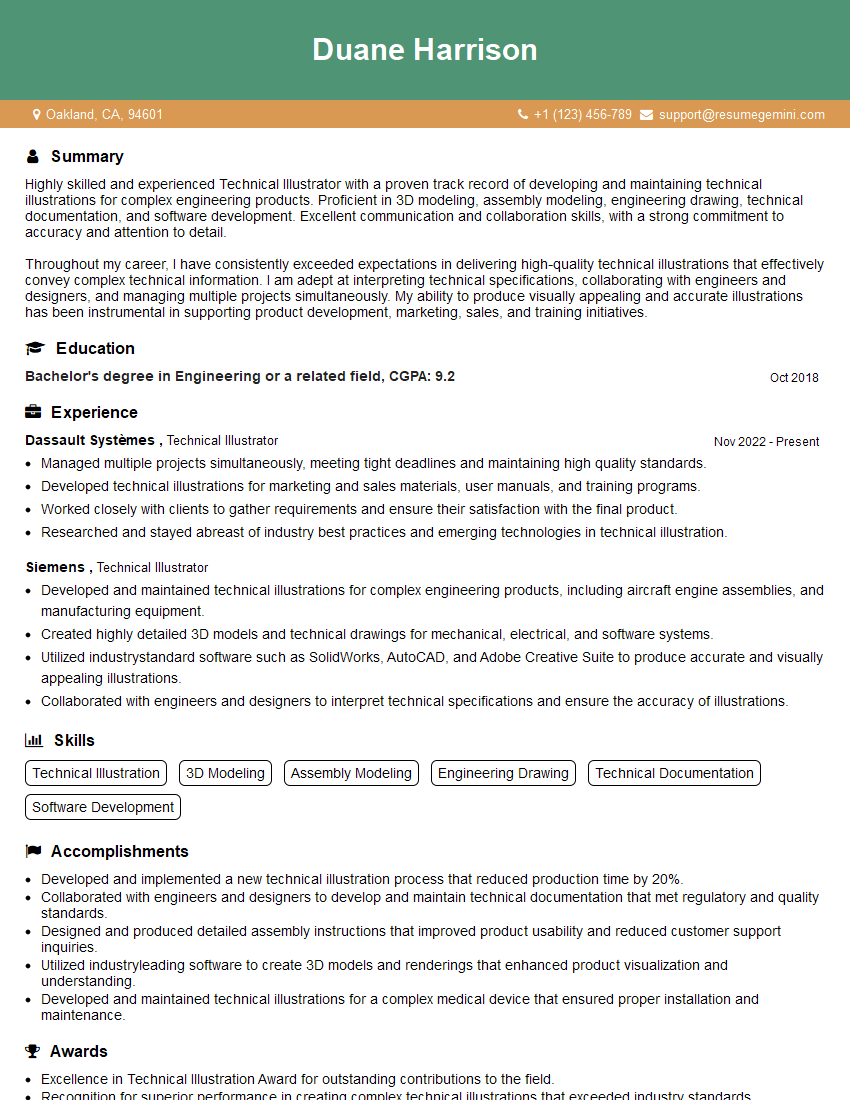
Technical Illustrator Resume Sample
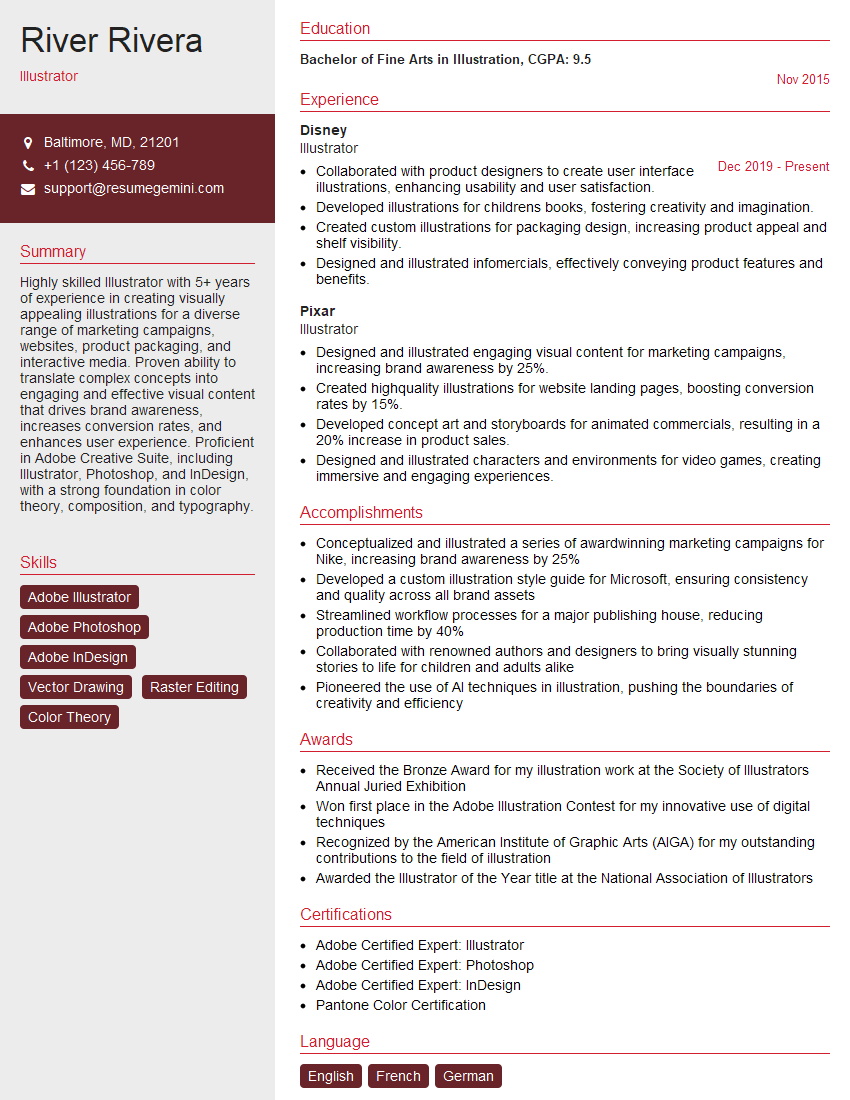
Illustrator Resume Sample

Medical Illustrator Resume Sample

Graphic Designer Resume Sample
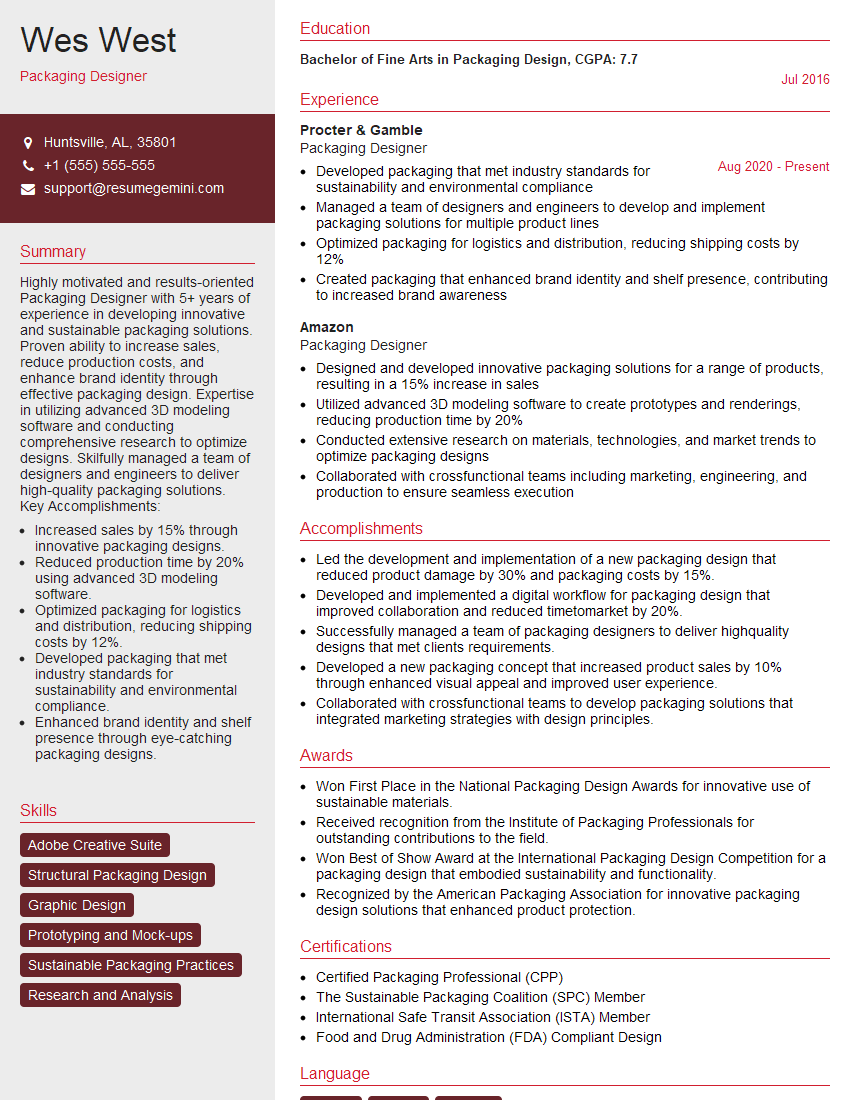
Packaging Designer Resume Sample
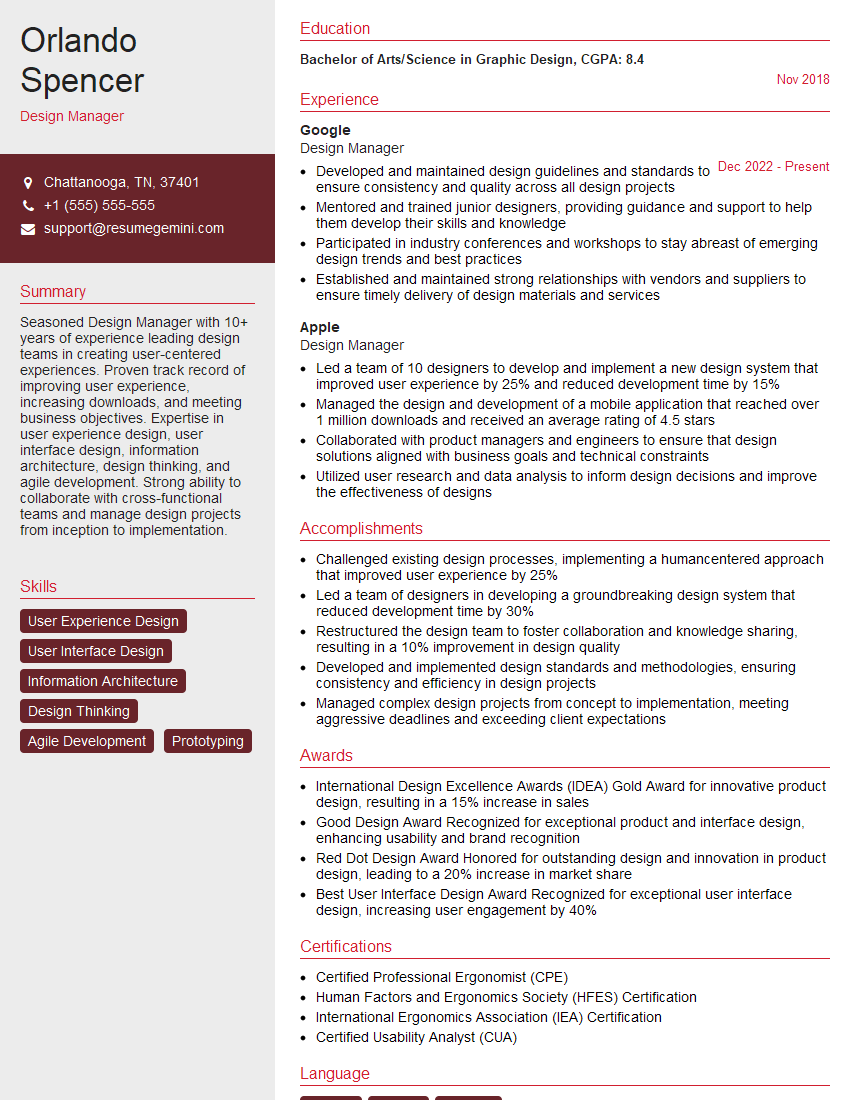
Design Manager Resume Sample
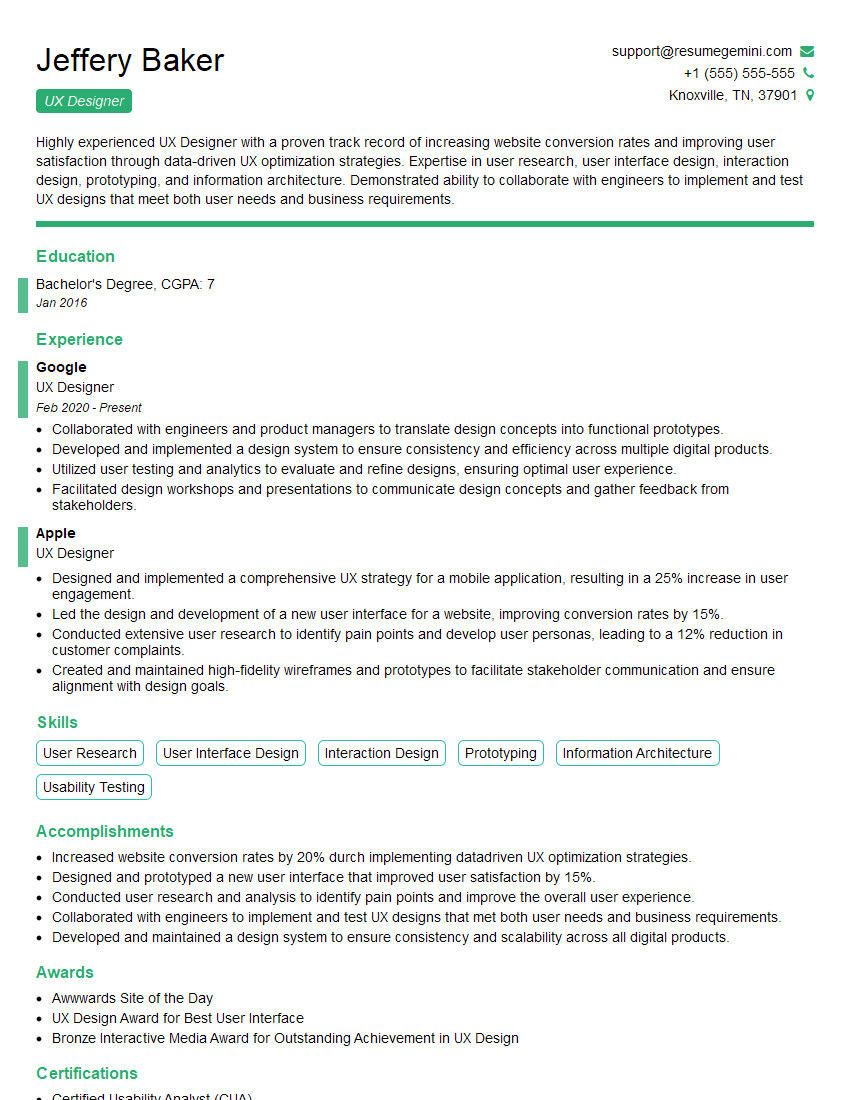
UX Designer Resume Sample
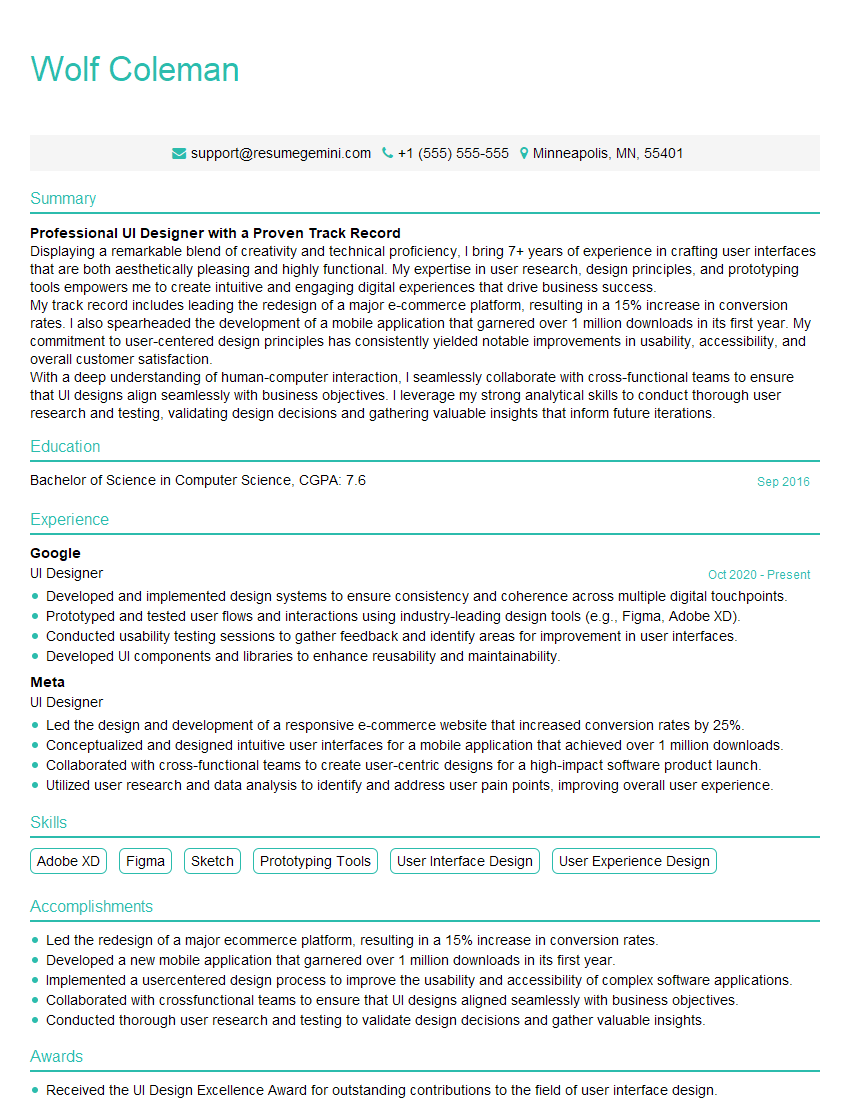
UI Designer Resume Sample
Explore more articles
Users Rating of Our Blogs
Share Your Experience
We value your feedback! Please rate our content and share your thoughts (optional).
What Readers Say About Our Blog
Very informative content, great job.
good