Unlock your full potential by mastering the most common Version Control (Git, Perforce) interview questions. This blog offers a deep dive into the critical topics, ensuring you’re not only prepared to answer but to excel. With these insights, you’ll approach your interview with clarity and confidence.
Questions Asked in Version Control (Git, Perforce) Interview
Q 1. Explain the difference between Git and Perforce.
Git and Perforce are both version control systems (VCS), but they differ significantly in their architecture, scalability, and workflow. Git is a distributed VCS, meaning every developer has a complete copy of the repository, including its history. This allows for offline work and faster branching and merging. Perforce, on the other hand, is a centralized VCS. The complete repository history resides on a central server, and developers work with a local copy that synchronizes with the server. Think of it like this: Git is like having a personal library of every version of a book, while Perforce is like having one master library that everyone accesses.
In essence, Git emphasizes local development and decentralized collaboration, whereas Perforce prioritizes central control and server-side management, often better suited for very large projects or teams with strict change management policies.
Q 2. What are the advantages and disadvantages of using Git?
Advantages of Git:
- Distributed nature: Offline commits, faster branching and merging, improved resilience to server outages.
- Open-source and widely adopted: Large community support, abundant resources, and a vast ecosystem of tools.
- Flexibility and branching model: Supports various branching strategies for complex projects, such as Gitflow.
- Lightweight and efficient: Relatively fast clone times and operations, even with large repositories (compared to Perforce).
Disadvantages of Git:
- Steeper learning curve: Mastering advanced Git commands and branching strategies takes time and practice.
- Can be challenging for large binary files: Git’s inherent efficiency with text-based files may suffer when dealing with large image or video files.
- Repository history can become complex: Without careful management, a large and messy repository can impact performance.
- Security considerations with distributed nature: Requires proper access controls and security measures to protect sensitive information spread across multiple machines.
Q 3. What are the advantages and disadvantages of using Perforce?
Advantages of Perforce:
- Centralized control: Robust change management capabilities, streamlined collaboration, simplified auditing and access control.
- Excellent for large projects and binary files: Handles large files and binary assets effectively.
- Mature and stable platform: Proven track record in managing large, complex projects in enterprise environments.
- Strong scalability and performance: Optimized for large teams and massive repositories, offering robust performance.
Disadvantages of Perforce:
- Higher learning curve (for some): While Perforce commands are generally more straightforward than some advanced Git commands, the overall concept of a centralized system might take time to grasp.
- Cost: Perforce is often a commercial product with licensing costs, unlike the open-source Git.
- Dependence on server: Offline commits are limited; functionality relies on a working server connection.
- Less flexible branching model: Perforce’s branching model may be less flexible and intuitive than Git’s for some workflows.
Q 4. Describe the Git workflow.
A typical Git workflow involves several key steps:
- Clone: Create a local copy of the remote repository using
git clone. - Branch: Create a new branch for feature development using
git checkout -b. This isolates changes from the main branch. - Commit: Regularly save your changes with
git add .(to stage) andgit commit -m "Your commit message". - Push: Upload your commits to the remote repository using
git push origin. - Pull Request/Merge Request: Submit a request to merge your feature branch into the main branch. This allows for code review and collaboration.
- Merge: Once approved, the changes are merged into the main branch. This might involve a fast-forward merge (if the main branch hasn’t changed) or a more complex merge resolving conflicts.
There are variations like Gitflow, which adds more structure for managing releases and hotfixes.
Q 5. Describe the Perforce workflow.
The Perforce workflow is centered around the server. Developers typically:
- Sync: Get the latest version of the files from the server using the
p4 synccommand. - Edit: Make changes to the files locally.
- Check in/Submit: Submit the changes to the server using
p4 submit -d "Your change description". This includes a changelist which groups related changes. - Resolve Conflicts: If multiple developers edit the same file concurrently, conflicts need to be resolved before submission.
Perforce often employs a more structured and controlled approach to branching and merging than Git, often with less frequent branching unless strictly necessary for large, complex features.
Q 6. What is a Git repository?
A Git repository is a directory containing all the files, history, and metadata for a project. It’s like a central database for your project’s evolution, containing every version of each file since the project began. A repository can be local (on your machine) or remote (hosted on a server like GitHub, GitLab, or Bitbucket). Think of it as a detailed logbook tracking every modification and who made it. It allows you to revert changes, collaborate effectively, and manage different versions of your project.
Q 7. What is a Perforce depot?
In Perforce, a depot is the central repository for all project files and their history. It’s the equivalent of a Git repository, but in a centralized context. The depot contains all the versions of the files, along with the associated metadata such as who made changes and when. Think of it as a highly organized and version-controlled file server storing your project’s entire history. All client development machines connect to the depot to access the files and submit changes.
Q 8. Explain the concept of branching in Git.
Branching in Git is like creating a parallel universe of your project. You start with your main codebase (usually the main or master branch) and create a separate branch to work on new features, bug fixes, or experiments without affecting the main code. This allows for isolated development and prevents unstable code from disrupting the main project.
Think of it like writing a book. You have the main manuscript (main branch). If you want to try a different ending, you create a new branch (e.g., alternative-ending). You can make changes in this branch without altering the original. Once you’re happy, you can merge the alternative ending back into the main manuscript.
- Creating a branch:
git checkout -b new-feature - Switching branches:
git checkout main - Viewing branches:
git branch
Branching is essential for collaborative development, allowing multiple developers to work on different parts of a project simultaneously without stepping on each other’s toes. It’s a cornerstone of Git’s workflow and enables efficient and organized version control.
Q 9. Explain the concept of branching in Perforce.
Perforce branching, unlike Git’s lightweight branching, involves creating a new stream – a full copy or partial copy of a project’s files and changelists. It’s more akin to creating a complete, separate project replica than a simple pointer as in Git. This approach allows for isolating changes and managing large, complex projects effectively, but requires more storage space and resources.
Imagine you’re building a house (main project). To experiment with a different architectural style (new feature), you wouldn’t just draw a few sketches on the existing blueprints (Git branching). Instead, you’d create a complete set of blueprints for a new house (Perforce stream). You can build this new house (develop on the new stream) entirely independently before incorporating successful changes into the main house (integration).
Perforce streams are often used for managing different versions (like major and minor releases), development lines, or integrating contributions from different teams. Creating a stream typically involves specifying a parent stream from which it will inherit the files and subsequent changes. The integration of changes happens through submitting changelists on the target stream and resolving any conflicts during integration.
Q 10. How do you merge branches in Git?
Merging branches in Git involves integrating the changes from one branch into another. This process combines the modifications made in the separate branch back into the main branch, or into any other branch. The method depends on whether there are conflicts or not.
- No conflicts: A simple
git merge branch-namewill suffice. Git will automatically integrate the changes if the modified lines are different. - Conflicts: If changes were made to the same lines in both branches, Git marks those sections as conflicts. You’ll need to manually edit the files, resolve the conflicts, and then
git addthe resolved files andgit committhe merge. This often involves choosing between the changes made in either branch or manually combining them.
For example, if you have a feature-x branch and want to merge it into main, you would first checkout main (git checkout main), then merge feature-x (git merge feature-x). Git will then attempt to merge automatically and will either successfully merge or show any conflict markers.
Q 11. How do you merge branches in Perforce?
Merging branches (streams) in Perforce is done through a process of integration. You identify the changes made on one stream that you want to include in another stream. You then submit those changes in the target stream. Perforce automatically manages the merging and conflict resolution, but resolving conflicts can be more involved than in Git.
Unlike Git’s fast-forward merge, Perforce typically creates merge changelists that track the integration process. This provides a more detailed audit trail of the merging activity. Conflicts in Perforce are often resolved using a visual merge tool or a command-line utility, which compares and merges conflicting revisions line by line. It’s crucial to fully resolve conflicts before submitting changes to maintain a clean and consistent codebase.
The process usually involves integrating a specific changelist range from the source stream into the target stream, which can be done through the command-line interface or the graphical user interface (GUI).
Q 12. What is a Git commit?
A Git commit is a snapshot of your project at a specific point in time. It’s like saving a version of your work. Each commit includes a set of changes (added, modified, or deleted files) along with a message explaining what the changes are about. Commits are essential for tracking changes and reverting to previous versions if needed.
Think of it as saving your work in a word processor. Each time you save, you create a new version, and you can always go back to an earlier version. Similarly, every Git commit creates a new version of your project, which can later be reviewed, reverted, or branched from. Each commit is identified by a unique hash value. A well-written commit message is extremely important for understanding the change made in that particular commit.
The command to create a commit is git commit -m "Your commit message". This creates a new commit with the provided message, adding the staged changes to the commit.
Q 13. What is a Perforce changelist?
In Perforce, a changelist is a collection of changes (added, modified, or deleted files) that are grouped together as a single unit of work. It’s similar to a Git commit, but with some key differences. A changelist isn’t immediately integrated into the main repository; instead, it’s like a staging area where you collect changes before submitting them for review and integration. This is one aspect that makes Perforce differ from Git’s commit philosophy.
Imagine preparing a batch of cookies. Each changelist represents a step in the process – mixing ingredients, adding chocolate chips, baking the cookies. Once all the steps (changelists) are ready, you submit the entire batch (integration) to be shared. Each changelist is assigned a unique number and provides a detailed history of the changes made.
Changelists allow for better organization and code review processes because they group related changes together, facilitating code review and rollback processes more easily than Git’s individual commit structure.
Q 14. What is a Git tag?
A Git tag is a pointer to a specific commit. It’s like a label or bookmark for a particular version of your project that is often used to mark significant releases (e.g., version 1.0, 2.0). Tags provide a more human-readable way to identify and access important commits than using their complex hash values.
Think of it as a sticky note on a page of a book to denote a significant chapter or section. Instead of recalling the page number, you use a meaningful tag or label like ‘Chapter 1’ or ‘Plot Twist’. This makes referencing that specific point easier.
Tags are created using the git tag -a v1.0 -m "Release version 1.0" command. They are incredibly useful in identifying releases, providing a clear reference point for developers and users, and for generating releases.
Q 15. What is a Perforce label?
In Perforce, a label is a snapshot of your depot at a specific point in time. Think of it like taking a photograph of your project’s entire file history. It doesn’t copy the files; instead, it creates a reference to the file revisions that existed at that moment. This is incredibly useful for identifying specific releases, branching, or reverting to a known good state. For example, you might label a release as release_1.0, capturing all the files and their revisions at that point. Later, if you need to investigate an issue from that release, you can easily check out that label and examine the exact codebase that was deployed.
Labels are particularly valuable in large projects where tracking revisions manually would be impractical. They provide a stable, named reference regardless of changes made afterward, simplifying collaboration and streamlining the release process. You can even create labels that track specific changesets or branch points.
Career Expert Tips:
- Ace those interviews! Prepare effectively by reviewing the Top 50 Most Common Interview Questions on ResumeGemini.
- Navigate your job search with confidence! Explore a wide range of Career Tips on ResumeGemini. Learn about common challenges and recommendations to overcome them.
- Craft the perfect resume! Master the Art of Resume Writing with ResumeGemini’s guide. Showcase your unique qualifications and achievements effectively.
- Don’t miss out on holiday savings! Build your dream resume with ResumeGemini’s ATS optimized templates.
Q 16. How do you resolve merge conflicts in Git?
Merge conflicts in Git arise when two branches make changes to the same lines of the same file. Git can’t automatically decide which changes to keep, so it flags the conflict for manual resolution. The process involves three steps:
- Identify the Conflicts: Git will mark the conflicting sections in the affected file(s). You’ll see special markers like
<<<<<<< HEAD,=======, and>>>>>>> branch_nameindicating the changes from your current branch (HEAD) and the merging branch. - Edit and Resolve: Open the conflicting file(s) in a text editor and manually edit the code, resolving the conflicting changes. Remove the conflict markers. You may need to choose between the two versions, combine parts of both, or write entirely new code.
- Stage and Commit: After resolving all conflicts, add the resolved files using
git add, and then commit the changes withgit commit -m "Resolved merge conflicts". This signals to Git that you've completed the merge.
Imagine two developers working on the same function: one adds error handling, and another improves efficiency. A merge conflict occurs when both modify the same lines. Manually reviewing the changes lets you integrate both improvements, making the function both efficient and robust.
Q 17. How do you resolve merge conflicts in Perforce?
Resolving merge conflicts in Perforce differs significantly from Git's approach. Perforce utilizes a file-based merge system. Instead of marking conflicts within the file itself, Perforce identifies the conflicting files. You resolve these conflicts using the Perforce merge tool (p4 resolve) or an external diff/merge tool. You're presented with three versions of the file:
- Your Version: Your local changes.
- Base Version: The common ancestor file from before the conflicting changes.
- Their Version: Changes made in the other branch or revision.
The resolution process typically involves choosing one of the versions, merging parts manually, or writing new code to integrate all changes. Perforce provides different resolution options including accepting yours, theirs, or using a merge tool. Once resolved, you submit the file using p4 submit.
For example, if two developers modify different parts of the same file, Perforce will detect the conflict, and using the visual merge tool would allow you to selectively pick the appropriate sections from both developer's changes to create a harmonious merge.
Q 18. What is Git rebase and how does it differ from merge?
Git rebase and merge are both ways to integrate changes from one branch into another. However, they achieve this differently and result in distinct histories.
- Merge: Creates a new merge commit on the target branch, preserving the full history of both branches. It's like weaving two branches together. This keeps the complete history intact, making it easy to trace the evolution of the code. The history shows a merge point clearly.
- Rebase: Moves the commits from the source branch onto the tip of the target branch. It rewrites the project history by creating new commits. It's like transplanting the source branch onto the target branch. This results in a cleaner, linear history, but it can be risky if the source branch has already been shared with others.
Imagine two developers working on separate feature branches. Merging preserves the individual development timelines, while rebasing creates a single, chronological development line, making history easier to follow, but potentially causing problems if others are working from the same source branch.
git merge feature_branchgit rebase feature_branchQ 19. Explain the concept of Git cherry-picking.
Git cherry-picking allows you to selectively apply individual commits from one branch to another. It's like picking specific cherries from a tree—you only take the ones you want. You specify the commit hash you want to apply, and Git applies those changes to your current branch as a new commit. This is very handy when you want to apply a specific bug fix or feature from one branch without merging the entire branch.
For example, let's say you have a bug fix commit on a development branch that you want to apply to your master branch immediately, without merging the whole development branch, which may contain other unfinished work. Cherry-picking allows you to apply the fix directly to your master branch.
git cherry-pick Q 20. What is a Git stash?
A Git stash is a temporary storage area for changes you've made but aren't ready to commit yet. It's useful when you need to quickly switch branches to work on something else, but don't want to commit your uncompleted work. Think of it as a temporary 'parking lot' for your changes.
You can stash your changes with git stash push -u (-u includes untracked files). This saves your modifications. Then, you can switch branches and work on something else. Once done, use git stash pop to retrieve your stashed changes. git stash list shows your stashed changes. If you decide the changes are unwanted, you can delete them using git stash drop.
Imagine you are working on a feature, but need to quickly fix a critical bug on the main branch. You can stash your feature changes, fix the bug, and then retrieve your work on the feature later.
Q 21. How do you revert a commit in Git?
Reverting a commit in Git undoes the changes introduced by that specific commit, creating a new commit that reverses the effects of the previous one. This maintains the complete history, unlike resetting which alters the project's history. There are two primary ways to revert:
- Using
git revert: This is the safer method, especially if the commit has already been pushed to a shared repository.git revertcreates a new commit that reverses the changes of the specified commit. It’s a clean way to undo a commit without rewriting history. - Using
git reset: This is more powerful but risky as it rewrites history.git reset --hardmoves the branch pointer to a previous commit, effectively discarding all commits after the specified one. This should be used cautiously, especially on shared branches.
Let's say you committed a change that introduced a significant bug. Using git revert is the preferred way to fix this: it adds a new commit to revert the buggy change, preserving the original commit in history. Resetting should be used carefully, especially in collaborative environments.
Q 22. How do you revert a changelist in Perforce?
Reverting a changelist in Perforce involves undoing changes you've made but haven't yet submitted. Think of it like taking back an unsaved edit in a word processor. The primary method is using the revert command. There are a few ways to do this depending on the stage of your changelist.
- Reverting an open changelist: If the changes are in your workspace but not yet submitted, you can use the command
p4 revert -c. Replacep4 revert -c 12345would revert changelist 12345. - Reverting specific files within a changelist: You don't have to revert the entire changelist. If you only want to undo changes made to particular files, you can specify them. For instance,
p4 revert //depot/path/to/file.txt -c 12345would only revert changes made tofile.txtwithin changelist 12345. - Reverting after submitting a changelist (not recommended): While you can't directly revert a submitted changelist, you can revert to a previous revision using
p4 sync //depot/path/to/file@, but this requires careful planning to avoid conflicts and could potentially impact other developers working on the same files.
Remember to always resolve any conflicts that may arise after reverting, especially if others have made changes to the same files since your changes.
Q 23. Explain the concept of Git hooks.
Git hooks are scripts that run automatically before or after certain Git events. They're like little automated assistants that perform tasks at crucial moments in your workflow. Think of them as event listeners in a programming context. They're stored in the .git/hooks directory of your repository. They offer significant power in automating various processes.
Types of Hooks: There are client-side hooks (run on your local machine) and server-side hooks (run on the remote repository, like GitHub or GitLab). They're categorized by the event they trigger, such as:
- pre-commit: Runs before a commit is made, allowing you to validate code style, run linters, or prevent commits with failing tests. Imagine it as a final code check before sending your changes.
- post-commit: Runs after a successful commit. Useful for tasks like sending notifications or deploying code to a staging environment. Like getting an email confirming your changes were successfully saved.
- pre-push: Runs before pushing to a remote repository. You can use this hook to make sure your changes are up to date before pushing.
Example: A pre-commit hook could contain a script that checks if your code follows a particular style guide. If it doesn't, the hook would prevent the commit, preventing messy code from entering the repository. This promotes consistent code quality across a team.
Q 24. What are Perforce triggers?
Perforce triggers are server-side scripts that automate actions in response to events within the Perforce server. Similar to Git hooks, but at the server level. They're triggered by various events such as submitting changelists, creating branches, or even user login attempts. They enable custom workflows, automation, and enhanced control over your Perforce repository.
Triggering Events: Triggers are associated with specific Perforce events, such as:
- change submission: Perform actions after a changelist is submitted, such as sending email notifications, updating a database, or triggering a build process. Useful for notifying developers of recent code changes.
- branch creation: Automate tasks upon creating a new branch, such as setting up permissions or creating a corresponding directory.
- client login: Enforce certain policies, log user activity, or customize the user experience when someone logs into the Perforce server.
Example: A trigger could be configured to automatically build and test code after every changelist submission. This provides immediate feedback on the quality of submitted changes.
Implementing Triggers: Perforce triggers are written in a scripting language, often Perl or Python, and must be installed and configured on the Perforce server.
Q 25. How do you handle large files in Git?
Handling large files in Git can be challenging because it's designed for efficient version control of many small files, not large binary files like videos or databases. The key is to avoid storing large files directly within the Git repository. Here are the common strategies:
- Git LFS (Large File Storage): Git LFS is the most widely used approach. It replaces large files in your Git repository with text pointers, while the actual files are stored in a separate server. Git still tracks the pointers, allowing for version control, but the large files themselves are stored efficiently. It maintains the integrity of Git while preserving the efficiency of the process.
- External Storage: If security concerns and collaboration aren't major issues, storing large files on external storage services and referencing them in your Git repository might be the answer. This approach isn't ideal for version control, but it addresses storage limitations. This is faster than LFS but more difficult to track versions.
- Submodules or Subtrees: If large files are in self-contained projects or modules, you can use submodules or subtrees, thus making a separate repository for those large files.
Choosing the Right Strategy: Git LFS is generally preferred for its ability to track versions and integrate seamlessly with Git. External storage is suitable only when version control of the large files isn't critical. Submodules or subtrees are good for large projects or components that have their own version control.
Q 26. How do you handle large files in Perforce?
Perforce is better equipped to handle large files than Git. Its architecture is designed for handling large binaries and allows for efficient versioning of such files. However, best practices still apply to optimize performance and storage.
- Optimize depot structure: Organize your depot to group similar files together. This can improve performance when accessing files.
- Use shelving sparingly: While shelving is useful for temporary storage, avoid shelving excessively large files. This can consume excessive disk space and decrease performance.
- Use Perforce's optimization features: Perforce provides several features to optimize the storage and retrieval of large files. Explore options such as compression, and using Perforce's integrated features designed for handling large files efficiently.
- Regular cleanup: Regularly clean up your workspace to remove old or unused files. This helps in managing storage.
Perforce generally handles large files better out-of-the-box than Git, but a well-structured depot and regular maintenance are still important for optimal performance.
Q 27. What are some best practices for using Git?
Best practices for using Git focus on collaboration, code quality, and efficient workflow. Here are some key recommendations:
- Frequent commits with clear messages: Make small, logical commits that each address a specific task. Write descriptive commit messages to easily track changes.
- Use branches effectively: Create branches for new features or bug fixes to isolate changes and prevent conflicts. Keep branches short-lived for simpler merging.
- Pull requests/merge requests: Utilize pull or merge requests for code review before merging branches into the main branch. This promotes collaboration and code quality.
- Regularly update and sync: Keep your local repository synchronized with the remote repository. Fetch often and pull changes to avoid conflicts. Push your work frequently but never push directly to the main branch.
- Use a Git GUI client (optional): GUI clients can help visualize the Git repository and make it easier for beginners.
- Ignore unnecessary files: Using a
.gitignorefile, specify files (build artifacts, temporary files, environment-specific configurations, etc.) that shouldn't be tracked in Git.
Following these best practices contributes to a cleaner, more manageable, and collaborative Git workflow.
Q 28. What are some best practices for using Perforce?
Best practices for Perforce emphasize efficient storage, streamlined workflows, and team collaboration. Here's a summary:
- Organize your depot: A well-structured depot is crucial for performance and manageability. Use a hierarchical structure that reflects your project's organization.
- Use changelists effectively: Group related changes into changelists for better organization and review. This enables a clear audit trail of changes. Submitting small, logical changes aids in better review and management of issues.
- Regularly sync your workspace: Keep your workspace synchronized with the server to avoid conflicts. A regular sync helps to ensure you're working with the most current version.
- Employ branching strategies: Perforce supports various branching strategies (mainline, branching workflows, etc). Choose the strategy that best suits your project's needs and team dynamics.
- Code reviews and inspections: Conduct code reviews before submitting larger changes, similar to the purpose of pull requests in Git.
- Utilize Perforce's features: Perforce provides various tools and features (shelving, integration with other tools, etc.) to enhance your workflow. Familiarize yourself with them and use them to their fullest extent.
- Properly manage file types: Understand how Perforce handles different file types and use its features for efficient management.
Adhering to these best practices optimizes Perforce usage, ensures efficient collaboration, and promotes code quality within a team.
Key Topics to Learn for Version Control (Git, Perforce) Interview
- Understanding Branching Strategies: Learn the differences between various branching models (e.g., Gitflow, GitHub Flow) and when to apply each. Consider the advantages and disadvantages of each approach in different project contexts.
- Merging and Conflict Resolution: Master the art of merging branches and effectively resolving merge conflicts. Practice handling various conflict scenarios using both Git and Perforce.
- Committing and Pushing Changes: Understand best practices for writing clear and concise commit messages. Learn how to efficiently push and pull changes while collaborating with others. Consider the implications of force pushing and its potential drawbacks.
- Working with Remotes: Grasp the concepts of remotes, fetching, and pulling changes from remote repositories. Understand how to manage multiple remotes and their impact on collaboration.
- Git vs. Perforce: Compare and contrast Git and Perforce, highlighting their strengths and weaknesses. Be prepared to discuss your experience with both systems and why one might be preferred over the other in specific situations.
- Version Control Workflow Optimization: Discuss strategies for streamlining your version control workflow to improve team collaboration and code quality. Consider topics such as code reviews and pre-commit hooks.
- Understanding Perforce Concepts (if applicable): If focusing on Perforce, delve into concepts like workspaces, changelists, and depots. Understand how Perforce handles branching and merging compared to Git.
- Practical Problem Solving: Prepare for scenario-based questions. Think about how you would handle common version control challenges, such as accidentally deleting files or encountering complex merge conflicts.
Next Steps
Mastering Version Control is crucial for any developer, significantly enhancing your collaboration skills and showcasing your proficiency in managing complex projects. This expertise is highly sought after and will significantly boost your career prospects. Investing time in building a strong, ATS-friendly resume is equally vital. ResumeGemini can help you craft a compelling resume that highlights your Version Control skills effectively, increasing your chances of landing your dream job. Examples of resumes tailored to Version Control (Git, Perforce) expertise are provided to help you get started.
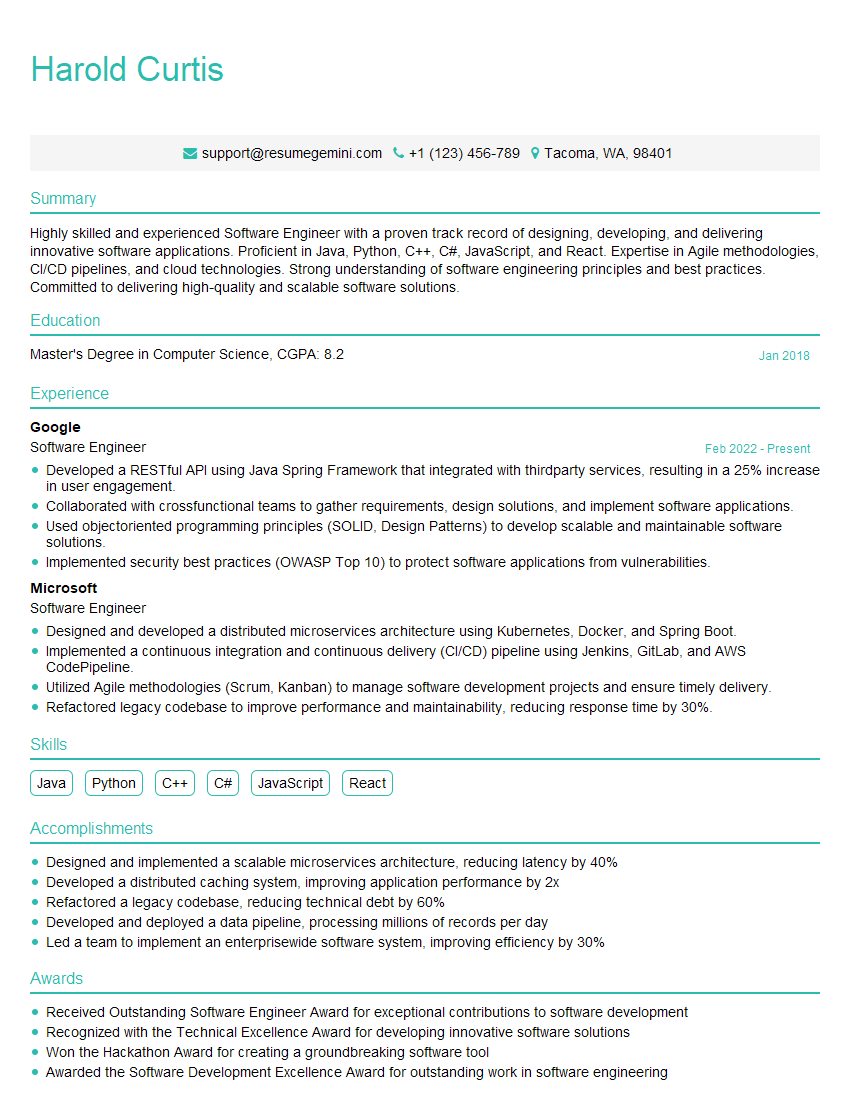
Software Engineer Resume Sample
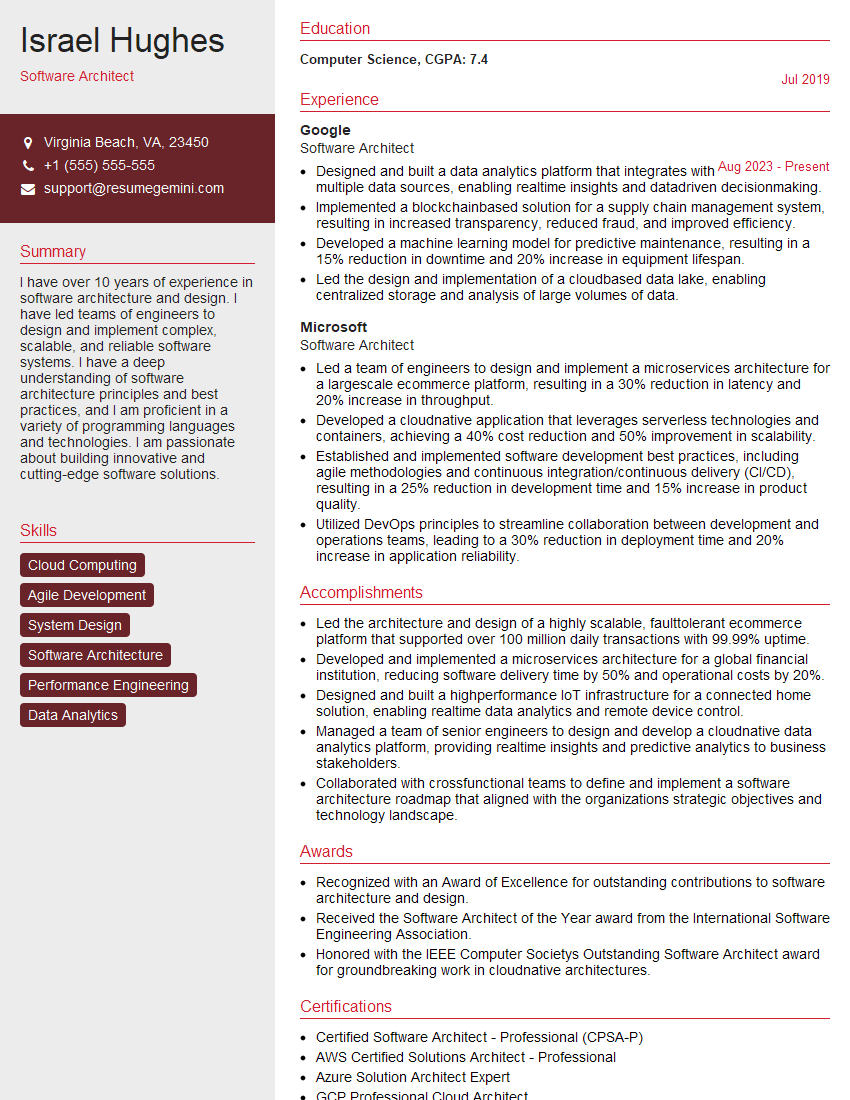
Software Architect Resume Sample
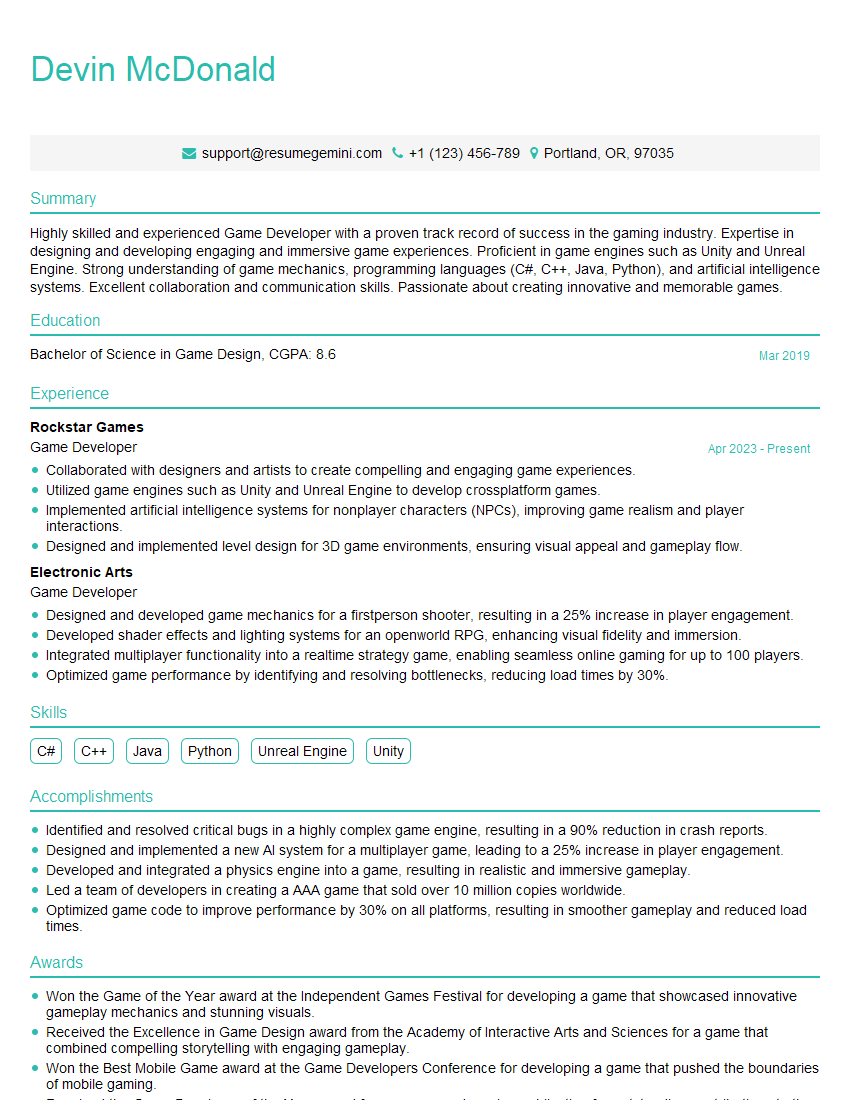
Game Developer Resume Sample
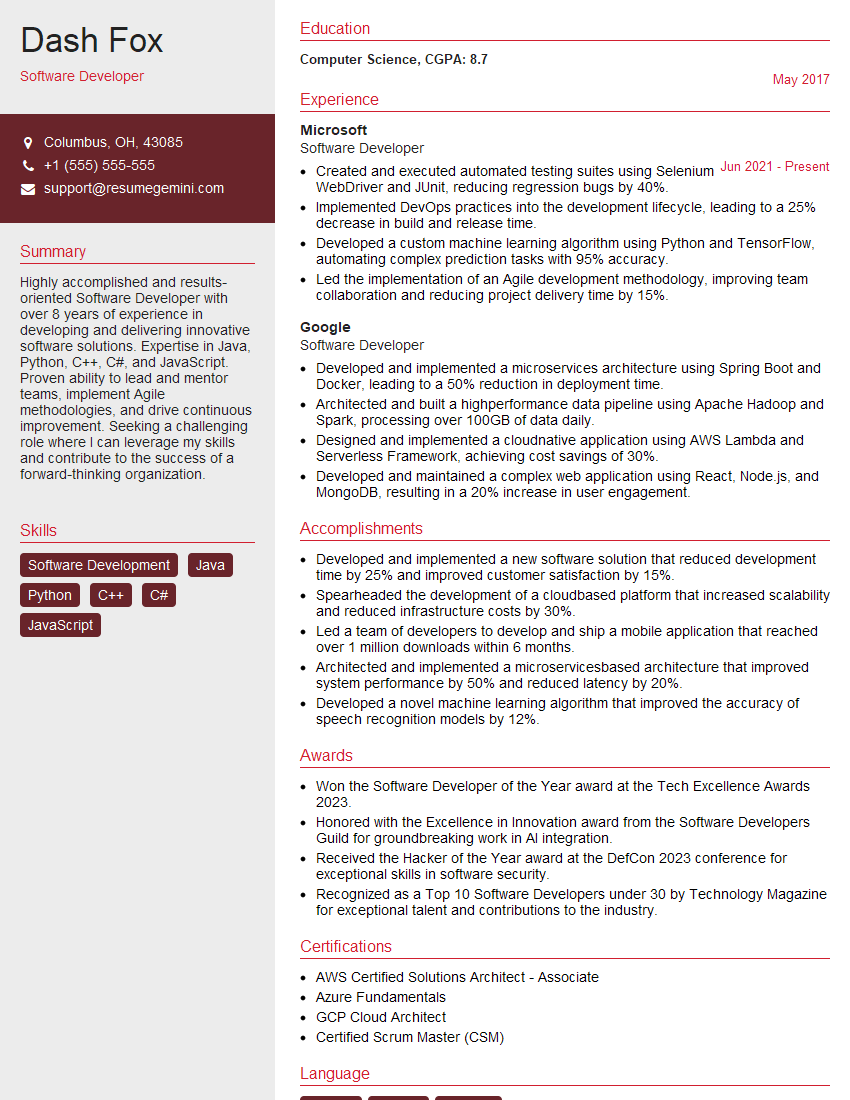
Software Developer Resume Sample
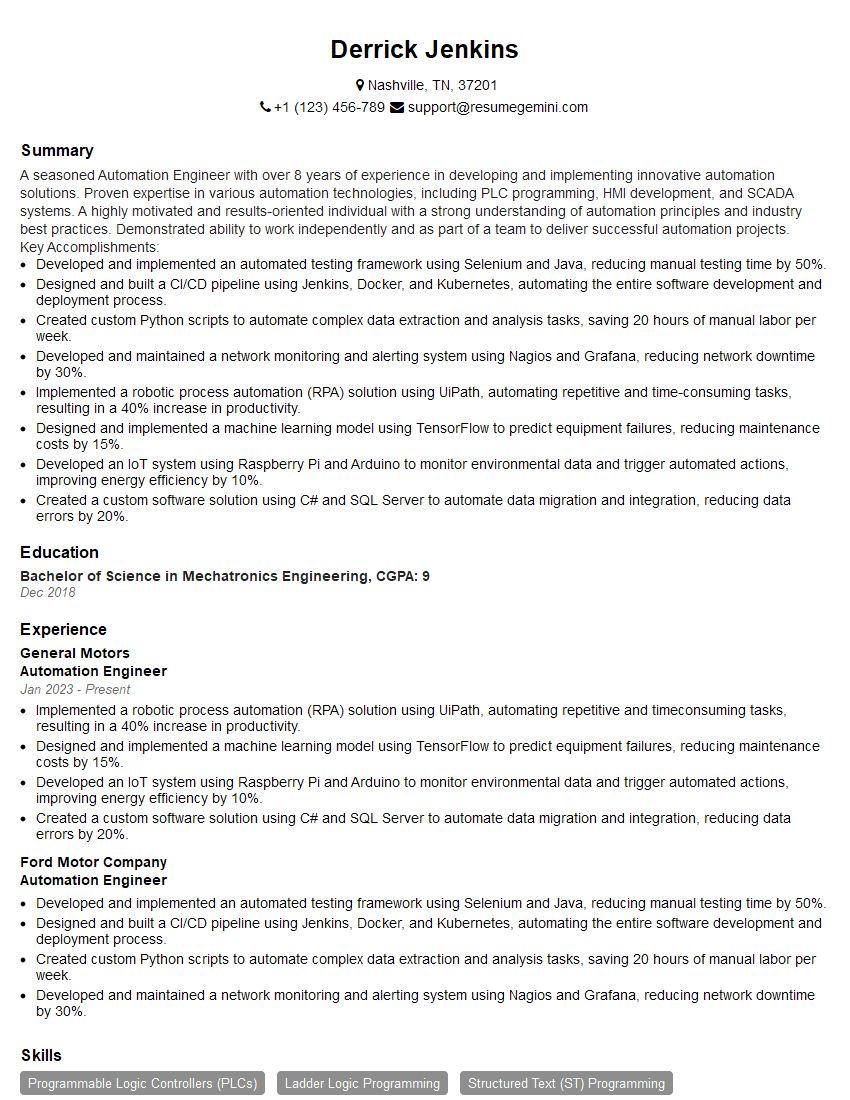
Automation Engineer Resume Sample
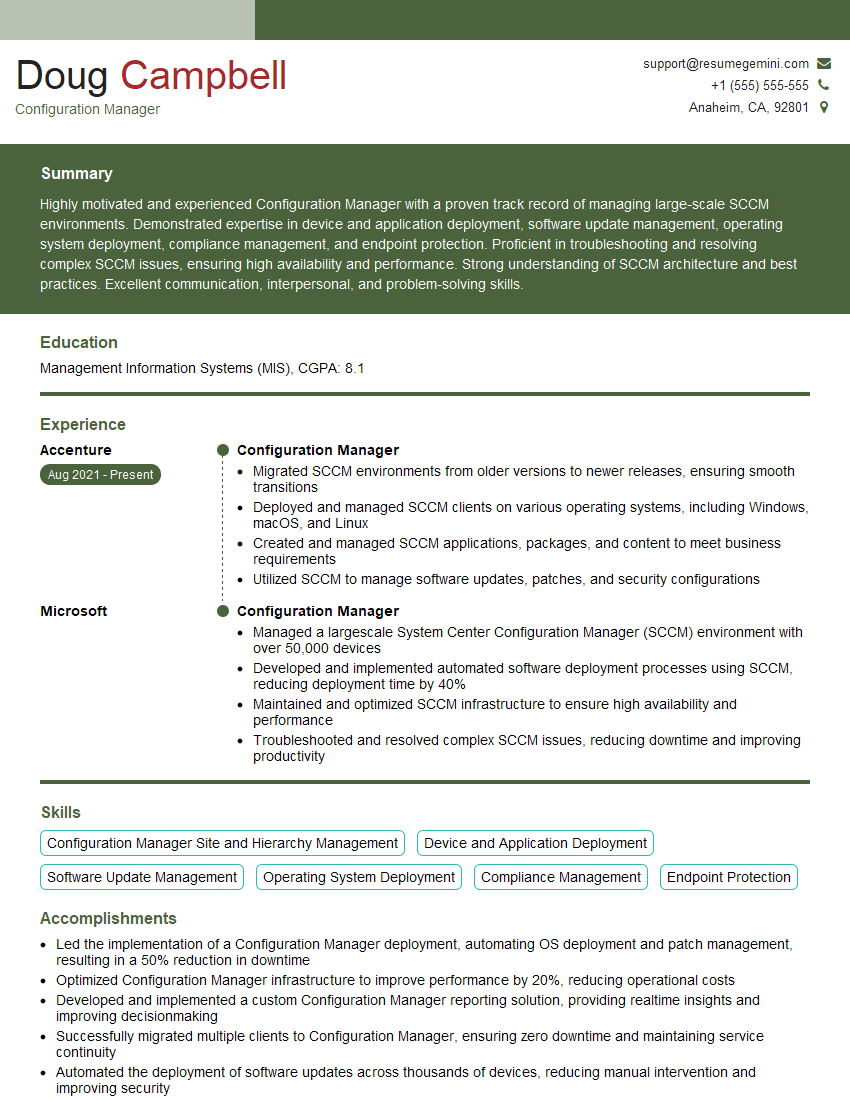
Configuration Manager Resume Sample

Senior Software Engineer Resume Sample
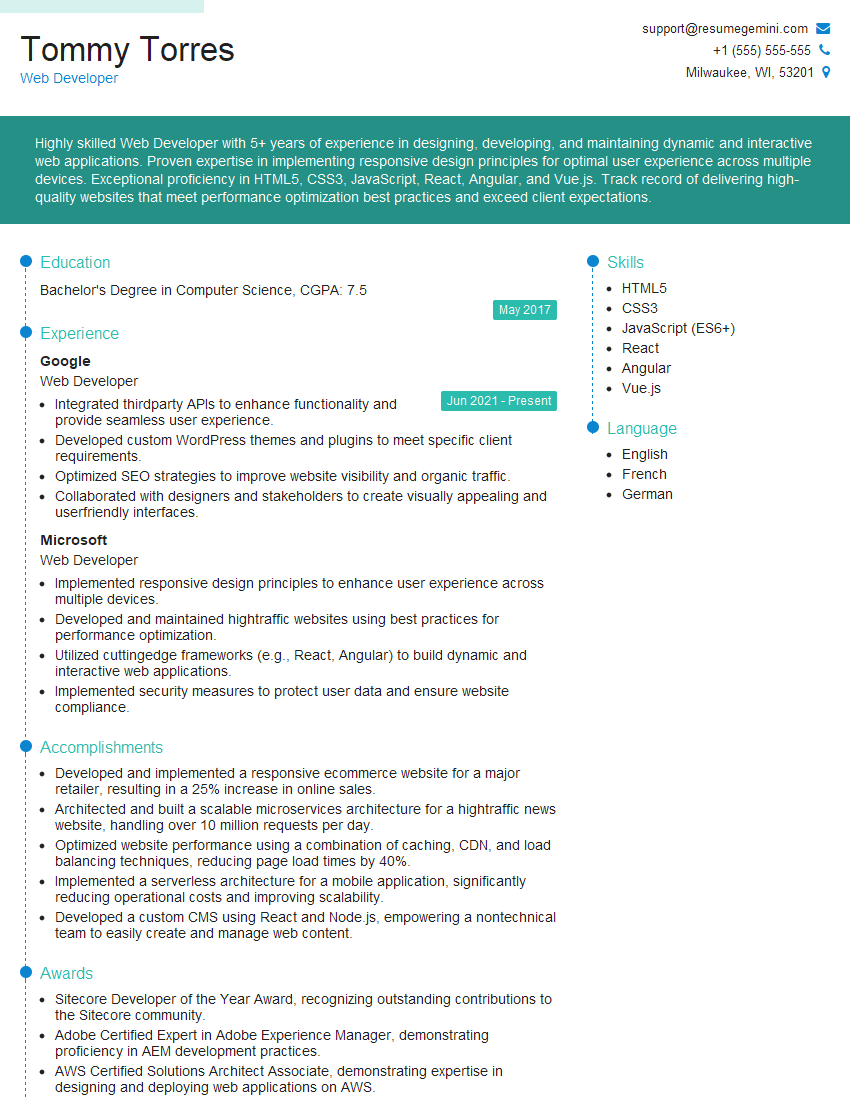
Web Developer Resume Sample
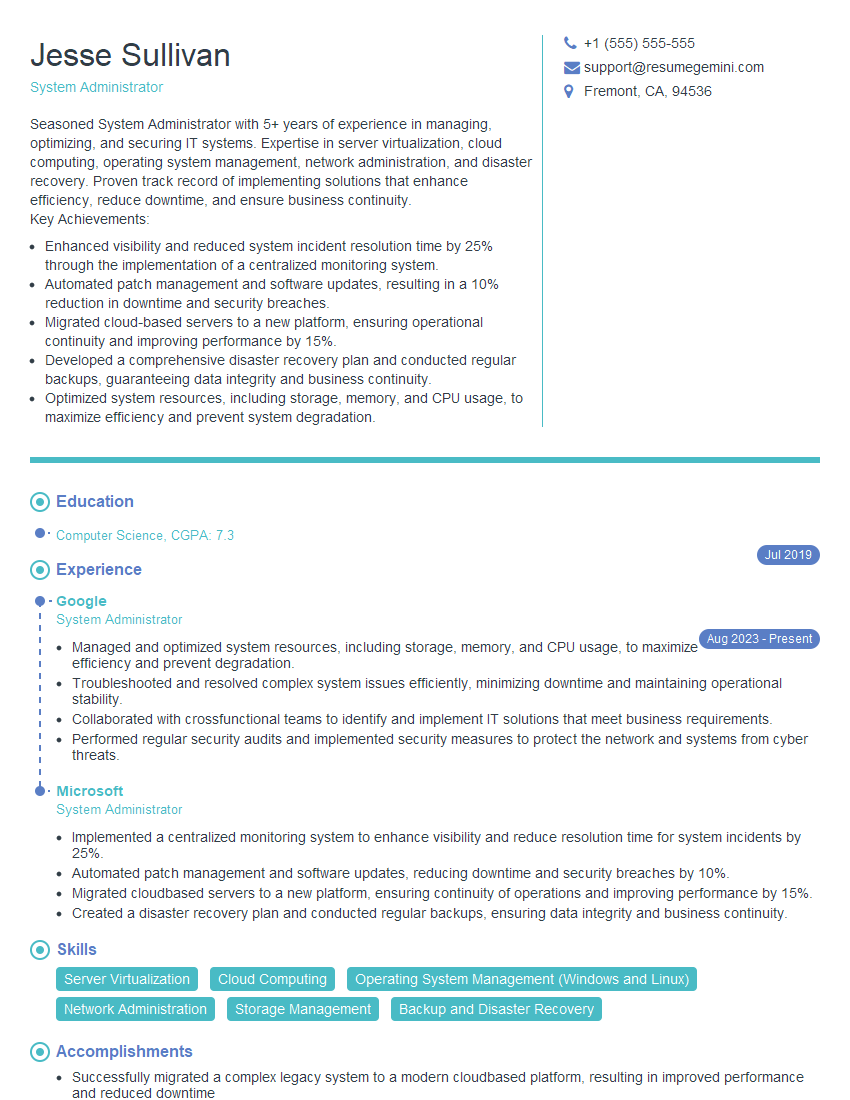
System Administrator Resume Sample

IT Manager Resume Sample
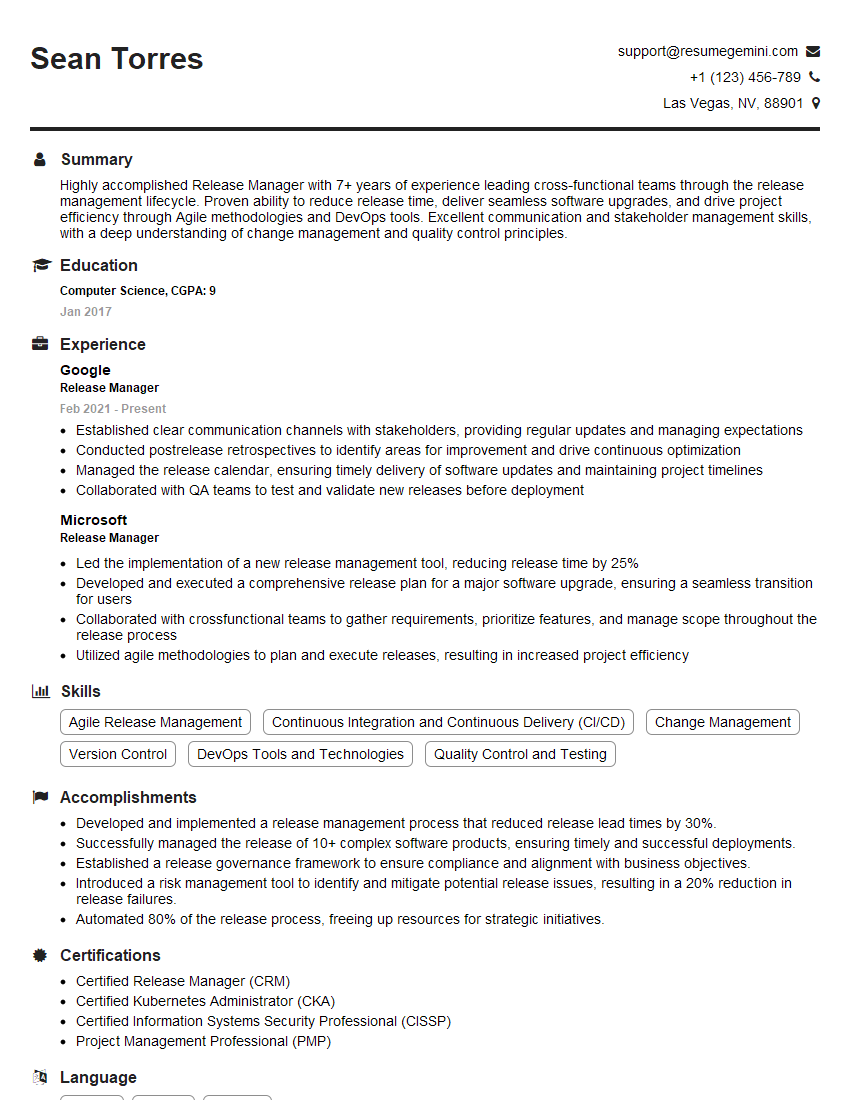
Release Manager Resume Sample
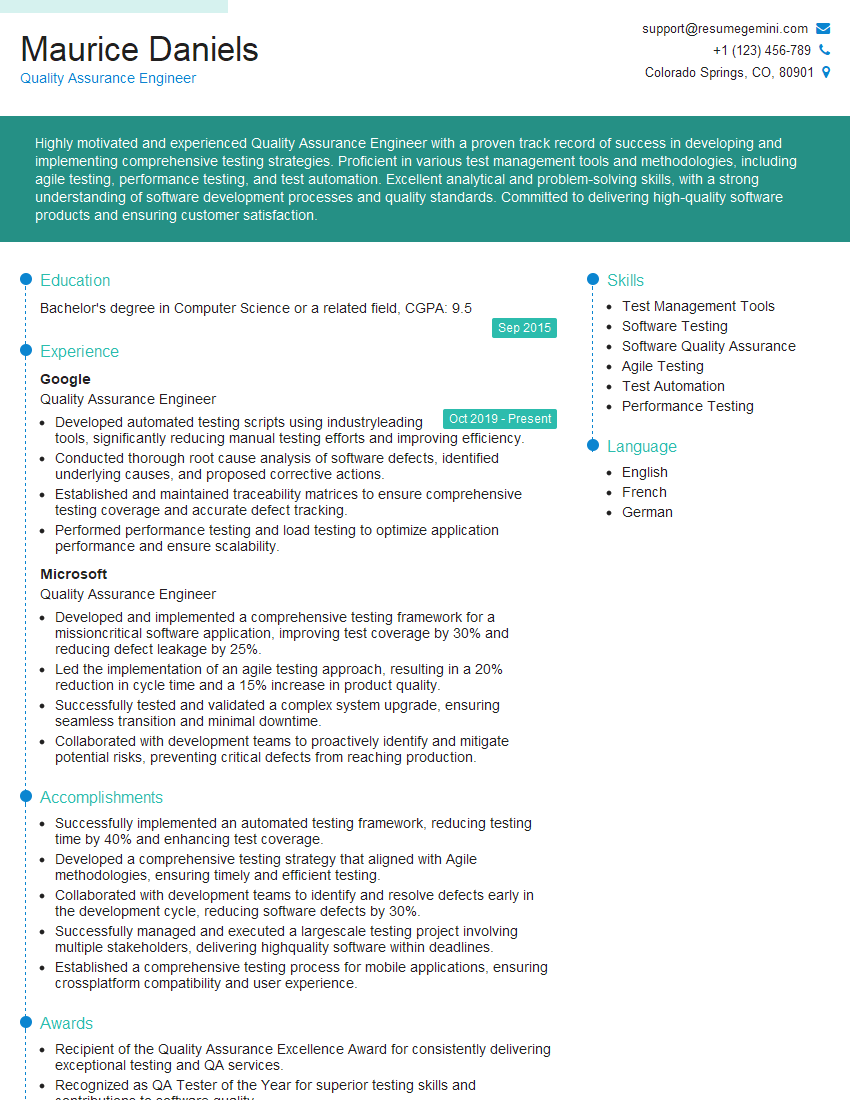
Quality Assurance Engineer Resume Sample
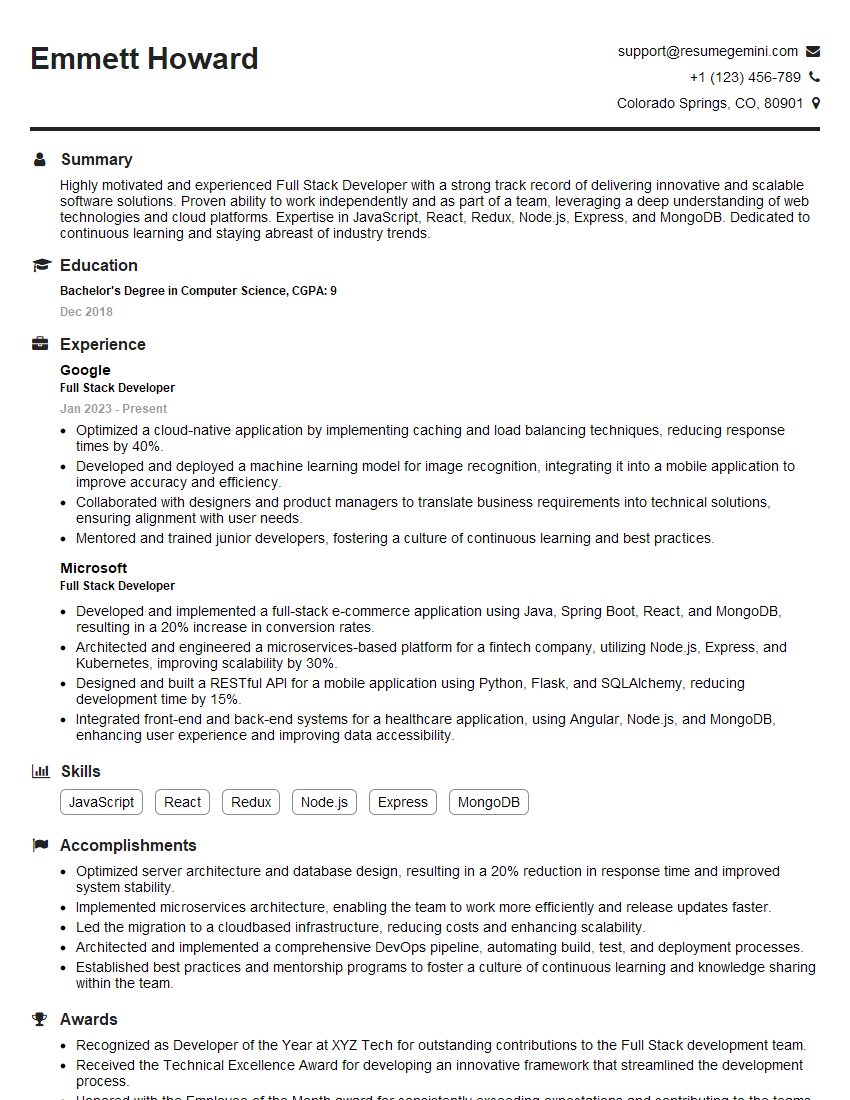
Full Stack Developer Resume Sample
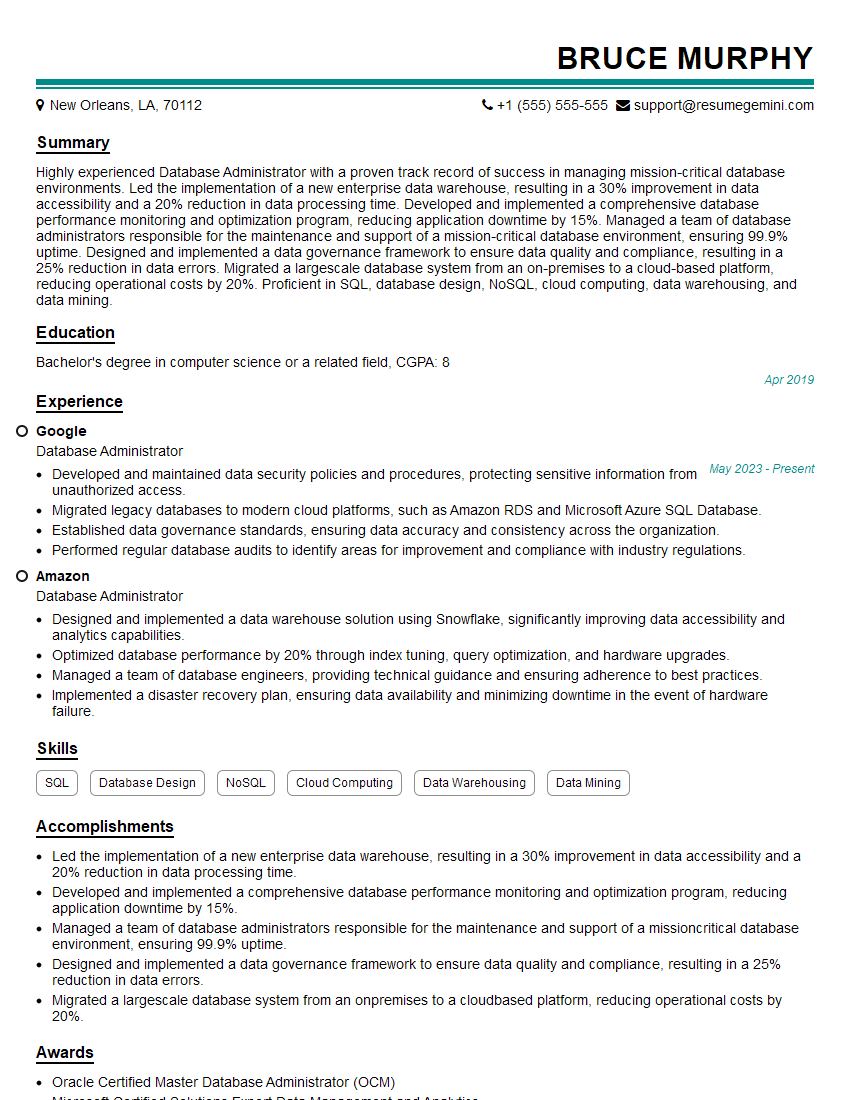
Database Administrator Resume Sample
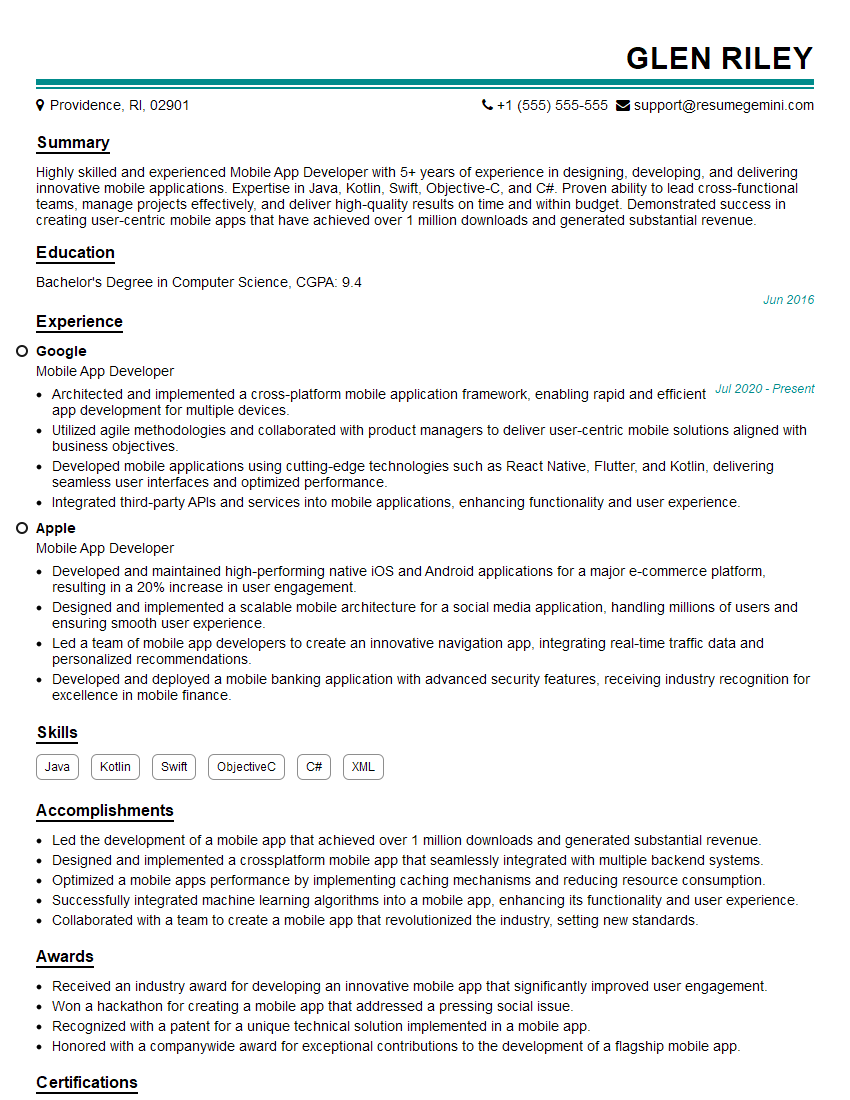
Mobile App Developer Resume Sample
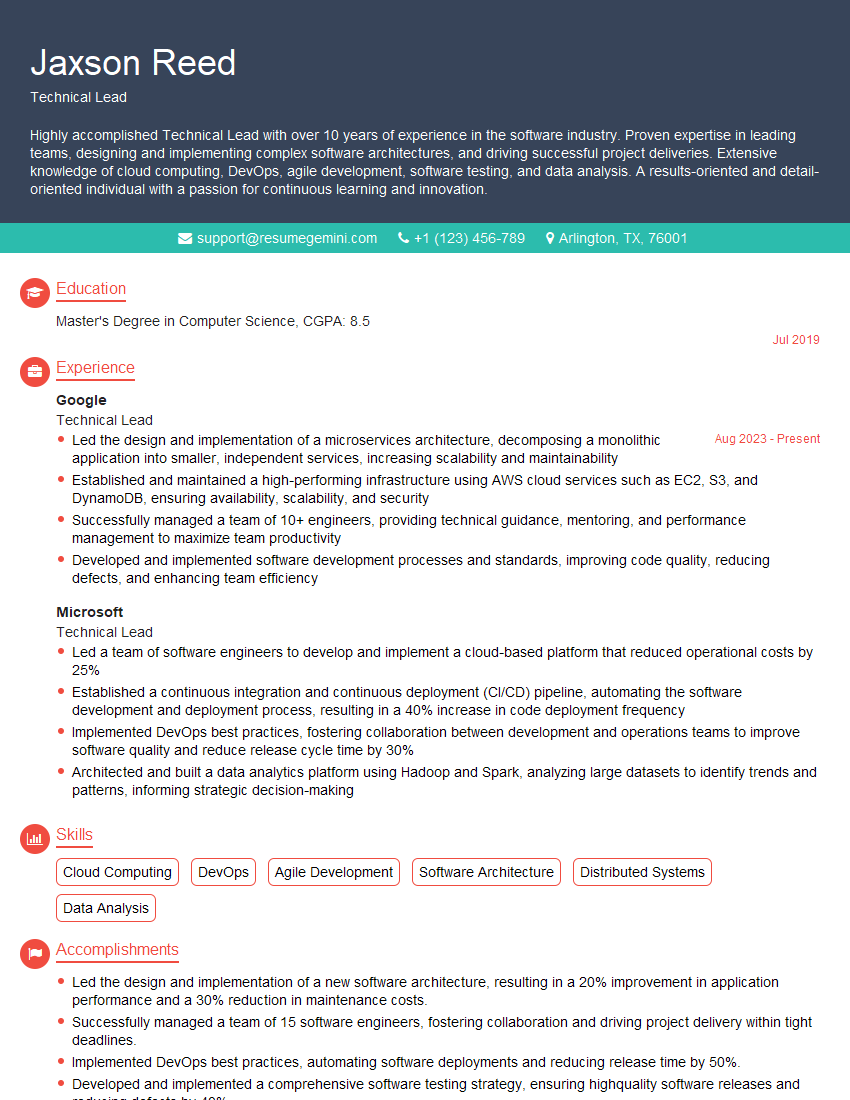
Technical Lead Resume Sample

DevOps Engineer Resume Sample
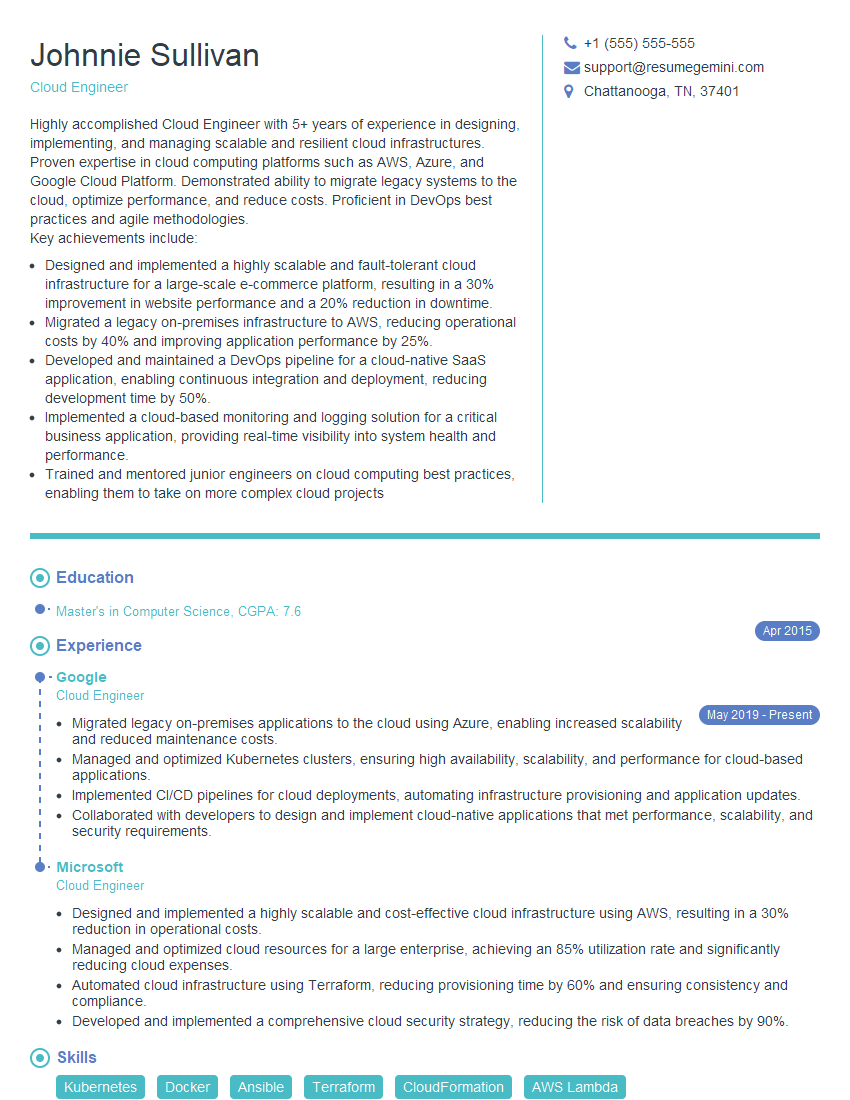
Cloud Engineer Resume Sample
- Software Engineer
- Software Architect
- Game Developer
- Software Developer
- Automation Engineer
- Configuration Manager
- Senior Software Engineer
- Web Developer
- System Administrator
- IT Manager
- Release Manager
- Quality Assurance Engineer
- Full Stack Developer
- Database Administrator
- Mobile App Developer
- Technical Lead
- DevOps Engineer
- Cloud Engineer
Explore more articles
Users Rating of Our Blogs
Share Your Experience
We value your feedback! Please rate our content and share your thoughts (optional).
What Readers Say About Our Blog
Very informative content, great job.
good