Feeling uncertain about what to expect in your upcoming interview? We’ve got you covered! This blog highlights the most important Xara Designer Pro interview questions and provides actionable advice to help you stand out as the ideal candidate. Let’s pave the way for your success.
Questions Asked in Xara Designer Pro Interview
Q 1. Explain the difference between raster and vector graphics in Xara Designer Pro.
In Xara Designer Pro, understanding the difference between raster and vector graphics is crucial for efficient design. Raster graphics, like JPEGs and PNGs, are made up of pixels arranged in a grid. Think of it like a mosaic – changing the size will result in pixelation or blurring. Vector graphics, on the other hand, are defined by mathematical equations that describe lines, curves, and shapes. Scaling a vector graphic doesn’t affect its quality; it remains sharp and crisp at any size. In Xara Designer Pro, you’ll often work with both. For example, a photograph imported into your design will be a raster image, while the text and logo you create within the program are vector-based. This distinction impacts file size, editing flexibility, and final output quality.
Q 2. Describe your experience using Xara Designer Pro’s drawing tools.
Xara Designer Pro’s drawing tools are incredibly powerful and versatile. I’ve extensively used the pen tool for creating intricate illustrations, the shape tools for building complex layouts, and the freehand tools for quick sketches. The program’s precision is impressive; I can achieve pixel-perfect accuracy when needed, but also easily create loose, expressive artwork. The non-destructive editing capabilities are a huge plus – I can modify shapes and paths without compromising the original artwork. For instance, I recently designed a complex logo involving several overlapping shapes, and the ability to easily adjust individual path points and fill attributes without affecting others saved me considerable time. I regularly utilize the snapping features for aligning objects and creating clean, symmetrical designs. The pressure sensitivity support enhances natural-looking strokes when using a graphics tablet.
Q 3. How do you manage layers effectively in a complex Xara Designer Pro project?
Managing layers effectively is vital in complex Xara Designer Pro projects. My approach involves a structured naming convention – I name layers descriptively (e.g., ‘Hero Image’, ‘Call to Action Button’, ‘Footer Text’) to maintain organization. I frequently group related layers together to streamline the workflow and reduce clutter. For example, all elements relating to a specific section of a brochure might be grouped under a parent layer. I use layer masks extensively to hide or reveal portions of layers, achieving non-destructive edits and maintaining flexibility. Color-coding layers can also improve visual clarity and enhance workflow speed. Finally, I regularly save my work, employing incremental saves (e.g., ‘Brochure_v1’, ‘Brochure_v2’) to prevent data loss and allow for easy version control.
Q 4. What are the different ways to create text effects in Xara Designer Pro?
Xara Designer Pro provides a plethora of ways to create stunning text effects. You can easily adjust font styles, sizes, kerning, and tracking. Beyond basic formatting, you can add outlines, shadows, and glows to text using the various effects options in the object properties. For more complex effects, you can use the shape tools to create custom text masks, or warp and distort text. Adding textures or gradients as fills can further enhance the appearance of text. Advanced users can utilize the powerful capabilities of the vector tools to create truly unique and eye-catching text effects. For example, I recently created a 3D-like effect on some text by carefully layering multiple copies with subtle variations in shadow and color. The possibilities are really limitless.
Q 5. Explain your workflow for creating a brochure in Xara Designer Pro.
My workflow for creating a brochure in Xara Designer Pro starts with planning. I create a rough sketch or wireframe to determine the layout and content placement. Then, I set up the document to the correct size and bleed settings. Next, I import and prepare my images, optimizing them for print resolution. I work with layers, grouping related elements together. I create the text elements, utilizing styles and effects as needed. I carefully place the text and images according to the wireframe, paying close attention to alignment, spacing, and visual hierarchy. I thoroughly check for spelling and grammar errors. Before exporting, I check the color profile and ensure all elements are correctly placed within the bleed area for professional printing. Finally, I export the document as a high-resolution PDF for printing.
Q 6. How do you optimize images for web and print in Xara Designer Pro?
Optimizing images for web and print requires different approaches. For web, I usually reduce image size to minimize page load times. I typically use formats like JPEG for photographs and PNG for graphics with transparency. I use Xara Designer Pro’s built-in compression options to reduce file size without significant quality loss. For print, I ensure the images have a resolution of at least 300 DPI to ensure crisp, high-quality output. I maintain the original image quality as much as possible and will use lossless compression for image formats if needed. I always export images at the correct resolution based on the intended print size. Choosing the right file format for the output destination is key for achieving optimal results.
Q 7. Describe your experience with Xara Designer Pro’s color management tools.
Xara Designer Pro’s color management tools are very helpful. I frequently work with color profiles (e.g., sRGB, Adobe RGB) to ensure color accuracy across different devices and output methods. The ability to convert color spaces and manage color profiles is crucial for consistency and avoiding color discrepancies between screen view and final print. I utilize the color picker and color palettes extensively, ensuring the chosen colors align with the project’s brand guidelines. I also often use the program’s color mixing tools to create custom colors and achieve precise color matching. Understanding color spaces and profiles is critical for producing professional results. I’ve personally relied on Xara Designer Pro’s color tools to resolve issues arising from discrepancies in color representation on different monitors, maintaining consistent color throughout projects.
Q 8. How do you use templates and styles effectively in Xara Designer Pro?
Templates and styles are crucial for efficient and consistent design in Xara Designer Pro. Think of templates as pre-designed canvases, providing a structured foundation for your project, saving you time on basic layouts. Styles, on the other hand, allow you to define consistent formatting (fonts, colors, effects) across your entire document. Changing a style updates all elements using that style instantly!
Effective Use:
- Start with a Template: Choose a template that closely matches your project’s needs. Xara offers a wide variety, from brochures to websites. This avoids reinventing the wheel with basic layout decisions.
- Create Custom Styles: Define your own styles for headings, body text, buttons, etc., ensuring visual unity. This is particularly important for branding consistency. For instance, create a ‘Heading 1’ style with a specific font, size, and color for all your main headings.
- Leverage Style Management: Xara’s style management tools allow easy modification and application of styles. A small change to a style automatically updates every element linked to it—saving hours of tedious manual editing.
- Organize Styles: Group related styles logically within style palettes for quick access and efficient management. This keeps things neat and easily searchable.
Example: I once designed a series of marketing flyers. Using a template accelerated the initial setup significantly. Creating custom styles for the company logo, headings, and body text guaranteed consistent branding across all flyers. If the client requested a logo color change, I only needed to update the logo style; every instance of the logo was updated automatically.
Q 9. What are your preferred methods for creating and editing vector shapes?
Creating and editing vector shapes in Xara Designer Pro is a breeze, thanks to its intuitive tools. I predominantly use the shape tools to create basic shapes (rectangles, circles, etc.), and then leverage the powerful node editing capabilities for more complex, custom forms. Vector graphics are scalable without losing quality – a huge advantage for print and web designs.
Preferred Methods:
- Shape Tools: I start with the basic shape tools to quickly create the foundational shapes. Xara provides many pre-set shapes, and it’s easy to customize their size and proportions using the property bar.
- Node Editing: For more intricate designs, I utilize node editing to precisely adjust curves and points. This enables the creation of organic shapes, logos, and illustrations with incredible flexibility. I can add, delete, and move nodes to refine the shape to my exact specifications.
- Shape Operations: Combining shapes using Boolean operations (union, intersect, subtract) is extremely helpful for creating complex, composite shapes from simpler ones. This is much faster than manually tracing intricate designs.
- Gradient Fills & Effects: Once the basic shape is ready, I often apply various gradient fills and effects (shadows, glows) to add depth and visual appeal.
Example: I recently designed a logo for a client. I started with basic shapes (circles and squares) and then used node editing to refine the curves and points, achieving the desired elegant and distinctive form. The ability to use gradients and shadows enhanced its overall visual quality.
Q 10. Explain your experience with Xara Designer Pro’s photo editing features.
Xara Designer Pro offers surprisingly robust photo editing capabilities. While not as comprehensive as dedicated photo editors like Photoshop, it provides enough tools for most design projects. It’s particularly strong in tasks that directly support design, such as image retouching for website banners or adjusting image colors for brochures.
Experience:
- Basic Adjustments: I regularly use tools for brightness, contrast, saturation, and sharpness adjustments for optimizing images within my designs. These are crucial for ensuring image quality and consistency.
- Image Cropping & Resizing: Precise cropping and resizing are essential. Xara’s tools enable non-destructive editing, meaning I can always revert to the original image if needed.
- Color Correction: Color correction tools help to achieve color harmony within the designs. Sometimes, images need subtle color adjustments to match the overall color scheme.
- Simple Retouching: For minor retouching, I use the clone tool and healing brush to remove blemishes or imperfections. Xara’s tools are sufficient for basic retouches but more complex tasks are better suited for dedicated photo editors.
Example: When designing a website banner, I often need to adjust the brightness and contrast of the hero image to ensure sufficient visibility against the background. Xara’s non-destructive editing workflow allows me to experiment freely without worrying about permanently altering the original image.
Q 11. How do you handle color separation for print projects in Xara Designer Pro?
Color separation in Xara Designer Pro is straightforward for print projects, primarily using the CMYK color mode. While Xara doesn’t offer advanced color management features found in dedicated prepress software, it is perfectly capable of generating print-ready files.
Handling Color Separation:
- CMYK Color Mode: Always work in CMYK mode from the beginning for print projects. This ensures that the final output accurately reflects the intended colors.
- Color Profiles: Select an appropriate color profile (e.g., ISO Coated v2 (ECI)) to ensure accurate color reproduction on your specific printing press. Consult your print shop for their recommendations.
- Proofing: Utilize Xara’s proofing options to simulate the printed output on screen. This helps avoid unpleasant surprises.
- High-Resolution Images: Ensure all images are high-resolution (at least 300 DPI) for optimal print quality.
- Overprinting: Exercise caution with overprinting, especially with dark colors, to avoid unexpected results. It’s usually best to explicitly define the interactions between colors.
Example: Before sending files to a print shop, I always convert my design to CMYK mode using the designated color profile recommended by the print shop. I then perform a soft proof to verify the color accuracy before finalizing the print-ready PDF.
Q 12. Describe your experience with creating interactive elements in Xara Designer Pro.
Xara Designer Pro’s capabilities for creating interactive elements are limited compared to dedicated web design software. It’s more suited for creating static designs, but it can handle simple interactive elements for specific applications.
Experience with Interactive Elements:
- Limited Interactivity: Xara’s primary strength is in creating visually appealing static graphics, not complex animations or web-based interactivity. It’s not a replacement for tools like Adobe Animate or After Effects.
- Simple Animations: You can create basic animations using the animation features, which are suitable for simple transitions or effects within a single document. However, complex animations aren’t feasible.
- Hyperlinks in PDFs: When exporting to PDF, you can add hyperlinks to various elements, allowing for simple navigation or connections to external resources. This is great for creating interactive PDFs for presentations or brochures.
Example: I’ve used Xara to create a PDF brochure with hyperlinks to the client’s website and contact information. While I wouldn’t use it for a full-blown interactive website, for simple navigation within a document, it’s perfectly adequate.
Q 13. How do you ensure consistency and accuracy in your designs using Xara Designer Pro?
Consistency and accuracy are paramount in design. In Xara Designer Pro, I achieve this through careful planning, efficient workflow, and effective use of its features.
Ensuring Consistency and Accuracy:
- Styles and Templates: As discussed earlier, using styles and templates is crucial. This ensures consistent branding and formatting throughout the project. Changes are updated instantly across all instances.
- Grids and Guides: Utilizing grids and guides is essential for maintaining precise alignment and spacing. This improves the visual appeal and readability of the designs.
- Layer Management: Proper layer organization is critical. Clearly named layers and layer groups prevent confusion and facilitate accurate editing.
- Non-Destructive Editing: Xara supports non-destructive editing, enabling revisions without permanently altering the original work. This gives flexibility during the design process.
- Regular Backups: Saving frequently and creating backups prevent loss of work due to unforeseen circumstances. This safeguards your progress and ensures project security.
Example: In a recent project involving multiple page layouts, I created a master page with style definitions and a grid system. This ensured design consistency across all pages. Any subsequent changes were effortlessly applied to all affected pages, ensuring visual consistency and project accuracy.
Q 14. How do you work with different file formats in Xara Designer Pro?
Xara Designer Pro supports a wide range of file formats, both for import and export. Understanding these capabilities is vital for smooth workflow and collaboration.
Working with Different File Formats:
- Import: Xara excels at importing various raster (JPEG, PNG, TIFF) and vector (AI, EPS, SVG) formats. It handles the conversion process efficiently, making it simple to incorporate images and illustrations from various sources.
- Export: Xara allows export to various formats including high-quality PDFs for print, optimized JPEGs for web, and PNGs for transparency support. The export settings allow for fine-tuning the output based on specific needs (resolution, compression, etc.).
- XAR (Native Format): Always saving the project in Xara’s native XAR format preserves all design elements and settings, facilitating further editing. This ensures no loss of quality or data when making changes later on.
- Format Selection: Choosing the right export format is critical. JPEG is suitable for web images, PNG is better for images with transparency, and PDF is the ideal format for print-ready files.
Example: I frequently import high-resolution images in TIFF format, then save the final design in PDF format for print. By working in XAR, I can always go back to the original file and make changes without losing quality. The ability to export to various formats ensures flexibility in how I deliver my finished work.
Q 15. What are some common troubleshooting issues you’ve encountered and resolved in Xara Designer Pro?
Troubleshooting in Xara Designer Pro often revolves around file corruption, unexpected behavior with objects, and issues with exporting. File corruption can manifest as inability to open a file or unexpected glitches in the display. I’ve resolved this by regularly saving my work (incremental saves and autosaves are crucial!), ensuring I’m working with the most recent version of the software, and sometimes resorting to file recovery tools specific to the file type (like those for .xar files). For unexpected object behavior, such as objects disappearing or refusing to select, I often find that checking the object’s layer, ensuring it’s not locked or hidden, and restarting the application solves the problem. Export issues usually stem from incorrect file settings or incompatibility with the target software. I carefully check the export settings, ensuring resolution, color profile, and file type are appropriate for the destination. If necessary, I’ll try saving in a more universally compatible format like PNG or PDF. In one project, a complex design repeatedly crashed on export; it turned out a corrupted embedded image was the culprit. Identifying and replacing that image solved the problem entirely.
Career Expert Tips:
- Ace those interviews! Prepare effectively by reviewing the Top 50 Most Common Interview Questions on ResumeGemini.
- Navigate your job search with confidence! Explore a wide range of Career Tips on ResumeGemini. Learn about common challenges and recommendations to overcome them.
- Craft the perfect resume! Master the Art of Resume Writing with ResumeGemini’s guide. Showcase your unique qualifications and achievements effectively.
- Don’t miss out on holiday savings! Build your dream resume with ResumeGemini’s ATS optimized templates.
Q 16. How do you use the Xara Designer Pro’s alignment and distribution tools?
Xara Designer Pro’s alignment and distribution tools are incredibly powerful for creating clean and professional designs. Think of them as your precision grid for ensuring visual harmony. The alignment tools allow you to quickly align selected objects to each other or to a guide. You can choose to align vertically (top, middle, bottom), horizontally (left, center, right), or both. The distribution tools space objects evenly between each other, horizontally or vertically. This is invaluable when creating things like image galleries or evenly-spaced text blocks. For instance, if I have five images and want them spaced equally across the page, I select them all, then use the ‘Distribute Horizontally’ option. The software automatically calculates the spacing needed and arranges the images accordingly. This dramatically speeds up my workflow compared to manual placement and calculation.
Q 17. Explain your familiarity with Xara Designer Pro’s animation features.
Xara Designer Pro’s animation capabilities aren’t as extensive as dedicated animation software like After Effects, but they’re surprisingly robust for creating simple, effective animations within the design itself. You can animate the position, size, rotation, and opacity of objects over a specified timeframe. This is perfect for creating short looping animations for websites or presentations. I often use keyframe animation—setting the starting and ending points of an animation, and Xara interpolates the frames in between. For example, I’ve created animations where a logo smoothly fades in, or a button subtly expands on hover. These animations add a touch of dynamism to otherwise static designs. While complex, multi-layered animations aren’t ideal in Xara, it’s a great tool for adding quick and effective micro-interactions to designs.
Q 18. Describe your approach to designing for different screen resolutions.
Designing for multiple screen resolutions requires a strategic approach that goes beyond simply resizing images. I utilize Xara’s responsive design features, where possible, depending on the final output destination. For web design, vector-based graphics and scalable fonts are essential. I make sure my layouts adapt well to different screen sizes, often employing techniques like fluid grids and relative units (percentages) for dimensions. For print design, on the other hand, I focus on creating designs that are high-resolution enough to be scaled down without significant loss of quality. I might create multiple versions of an image at different resolutions to optimize for different output devices, ensuring consistent visual quality across platforms. My approach often involves designing a base layout that works well at a central resolution, then carefully adjusting elements to accommodate variations in screen sizes. This iterative process minimizes distortions and ensures consistency.
Q 19. How do you utilize the Xara Designer Pro’s object manipulation tools?
Xara Designer Pro’s object manipulation tools are the heart of the design process. They allow for precise control over every aspect of your design. These tools include selecting, moving, resizing, rotating, grouping, and layering objects. Selecting objects is straightforward, using the selection tools to choose individual objects or groups. Moving objects is simple with the mouse, with snapping and alignment features available for pixel-perfect placement. Resizing is also intuitive and allows for maintaining aspect ratios or independent scaling. Rotation allows for precise adjustments to object angles. Grouping objects simplifies management of complex designs; it allows treating multiple elements as a single unit. Layering ensures objects appear in the correct order, creating depth and visual hierarchy. I constantly leverage these tools to adjust and refine elements, often experimenting with group-ungroup and layering changes to achieve the desired effect. In one project, precisely aligning multiple text boxes required careful use of the alignment tools combined with the snapping feature to ensure a flawless, professional look.
Q 20. What is your experience with exporting files from Xara Designer Pro for various purposes?
Exporting from Xara Designer Pro is crucial, and I’m proficient in using its export options for a variety of purposes. I regularly export files as PDFs for print projects or for clients who need high-quality vector graphics. For web use, I often choose PNG for images, opting for SVG for vector graphics to ensure scalability. I’ve also exported files as JPEGs when a smaller file size is needed, understanding the trade-off in quality. When exporting for the web, I carefully consider the resolution and file size to ensure optimal performance. For print projects, I use the correct color profile and resolution to guarantee accurate color reproduction. Over the years I’ve developed a checklist to avoid common mistakes such as incorrect color modes, resolutions, and file formats which can severely impact the quality of the final product. For example, ensuring that images intended for print use CMYK, not RGB, is crucial for matching client specifications and expectations.
Q 21. How familiar are you with Xara Designer Pro’s scripting capabilities?
My experience with Xara Designer Pro’s scripting capabilities is limited, as its scripting features are less extensive than those found in applications like Adobe Illustrator or Photoshop. While I understand the basic concept of automation through scripting and the potential it offers, I haven’t actively utilized it in my projects. I’m more familiar with using Xara’s built-in tools and features to achieve my design goals. However, I’m always open to learning new tools and techniques and could easily familiarize myself with the scripting features if a specific project required automation.
Q 22. Explain your experience with using Xara Designer Pro’s publishing features.
Xara Designer Pro’s publishing features are incredibly robust. I’ve extensively used them for creating everything from brochures and flyers to complex multi-page publications and even ebooks. The process is streamlined, allowing for efficient design and export.
For example, when designing a brochure, I leverage the program’s master pages to maintain consistency across all pages. This ensures that elements like headers, footers, and page numbers are automatically applied, saving significant time and effort. The ability to easily create and manage different document sizes (e.g., A4, US Letter) for various print projects is also invaluable. I often utilize the built-in pre-flight checking features to catch potential errors before sending to print, ensuring a smooth workflow. The export options, covering various formats like PDF, JPEG, and PNG, give me flexibility to deliver files in the client’s required format.
For more complex publications, I rely heavily on Xara’s text-handling capabilities, utilizing text frames, columns, and styles to create clean, professional layouts. The ability to easily import and edit external text files, such as those created in Microsoft Word, allows for collaboration with writers and editors seamlessly.
Q 23. How do you manage large and complex files in Xara Designer Pro?
Managing large and complex files in Xara Designer Pro involves a combination of techniques. First, I prioritize well-organized layers. Think of it like building with LEGOs—a disorganized pile is hard to work with. I meticulously name and group layers logically, which makes finding and editing specific elements incredibly easy. This is especially crucial in projects with hundreds of objects.
Secondly, I regularly save my work, frequently using incremental saves (e.g., ‘Project_v1’, ‘Project_v2’). This prevents catastrophic data loss and allows me to revert to earlier versions if needed. Xara’s efficient handling of large image files is essential. I often work with high-resolution images but optimize them for web or print before importing, keeping file size manageable. Occasionally, for exceptionally large files, I might break the project down into smaller, more manageable sections that are then later combined. This modular approach prevents performance issues and allows for easier collaboration among team members.
Q 24. Describe your experience with using the Xara Designer Pro’s collaborative tools.
While Xara Designer Pro doesn’t have built-in collaborative tools like real-time co-editing found in some cloud-based design programs, I overcome this by utilizing file-sharing services and version control. For example, I often use cloud storage (like Dropbox or Google Drive) to share project files with clients and collaborators. This allows for everyone to access the most up-to-date version. We use a strict versioning system (e.g., using numbered file names, clearly documented revisions) to track changes and avoid confusion. We also rely heavily on communication tools such as email or project management software to discuss design changes and feedback, making the collaborative process streamlined and effective.
Q 25. What are your preferred keyboard shortcuts in Xara Designer Pro?
My workflow heavily relies on keyboard shortcuts in Xara Designer Pro to boost efficiency. Some of my most frequently used shortcuts include:
Ctrl+Z(Undo): An absolute lifesaver!Ctrl+CandCtrl+V(Copy and Paste): For quick duplication and repositioning of elements.Ctrl+S(Save): Habitual saving prevents heartache.Ctrl+A(Select All): For applying effects or transformations to everything on the page.Shift+arrow keys(Precise object movement): For pixel-perfect alignment.V(Selection tool): Quickly switch back to selecting elements.M(Move tool): Frequently used for precise object manipulation.
I’ve customized my shortcuts to suit my style. The power lies not just in memorizing shortcuts, but in strategically using them to build a fluid workflow.
Q 26. How do you ensure your designs are accessible to users with disabilities in Xara Designer Pro?
Ensuring accessibility is paramount in my design process. In Xara Designer Pro, I achieve this by carefully considering several aspects. For example, I ensure sufficient color contrast between text and background elements to meet WCAG guidelines. Using Xara’s built-in tools, I can check contrast ratios to ensure legibility. I also use descriptive alt text for images. Alt text gives screen readers a textual description of the image’s content, allowing visually impaired users to understand the context. For text, I use appropriate font sizes and styles that are clear and easy to read, avoiding overly stylized fonts that can be difficult for some users.
Furthermore, I always ensure that navigation within a document is logical and intuitive, which aids users with cognitive disabilities. I avoid using purely visual cues for navigation and instead ensure that there’s clear textual indicators as well. While Xara Designer Pro might not have dedicated accessibility features as advanced as some other software, these mindful design choices ensure the final output is usable by a wider audience.
Q 27. How do you stay current with the latest developments in Xara Designer Pro?
Staying updated on Xara Designer Pro’s developments involves a multi-pronged approach. I regularly check the official Xara website for news, updates, and tutorials. Their blog and online forum are excellent resources for learning about new features and troubleshooting common issues. I subscribe to relevant design newsletters and follow industry blogs to stay informed about broader design trends and best practices applicable to Xara Designer Pro. Additionally, I actively participate in online communities and forums focused on graphic design to learn from the experience of other users. Staying engaged with the Xara community allows me to be aware of updates, share knowledge, and solve problems collaboratively.
Q 28. Describe a situation where you had to solve a design problem using Xara Designer Pro.
I once had a client who needed a series of infographics for a scientific report. The data was complex and the client wanted a visually compelling presentation. The challenge was to represent dense information in an easily digestible format, avoiding overwhelming the reader with too much detail.
My solution involved using Xara Designer Pro’s charting tools, creating several small, focused charts instead of one large, complex one. I incorporated a consistent color scheme and utilized icons and other visual elements to break up large blocks of text, making the information more scannable. I employed Xara’s powerful layering and grouping features to organize elements neatly. The final result was a set of infographics that effectively communicated complex data in a visually engaging manner, earning praise from the client for its clarity and impact.
Key Topics to Learn for Xara Designer Pro Interview
- Interface and Workspace: Mastering the Xara Designer Pro interface, including toolbars, palettes, and document management. Understanding workspace customization for optimal workflow.
- Vector Graphics: Creating and manipulating vector graphics, including shapes, paths, and text. Demonstrate understanding of vector editing principles and their advantages.
- Raster Graphics: Importing, editing, and manipulating raster images. Knowledge of image resolution, color modes (RGB, CMYK), and image optimization techniques.
- Page Layout and Design Principles: Applying design principles like typography, color theory, and visual hierarchy to create effective layouts for various projects (brochures, flyers, web banners).
- Text and Typography: Advanced text formatting, paragraph styles, and working with different fonts. Understanding kerning, tracking, and leading.
- Photo Editing Tools: Utilizing Xara Designer Pro’s photo editing capabilities, including adjustments, corrections, and special effects. Demonstrate proficiency in non-destructive editing.
- File Management and Export Options: Understanding different file formats (PDF, PNG, JPG, etc.) and choosing the appropriate format for different applications. Efficient file organization and export processes.
- Advanced Features: Explore advanced features such as interactive elements, animation, or specific plugins relevant to your target role. Showcase problem-solving skills using these features.
- Workflow and Efficiency: Demonstrate an understanding of efficient workflows, using shortcuts and optimizing processes for faster and more effective design.
- Troubleshooting and Problem Solving: Be prepared to discuss how you approach and resolve design challenges encountered while using Xara Designer Pro.
Next Steps
Mastering Xara Designer Pro significantly enhances your graphic design capabilities, opening doors to diverse and exciting career opportunities. To maximize your job prospects, crafting a strong, ATS-friendly resume is crucial. ResumeGemini is a trusted resource that can help you build a professional and impactful resume tailored to highlight your Xara Designer Pro skills. Examples of resumes specifically designed for Xara Designer Pro roles are available, showcasing the best ways to present your expertise. Invest time in building a compelling resume – it’s your first impression on potential employers.

Art Director Resume Sample

Creative Director Resume Sample

Web Designer Resume Sample
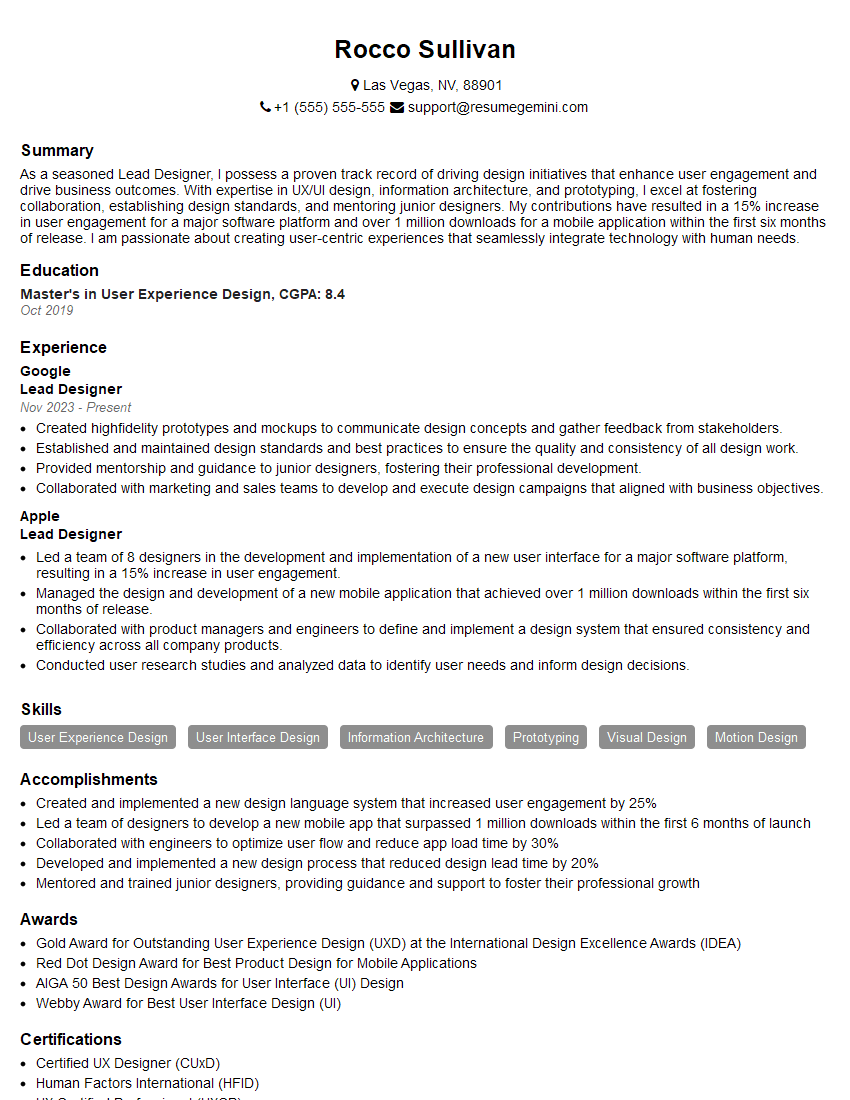
Lead Designer Resume Sample
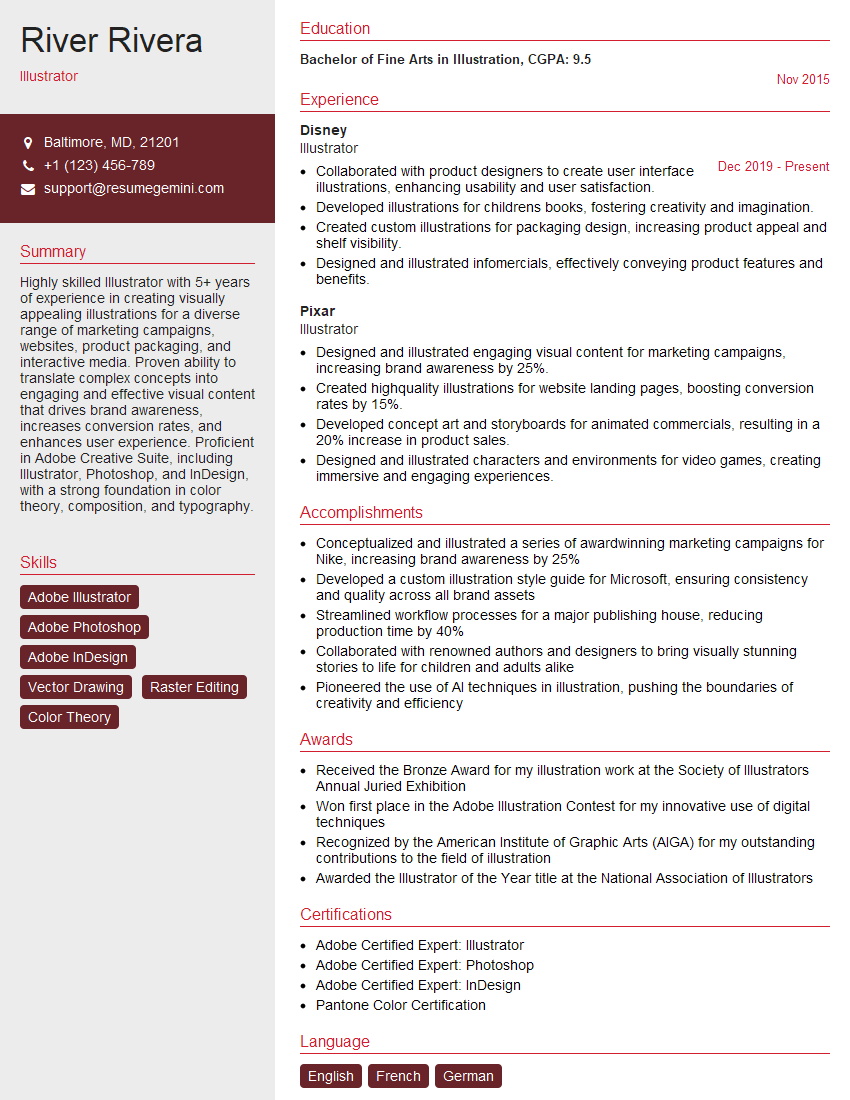
Illustrator Resume Sample

Graphic Designer Resume Sample
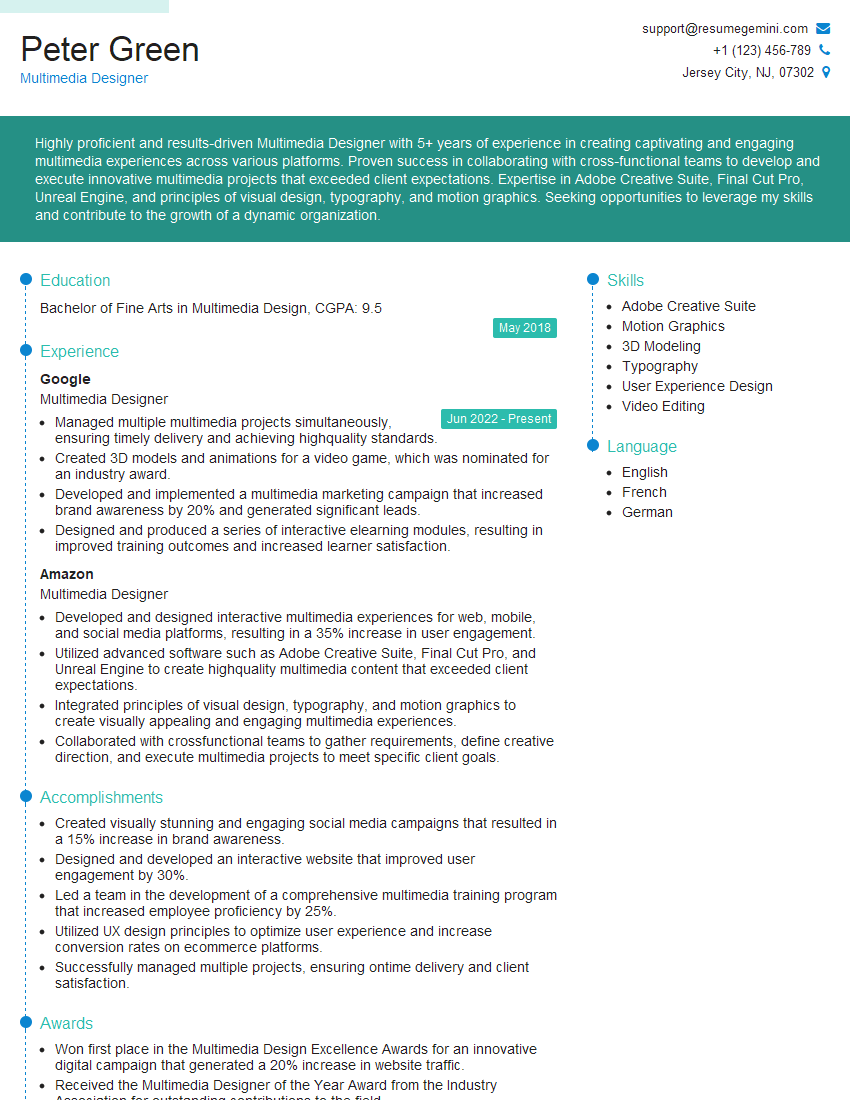
Multimedia Designer Resume Sample
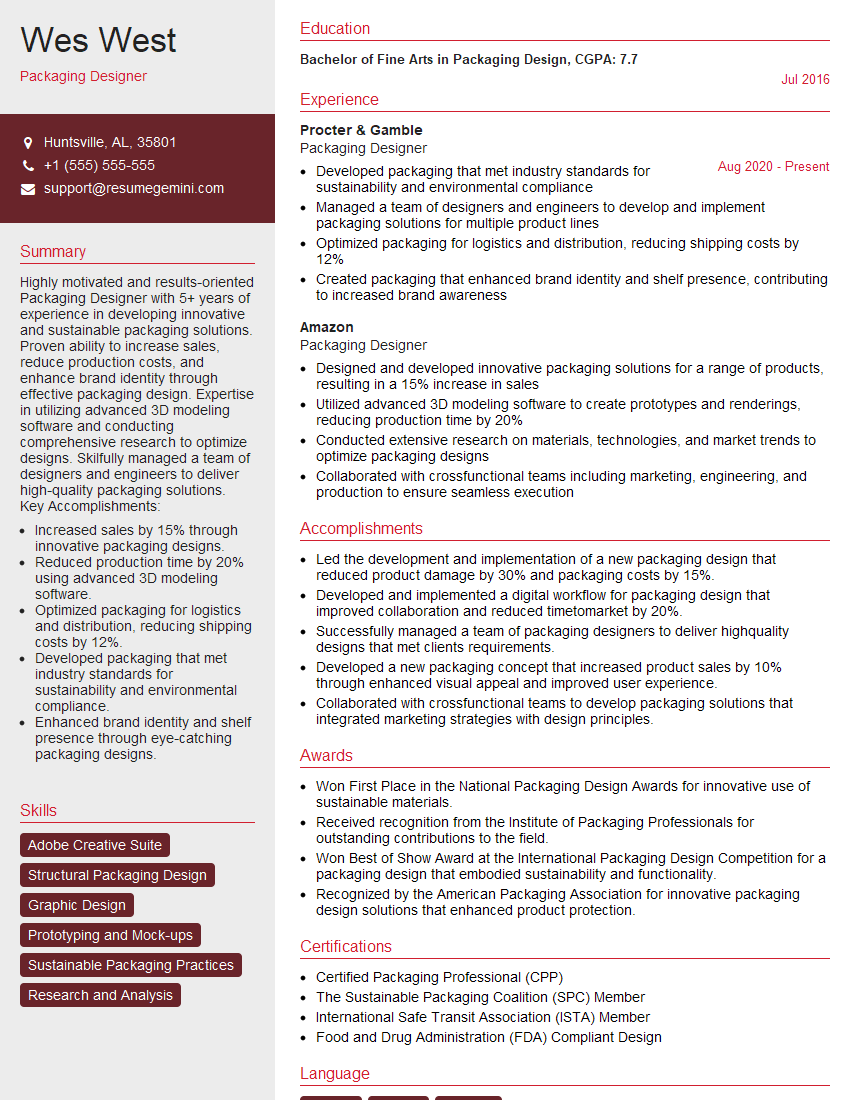
Packaging Designer Resume Sample
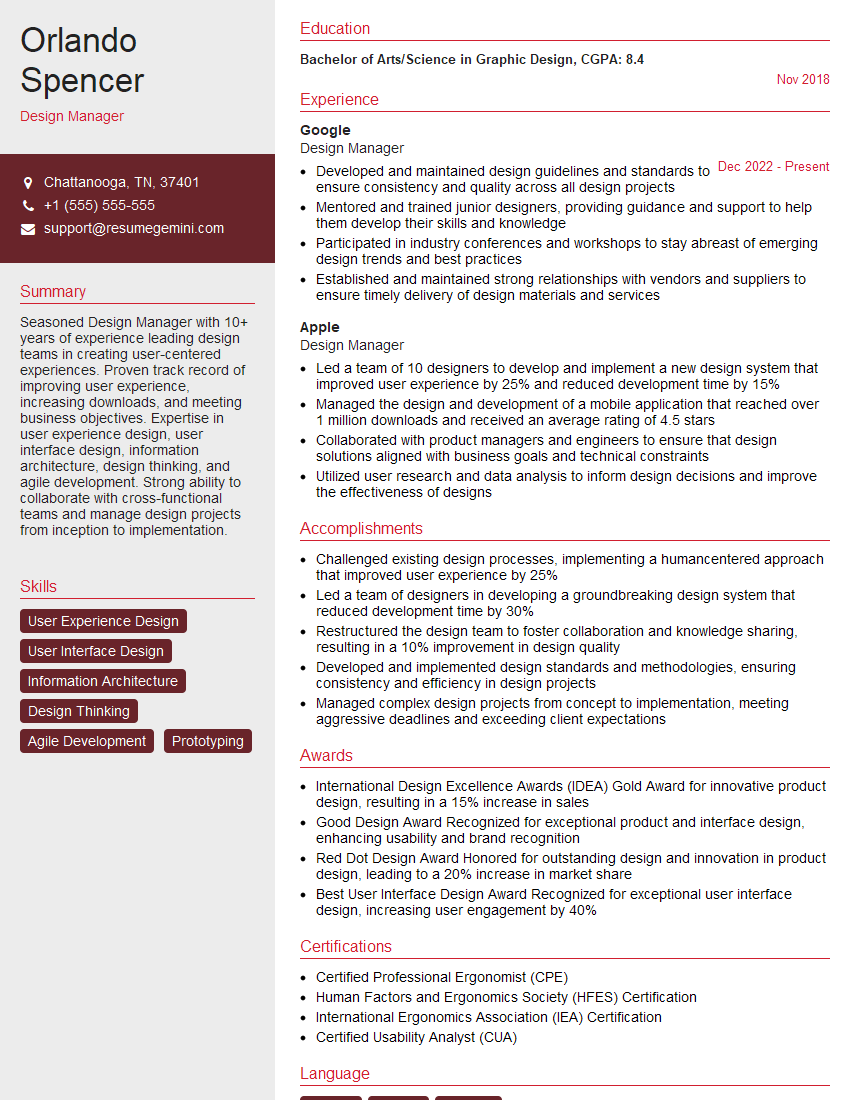
Design Manager Resume Sample
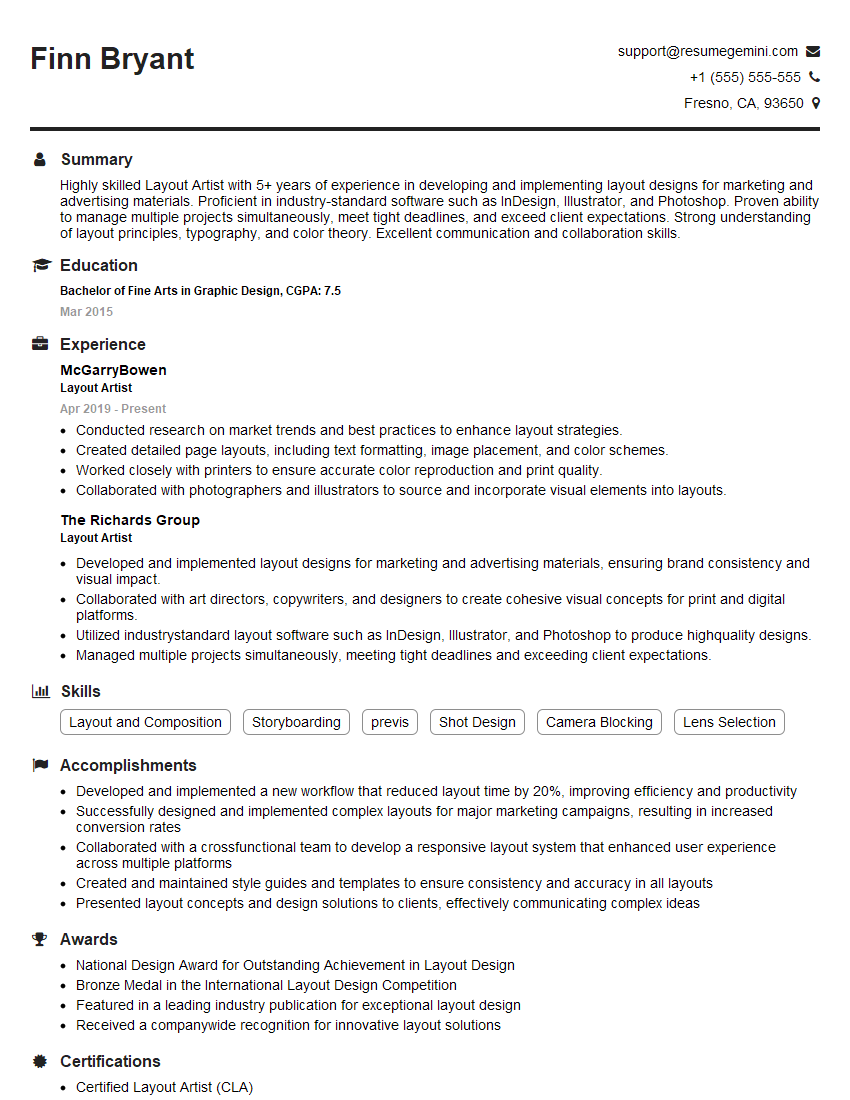
Layout Artist Resume Sample
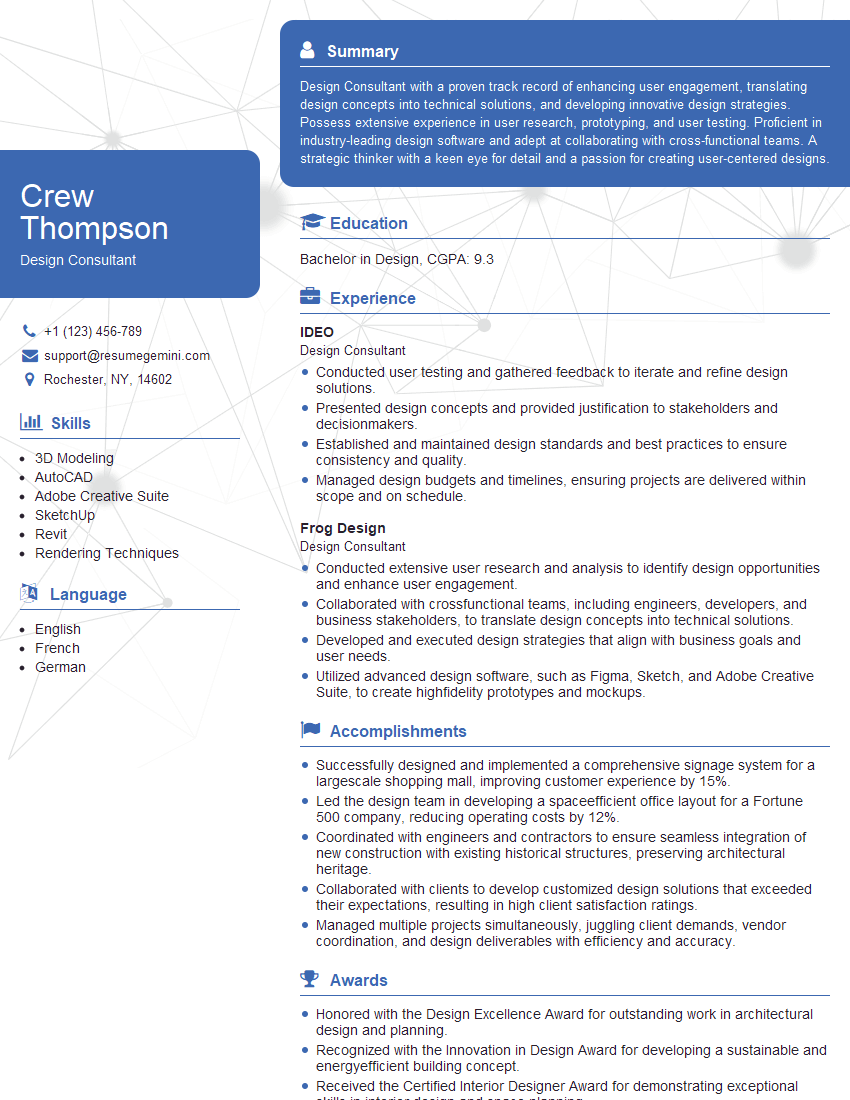
Design Consultant Resume Sample
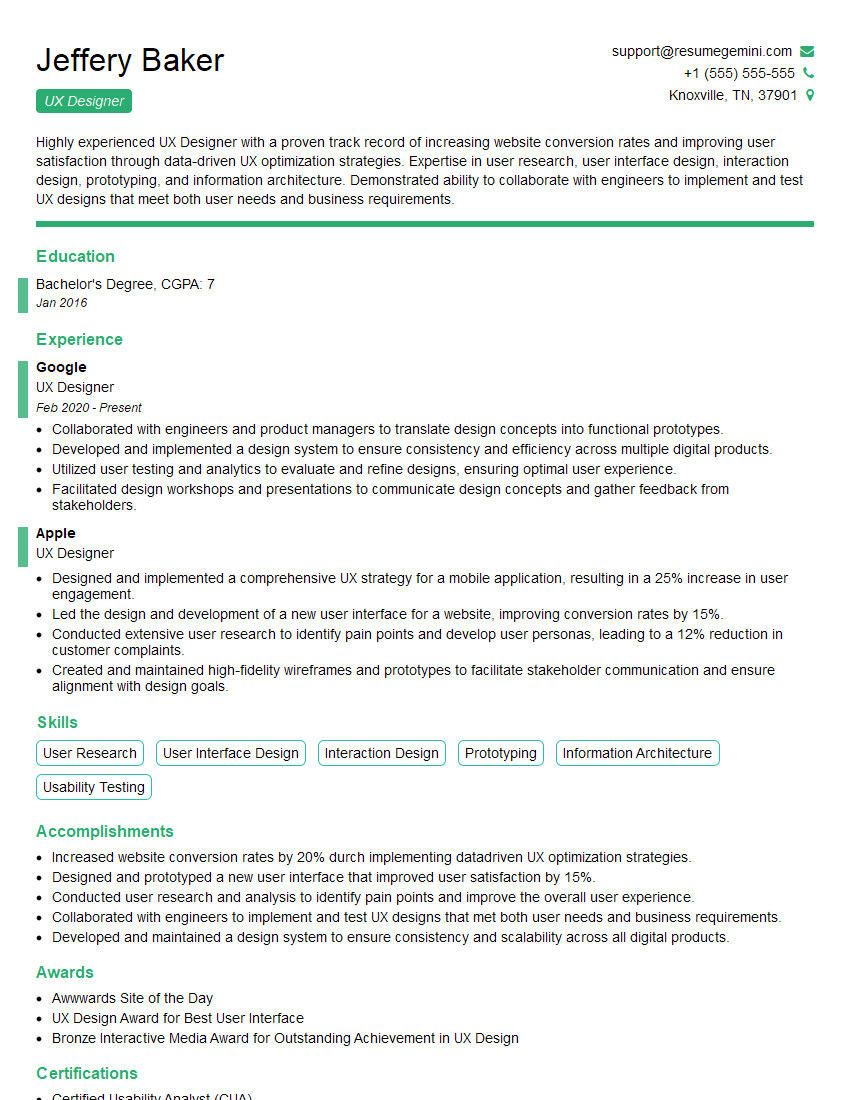
UX Designer Resume Sample
Explore more articles
Users Rating of Our Blogs
Share Your Experience
We value your feedback! Please rate our content and share your thoughts (optional).
What Readers Say About Our Blog
Very informative content, great job.
good