Preparation is the key to success in any interview. In this post, we’ll explore crucial Adobe Suite (e.g., Photoshop, Illustrator, InDesign) interview questions and equip you with strategies to craft impactful answers. Whether you’re a beginner or a pro, these tips will elevate your preparation.
Questions Asked in Adobe Suite (e.g., Photoshop, Illustrator, InDesign) Interview
Q 1. Explain the difference between raster and vector graphics.
Raster and vector graphics are two fundamentally different ways of representing images digitally. Think of it like this: raster graphics are like a mosaic, made up of tiny squares called pixels, while vector graphics are like blueprints, defined by mathematical equations.
Raster Graphics (e.g., JPEG, PNG, TIFF): These images are composed of a grid of pixels. Each pixel has a specific color value. Enlarging a raster image results in pixelation because you’re simply stretching those existing pixels. They are best for photographs and other images with complex color gradations.
- Advantages: Photorealistic, great for complex imagery, widely supported.
- Disadvantages: File sizes can be large, quality degrades upon scaling, not ideal for logos or scalable designs.
Vector Graphics (e.g., SVG, AI, EPS): These images are defined by paths, points, and curves. They are resolution-independent, meaning they can be scaled to any size without losing quality. They’re perfect for logos, illustrations, and designs that need to be resized repeatedly.
- Advantages: Scalable, small file sizes, sharp at any size, ideal for logos and illustrations.
- Disadvantages: Not ideal for photorealistic images, more complex to edit than raster images.
In essence, choose raster for photorealistic images and vector for scalable graphics and illustrations.
Q 2. What are the advantages and disadvantages of using Photoshop vs. Illustrator?
Photoshop and Illustrator are both powerful Adobe applications, but they excel in different areas. Photoshop is primarily a raster-based editor perfect for photo manipulation, retouching, and creating raster graphics, while Illustrator is a vector-based editor ideal for creating illustrations, logos, and designs that require scalability.
Photoshop Advantages: Superior for photo editing, retouching, and manipulating raster images; powerful tools for painting and digital art; extensive filter library.
Photoshop Disadvantages: Not ideal for creating scalable logos or illustrations; file sizes can be large; vector features are limited.
Illustrator Advantages: Creates scalable vector graphics; ideal for logos, illustrations, and designs requiring resizing without quality loss; precise control over shapes and paths.
Illustrator Disadvantages: Not as effective for photo editing and retouching; less intuitive for users primarily working with raster graphics.
For example, I’d use Photoshop to retouch a product photograph for an e-commerce website and Illustrator to create the logo for that same product.
Q 3. Describe your experience with color management in Adobe applications.
Color management is crucial for ensuring consistent color across different devices and outputs. In Adobe applications, I consistently use color profiles to manage color throughout the workflow. This involves setting up the correct color space (e.g., sRGB for web, CMYK for print) at the beginning of a project and ensuring that all linked files have a consistent color profile.
I frequently use Adobe’s color settings to assign a specific profile (like Adobe RGB or ProPhoto RGB for high dynamic range images) and then convert to a specific output profile (sRGB for web, or CMYK for print) during the final export stage. This ensures that the colors are correctly interpreted by the intended output device.
Furthermore, I regularly utilize soft proofing to visually check how the colors will appear on the target output, avoiding surprises during printing.
A common problem I address is ensuring accurate color representation when moving images between different color spaces. Mismatched profiles can easily lead to incorrect colors. Therefore, consistently monitoring and managing profiles is key.
Q 4. How do you optimize images for web and print?
Optimizing images for web and print requires different approaches due to the different output requirements. For web, the priority is file size to ensure fast loading times, while for print, the focus is on high resolution and color accuracy.
Web Optimization:
- Format: Use JPEG for photographs and PNG for graphics with sharp lines and transparency. Consider using WebP for superior compression.
- Compression: Use appropriate levels of compression to balance file size and image quality. Tools within Photoshop allow for fine-tuning this.
- Resolution: Resize images to their appropriate dimensions for the website. Avoid overly large images.
- Optimization Tools: Utilize tools like Photoshop’s Save for Web (Legacy) or Save for Web (Optimize) to fine-tune settings.
Print Optimization:
- Resolution: Use high resolutions (300 dpi is standard). Low-resolution images will appear blurry in print.
- Color Mode: Use CMYK color mode for print; RGB is for screen.
- File Format: TIFF or PDF are good choices for print, ensuring high quality and color accuracy.
- Color Management: Ensure proper color profiles are assigned and utilized.
For instance, I’d compress a 10MB product image down to 200KB for web usage while keeping a high-resolution version (perhaps at 300dpi) in TIFF for print purposes.
Q 5. What are some common keyboard shortcuts you use in Photoshop?
I rely heavily on keyboard shortcuts to boost my efficiency in Photoshop. Here are some of my most frequently used:
Ctrl+Z (Cmd+Z): UndoCtrl+S (Cmd+S): SaveCtrl+Alt+Z (Cmd+Option+Z): RedoCtrl+J (Cmd+J): Duplicate layerCtrl+T (Cmd+T): Free TransformCtrl++ (Cmd++): Zoom inCtrl+- (Cmd+-): Zoom outV: Move toolB: Brush toolM: Marquee toolL: Lasso tool[and]: Decrease/Increase brush size
Beyond these, I’ve customized my keyboard shortcuts to fit my workflow for quicker access to frequently used tools and functions.
Q 6. Explain your workflow for creating a multi-page brochure in InDesign.
My workflow for creating a multi-page brochure in InDesign is methodical and ensures a clean, organized project:
- Planning and Setup: Begin by planning the content and layout. Create a document with the correct page size, margins, and columns. I’ll often use a wireframe to outline the placement of elements.
- Master Pages: Create master pages to maintain consistency across all pages. This includes headers, footers, and page numbers.
- Content Creation/Import: Import text and images. If creating the copy myself, I do this before designing in InDesign.
- Layout and Design: Arrange content on the pages, using text boxes, image frames, and other design elements. I focus on visual hierarchy and clear communication of the information.
- Styles: Use paragraph and character styles for consistency. This allows me to make global changes quickly and easily.
- Color and Typography: Select appropriate colors and fonts consistent with brand guidelines.
- Proofreading and Review: Thoroughly proofread and review the final product before exporting.
- Export: Export the brochure as a high-resolution PDF for print or a digital version, choosing the appropriate settings for the target output.
Throughout this process, I regularly save my work and back it up to prevent data loss. My goal is a professional-looking, easy-to-navigate brochure.
Q 7. How do you create and manage layers effectively in Photoshop?
Effective layer management is paramount in Photoshop, preventing chaos and streamlining the editing process. My approach prioritizes organization and clarity:
- Naming Conventions: I use a consistent naming system (e.g., ‘Layer 1_Background,’ ‘Layer 2_Logo,’ ‘Layer 3_Text’). This makes identifying and manipulating layers much easier.
- Grouping Layers: For complex projects, I group related layers into folders. This keeps elements organized and improves workflow.
- Color-Coding: I occasionally use color-coding to visually differentiate layers, though clear naming is usually sufficient.
- Layer Visibility: I frequently toggle layer visibility (using the eye icon) to check the impact of different layers on the overall image.
- Layer Effects: I make use of layer styles and effects (like drop shadows and bevels) as much as possible to minimize the need for multiple layers for simple effects.
- Non-Destructive Editing: I always strive for non-destructive editing whenever possible, using adjustment layers and masks instead of directly editing the pixel layer. This allows for greater flexibility and control.
For example, when retouching a portrait photo, I create separate layers for skin retouching, hair adjustments, and color corrections, each clearly named and potentially grouped. This allows me to easily adjust each element independently without affecting the others.
Q 8. What are your preferred techniques for retouching photos in Photoshop?
My approach to photo retouching in Photoshop is multifaceted and depends heavily on the image and desired outcome. I prioritize a non-destructive workflow whenever possible, using adjustment layers and masks to retain maximum flexibility.
For basic corrections, I often start with the Camera Raw filter for global adjustments to exposure, contrast, white balance, and sharpening. This allows me to fine-tune the overall image before moving to more specific edits.
For blemish removal, I prefer the Healing Brush Tool and Clone Stamp Tool, carefully selecting sample areas to ensure a natural look. The Spot Healing Brush is great for quick fixes of small imperfections. I avoid over-retouching, aiming for a polished, yet realistic result.
More advanced techniques include using the Frequency Separation technique for detailed skin retouching, allowing for separate adjustments to texture and color, resulting in a smoother complexion without losing skin detail. I also frequently employ Dodge and Burn tools to subtly enhance features and create depth. Finally, I always finish with a careful sharpening step, often using the High Pass filter for controlled sharpening.
Q 9. Describe your experience with creating and editing vector artwork in Illustrator.
I have extensive experience working with vector artwork in Illustrator, from logo design to complex illustrations. I’m proficient in creating artwork from scratch using various tools like the Pen Tool (my personal favorite for precision), the Pencil Tool for quick sketches, and the Shape tools for geometric forms.
My workflow typically involves sketching initial concepts, refining them digitally, and meticulously organizing layers for easy editing and maintenance. I frequently utilize the Live Paint Bucket for filling complex shapes and paths efficiently. When working with existing raster images, I trace them using the Image Trace function to convert them into editable vector paths, optimizing them further to reduce file size without compromising quality. I also regularly utilize Blends to create smooth transitions between shapes and colors, and Symbols for efficient management of repeating elements.
Editing existing vector artwork involves mastering the use of various tools such as the Direct Selection Tool and the Group Selection Tool for precise modification of individual paths and groups. I’m comfortable manipulating paths, adjusting anchor points, and using the Appearance Panel for advanced styling and effects.
Q 10. How do you use masking techniques in Photoshop and Illustrator?
Masking is a crucial technique in both Photoshop and Illustrator, offering non-destructive editing capabilities. In Photoshop, I utilize layer masks extensively. These allow me to hide or reveal portions of a layer without permanently altering the underlying pixels. I often create masks manually using a brush, or by employing quick mask mode for more intuitive selection. Gradient masks are particularly useful for creating smooth transitions.
Clipping masks in Photoshop are another valuable tool; they allow me to constrain a layer’s visibility to the shape of another layer below, useful for applying textures or effects to specific areas.
In Illustrator, masking works differently. Instead of layer masks, we employ clipping masks, using shapes or paths to mask artwork contained within. This allows for precise control over which parts of the artwork are visible, and offers the flexibility to change or adjust the mask shape dynamically. This is essential for creating complex designs with overlapping elements.
Q 11. Explain the difference between CMYK and RGB color modes.
RGB (Red, Green, Blue) and CMYK (Cyan, Magenta, Yellow, Key [Black]) are two distinct color models used for different purposes. RGB is an additive color model, meaning colors are created by combining different intensities of red, green, and blue light. It’s the standard for screens (monitors, TVs, phones).
CMYK is a subtractive color model, used primarily for print. It works by subtracting colors from white light using cyan, magenta, yellow, and black inks. Since inks are opaque, the process is subtractive; the more ink, the darker the resulting color.
The key difference lies in their intended output: RGB for digital displays, CMYK for printed materials. Directly using an RGB file for print will often result in inaccurate color reproduction. Therefore, it’s crucial to convert images to CMYK before sending them to a printer, taking care to manage color profiles appropriately to avoid color shifts.
Q 12. How do you handle large files in Photoshop and Illustrator?
Handling large files efficiently is paramount for maintaining workflow speed and system stability. In Photoshop, I use techniques such as saving in a lossy format (like JPEG) if the image doesn’t require the detail of a lossless format (like TIFF or PSD). I also reduce image resolution to a size suitable for the intended purpose. Remember that a smaller image requires less processing power.
Using layers efficiently and merging layers when possible reduces file size. It is often helpful to group layers and organize them logically. For particularly large files, I might work on smaller sections separately, merging them only at the final stages.
In Illustrator, keeping the vector paths as simple as possible minimizes file size. I avoid overusing complex effects that bloat file size without significantly enhancing the visual appeal. Using symbols rather than repeating similar objects is extremely important for reducing file size. I consistently check for unnecessary points and paths to streamline the vector artwork and save file size without affecting the visual quality.
Q 13. What are your preferred methods for creating and exporting PDFs?
Creating and exporting PDFs is a crucial aspect of my workflow, ensuring optimal print quality and file compatibility. My preferred method involves using the Adobe PDF Print settings within the application (Photoshop, Illustrator, or InDesign). This provides precise control over various aspects such as compression, color space, and embedding fonts.
For print-ready PDFs, I select the Press Quality settings, ensuring proper color management, high resolution, and font embedding. For online distribution, the High Quality settings often suffice. I always preview the PDF before exporting to ensure that the final output matches my expectations. In InDesign, the PDF/X standards provide a standardized format for prepress workflows. I regularly use these standards to guarantee consistency and compatibility with print service providers.
I ensure all fonts are embedded, especially when sharing documents with others. I also check for image resolution and compression settings, optimizing them based on the final use. If the PDF is intended for online use, I might consider using compression techniques to reduce file size without compromising image quality.
Q 14. How do you use the Pathfinder panel in Illustrator?
The Pathfinder panel in Illustrator is a powerful tool for combining, subtracting, and manipulating vector shapes. It’s a cornerstone of my vector workflow. The panel offers several operations, each with specific effects:
- Unite: Combines multiple shapes into a single shape.
- Minus Front: Subtracts the topmost shape from the underlying shapes.
- Intersect: Creates a new shape representing the overlapping area of selected shapes.
- Exclude: Creates a shape by removing the overlapping areas from selected shapes.
- Divide: Splits intersecting shapes into multiple independent shapes.
I use the Pathfinder panel extensively for creating complex shapes from simple components. For example, I might use Minus Front to create a hole within a shape, or Unite to combine several shapes into a logo. Understanding these operations is crucial for efficiently creating intricate vector artwork.
Q 15. Describe your experience with creating and applying styles in InDesign.
In InDesign, styles are the backbone of efficient and consistent design. They allow you to apply formatting—like font, size, color, spacing, and paragraph rules—to multiple elements with a single click. Think of them as templates for text and paragraphs, ensuring uniformity throughout your document. Creating a style is straightforward; you simply select the formatted text, go to the Styles panel, and click the ‘Create New Style’ button. You can then name it descriptively (e.g., ‘Body Text,’ ‘Heading 1’). Applying a style is as easy as selecting the text and choosing the appropriate style from the Styles panel. This saves immense time and effort, especially in large documents or when making global changes. For instance, if I need to change the font of all my headings, I simply update the ‘Heading 1’ style, and all instances are automatically updated. This also ensures brand consistency, crucial for marketing materials.
Beyond basic paragraph and character styles, InDesign offers nested styles, allowing you to combine multiple styles within a single style. This is extremely useful for complex layouts. For example, I could create a nested style for a bulleted list where the bullet style is linked to a specific character style and the list item text to a specific paragraph style. This modularity makes maintenance and updates incredibly efficient.
Career Expert Tips:
- Ace those interviews! Prepare effectively by reviewing the Top 50 Most Common Interview Questions on ResumeGemini.
- Navigate your job search with confidence! Explore a wide range of Career Tips on ResumeGemini. Learn about common challenges and recommendations to overcome them.
- Craft the perfect resume! Master the Art of Resume Writing with ResumeGemini’s guide. Showcase your unique qualifications and achievements effectively.
- Don’t miss out on holiday savings! Build your dream resume with ResumeGemini’s ATS optimized templates.
Q 16. How do you work with text and typography in InDesign and Illustrator?
Text and typography are fundamental to both InDesign and Illustrator, though their applications differ slightly. In InDesign, typography is crucial for readability and visual hierarchy in documents. I leverage InDesign’s powerful typographic controls, like kerning (adjusting space between individual letters), tracking (adjusting space between all letters in a word), leading (space between lines), and justification, to craft clean and visually appealing text. I often create character and paragraph styles to maintain consistency. For instance, I might create a style for body copy with specific font, size, leading, and paragraph spacing, and another style for headings with a different font, size, and weight.
In Illustrator, typography plays a more artistic role. While precision is still important, the focus shifts towards creating visually striking artwork. I use Illustrator to design logos, create typographic illustrations, or generate text-based patterns. The advantage is the ability to manipulate individual glyphs (characters) and shape the text itself as a vector graphic, allowing for creative freedom not usually possible in InDesign. For example, I might use Illustrator to distort or manipulate text for a poster or logo design. Often, I’ll create the text in Illustrator and then import it as a high-resolution image into InDesign for seamless integration into the final layout.
Q 17. What are your preferred techniques for creating effective layouts?
Effective layouts hinge on strong visual hierarchy, balance, and whitespace. My approach often involves a combination of grid-based design and intuitive arrangement. I start by establishing a strong grid system within InDesign to ensure consistent proportions and visual harmony. This grid acts as a foundation for positioning elements effectively. It’s not about rigidly adhering to the grid, but using it as a guide to maintain structure and balance.
I employ the rule of thirds, aligning important elements along these intersecting points for visual interest. Whitespace (negative space) plays a crucial role; it doesn’t just mean empty space, but strategically placed areas that help elements breathe and prevent the design from feeling cluttered. I carefully consider the visual weight of different elements and use visual cues—like size, color, and contrast—to guide the reader’s eye. Ultimately, I prioritize clarity and readability, ensuring the information is easily accessible and engaging. For example, when designing a brochure, I’ll strategically place key information using the grid, rule of thirds, and sufficient whitespace for optimal readability.
Q 18. Explain your experience with using Adobe Bridge.
Adobe Bridge is my indispensable digital asset manager. I use it daily to browse, organize, and preview files from various Adobe applications and other sources. It’s like a centralized file system for all my creative projects. I particularly appreciate its powerful search and filtering capabilities. For instance, I might search for all images with a specific keyword in their metadata, or filter images based on file type, date, and even color information. This makes finding the right asset incredibly efficient.
Beyond browsing, Bridge allows for batch processing. I can rename files, convert them to different formats, or even add metadata to multiple images at once. It also integrates directly with other Adobe apps, streamlining the workflow. I might use Bridge to quickly preview several images and then drag-and-drop them directly into my InDesign document. This streamlined approach minimizes time spent searching for files and allows me to focus on design.
Q 19. How do you use smart objects in Photoshop?
Smart Objects in Photoshop are incredibly powerful for non-destructive editing. They allow you to embed images or other layers into a Photoshop document as linked files, instead of embedding them directly. Think of them as containers that preserve the original image quality. If you edit the original file, the changes automatically reflect in the Smart Object within your Photoshop document. This is a huge advantage for maintaining image resolution and simplifying complex projects.
For instance, if I’m designing a website banner and I need to use a logo, I can embed the logo as a Smart Object. If the logo needs to be updated later, I only need to change the original logo file; the update will automatically propagate to all instances of the Smart Object within the Photoshop document. It eliminates the need to manually update every instance of the logo, saving significant time and effort and guaranteeing consistency. Smart Objects are also extremely useful for complex image manipulations where you can apply filters and adjustments without losing original image data.
Q 20. Describe your experience with working with different file formats (e.g., PSD, AI, INDD, JPG, PNG, SVG).
Understanding different file formats is crucial for efficient collaboration and workflow. Each format has its strengths and weaknesses. .PSD (Photoshop Document) is ideal for layered images allowing for easy editing. .AI (Adobe Illustrator) is perfect for vector graphics which scale without loss of quality. .INDD (InDesign Document) is designed for complex layouts and typography. .JPG is widely compatible, but loses quality with compression. .PNG supports transparency, making it useful for logos and graphics. .SVG is a vector format suitable for web graphics, scalable without losing sharpness.
In my work, I seamlessly transition between these formats, choosing the most appropriate one for the specific task. I might start with a vector logo in .AI, then export it as a .PNG for use in a web design project created in Photoshop (.PSD) before integrating it into an InDesign layout (.INDD) for final print. Understanding the characteristics of each format and converting between them efficiently is a vital skill for any graphic designer.
Q 21. How do you ensure color consistency across different Adobe applications?
Maintaining color consistency across Adobe applications is critical for professional results. I achieve this primarily through the use of color profiles and color management. Each Adobe application has its own color settings, and it’s essential that these are configured correctly to ensure that colors appear accurately across different monitors and printing processes. Using a consistent color profile, such as sRGB for web and Adobe RGB for print, is the first step.
I also leverage Adobe’s color libraries or create my own custom color palettes to guarantee uniformity across projects. The ability to create and save custom color palettes and utilize them throughout the different Adobe applications is instrumental for consistency. These palettes can then be applied to various elements of a design, from text to images and shapes. For instance, if I’m working on a branding project, I would create a custom color palette in one application (like Illustrator) and then import that same palette into InDesign and Photoshop to ensure brand color consistency. By employing these strategies, I avoid unexpected color shifts and ensure that my designs are accurately represented regardless of the software used or the output method.
Q 22. Describe your experience with print production workflows.
My experience with print production workflows encompasses the entire process, from initial design conception to final press output. This involves a deep understanding of color management, file preparation, pre-flighting, and proofing. I’m proficient in preparing files for various printing methods, including offset, digital, and large-format printing.
For example, when preparing a design for offset printing, I meticulously check for bleed, color spaces (typically CMYK), resolution (at least 300 DPI), and font embedding to ensure optimal print quality. I use pre-flight tools within Adobe InDesign and Acrobat Pro to identify and resolve potential issues before sending the files to the printer. This proactive approach saves time and avoids costly reprint errors. I also understand the importance of creating printer-ready PDFs with appropriate settings for color profiles, compression, and trapping to achieve the desired results.
In the digital printing realm, I’m equally adept at preparing files for various substrates and printers, ensuring the resolution and color profile are suitable for the specific printer and material being used. Large-format printing often requires unique considerations, such as tiling large images and ensuring appropriate file sizes to avoid print errors. My workflow consistently incorporates these crucial checks for each print method to guarantee a smooth and successful print job.
Q 23. How do you troubleshoot common problems encountered in Adobe applications?
Troubleshooting in Adobe applications often involves a systematic approach. My first step is to identify the specific error message or unexpected behavior. Then, I systematically eliminate potential causes.
- Restart the Application: Often the simplest solution, a restart clears temporary files and memory issues.
- Update Software: Outdated software can cause compatibility problems and bugs. Regularly updating Adobe apps is crucial.
- Check Preferences: Incorrect settings can lead to unexpected results. Resetting preferences to default values can help isolate problems caused by incorrect configuration.
- Memory and Performance: High memory usage can lead to crashes. Closing unnecessary applications, increasing RAM, and adjusting performance settings can address this.
- Font Issues: Corrupted or missing fonts are a common cause of errors, particularly in InDesign. Checking font integrity and replacing problematic fonts can resolve these issues.
- File Corruption: Sometimes, the file itself is corrupted. Trying to open it in a different application or saving a copy can sometimes resolve this.
- Compatibility: Older versions of Adobe software might not be compatible with newer file formats or operating systems. Using the latest versions is often the solution.
If the problem persists, I’ll usually search the Adobe support website or community forums for solutions. Sometimes, a simple online search can reveal a common fix.
Q 24. What are your preferred methods for organizing your files and projects?
Organization is paramount to my efficiency. I use a hierarchical folder structure for all my projects. Each project has its own folder containing subfolders for source files (photos, illustrations, etc.), working files (Photoshop PSDs, Illustrator AI files, InDesign INDDs), final files (PDFs, JPEGs), and any relevant documents.
For example, a project folder might look like this: Project Name/Source Files/Working Files/Final Files/Documents. I use clear and descriptive naming conventions for files, avoiding special characters and sticking to a consistent pattern (e.g., ‘ProjectName_v01.indd’). Within InDesign, I utilize layers, master pages, and styles effectively to maintain order and consistency throughout the document. I also regularly back up my work to a cloud storage service to prevent data loss.
Q 25. Describe your experience with using actions and scripts in Photoshop.
Actions and scripts are invaluable time-savers in Photoshop. I use them extensively to automate repetitive tasks, improving efficiency and consistency. I’ve created custom actions for tasks like batch resizing images, applying specific filters and adjustments, creating web-ready graphics with consistent sizes, and applying watermarking to images.
For instance, I have an action that automatically resizes a set of images to specific dimensions (e.g., 1920 x 1080 pixels), sharpens them using a specific algorithm, converts them to sRGB color space and saves them as optimized JPEGs. This saves considerable time compared to performing these steps manually for each image. I’m also familiar with JavaScript and can write basic scripts to extend Photoshop’s functionality, such as automating complex tasks that cannot be easily achieved with actions alone.
Q 26. How do you create interactive elements using Adobe software?
Creating interactive elements primarily involves using Adobe Animate and sometimes incorporating interactive features within InDesign or Acrobat. Adobe Animate allows for the creation of rich animations, interactive content, and even simple games. Within InDesign, interactive elements can be created using buttons, hyperlinks, and interactive forms, often for creating PDFs for e-books, online brochures, or interactive presentations.
For example, I’ve created interactive PDFs for clients using InDesign where clicking a button navigates to a different page, plays an embedded audio clip, or opens a hyperlink to a website. In Animate, I’ve developed more complex interactive elements, such as an animated banner ad with mouse-over effects and transitions.
Q 27. What are some best practices for working with fonts in Adobe applications?
Working with fonts effectively involves several best practices. First, always ensure you have the proper licenses for the fonts you use. Second, embed fonts in your final PDF documents, particularly when sending files for print, to avoid font substitution problems. Third, consistently use styles and character styles within InDesign to maintain uniformity and easily make global font changes.
Avoid using too many different fonts in a single project. A limited font palette generally leads to cleaner, more professional designs. Using font management software can help organize and manage your font library efficiently. Lastly, always check for font conflicts or missing fonts before exporting or sending the files to print. A pre-flight check will help identify any font-related issues, ensuring the final product appears as intended.
Q 28. How do you stay updated on the latest Adobe software features and updates?
Staying updated on the latest features is a continuous process. I regularly check the Adobe website for announcements and updates. I follow Adobe’s blogs and social media channels for news and tutorials. I actively participate in online design communities and forums where users often share tips and tricks about new functionalities. Attending webinars and online workshops offered by Adobe or third-party instructors provides in-depth knowledge about new features and best practices. Regularly experimenting with new features in my personal projects helps me understand their capabilities and practical applications.
Key Topics to Learn for Adobe Suite (e.g., Photoshop, Illustrator, InDesign) Interview
- Photoshop:
- Layer Management: Understanding layer styles, blending modes, and masks for complex image manipulation.
- Image Retouching: Mastering techniques for blemish removal, color correction, and enhancing image quality.
- Non-Destructive Editing: Employing techniques to preserve original image data while making edits.
- Illustrator:
- Vector Graphics: Understanding the principles of vector art and its advantages over raster graphics.
- Pathfinding & Shape Building: Proficiently using tools to create complex shapes and illustrations.
- Color Theory & Application: Applying color palettes effectively for consistent brand identity.
- InDesign:
- Master Pages & Layouts: Creating efficient and consistent layouts for documents of varying lengths.
- Typography & Text Formatting: Understanding typography principles and applying them for readability and visual appeal.
- Preflight & Packaging: Preparing files for print or digital distribution.
- Cross-Application Workflow:
- Understanding how to effectively transfer assets between Photoshop, Illustrator, and InDesign for seamless projects.
- File formats and their compatibility across the Adobe Suite.
- Problem-Solving & Workflow:
- Troubleshooting common issues and finding efficient solutions.
- Demonstrating an understanding of efficient workflows to maximize productivity.
Next Steps
Mastering the Adobe Creative Suite is crucial for a successful career in design, opening doors to exciting opportunities in various industries. To stand out, craft an ATS-friendly resume that highlights your skills and experience effectively. ResumeGemini is a trusted resource to help you build a professional and impactful resume that showcases your Adobe Suite proficiency. Examples of resumes tailored to Adobe Suite (e.g., Photoshop, Illustrator, InDesign) expertise are available to guide you. Take the next step towards your dream career!

Art Director Resume Sample

Creative Director Resume Sample

Web Designer Resume Sample
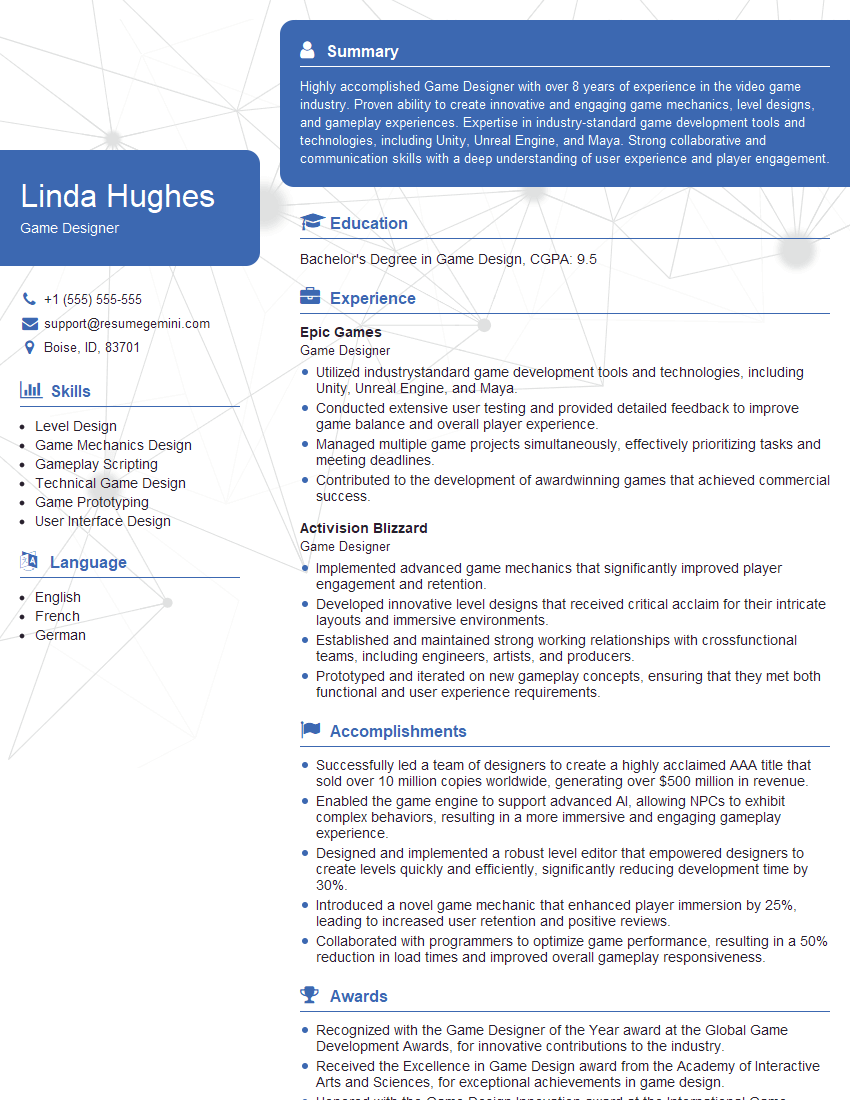
Game Designer Resume Sample
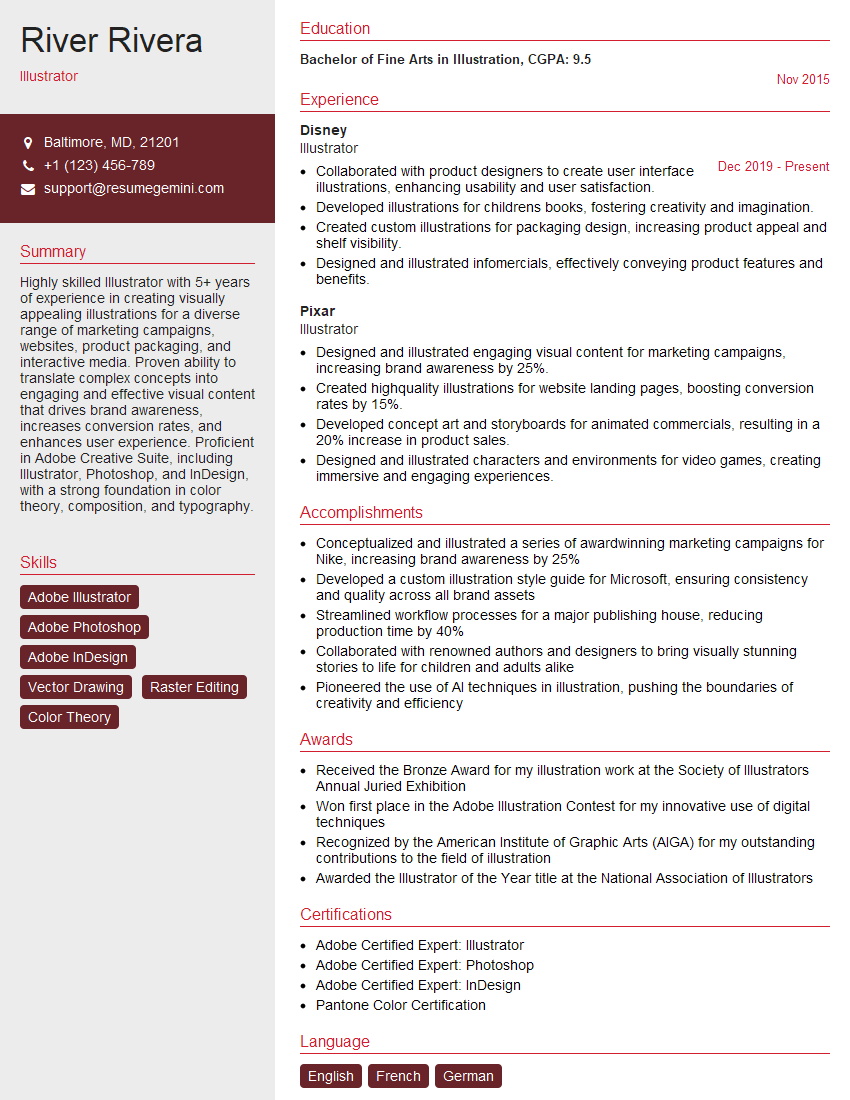
Illustrator Resume Sample

Graphic Designer Resume Sample
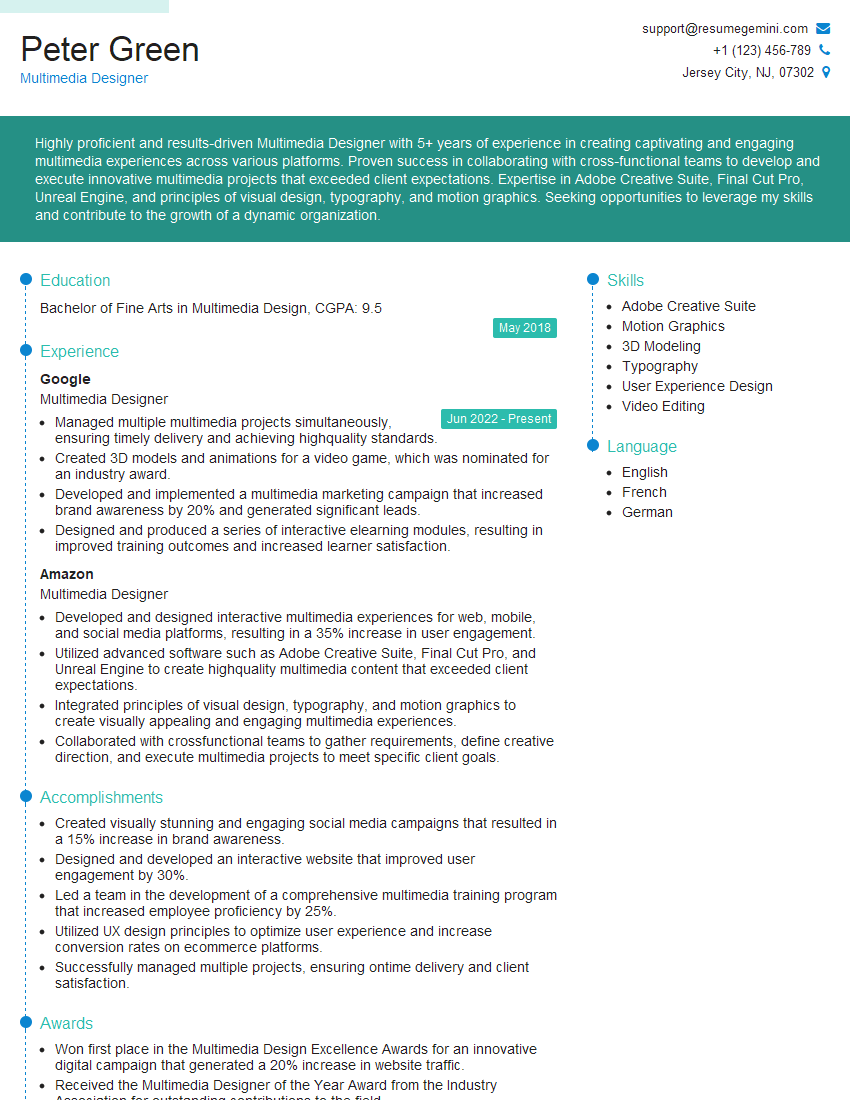
Multimedia Designer Resume Sample
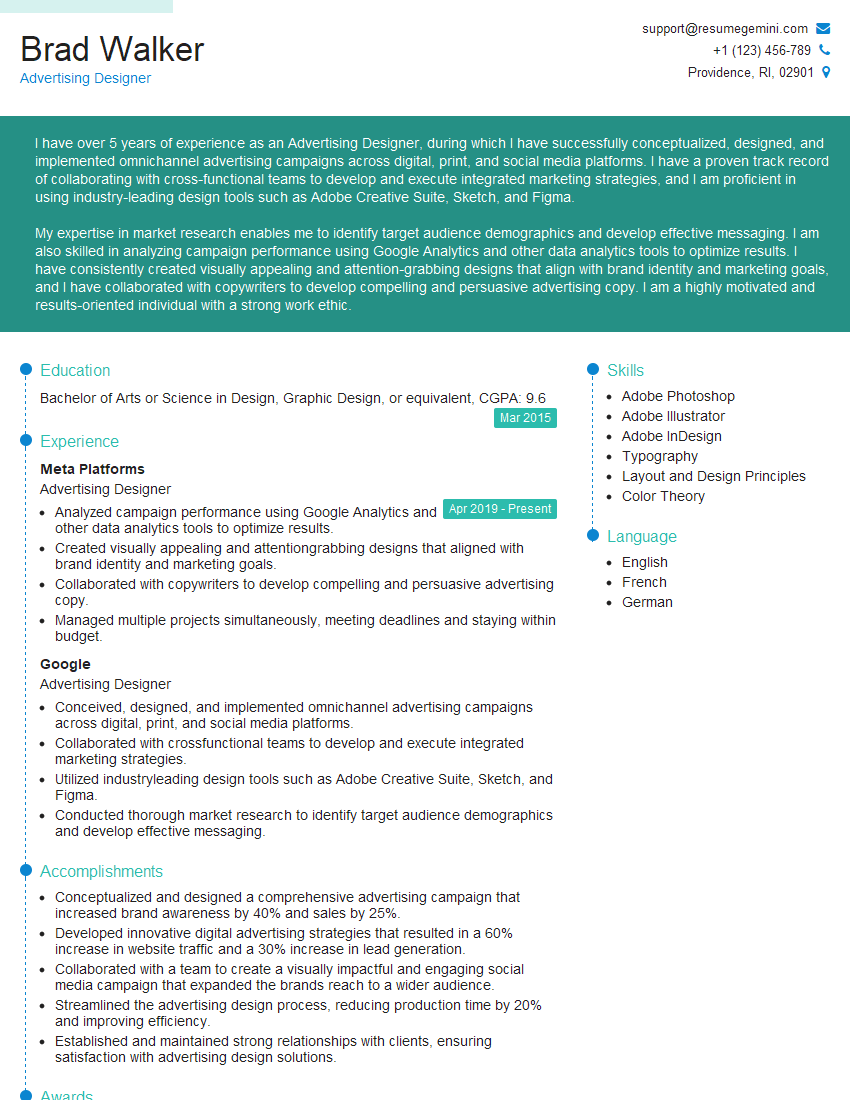
Advertising Designer Resume Sample
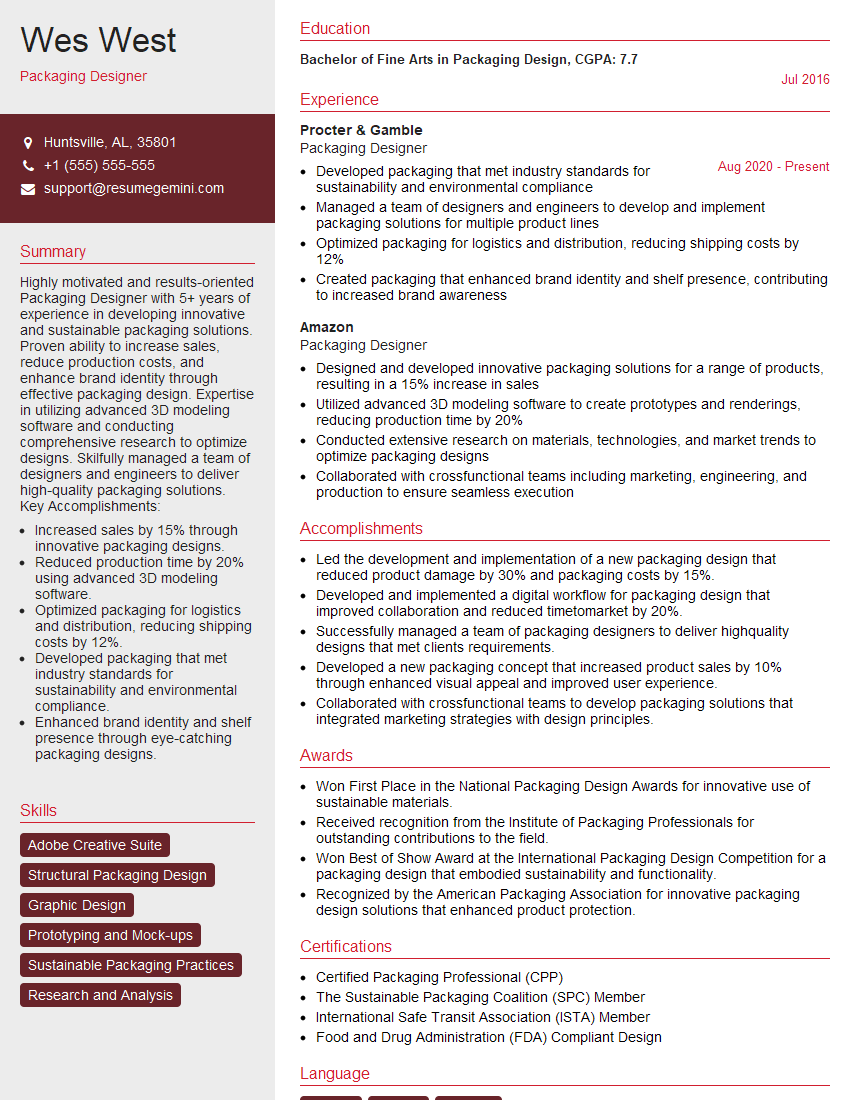
Packaging Designer Resume Sample
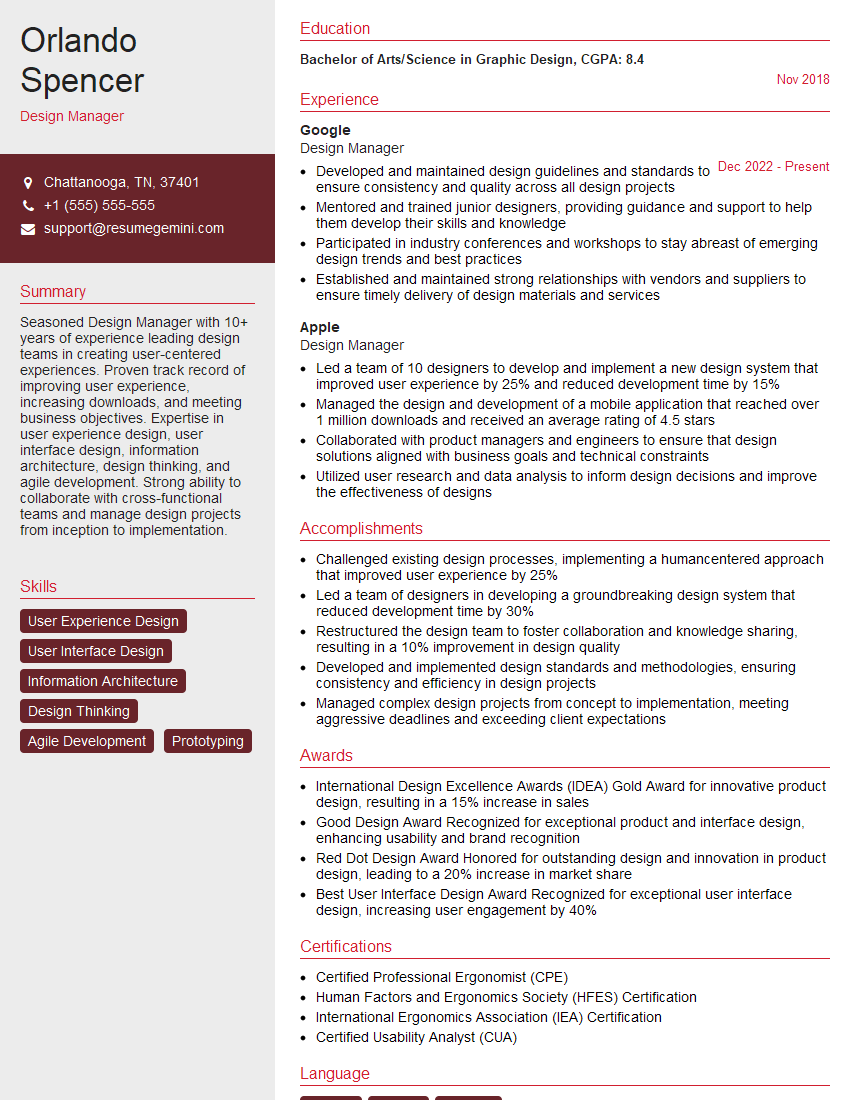
Design Manager Resume Sample

Photo Editor Resume Sample
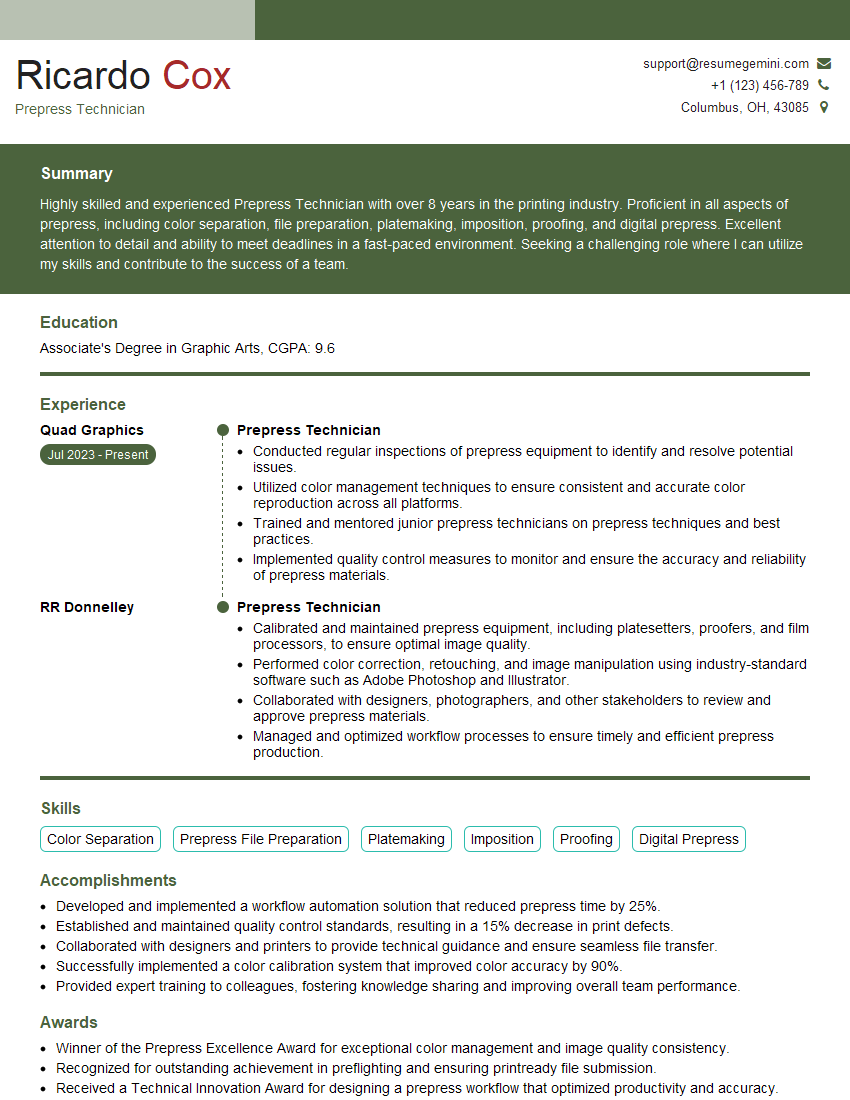
Prepress Technician Resume Sample
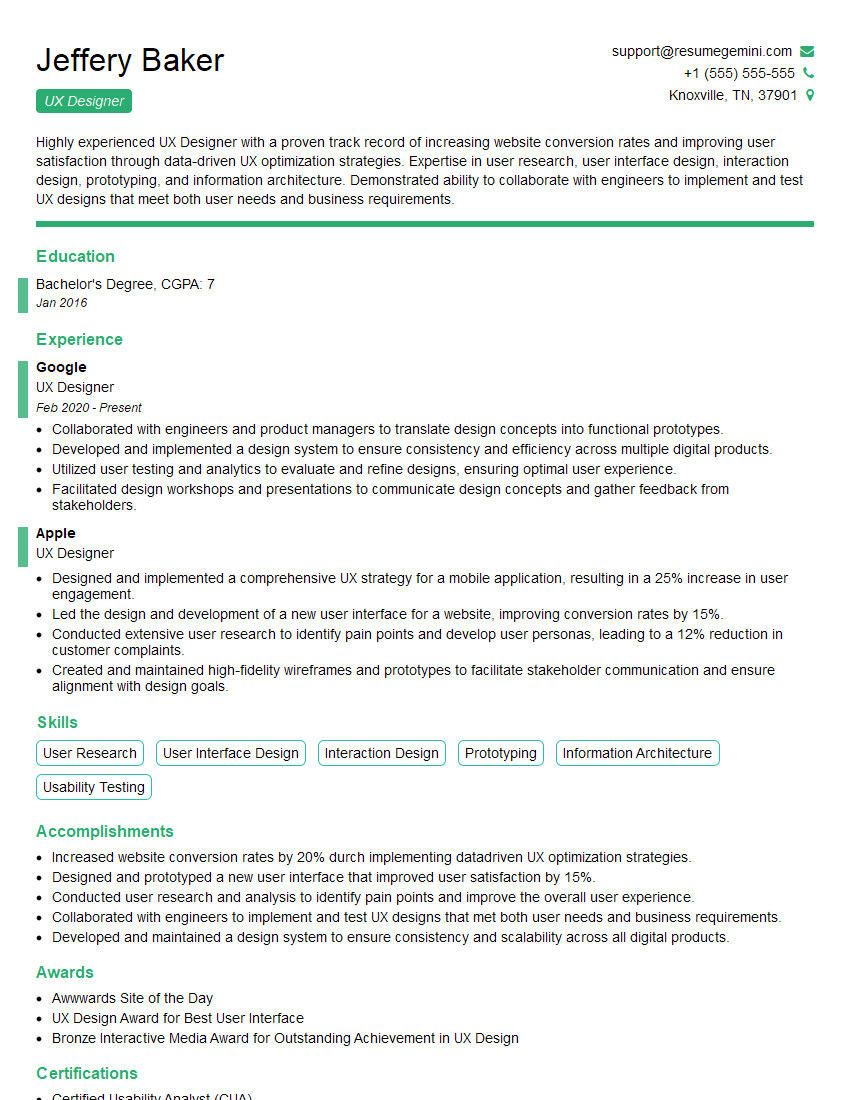
UX Designer Resume Sample
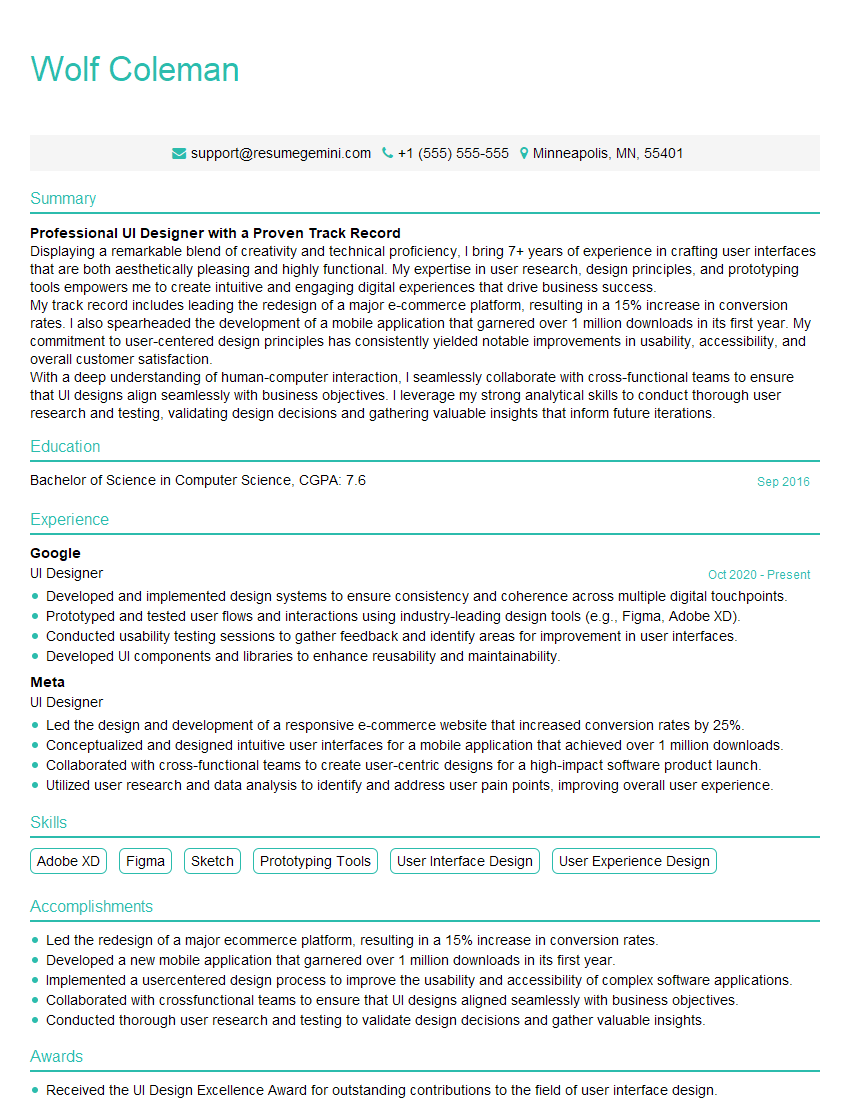
UI Designer Resume Sample
Explore more articles
Users Rating of Our Blogs
Share Your Experience
We value your feedback! Please rate our content and share your thoughts (optional).
What Readers Say About Our Blog
Very informative content, great job.
good