The thought of an interview can be nerve-wracking, but the right preparation can make all the difference. Explore this comprehensive guide to AutoCAD AutoCAD Civil 3D interview questions and gain the confidence you need to showcase your abilities and secure the role.
Questions Asked in AutoCAD AutoCAD Civil 3D Interview
Q 1. Explain the difference between AutoCAD and AutoCAD Civil 3D.
AutoCAD is a general-purpose Computer-Aided Design (CAD) software, a powerful tool for 2D drafting and 3D modeling across various industries. Think of it as a versatile toolbox with drawing instruments. AutoCAD Civil 3D, on the other hand, is a specialized application built on top of AutoCAD. It’s designed specifically for civil engineering tasks, providing a comprehensive set of tools for tasks like surveying, road design, drainage, and more. It’s like having a specialized toolkit for civil engineering projects within the broader AutoCAD toolbox.
The key difference lies in their focus and capabilities. AutoCAD excels in general drafting and modeling, while AutoCAD Civil 3D offers specialized tools and workflows optimized for civil engineering projects. For example, you’d use AutoCAD to create a simple floor plan, but you’d use Civil 3D to design a highway interchange, complete with alignments, profiles, and grading.
Q 2. Describe your experience with creating and managing point clouds in Civil 3D.
My experience with point clouds in Civil 3D involves importing, processing, and utilizing them for various tasks. I’ve worked with point clouds derived from LiDAR surveys and other scanning technologies. The process typically begins with importing the point cloud data (typically in .las or .rcp formats) into Civil 3D. Once imported, I use Civil 3D’s tools to:
- Clean the data: Removing noise and outliers to improve accuracy.
- Classify the points: Grouping points by type (ground, building, vegetation) to create more meaningful surfaces and models. This is crucial for accurate earthwork calculations.
- Create surfaces: Generating a surface model from the point cloud to visualize the terrain and perform analysis.
- Extract features: Identifying features like buildings, trees, and roads from the point cloud for incorporation into the design.
For example, on a recent project involving a large-scale site development, I used a point cloud derived from a LiDAR scan to create a highly accurate terrain model. This allowed us to accurately estimate earthwork volumes and optimize the design for minimizing cut and fill.
Q 3. How do you create and manage surfaces in Civil 3D?
Surface creation and management in Civil 3D is a core aspect of many projects. Surfaces represent the earth’s topography or a designed grade. I typically create surfaces by:
- Importing data: Using existing survey data (points, breaklines, contours) or point cloud data.
- Manually adding data: Digitizing contours from maps or adding individual points directly in Civil 3D.
- Creating surfaces from other data: Using existing surfaces or alignments to generate new ones.
Once a surface is created, I can edit it using various tools:
- Adding/removing breaklines: Defining precise edges and boundaries.
- Editing spot elevations: Refining the surface accuracy.
- Modifying existing data: Adjusting points or contours based on updated information.
Managing surfaces involves utilizing the surface properties dialog to control display settings, creating surface volume calculations, and generating contours, which are critical for visualization and analysis. For instance, on a highway project, I used surfaces to analyze cut and fill volumes, optimize the road design, and generate accurate earthwork quantities for bidding and construction.
Q 4. Explain your workflow for designing alignments in Civil 3D.
My alignment design workflow in Civil 3D usually follows these steps:
- Data input: I begin by gathering control points, boundary surveys, and other relevant data.
- Alignment creation: I use the alignment tools to create the horizontal alignment, defining points, curves, and tangents using various curve fitting methods (e.g., circular, spiral).
- Profile creation: I create the vertical profile, establishing grades, vertical curves, and elevations. This involves considering factors like sight distances and design speeds.
- 3D Modeling: The horizontal and vertical alignments are then combined to create a 3D model of the alignment.
- Design Review and refinement: I review the design to ensure it meets all design criteria, making necessary adjustments.
- Corridor Modeling: Once the alignment is finalized, I use corridor modeling to design features such as cross sections, grading, and other construction details.
For example, in a recent road design project, I utilized Civil 3D’s alignment tools to design a new highway segment, incorporating curves designed to meet sight distance requirements and minimizing earthwork while also considering environmental factors like avoiding sensitive areas.
Q 5. How do you perform volume calculations in Civil 3D?
Civil 3D simplifies volume calculations significantly. The process typically involves these steps:
- Surface creation: As discussed earlier, accurate surfaces are fundamental. I ensure the existing ground surface and a proposed design surface (often created using corridor modeling) are accurately modeled.
- Volume calculation: Civil 3D provides a built-in command to compare two surfaces and calculate the cut and fill volumes between them. I specify the surfaces and any necessary boundaries (breaklines).
- Results analysis: The software generates a comprehensive report detailing the cut and fill volumes, which are essential for estimating costs and material quantities. I typically review this data to identify any areas needing further design optimization.
On a recent earthwork project, the accurate volume calculations performed in Civil 3D proved invaluable in providing a precise estimate of material needed for the project, minimizing costs and material waste.
Q 6. Describe your experience with creating and using profiles in Civil 3D.
Profiles in Civil 3D represent the vertical geometry of an alignment or other feature. They are created by establishing elevation data along a given line. My experience involves:
- Creating profiles from alignments: This automatically generates a profile based on the vertical design of the alignment.
- Manually creating profiles: This allows me to create custom profiles for features not directly tied to alignments.
- Editing profiles: Adding, deleting, and modifying vertical curves and grade points to optimize design and meet specified criteria.
- Using profiles for design: Profiles are essential for designing features like drainage systems, ensuring proper grades for stormwater management.
For instance, on a recent drainage design project, accurate profiles allowed us to model the flow of water and to design culverts and ditches to handle various flow rates, preventing flooding and erosion.
Q 7. How do you handle data referencing and linking in Civil 3D?
Data referencing and linking in Civil 3D are critical for managing project data effectively. I frequently employ several techniques:
- External References (Xrefs): Linking in CAD drawings, survey data, and other relevant files. This allows me to incorporate data from other sources without embedding them directly into the main drawing, preserving the original files and enabling updates to be reflected automatically.
- Data Shortcuts: Using shortcuts to access and manage data from various sources, simplifying the process of importing and updating information.
- Coordinate Systems: Ensuring all data is referenced to a consistent coordinate system to maintain accuracy and prevent errors. This involves understanding and managing different coordinate systems, projections, and datums.
- Data Transfer Tools: Utilizing Civil 3D’s data transfer tools to exchange information with other software packages, such as GIS systems.
For instance, in a large-scale land development project, I effectively managed different data sources – survey data, utility plans, and boundary information – using Xrefs and data shortcuts. This allowed for seamless collaboration and ensured that everyone worked with the most up-to-date information. A consistent coordinate system minimized the risk of discrepancies throughout the project.
Q 8. Explain your experience with creating and editing parcels in Civil 3D.
Creating and editing parcels in Civil 3D is a fundamental aspect of land surveying and subdivision design. I’ve extensively used the Parcel tools to define property boundaries, calculate areas, and manage ownership information. The process typically begins with importing boundary data, either from a CAD file or through coordinate input. Then, I utilize the tools within the Parcel Editor to create, modify, and manipulate parcels. This includes defining points, lines, and arcs to represent the parcel boundaries. I regularly use the area and perimeter calculations to verify accuracy and ensure compliance with legal descriptions. For complex parcels involving easements or irregular shapes, I leverage Civil 3D’s advanced polygon editing tools and utilize the ‘Adjust Parcel’ command to make fine-grained adjustments. One project involved a large-scale subdivision where I had to manage over 100 parcels, each with intricate boundary details and easements. Careful attention to detail and the use of Civil 3D’s parcel management features were critical to successfully completing that project. Finally, I often export parcel data in various formats for legal documentation and external review.
Q 9. How familiar are you with Civil 3D’s tools for corridor modeling?
I’m highly proficient in Civil 3D’s corridor modeling tools. Corridor modeling is crucial for designing roadways, railways, and other linear infrastructure projects. My experience encompasses creating corridors from alignments and profiles, designing various components like daylight lines, side slopes, and superelevations, and analyzing earthwork volumes. I’m familiar with the different corridor feature lines and their applications in shaping the corridor geometry. For instance, I frequently utilize the ‘Link’ command to connect different corridor components seamlessly and the ‘Assembly’ editor to customize cross-section designs. I’ve worked on projects where complex geometric constraints demanded precise corridor modeling. In one instance, we had to navigate challenging terrain, necessitating the use of advanced corridor modeling techniques to optimize earthwork and minimize environmental impact. The ability to generate reports detailing quantities of cut and fill is also a vital aspect of my workflow. The visual representation of the 3D model allows for efficient design review and stakeholder collaboration.
Q 10. Describe your process for creating and managing cross sections in Civil 3D.
Creating and managing cross sections in Civil 3D is essential for understanding the ground profile and designing various features. My process starts with establishing survey data or importing existing cross-section files. I then use the cross-section tools to create sections at specified intervals along the alignment. These sections form the basis for designing the corridor, grading, and drainage features. I’m adept at using the ‘Edit Cross Sections’ command to make modifications, adding or removing points to achieve desired design parameters. I regularly use code settings to ensure consistency and to automate the process of creating and modifying cross-sections. This involves defining the style of the cross sections in terms of its component elements. For example, I might modify the ground line, the proposed grade line and add features like ditches and pavements. I carefully review the generated cross-sections to ensure accuracy and compliance with design standards. A recent project involved managing thousands of cross sections for a large highway project. The ability to manage and manipulate these cross sections efficiently was paramount to project success. Furthermore, I frequently use the automated tools for creating cross sections from feature lines.
Q 11. How do you use Civil 3D for grading and earthwork calculations?
Civil 3D plays a vital role in grading and earthwork calculations. After establishing the proposed ground surface and designing the corridor, I use Civil 3D to calculate earthwork volumes, including cut and fill quantities. This involves generating volume reports and visualizing the earthwork using 3D models. I’m experienced in using the volume calculation tools to optimize earthwork operations. This process often involves iterative design adjustments to minimize earthwork costs and environmental impact. I’ve utilized these features in numerous projects, ranging from small residential developments to large-scale infrastructure projects. For example, I once worked on a project where optimizing cut and fill was critical due to high material costs. Using Civil 3D’s earthwork analysis tools, I was able to refine the design, minimizing the amount of material needed to move while ensuring the project remained within budget. Accurate volume calculation is essential for cost estimation and project scheduling, and Civil 3D provides the necessary tools to achieve this efficiently.
Q 12. Explain your experience with pipe networks and drainage design in Civil 3D.
My experience with pipe networks and drainage design in Civil 3D is extensive. I’m proficient in creating and managing pipe networks, including the design of storm sewers, sanitary sewers, and water mains. I utilize Civil 3D’s tools to define pipe structures, inlets, manholes, and other components of the drainage system. The software allows for hydraulic analysis of the network, ensuring proper design for flow rates and gradients. I’m proficient in using the pressure and flow analysis tools to ensure the designed system operates effectively, and I understand how to design for various scenarios such as peak flow conditions. A recent project involved designing a complex storm drainage system for a large commercial development. Utilizing Civil 3D’s capabilities allowed for accurate modeling and analysis, resulting in a cost-effective and efficient drainage design which met all local regulations. The ability to analyze flow patterns and assess system performance is critical to the success of these projects.
Q 13. How do you utilize Civil 3D for storm water management design?
Civil 3D is a powerful tool for stormwater management design. I use it to model watersheds, define drainage areas, and simulate stormwater runoff. This involves using hydrological modeling techniques and incorporating data such as rainfall intensity and infiltration rates. The software’s capabilities allow for the design of detention basins, retention ponds, and other stormwater management facilities, ensuring compliance with relevant regulations. I’m experienced in using the hydraulic modeling capabilities to evaluate the performance of these facilities under various scenarios. One project involved designing a stormwater management system for a new residential development in a flood-prone area. By utilizing Civil 3D’s modeling tools, I was able to design a system that effectively mitigated flood risk while meeting all environmental regulations. Accurate simulation and analysis are critical in managing stormwater runoff and reducing potential environmental impact. I also routinely incorporate GIS data for more accurate watershed delineation and hydrological analysis.
Q 14. What are your experiences with creating and managing sheets and title blocks in Civil 3D?
Creating and managing sheets and title blocks in Civil 3D is crucial for producing professional-quality drawings. I’m experienced in setting up sheet templates with customized title blocks containing project information, revision history, and other essential details. This often involves creating standardized templates to ensure consistency across projects. I also utilize Civil 3D’s sheet set manager to organize and manage multiple sheets within a project, making it easier to navigate and update the drawings. This tool streamlines the production and distribution of drawings for construction and review purposes. Furthermore, I’m adept at using the annotation tools, creating viewports, and adding details to sheets, ensuring clarity and completeness. I’ve regularly collaborated with other disciplines by sharing these drawings through cloud-based platforms. This efficiency ensures that projects remain on schedule and are communicated clearly to all relevant parties. Accurate and professional-looking drawings are crucial for communication and compliance and Civil 3D provides the tools to achieve this.
Q 15. Describe your proficiency with customizing Civil 3D tool palettes and settings.
Customizing Civil 3D tool palettes and settings is crucial for streamlining workflows and boosting efficiency. Think of it like personalizing your workspace – you want everything readily accessible and tailored to your preferences. I’ve extensively customized tool palettes to include frequently used commands, creating custom tool palettes for specific tasks like grading or drainage design. This involves using the Civil 3D Customization Editor to create, modify, and save custom tool palettes, grouping related commands for intuitive access. For example, I’ve created a palette with all my surface analysis tools, another for pipe network design tools, and a third dedicated to corridor modeling. I also customize settings to match project standards, such as layer and linetype defaults, ensuring consistent drawing creation across multiple projects. This saves time and prevents inconsistencies. I’ve even developed custom tool palettes that automatically populate with relevant data based on the current project settings.
Career Expert Tips:
- Ace those interviews! Prepare effectively by reviewing the Top 50 Most Common Interview Questions on ResumeGemini.
- Navigate your job search with confidence! Explore a wide range of Career Tips on ResumeGemini. Learn about common challenges and recommendations to overcome them.
- Craft the perfect resume! Master the Art of Resume Writing with ResumeGemini’s guide. Showcase your unique qualifications and achievements effectively.
- Don’t miss out on holiday savings! Build your dream resume with ResumeGemini’s ATS optimized templates.
Q 16. How do you manage and resolve potential errors or conflicts in Civil 3D projects?
Managing and resolving errors in Civil 3D projects requires a systematic approach. I begin by understanding the error message; Civil 3D provides detailed error reports. Common issues include geometry errors in surfaces, inconsistencies in alignment data, and problems with data referencing. I often use the Civil 3D diagnostics tools to pinpoint the problem’s location and nature. For example, if a surface has errors, the diagnostics tools will often highlight the problematic area allowing me to visually inspect and correct the issue. If data conflicts arise from external references (xrefs), I prioritize reviewing the xref’s source data for inaccuracies. Version control is essential; I always work from a clean drawing or regularly save backups. If a problem is complex, I often break it down into smaller, manageable parts, investigating each aspect systematically. For particularly stubborn issues, I might utilize Civil 3D’s command line interface (CLI) for more granular control and troubleshooting.
Q 17. Explain your experience with coordinating designs with other software packages.
Coordinating Civil 3D designs with other software packages is a regular part of my workflow. I’ve extensively used Land Desktop (for legacy projects), ArcGIS for geospatial data integration, and various CAD software packages. Data exchange is often done using industry-standard formats like DWG, DXF, and Shapefiles. For example, I’ve used Shapefiles to import survey data from a total station into Civil 3D. Similarly, I’ve exported alignments and profiles from Civil 3D to AutoCAD for detailed drafting work before importing the results back. For more complex data exchanges, such as integrating building information modeling (BIM) data from Revit, I utilize data exchange standards like IFC. Understanding the limitations and capabilities of each software package and utilizing appropriate data exchange methods is essential for a smooth and accurate workflow. I always verify the data integrity after importing or exporting to avoid unintended consequences.
Q 18. How do you ensure data accuracy and consistency in Civil 3D projects?
Maintaining data accuracy and consistency in Civil 3D is paramount. I rely on a multi-pronged approach: First, rigorous quality control checks at each stage of the design process are performed. This includes verifying survey data against the design models and regularly auditing the drawing for inconsistencies. Second, I meticulously utilize Civil 3D’s tools for data checking, such as surface analysis and alignment verification. Third, adherence to established standards and templates is key. Consistent layer naming conventions, linetypes, and text styles prevent confusion and ensure seamless collaboration. Fourth, I employ version control practices, regularly saving backups and using a structured file naming system for easy tracking and recovery. Finally, utilizing Civil 3D’s feature management capabilities helps maintain data integrity and prevents accidental modification of crucial design elements. Think of it like building with precision – each brick must be placed correctly, and each layer must align perfectly for a solid structure.
Q 19. Describe your experience with using external references (xrefs) in Civil 3D.
External references (xrefs) in Civil 3D are invaluable for managing large projects and incorporating data from external sources. I frequently use xrefs to link in survey data, base maps, utility plans, and other relevant information. Understanding xref management is crucial, ensuring proper pathing and attachment methods to prevent broken links. For example, I’ve linked in a base map as an xref, allowing for easy updates when the base map is revised. I’ve also used xrefs to incorporate topographic surveys from neighboring projects, improving the overall design context. When managing multiple xrefs, I maintain a clear organizational structure, using a well-defined naming convention and nesting xrefs efficiently to minimize complexity. I regularly check the xref status to ensure they remain properly linked, addressing any pathing issues immediately to prevent inconsistencies and errors.
Q 20. How familiar are you with using layers, linetypes, and text styles in Civil 3D?
Layers, linetypes, and text styles are fundamental organizational tools in Civil 3D. I understand their importance for drawing clarity, maintainability, and standardization. I utilize consistent layer naming conventions based on industry standards and project requirements. This helps ensure efficient layer management and quick identification of specific elements within a drawing. For instance, using descriptive names like “Survey-Topo,” “Design-Alignment,” and “Grading-Contours” improves collaboration and reduces ambiguity. Linetypes are utilized to clearly distinguish between different design elements, such as boundaries, alignments, and pipe networks. I also create custom linetypes and text styles consistent with project standards, enhancing drawing readability and clarity. Effectively using these tools is essential for creating well-organized and easily understandable Civil 3D drawings.
Q 21. Describe your experience with creating and using templates in Civil 3D.
Creating and using templates in Civil 3D is a critical aspect of maintaining consistency and efficiency across projects. I’ve developed numerous templates tailored to specific project types and company standards. These templates pre-define layers, styles, settings, and even some initial design elements, which saves significant time and effort on each new project. A typical template might include predefined layers for various aspects of the design (e.g., alignment, grading, drainage) with appropriate colors, line weights, and linetypes already configured. Additionally, predefined text styles for annotations and labels ensure consistency in the appearance of text throughout the drawing. By using templates, I ensure that all projects start with a consistent foundation, which minimizes errors and streamlines the design process. Think of it as having a pre-built house frame – you don’t need to start from scratch each time, only adding your personalized interior.
Q 22. How do you manage large datasets and optimize performance in Civil 3D?
Managing large datasets in Civil 3D efficiently is crucial for project performance. Think of it like organizing a massive library – you wouldn’t want to search through every book individually! We employ several strategies:
- Data Linking vs. Importing: Instead of importing massive point clouds or survey data directly, we link to the data sources. This significantly reduces file size and improves performance. Changes in the source data are automatically reflected in Civil 3D.
- Proxy Data: For extremely large point clouds or raster data, utilizing proxy files allows us to work with a lighter representation of the data, enhancing responsiveness without sacrificing detail when needed. We zoom in for high-resolution viewing of specific areas, improving performance for general navigation and editing.
- Data Pruning and Filtering: We regularly prune unnecessary data. For instance, after completing a surface model, we might remove temporary points or alignments no longer required. Filtering data allows us to focus on relevant subsets for specific tasks, like selecting points within a certain elevation range.
- Optimized Templates and Settings: Starting with a well-configured template with optimized settings minimizes overhead. Unnecessary layers, styles, and features should be avoided. Regular purging of unused objects keeps the drawings lean.
- Layer Management: Organizing layers effectively, using layer states, and freezing or turning off layers that aren’t needed for a current task drastically speeds up performance. Think of it as organizing your desktop – keeping only the relevant files open significantly improves workflow.
- Hardware Considerations: Sufficient RAM, a fast processor, and a solid-state drive (SSD) are essential for smooth performance, especially with large datasets. Think of it like upgrading your computer’s engine and memory for a faster and smoother experience.
By combining these techniques, we ensure that even the most demanding Civil 3D projects remain manageable and responsive.
Q 23. Explain your experience with data extraction and reporting from Civil 3D projects.
Data extraction and reporting are integral parts of any Civil 3D project. I’ve extensively used various tools to generate reports and extract data for analysis, presentations, and construction documentation.
- Civil 3D’s built-in reporting tools: These tools allow for creating reports on quantities, alignments, profiles, and other design elements. I’ve customized these reports to meet specific client needs, including adding logos, modifying formatting, and generating schedules.
- Data Links and Exports: I routinely export data to various formats like Excel, CSV, and LandXML for use in other software applications, such as spreadsheets for quantity take-offs or GIS for spatial analysis. Data links allow dynamic updates if the source data changes in Civil 3D.
- AutoLISP/VBA scripting: For complex or repetitive tasks, I’ve developed custom scripts to automate data extraction and reporting. For instance, I’ve created a script that automatically generates a report summarizing earthwork volumes for each section of a road project.
- Third-party tools: I’ve utilized various add-ins and plugins for generating specialized reports or extracting specific data not readily available through Civil 3D’s native tools. This includes tools focusing on specialized quantities or report generation specifically tailored to the client’s needs.
My focus is always on delivering accurate, clear, and client-specific reports, tailoring the output to their requirements and utilizing the most efficient method.
Q 24. Describe your experience with using Autodesk Vault or other data management tools.
I have extensive experience using Autodesk Vault, a data management system vital for collaborative projects and managing large datasets. It’s like a secure, well-organized digital filing cabinet for all your project files.
- Version control: Vault ensures we always have access to the latest versions of our drawings and data, preventing conflicts and overwriting crucial work. I find this particularly helpful when multiple team members work on the same project simultaneously.
- Workflow management: Vault helps enforce a controlled workflow, ensuring that designs are properly reviewed and approved before being finalized. This reduces the chances of errors and ensures design consistency.
- Centralized data storage: Having all project data stored in one central location makes collaboration easier and improves access for everyone involved. Imagine searching through a single, well-organized database instead of scattered files on various computers.
- Security and Backup: Vault provides robust security features and ensures regular backups, protecting our work from loss or unauthorized access. This is particularly crucial in protecting client data.
In projects without Vault, I’ve effectively managed data using shared network drives with established version control protocols, ensuring similar levels of organization and control. The key is always maintaining a structured and organized system for managing project files.
Q 25. What are your troubleshooting skills related to AutoCAD Civil 3D?
Troubleshooting in Civil 3D often involves a systematic approach. I start by identifying the problem, then systematically investigate potential causes.
- Error Messages: I carefully read and analyze error messages, searching online forums and Autodesk’s knowledge base for solutions. Often, the error message provides valuable clues to the root cause.
- Checking Data Sources: Many issues stem from problems with the input data (survey data, point clouds, etc.). I verify the integrity and accuracy of this data as a first step.
- Layer and Object Properties: I check layer visibility, freezes, and object properties to ensure they are correctly configured. Often, seemingly unrelated settings can influence the display or behavior of Civil 3D elements.
- Coordinate Systems: Incorrect coordinate systems are a common source of problems. I always verify that the correct coordinate system is in use and that all data is correctly projected.
- System Resources: Insufficient system memory or hard drive space can also cause issues. I often check system resources and optimize settings to improve performance.
- Repairs and Reinstallation: As a last resort, I might try repairing the Civil 3D installation or reinstalling the software, ensuring all updates are current. However, this is usually after exhaustive troubleshooting.
My experience allows me to quickly identify and resolve a wide range of issues, minimizing downtime and ensuring project progress.
Q 26. Describe a complex Civil 3D project you worked on and what challenges you faced.
I worked on a complex highway design project involving a significant cut-and-fill operation in challenging terrain. The project involved extensive earthwork modeling, drainage design, and alignment optimization across several miles.
- Challenge 1: Terrain Complexity: The terrain was very steep and included several sensitive environmental areas that needed careful consideration. Accurate earthwork modeling was crucial to minimize environmental impact and optimize material usage.
- Challenge 2: Coordination with other disciplines: The project involved many disciplines, including structural, geotechnical, and environmental engineers. Effective communication and data sharing were essential to ensure a coordinated design.
- Challenge 3: Meeting stringent deadlines: The project had tight deadlines, requiring efficient use of Civil 3D and careful planning to deliver the design on time and within budget.
To overcome these challenges, I utilized advanced Civil 3D features such as volume calculations, surface analysis, and design automation tools. Close collaboration with the project team and detailed communication were key to successfully delivering the project.
Q 27. How do you stay up-to-date with the latest features and updates in AutoCAD Civil 3D?
Staying current with AutoCAD Civil 3D is essential. I use a multi-pronged approach:
- Autodesk’s website and forums: I regularly visit Autodesk’s website to check for updates, new features, and training materials. The forums provide valuable insights and solutions to common problems.
- Autodesk University: I attend webinars and online courses offered by Autodesk University to learn about new features and best practices.
- Industry publications and blogs: I keep up-to-date with industry trends and news through relevant publications and blogs.
- Professional networking: I regularly engage with other Civil 3D users through professional networks and online communities, sharing knowledge and learning from others’ experiences.
- Hands-on practice: I actively seek out opportunities to apply new features and techniques to real-world projects, reinforcing my learning through practical application.
Continuous learning ensures I remain proficient in the latest techniques and tools, allowing me to deliver optimal results for my clients.
Q 28. What are your salary expectations for this role?
My salary expectations for this role are in the range of [Insert Salary Range Here], commensurate with my experience and skills. This range is based on my research of comparable positions in the market and reflects my value and contributions to your organization.
However, I am open to discussing this further and am primarily interested in finding a role that provides the right fit and opportunities for professional growth.
Key Topics to Learn for AutoCAD & AutoCAD Civil 3D Interviews
- Fundamentals of AutoCAD: Mastering the interface, drawing tools (lines, circles, arcs, etc.), object snaps, layers, and blocks. Understanding the coordinate system and drawing precision is crucial.
- AutoCAD Civil 3D Data Management: Learn about creating and managing data shortcuts, referencing external files, and maintaining data integrity in large projects. This includes understanding the importance of templates and standards.
- Surface Modeling: Practice creating and manipulating surface models from various data sources (point clouds, contours, etc.). Understand grading analysis and volume calculations.
- Alignment and Profile Design: Become proficient in creating and modifying alignments, profiles, and cross sections. Understand the relationship between these elements and their impact on design.
- Corridors and Pipe Networks: Familiarize yourself with the creation and management of corridors for roadway and other linear infrastructure design. Understand the principles of pipe network design and analysis within Civil 3D.
- Drainage Design: Learn the basics of hydraulic analysis and design using Civil 3D’s drainage tools. Practice creating and analyzing drainage systems, including pipes, inlets, and outfalls.
- Practical Applications: Think about real-world examples where you’ve used (or could use) AutoCAD Civil 3D. Be ready to discuss your approach to problem-solving in a design context. Consider examples from different stages of a project, from initial survey data processing to final design deliverables.
- Customization & Automation: Understand the basics of using AutoLISP or Dynamo to automate repetitive tasks and customize your workflow. This demonstrates initiative and efficiency.
Next Steps
Mastering AutoCAD and AutoCAD Civil 3D significantly boosts your career prospects in the AEC industry, opening doors to exciting and challenging roles. To maximize your job search success, invest time in crafting a compelling and ATS-friendly resume that highlights your skills and experience effectively. ResumeGemini is a trusted resource to help you build a professional and impactful resume. They offer examples of resumes tailored to AutoCAD Civil 3D professionals, providing valuable templates and guidance to showcase your expertise to potential employers.
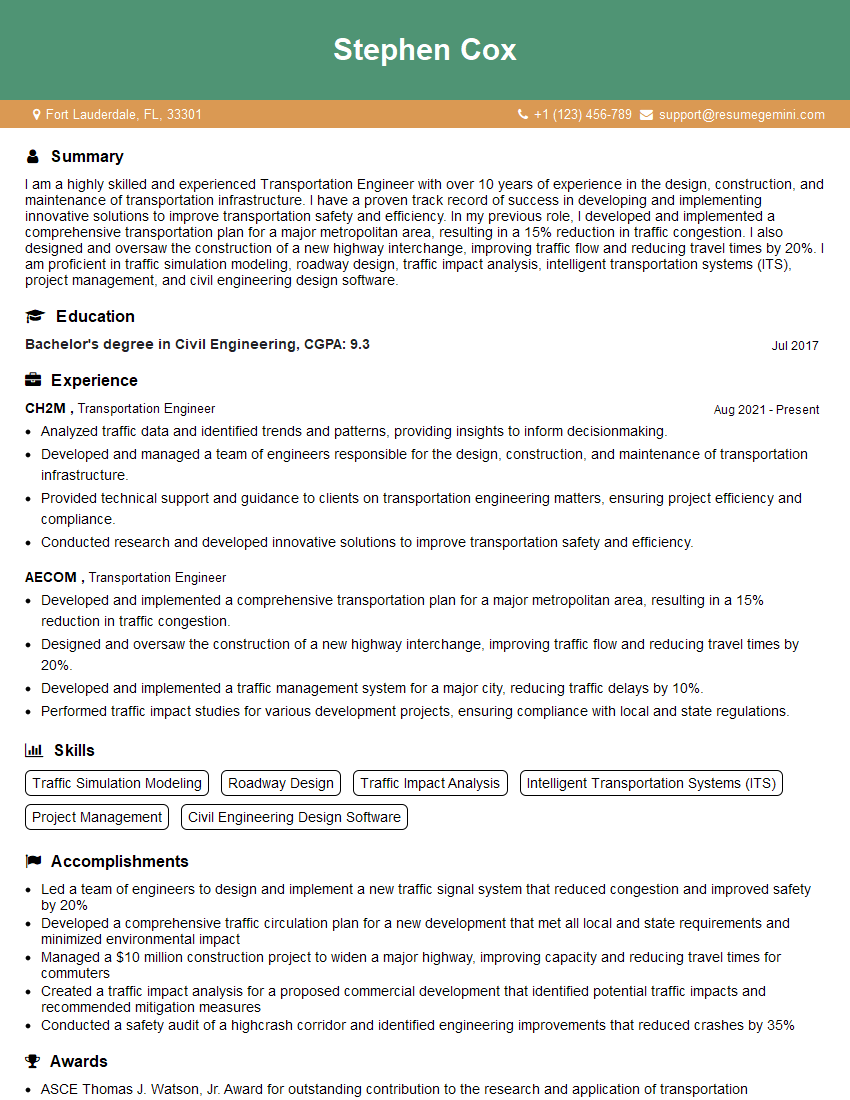
Transportation Engineer Resume Sample

Project Engineer Resume Sample
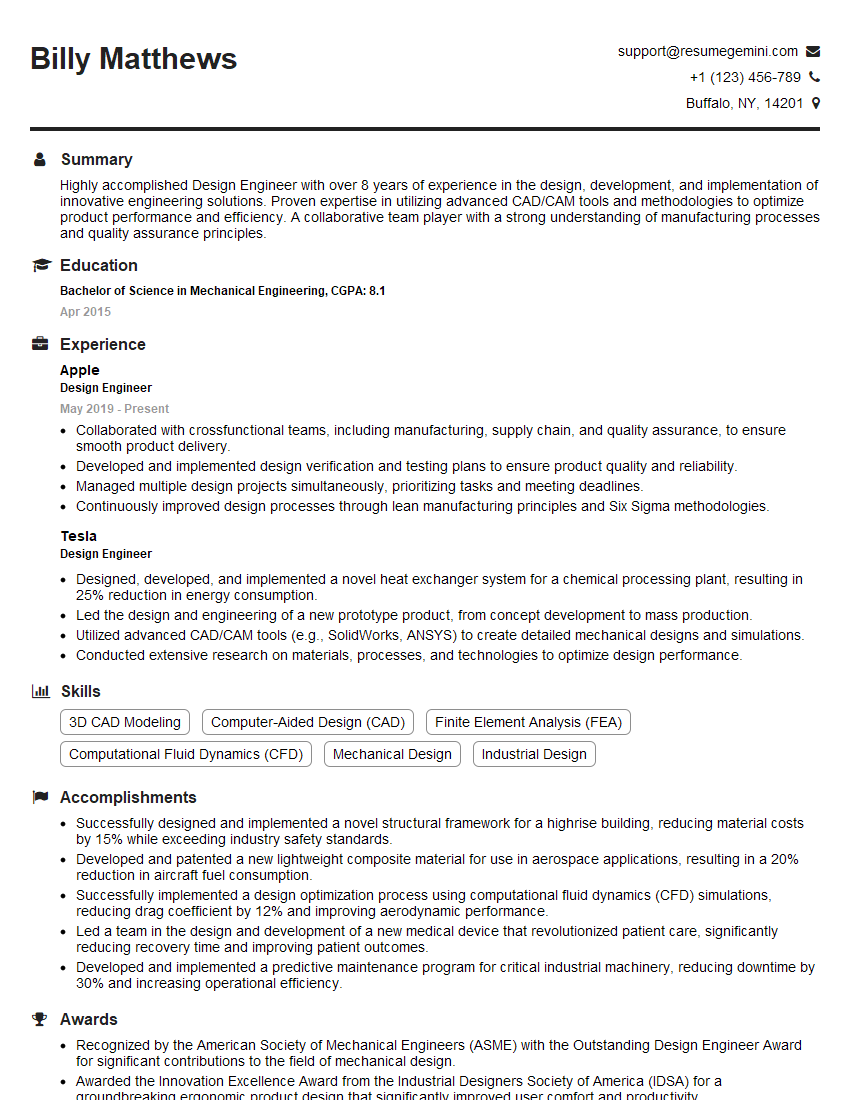
Design Engineer Resume Sample
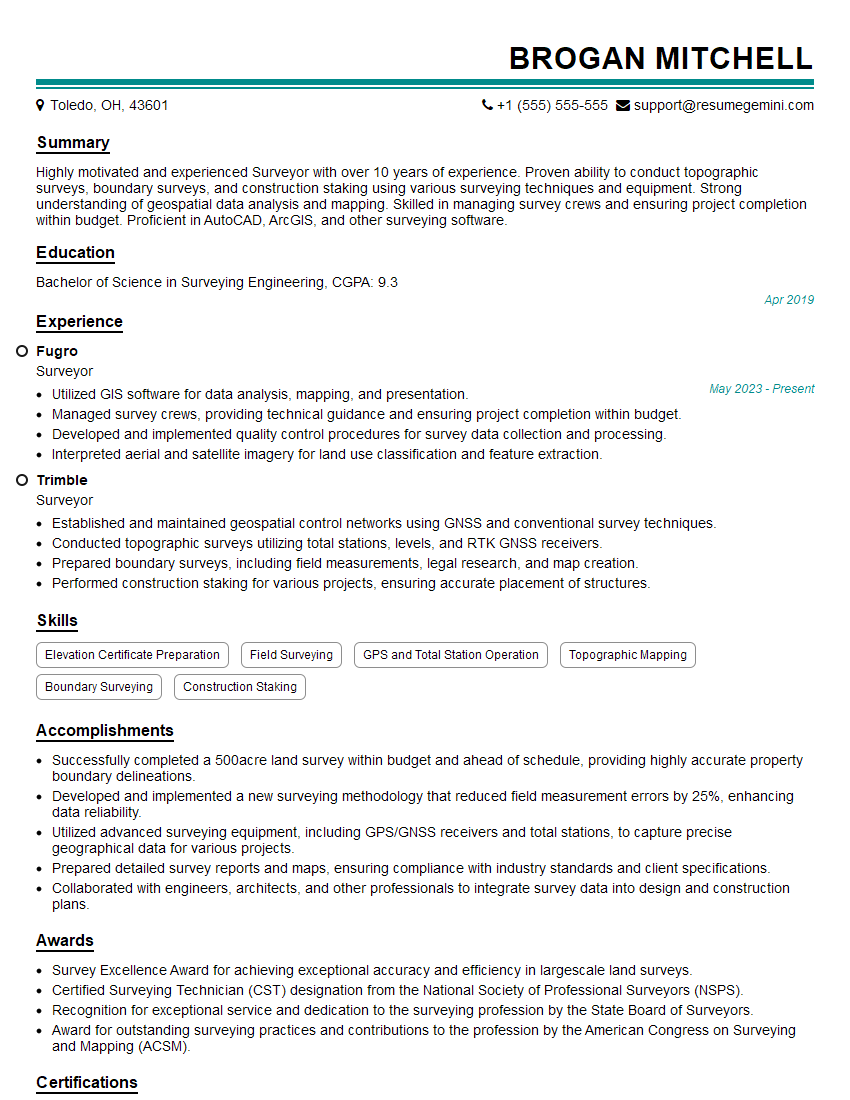
Surveyor Resume Sample
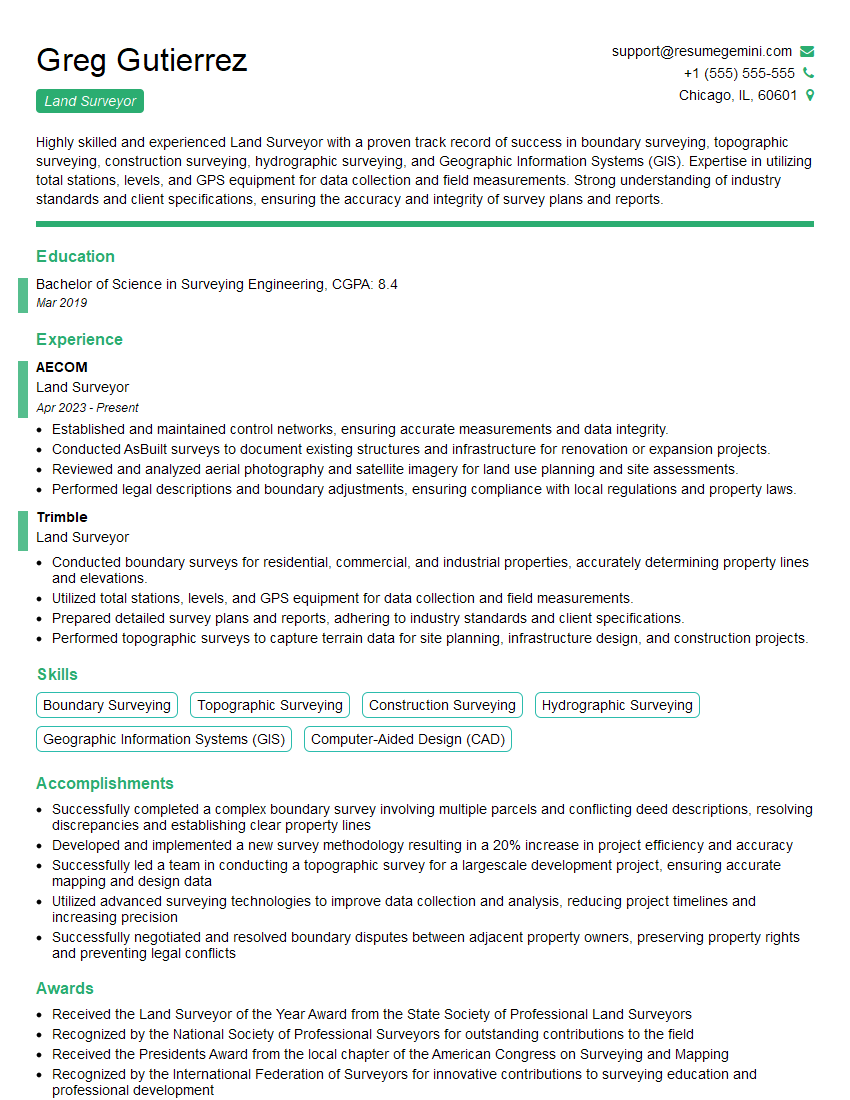
Land Surveyor Resume Sample
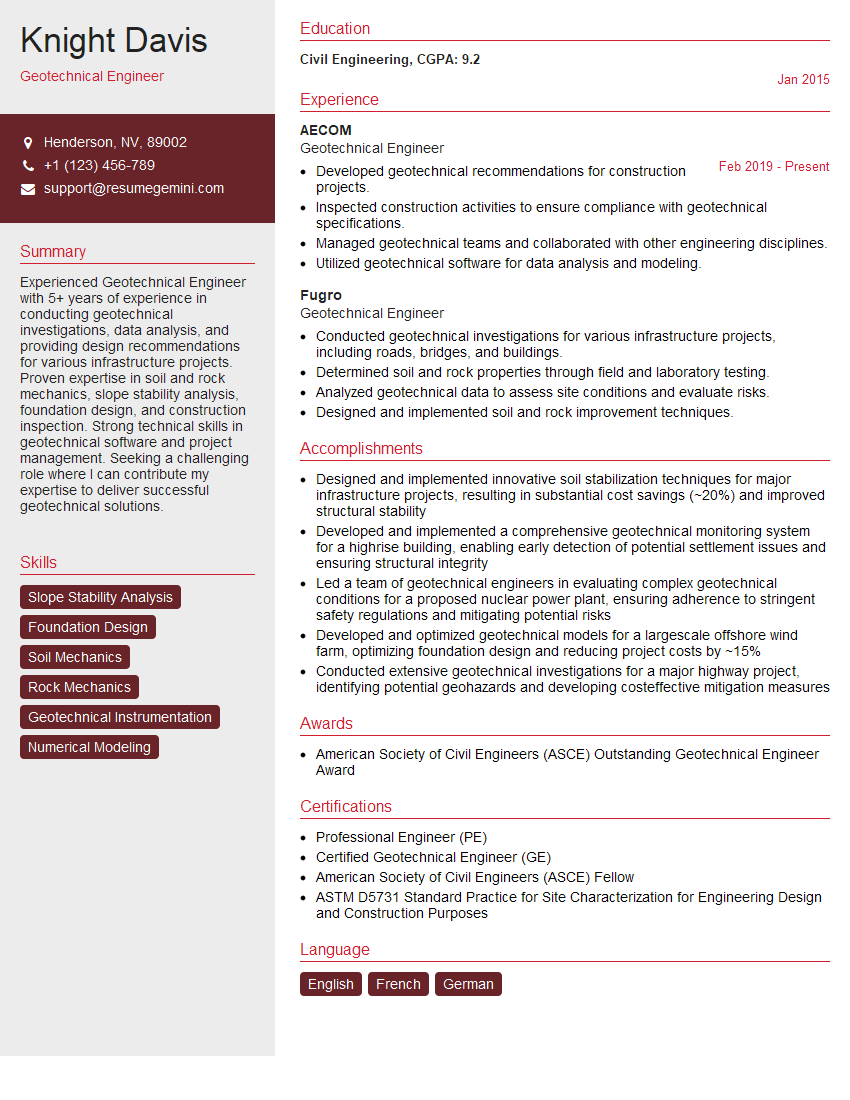
Geotechnical Engineer Resume Sample
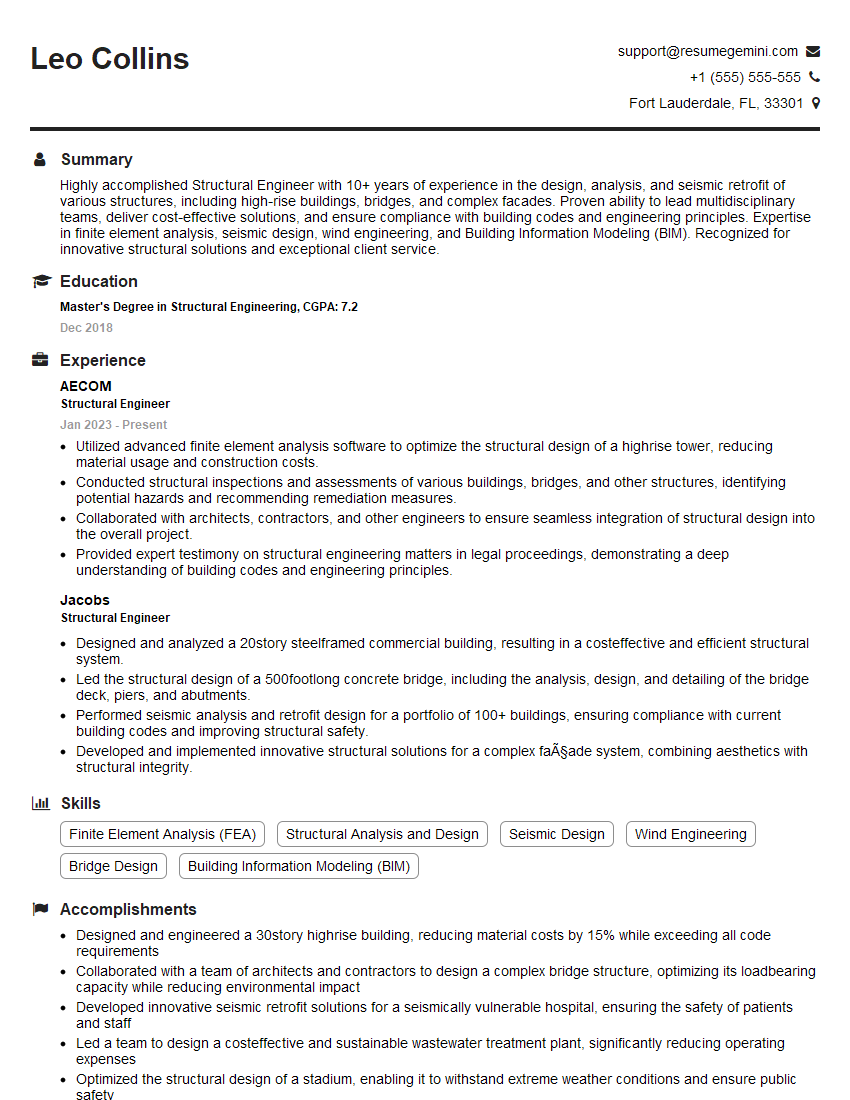
Structural Engineer Resume Sample
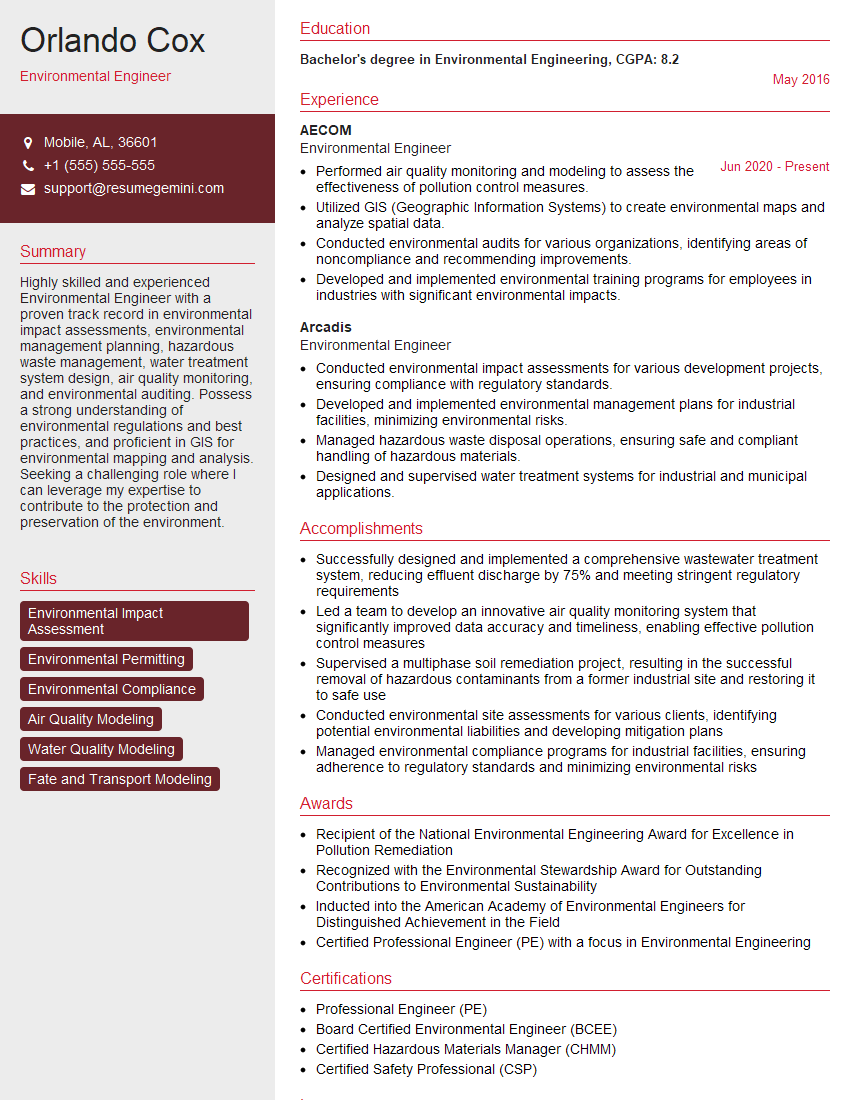
Environmental Engineer Resume Sample
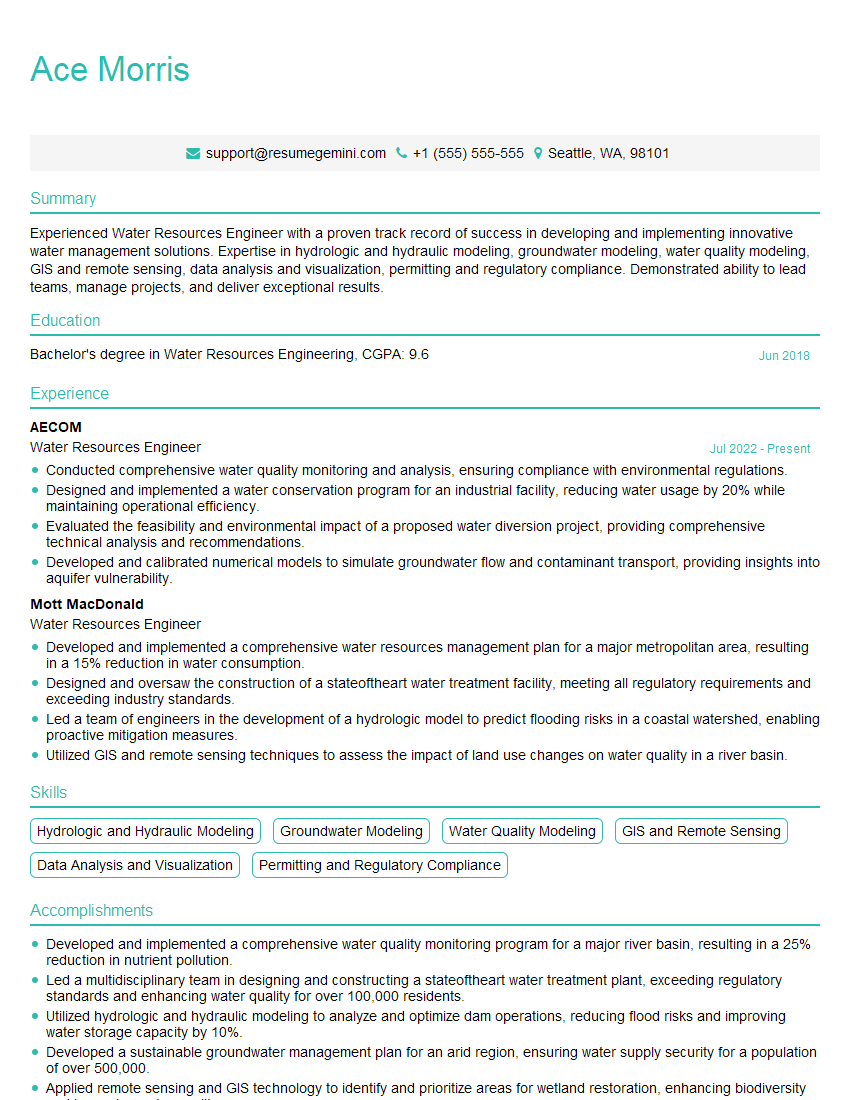
Water Resources Engineer Resume Sample
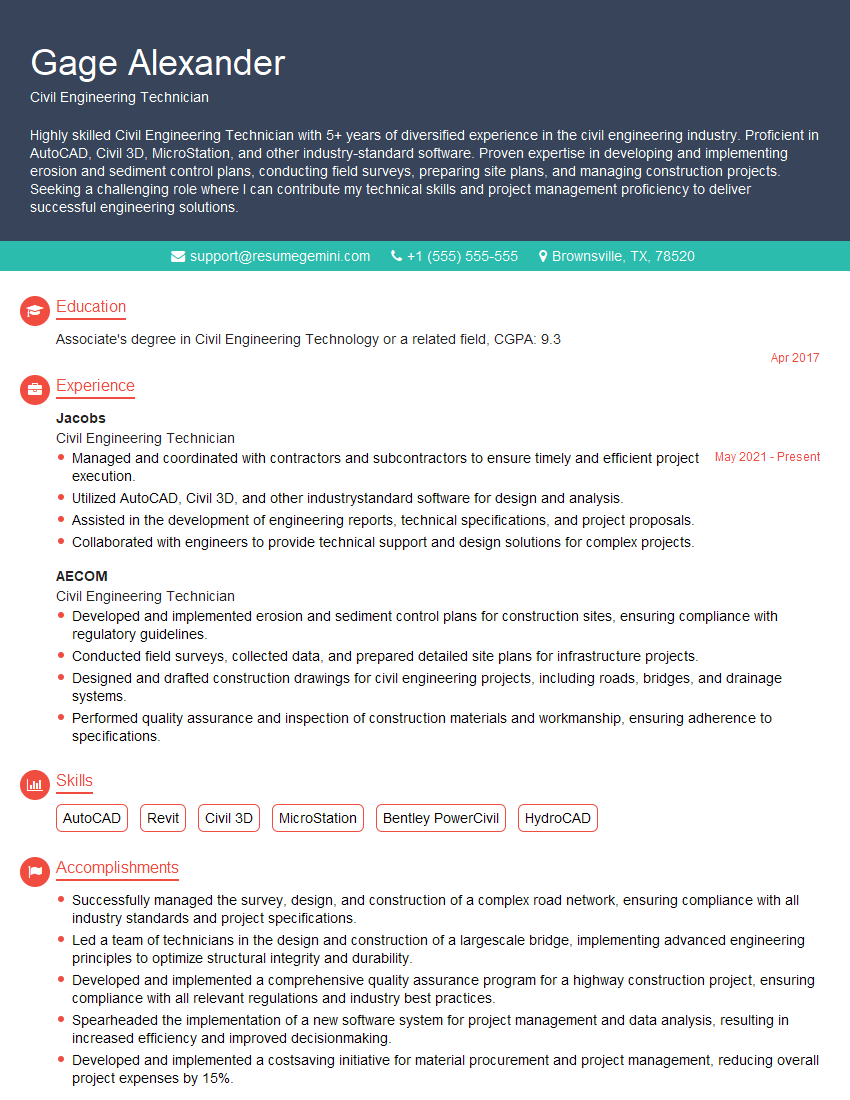
Civil Engineering Technician Resume Sample
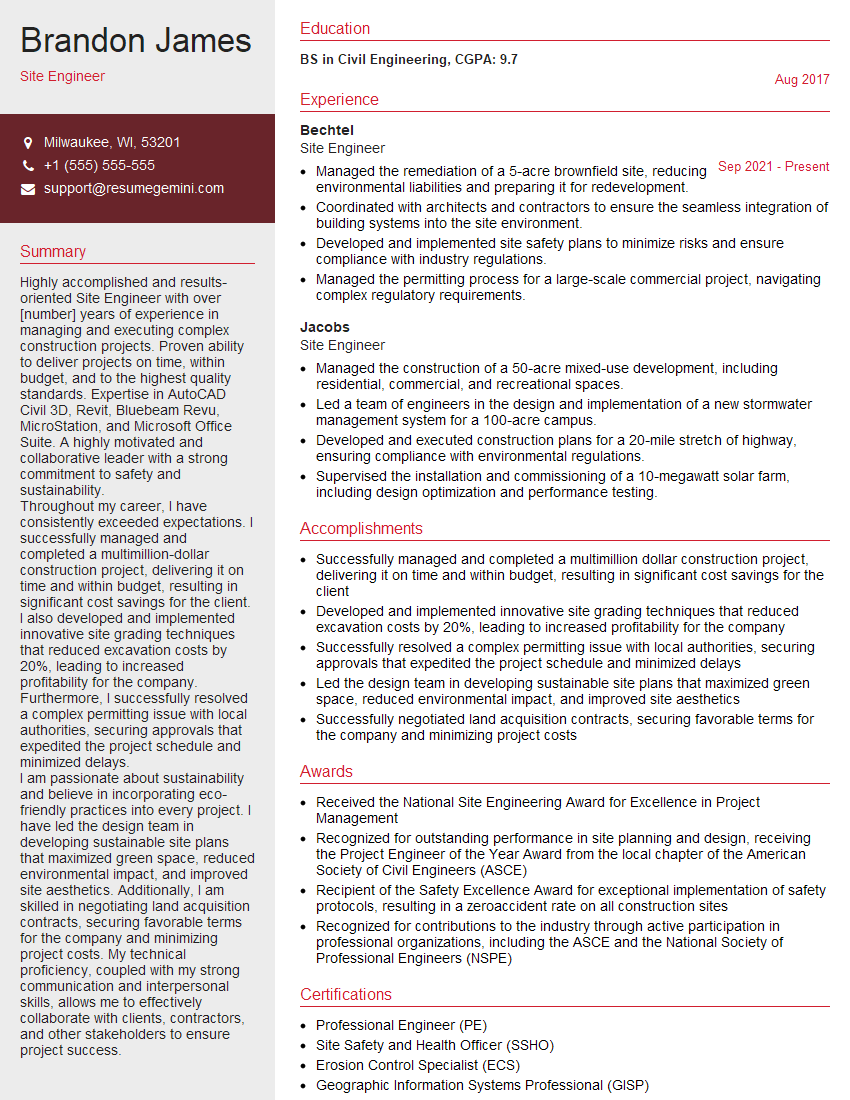
Site Engineer Resume Sample
Explore more articles
Users Rating of Our Blogs
Share Your Experience
We value your feedback! Please rate our content and share your thoughts (optional).
What Readers Say About Our Blog
Very informative content, great job.
good