Feeling uncertain about what to expect in your upcoming interview? We’ve got you covered! This blog highlights the most important Autodesk Maya and 3ds Max interview questions and provides actionable advice to help you stand out as the ideal candidate. Let’s pave the way for your success.
Questions Asked in Autodesk Maya and 3ds Max Interview
Q 1. Explain the difference between NURBS and polygon modeling.
NURBS (Non-Uniform Rational B-Splines) and polygon modeling are two fundamental approaches to 3D modeling, each with its strengths and weaknesses. Think of it like building with LEGOs versus sculpting with clay.
NURBS modeling uses mathematically defined curves and surfaces. This results in smooth, precise models that are easily scalable without losing quality. They are ideal for creating organic shapes like car bodies or precise architectural elements. Changes to one control point affect the entire curve, providing a level of control unmatched by polygons. Software like Maya and 3ds Max offer robust NURBS tools.
Polygon modeling, on the other hand, constructs models from a mesh of interconnected polygons (triangles, quads, etc.). It’s more intuitive for organic modeling, offering a more direct, sculpting-like workflow. While scaling can sometimes introduce artifacts, polygon modeling is highly versatile and efficient for creating detailed high-poly models, textures, and for game engine optimization.
In short: NURBS are precise and scalable, perfect for smooth surfaces; polygons are versatile and efficient for detailed models, especially for real-time applications.
Q 2. Describe your experience with UV unwrapping and texturing.
UV unwrapping and texturing are crucial for adding realism and detail to 3D models. UV unwrapping is essentially mapping a 3D model’s surface onto a 2D plane, like flattening an orange peel. This 2D representation is then used to apply textures – images that give the model color, detail, and surface properties.
My experience encompasses a wide range of techniques, from planar and cylindrical projections for simple objects to complex, custom UV layouts for intricate characters and environments. I’m proficient in using Maya’s and 3ds Max’s built-in tools, as well as third-party plugins like Unfold3D for optimizing UV layouts. I understand the importance of minimizing UV seams and distortion to maintain texture quality.
For example, on a recent project involving a character model, I employed a combination of planar and cylindrical projections for the body, and carefully hand-stitched the UVs for the face to avoid distortions around the eyes and mouth, ensuring a seamless, realistic texture application.
Q 3. How do you optimize a 3D model for game engines?
Optimizing 3D models for game engines involves reducing polygon count, optimizing textures, and simplifying geometry to improve performance without significantly sacrificing visual fidelity. It’s like packing lightly for a backpacking trip – you want to bring only what’s essential.
My process typically involves:
- Polygon Reduction: Using techniques like decimation, edge collapsing, or retopology to lower the polygon count while preserving visual detail.
- Texture Optimization: Reducing texture resolution, using normal maps, and creating efficient texture atlases to minimize draw calls.
- Level of Detail (LOD): Creating multiple versions of the model with varying levels of detail, switching between them based on the camera distance to improve performance.
- Geometry Optimization: Removing unnecessary geometry, optimizing mesh topology, and ensuring consistent normals.
For instance, I once optimized a high-poly character model for a mobile game by reducing the polygon count by 80% while maintaining a visually acceptable level of detail using retopology and normal maps. The result was a significant performance boost without a noticeable drop in quality.
Q 4. Explain your process for creating realistic skin shaders.
Creating realistic skin shaders involves layering different materials and effects to mimic the complexity of human skin. It’s a process of building up layers, much like applying makeup.
My approach typically involves the following steps:
- Base Color: Starting with a base color texture to capture the overall skin tone.
- Subsurface Scattering: Simulating the way light penetrates and scatters beneath the skin surface, creating a translucency effect.
- Normal Maps: Adding surface detail, such as pores and wrinkles, without increasing the polygon count.
- Specular Highlights: Creating realistic reflections to capture the glossiness of the skin.
- Fresnel Effect: Simulating the way light reflects more intensely at grazing angles, particularly around the edges of the skin.
- SSS Profile adjustments: Fine-tuning the subsurface scattering parameters to achieve the desired level of translucency based on age, ethnicity, and lighting conditions.
I often use layered shaders and utilize different maps to control aspects like pores, veins, and blemishes to achieve a nuanced and lifelike appearance. Experimentation and subtle adjustments are key to creating believable results.
Q 5. What are your preferred methods for character rigging?
Character rigging is the process of creating a skeleton and control system for a 3D character, allowing for realistic and efficient animation. My preferred methods depend on the project’s needs and complexity, but I am proficient in both:
- Skeleton-Based Rigging: This involves creating a hierarchy of joints (bones) that mimic the character’s skeletal structure. I typically use this method for most characters because of its ease of use and efficiency.
- Spline-Based Rigging: This involves creating curves (splines) to define the character’s limbs and deform them through controls. This method offers more flexibility and control, especially for complex characters and non-humanoid characters.
I always focus on creating a robust and intuitive rig that enables animators to easily pose and animate the character. This involves creating custom controls, such as handles for fine-tuning facial expressions or secondary animation. For example, I’ve developed rigs with specialized controls for realistic finger movements or subtle facial muscle control.
Q 6. How do you approach creating believable character animation?
Creating believable character animation goes beyond simply moving limbs; it involves capturing the essence of the character’s personality, emotions, and physicality. I approach this through a combination of technical skill and artistic understanding.
My process typically involves:
- Reference Gathering: Studying real-life footage of humans or animals moving to understand the nuances of natural movement.
- Blocking: Creating a rough animation to establish the timing, posing, and overall flow of the animation.
- Refining: Adding detail to the animation, paying close attention to secondary actions like weight shift, body mechanics, and subtle movements.
- Polishing: Fine-tuning the animation to ensure smoothness, realism, and emotional impact.
- Spline Editing: Using animation curves to add subtle adjustments to the movement, creating believable and nuanced performances.
For instance, when animating a character walking, I would pay attention to the subtle shifts in weight, the natural sway of the arms, and the individual movements of the fingers and toes. These seemingly small details are what contribute to a truly convincing and believable performance.
Q 7. Describe your experience with particle systems in Maya/3ds Max.
Particle systems are powerful tools for simulating various effects, from explosions and smoke to rain and fire. My experience includes creating diverse effects using both Maya’s nParticles and 3ds Max’s Particle Flow systems.
I’m proficient in controlling various parameters such as:
- Particle Emission Rate: Adjusting how many particles are emitted per second.
- Particle Lifetime: Controlling how long particles exist before disappearing.
- Particle Velocity: Manipulating particle movement speed and direction.
- Particle Size and Shape: Defining the appearance of the particles.
- Forces and Fields: Using gravity, wind, and other forces to shape particle behavior.
For example, in a recent project, I used particle systems to simulate a realistic fire effect, carefully adjusting particle emission, lifetime, and velocity parameters to replicate the behavior of flames. I then incorporated color variations and turbulence to enhance the visual realism. Understanding how these parameters interact is crucial for creating believable and visually stunning effects.
Q 8. Explain your workflow for creating realistic lighting and rendering.
My realistic lighting and rendering workflow is iterative and focuses on achieving a believable and visually appealing result. It begins with a strong understanding of the scene’s environment and desired mood. I start by setting up a basic scene with geometry and then move on to lighting.
Step 1: Lighting Setup – I prefer a layered approach, starting with a key light, fill light, and rim light. I experiment with different light types (area lights, spotlights, HDRI images) to achieve the desired effect. For instance, using an HDRI image as an environment map provides realistic global illumination and bounce light, adding depth and realism. I carefully consider the light’s color temperature, intensity, and decay to match the scene’s atmosphere.
Step 2: Material Assignment – Appropriate materials are crucial. I meticulously define shaders, ensuring accurate reflection, refraction, and subsurface scattering properties for each object. For example, a polished metal surface requires different settings than a rough wooden texture. I leverage the power of procedural shaders and utilize physically based rendering (PBR) principles for accurate results.
Step 3: Rendering and Iteration – I use a high-quality renderer like Arnold or V-Ray, adjusting render settings (sampling, ray bounces, etc.) to achieve a balance between image quality and render time. I often render test passes, such as diffuse, specular, and shadow passes, to isolate areas needing improvement. Then I revisit lighting, materials, and even geometry, making adjustments as needed. This process involves constant refinement and comparison against reference images.
Example: Working on an architectural visualization, I might use a combination of HDRI lighting for realistic daylight, area lights for interior illumination, and strategically placed spotlights to highlight specific architectural features. The materials would be meticulously detailed, showcasing the nuances of different materials such as marble, wood, and glass.
Q 9. What are some common troubleshooting techniques for Maya/3ds Max crashes?
Maya and 3ds Max crashes can be frustrating, but there are several troubleshooting techniques that can help. The key is to systematically check potential sources of the problem.
- Check System Resources: Excessive RAM or GPU usage can lead to crashes. Close unnecessary applications, check your computer’s specifications and ensure they meet the software requirements. Consider upgrading your hardware if necessary.
- Memory Management: Large, complex scenes can overwhelm system memory. Techniques like unloading unused assets (using the ‘Unload’ feature in the Outliner), optimizing geometry, and utilizing proxy geometry can alleviate this.
- Corrupted Files: Sometimes, the problem is within the project files themselves. Try saving a copy of your scene under a different name and then reopening it. Consider creating a new scene and importing the assets one by one to identify the problematic element.
- Script Errors: If the crash occurs during scripting operations, meticulously examine the script’s code for errors. Use debugging tools to identify the line causing the issue and fix the error accordingly.
- Drivers and Software Updates: Outdated graphics drivers or plugins can cause instability. Update your graphics drivers to the latest version and ensure that your software and plugins are up to date.
- Background Processes: Certain background processes running simultaneously could cause conflict. Temporarily disable non-essential background applications to check whether they are interfering with the stability of your 3D software.
By systematically investigating these areas, you can often pinpoint the source of the crash and find a solution.
Q 10. How familiar are you with different rendering engines (e.g., Arnold, V-Ray, Mental Ray)?
I have extensive experience with various rendering engines, including Arnold, V-Ray, and Mental Ray. Each offers a unique set of strengths and weaknesses.
- Arnold: Known for its physically based rendering capabilities and speed. It’s particularly well-suited for photorealistic imagery, offering strong subsurface scattering and excellent integration with Maya. I’ve used it extensively for architectural visualization and product design.
- V-Ray: A highly versatile and popular renderer with a wide range of features, including advanced lighting, shading, and effects. It’s compatible with both Maya and 3ds Max. I’ve employed V-Ray in projects requiring highly detailed materials and complex lighting setups.
- Mental Ray: While less widely used now, Mental Ray played a significant role in the industry. I am familiar with its features and workflow, particularly its strengths in handling large scenes and its integration with earlier versions of Maya.
My choice of renderer depends on the project’s requirements, budget, and specific artistic goals. For instance, for a fast turnaround on a project with less emphasis on extreme detail, Arnold’s speed would be a significant advantage. For hyperrealistic rendering with sophisticated materials, V-Ray’s features would be more suitable.
Q 11. Describe your experience with animation constraints and their application.
Animation constraints are powerful tools for creating realistic and efficient character animation. They establish relationships between different parts of a rig, enabling controlled and natural movement. My experience encompasses a wide range of constraints, including:
- Parent Constraints: Simple yet effective for establishing hierarchical relationships between objects. For instance, a character’s hand is parented to the forearm, ensuring that it moves naturally with the arm.
- Point Constraints: Used to align a specific point on one object to a point on another. Useful for connecting parts of a rig, ensuring accurate movement.
- Orient Constraints: Maintain the orientation of one object relative to another. This is vital for character animation, ensuring that a character’s head consistently faces a specific direction.
- IK/FK Switches: Allow for smooth transitions between Inverse Kinematics (IK) and Forward Kinematics (FK) controls. IK is excellent for intuitive posing, while FK offers precise control over individual joints.
- Pole Vector Constraints: Control the bend of a limb in IK rigs. This is essential for natural-looking arm and leg movements.
Example: When animating a character walking, I might use IK constraints for the legs to allow for intuitive control of their overall movement, while using FK for the arms for fine-tuning their positioning and details. Orient constraints would ensure the head smoothly follows the body’s motion. Pole vector constraints would fine-tune the knee and elbow bending.
Q 12. How do you manage large complex scenes in Maya/3ds Max?
Managing large, complex scenes in Maya and 3ds Max requires a strategic approach. Inefficient practices can lead to slow performance and crashes. My strategies involve:
- Organize Your Scene: Utilize groups, layers, and namespaces to keep assets organized. A well-structured scene is much easier to manage and navigate.
- Optimize Geometry: High-polygon models can significantly slow down performance. I employ techniques like decimation, using proxy geometry, and baking details into normal maps to reduce polygon counts without sacrificing visual fidelity.
- Unload Unused Assets: The ‘Unload’ function in the Outliner allows temporary removal of unused assets from memory, freeing up RAM. Remember to reload assets when needed.
- Use Proxies and Instances: Proxies represent high-resolution models with low-resolution versions, accelerating rendering and improving scene navigation. Instances allow you to use a single model in multiple locations, reducing scene file size.
- Reference Files: Separate assets into separate files and reference them into the main scene. This allows for easier modification and version control.
- Regular Saves and Backups: Regularly save your work and create backups to prevent data loss. Version control systems are recommended for major projects.
These measures collectively improve performance, simplify workflow, and ensure the stability of the project.
Q 13. Explain your understanding of different file formats and their compatibility.
Understanding different file formats and their compatibility is crucial in 3D production. Different formats are suitable for various stages and purposes.
- FBX (.fbx): A versatile and widely supported format, often used for exchanging data between different 3D applications. Preserves animation data and material information. It’s my go-to format for transferring assets between Maya and 3ds Max.
- OBJ (.obj): A simple geometry format, storing only mesh data, no animation or materials. Useful for importing basic meshes into other software.
- Maya ASCII (.ma) and Binary (.mb): Maya’s native formats. .mb is more efficient for storage but can be less platform-independent. I typically use .mb files for Maya projects.
- 3ds Max ASCII (.3ds) and Binary (.max): 3ds Max’s native formats. Similar considerations as with Maya’s native formats apply.
- Alembic (.abc): Excellent for caching geometry and animation data, especially useful for complex scenes. Commonly used for efficient rendering and integration of dynamic simulations.
Choosing the correct format depends on the specific application and the nature of the assets. A project may involve using several formats depending on the specific needs during the process, and a strong awareness of their compatibility characteristics is necessary.
Q 14. Describe your experience with motion capture data and its integration into animation.
Motion capture (mocap) data provides realistic and expressive animation, adding a layer of naturalism often difficult to achieve manually. My experience involves integrating mocap data into animation workflows, a process that usually follows these steps:
- Data Acquisition and Cleaning: Mocap data often requires cleaning to remove noise and outliers. Software like MotionBuilder can help smooth and refine the raw data.
- Retargeting: The raw mocap data is rarely directly applicable to a character rig. Retargeting tools map the mocap data onto the character’s skeleton, adjusting for differences in bone structure and proportions.
- Editing and Refinement: After retargeting, the animation often requires adjustments. I typically use keyframe animation to fine-tune the movement, adjusting timing and poses for better integration within the scene’s context.
- Integration with Animation: Sometimes, mocap data is blended with traditional keyframe animation. I might use mocap for the primary movement and then manually animate secondary details like facial expressions or subtle hand movements.
Example: Working on a character running scene, I would use mocap data for the core running animation. Then I would refine the motion by adjusting the timing and spacing of footsteps and adding subtle details like arm swings and head movements to improve the realism and expressiveness.
Q 15. How do you approach creating believable cloth and hair simulations?
Creating believable cloth and hair simulations requires a multi-faceted approach focusing on realistic physics, detailed modeling, and effective rendering. In Maya and 3ds Max, I begin by meticulously modeling the geometry, paying close attention to detail like seam lines in clothing or individual strands in hair. The quality of the base model directly impacts simulation results. Next, I carefully select and configure the simulation parameters. This involves choosing the appropriate solver (e.g., nCloth in Maya, Cloth in 3ds Max), defining material properties (like stiffness, damping, and friction), and setting collision parameters to accurately reflect interactions with other objects in the scene. For hair, I often employ hair systems like Maya’s XGen or 3ds Max’s Ornatrix, allowing for greater control over density, clumping, and overall styling. These systems typically offer advanced options for grooming and dynamics. Finally, to enhance realism, I often employ techniques like self-collision to prevent cloth or hair from clipping through itself, and wind forces to add subtle movement. For instance, in a project involving a flowing dress, I might use multiple cloth simulations with varying stiffness values to create a natural drape, whereas for a character’s long hair, I’d utilize hair dynamics to simulate realistic swaying and bouncing.
Career Expert Tips:
- Ace those interviews! Prepare effectively by reviewing the Top 50 Most Common Interview Questions on ResumeGemini.
- Navigate your job search with confidence! Explore a wide range of Career Tips on ResumeGemini. Learn about common challenges and recommendations to overcome them.
- Craft the perfect resume! Master the Art of Resume Writing with ResumeGemini’s guide. Showcase your unique qualifications and achievements effectively.
- Don’t miss out on holiday savings! Build your dream resume with ResumeGemini’s ATS optimized templates.
Q 16. What are your preferred methods for creating realistic water effects?
Realistic water effects demand a blend of simulation and procedural techniques. I typically utilize a combination of fluid simulation tools (like Maya’s nParticles or 3ds Max’s RealFlow integration) and shaders. Fluid simulation allows for dynamic, physics-based water behavior, accurately reflecting wave propagation and splashes. However, pure simulation can be computationally expensive. Therefore, I often supplement it with procedural shaders to enhance visual detail and control. These shaders can create realistic foam, reflections, and refractions, enriching the visual fidelity without impacting performance as heavily as full simulation. For instance, I might simulate the main body of a wave using a fluid simulator, then add detailed foam effects with a custom shader incorporating noise functions and color variations. I’ve also used displacement maps and normal maps generated from separate simulations to add fine detail to the water surface, giving it a more realistic texture. A common approach is to use a combination of volumetric effects for underwater scenes combined with surface shaders for the water surface, giving you realistic interaction between underwater elements and what’s above. Thinking about it like layering visual effects, each layer building upon the previous one to enhance realism.
Q 17. Describe your experience with creating procedural materials.
My experience with procedural materials is extensive. I’m proficient in creating materials driven by procedural maps, allowing for incredible control, customization, and repeatability. In Maya, I frequently use VRay or Arnold shaders, which allow for intricate control over different procedural noise patterns, color variations, and other parameters. Similarly, in 3ds Max, I often utilize VRay or Corona Renderer, leveraging their capabilities to generate complex textures such as wood grain, marble, or even realistic skin using procedural workflows. This offers significant advantages over hand-painting textures, especially for large-scale projects or those requiring variations in material appearance. For example, I might create a wood floor using a procedural wood texture, modifying parameters such as grain direction, color variations, and the addition of noise to mimic the natural imperfections. This same procedural texture can be easily reused in other areas of the scene with minimal adjustments, reducing redundant work. I also have experience using scripting (Python in Maya and MaxScript in 3ds Max) to generate procedural materials programmatically, offering even greater control and flexibility.
Q 18. How do you approach the creation of realistic facial animation?
Realistic facial animation hinges on a deep understanding of human anatomy, facial musculature, and expression. I begin with a high-quality facial model, often utilizing a scan or sculpting techniques to achieve accurate geometry. Then, I employ techniques like blendshapes (in both Maya and 3ds Max) to create a library of expressive poses. These blendshapes are carefully weighted and combined to create fluid and natural facial movements. For more complex animations, I might use muscle simulation techniques to realistically simulate the underlying musculature, creating more subtle and believable movements. Moreover, I leverage tools like facial rigging systems (e.g., FaceFX or similar) to simplify the animation process and ensure realistic results. Finally, I meticulously refine the animation by paying attention to small details – subtle lip synchronization, eye movements, and micro-expressions – to add layers of believability and emotional depth. For example, I might use a combination of muscle simulations and blendshapes to animate a smile, creating a natural progression of muscle contraction rather than just a single, static pose. This nuanced approach significantly improves realism.
Q 19. Explain your experience with creating and utilizing custom tools and scripts.
I possess significant experience in creating and utilizing custom tools and scripts to streamline my workflow and solve specific challenges. My scripting skills in both Python (for Maya) and MaxScript (for 3ds Max) allow me to automate repetitive tasks, build custom modeling tools, and create specialized rigging systems. For instance, I’ve developed scripts to automate the creation of complex UV maps, generate procedural models, and manage large datasets efficiently. I’ve also written tools to simplify the process of setting up complex rigs, reducing setup time considerably. These custom tools aren’t just for personal convenience; they are invaluable in collaborative projects, allowing team members to share and benefit from these efficiency gains. For example, a custom tool created to batch-process a large number of models saved countless hours across our team during a recent project. Documentation is key; I always meticulously document my scripts to ensure they are easily maintained and utilized by others.
Q 20. How do you handle feedback and revisions in your workflow?
Handling feedback and revisions is an integral part of my workflow. I believe in fostering open communication and actively seeking feedback throughout the production process. I typically conduct regular reviews with clients or directors to present progress and solicit feedback. This iterative process allows for early detection and resolution of issues, preventing costly rework down the line. I approach revisions systematically, noting all comments and prioritizing them based on impact and urgency. I document the changes made and provide visual comparisons to demonstrate the evolution of the work. Furthermore, I maintain detailed version control to easily revert to previous iterations if needed. A key principle I follow is to view feedback constructively, seeing it as an opportunity to enhance the final product. My aim is to transform feedback into tangible improvements, refining the model, animation, or rendering until it meets and exceeds expectations. For example, I recently re-worked a character’s facial rig based on client feedback on the animation’s naturalism, refining the blendshapes and adding extra controls to achieve the desired performance.
Q 21. Describe your experience working within a collaborative team environment.
I thrive in collaborative team environments. I have extensive experience working on large-scale projects involving multiple artists, animators, and technical directors. I am adept at utilizing version control systems like Perforce or Git to ensure smooth collaboration and avoid conflicts. I actively participate in team discussions, sharing my knowledge and expertise to assist colleagues. I also readily accept constructive criticism and feedback from others. Moreover, my strong communication skills enable me to effectively communicate technical concepts and creative direction to non-technical team members. In one project, I led the development of a custom pipeline system for our team, which streamlined our workflow significantly and improved the overall efficiency of the project. Effective teamwork, communication, and a willingness to collaborate are what I consider essential in delivering high-quality work. Open channels of communication and a willingness to adapt my style to fit the specific needs of the team are some of my strengths.
Q 22. What is your understanding of version control systems (e.g., Perforce, Git)?
Version control systems (VCS) like Perforce and Git are crucial for managing large 3D projects and collaborating effectively. They track changes to files over time, allowing for easy rollback to previous versions, comparison of revisions, and collaborative workflows. Think of it like having a detailed history of your project, making it much safer to experiment with different ideas without fear of losing progress.
In Maya and 3ds Max, Perforce is often the preferred choice for studio environments due to its robust features for managing binary files (like scene files). Git, while primarily text-based, is increasingly used with tools like Git LFS (Large File Storage) to handle the large file sizes associated with 3D assets. My experience includes extensive use of Perforce in a large studio environment, where we used it to manage assets, scenes, and even scripts. This enabled streamlined workflows where multiple artists could work on the same project simultaneously without overwriting each other’s work. The branching capabilities also allowed for parallel development on different features or shots.
Understanding the concepts of branching, merging, and resolving conflicts is key. For example, if two artists simultaneously modify the same material in a scene, Perforce will detect this conflict, and they can merge the changes or resolve the conflict manually.
Q 23. Explain your approach to problem-solving when facing technical challenges.
My approach to problem-solving is systematic and iterative. I typically follow a structured process:
- Identify the Problem: Clearly define the issue. Is it a rendering error? A modeling problem? A scripting issue?
- Gather Information: Analyze error messages, consult documentation, and search for relevant online resources. I recreate the problem in a simple test scene if possible to isolate the cause.
- Formulate Hypotheses: Based on the gathered information, I develop several potential solutions. This often involves breaking down the complex problem into smaller, more manageable sub-problems.
- Test and Refine: I test each hypothesis, systematically eliminating those that don’t work. This iterative process refines my understanding of the problem and guides me towards a solution.
- Document the Solution: Once a solution is found, I document it thoroughly to prevent future occurrences of the same problem or to aid in troubleshooting.
For instance, I once encountered a strange shading issue in Maya. By systematically isolating the problem to a specific shader, I discovered a faulty texture map path. This meticulous approach saved me significant time, demonstrating the importance of a structured approach to debugging.
Q 24. Describe your experience with creating realistic environmental effects (e.g., fog, smoke).
Creating realistic environmental effects like fog and smoke requires a deep understanding of volume rendering and shader creation. In Maya, I use VRay or Arnold to render volumetric effects, leveraging their capabilities for creating realistic atmospheric conditions. In 3ds Max, I utilize similar rendering engines with corresponding volumetric shaders.
For fog, I often use volume fog shaders, adjusting parameters like density, color, and scattering to match the desired atmosphere. For smoke, I typically use fluid simulations, generating a smoke simulation and then rendering it using a volumetric shader that accurately simulates the light scattering and absorption properties of smoke. I often use techniques like noise textures or procedural shaders to add subtle variations and realism.
Consider a scene set in a dense forest. To create realistic fog, I would adjust the density map to be higher in the lower areas and gradually decrease toward the top. This approach creates a layered effect, enhancing realism and adding depth to the scene. The lighting plays a crucial role here, as the scattering properties of the fog will affect the way light interacts with the scene.
Q 25. How do you optimize your rendering settings to achieve the best balance of quality and render time?
Optimizing rendering settings is a balancing act between achieving high-quality visuals and maintaining reasonable render times. The key is to understand the impact of each setting on both aspects. There’s no one-size-fits-all solution; the best approach depends on the project’s specific requirements and the available hardware.
My optimization strategy usually involves a layered approach:
- Geometry Optimization: Reducing polygon count, using level of detail (LOD) models, and employing instancing to reduce the number of objects.
- Shader Optimization: Using simpler shaders whenever possible, reducing the number of texture maps, and using optimized texture resolutions.
- Sampling and Anti-Aliasing: Fine-tuning these settings is crucial. Higher values increase quality but also significantly increase render time. I use adaptive sampling techniques to focus more samples where detail is most important.
- Render Passes: Separating rendering into multiple passes (e.g., diffuse, specular, shadows) for compositing later. This provides flexibility in post-production without re-rendering the whole scene.
- Render Engine Settings: Experimenting with different render engine settings, like ray tracing depth, GI settings, and shadow quality to find the optimal compromise between quality and speed.
For example, if I’m working on an animation project with hundreds of shots, I might use lower-resolution textures and sampling during pre-visualization stages to quickly iterate on ideas. Then, I will increase the quality for final renders of key shots. Always remember to test and benchmark to validate the effects of optimization.
Q 26. What is your familiarity with compositing software (e.g., Nuke, After Effects)?
I have extensive experience with compositing software, particularly Nuke and After Effects. Nuke is my preferred choice for high-end compositing due to its node-based workflow and powerful features for managing complex shots. After Effects is more suited for simpler compositing tasks and motion graphics.
In a typical pipeline, I would use Maya or 3ds Max to render individual passes (beauty, depth, normal, etc.). These passes are then imported into Nuke where I perform tasks like rotoscoping, keying, color correction, and adding visual effects. This layered approach enables detailed control and flexibility during post-production.
For example, I used Nuke to composite realistic fire effects onto a live-action plate, using depth passes to integrate the CGI fire seamlessly. After Effects would have been insufficient for this level of detail and precision.
Q 27. Describe your experience with matchmoving techniques.
Matchmoving is the process of aligning a 3D camera’s perspective with the perspective of a real-world camera recorded in live-action footage. I have extensive experience using software like PFTrack and Boujou for this purpose. These programs analyze the live-action footage, detecting feature points and calculating camera parameters (position, orientation, focal length, etc.). This information is then imported into Maya or 3ds Max to accurately position and orient 3D models within the scene.
The process involves several steps, starting with selecting good tracking points in the video footage (points that are easily identifiable and don’t move significantly between frames). The software then tracks these points through the sequence. Once tracked, camera parameters are calculated and exported. Finally, I import the camera data into my 3D software and align my 3D models to match the live-action footage, ensuring realistic integration. Precise calibration and careful selection of tracking points are crucial for accurate results. A challenging aspect is dealing with difficult footage, like fast motion or low resolution.
Q 28. Explain your understanding of different camera projection types (perspective, orthographic).
Camera projection types determine how 3D space is mapped onto a 2D image plane. Perspective projection simulates how the human eye perceives the world, where objects appear smaller as they get further away. Orthographic projection, on the other hand, projects objects without perspective, meaning objects maintain their size regardless of distance from the camera. This is commonly used for technical drawings and architectural visualizations.
Perspective projection is far more common in film and animation, providing a sense of depth and realism. In Maya and 3ds Max, you can easily switch between these projection types in the camera settings. For example, in an animation scene, you would almost always use perspective projection to create a natural and visually appealing scene. An orthographic view might be used for technical diagrams or side views in animation, offering a clear view of the model’s details without perspective distortion.
Key Topics to Learn for Autodesk Maya and 3ds Max Interview
- Modeling Fundamentals: Understanding polygon modeling, NURBS surfaces, and the differences between them. Practical application: Creating a realistic character model or a complex environment asset.
- Texturing and Shading: Mastering techniques like UV unwrapping, applying textures, and using shaders to create realistic materials. Practical application: Creating photorealistic skin, metal, or wood textures.
- Animation Principles: Knowledge of the 12 principles of animation and their application in creating believable character animation or complex rigging. Practical application: Animating a character walk cycle or a complex mechanical rig.
- Lighting and Rendering: Understanding different lighting techniques (e.g., three-point lighting, global illumination) and rendering settings to achieve desired visual results. Practical application: Creating a cinematic scene with realistic lighting and shadows.
- Workflow and Pipeline: Familiarizing yourself with efficient workflows, asset management, and collaboration techniques within a production pipeline. Practical application: Describing your experience with version control and asset organization.
- Scripting and Python (Optional but Advantageous): Understanding basic scripting concepts to automate tasks and extend software capabilities. Practical application: Creating custom tools or automating repetitive processes.
- Troubleshooting and Problem-Solving: The ability to diagnose and resolve common technical issues encountered during the modeling, animation, or rendering process. Practical application: Describing how you’ve overcome challenges in previous projects.
Next Steps
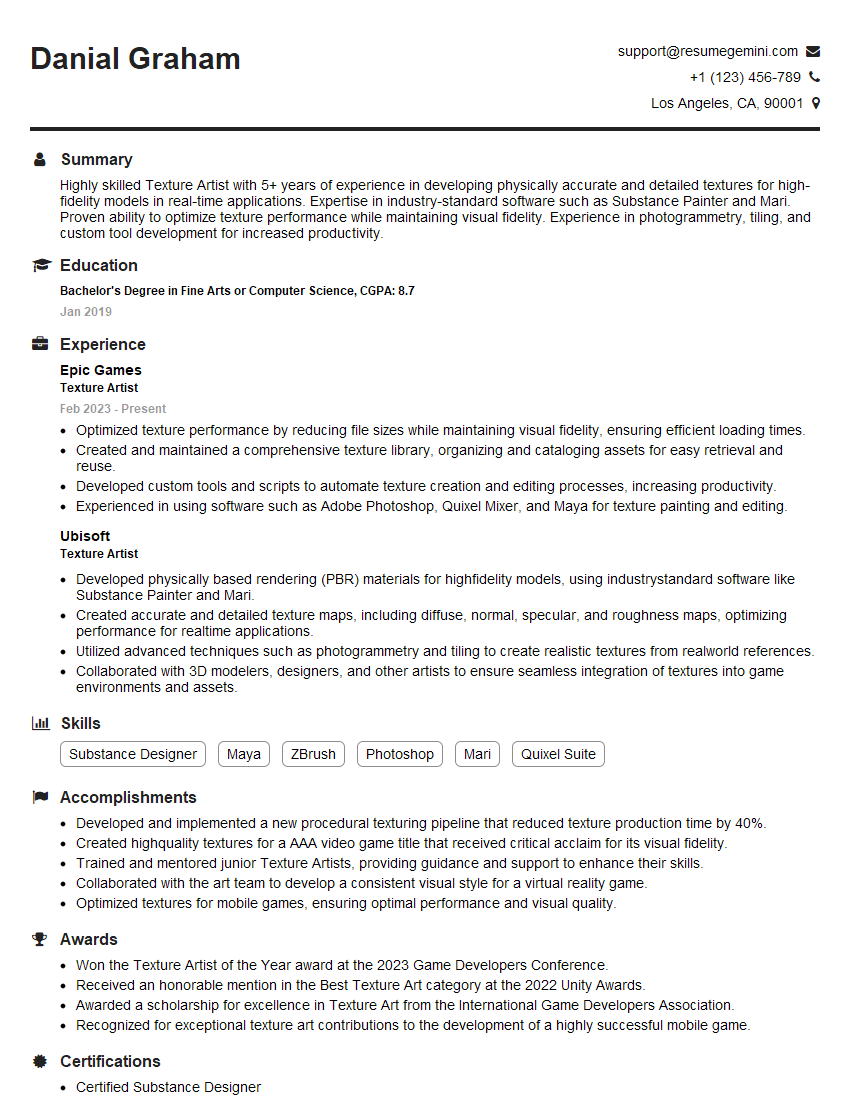
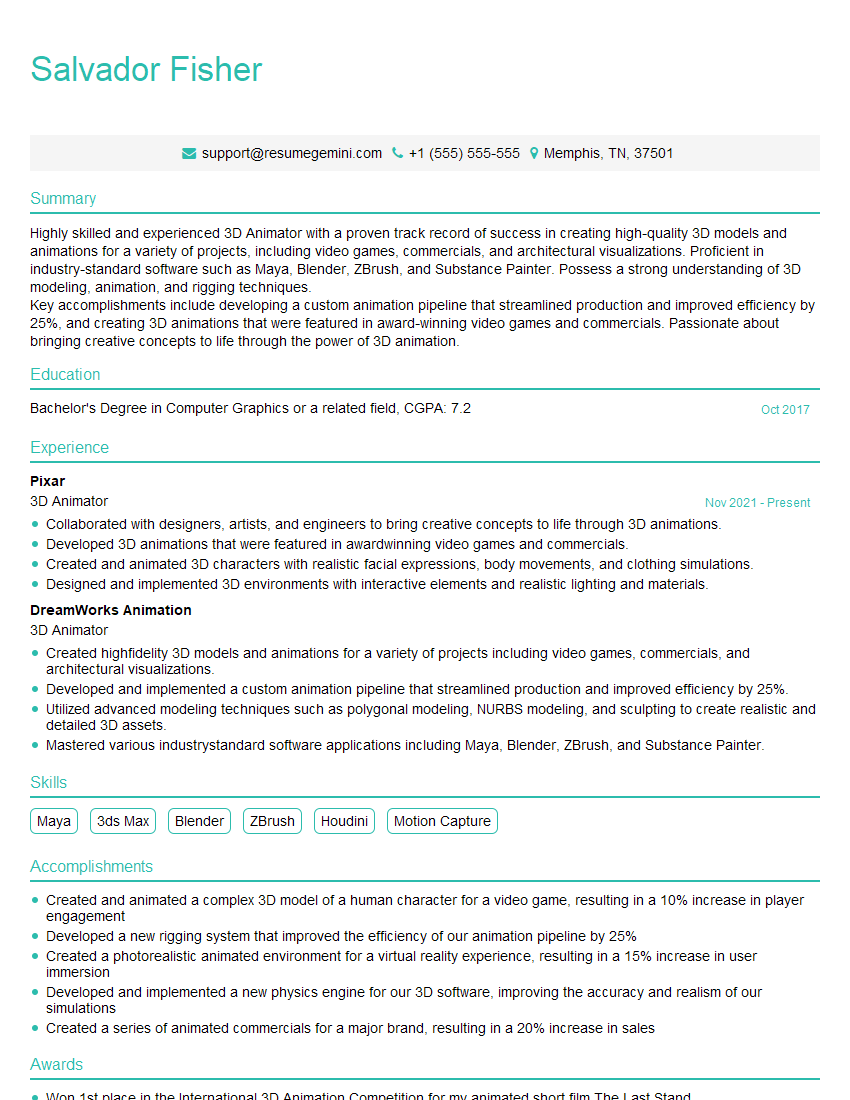
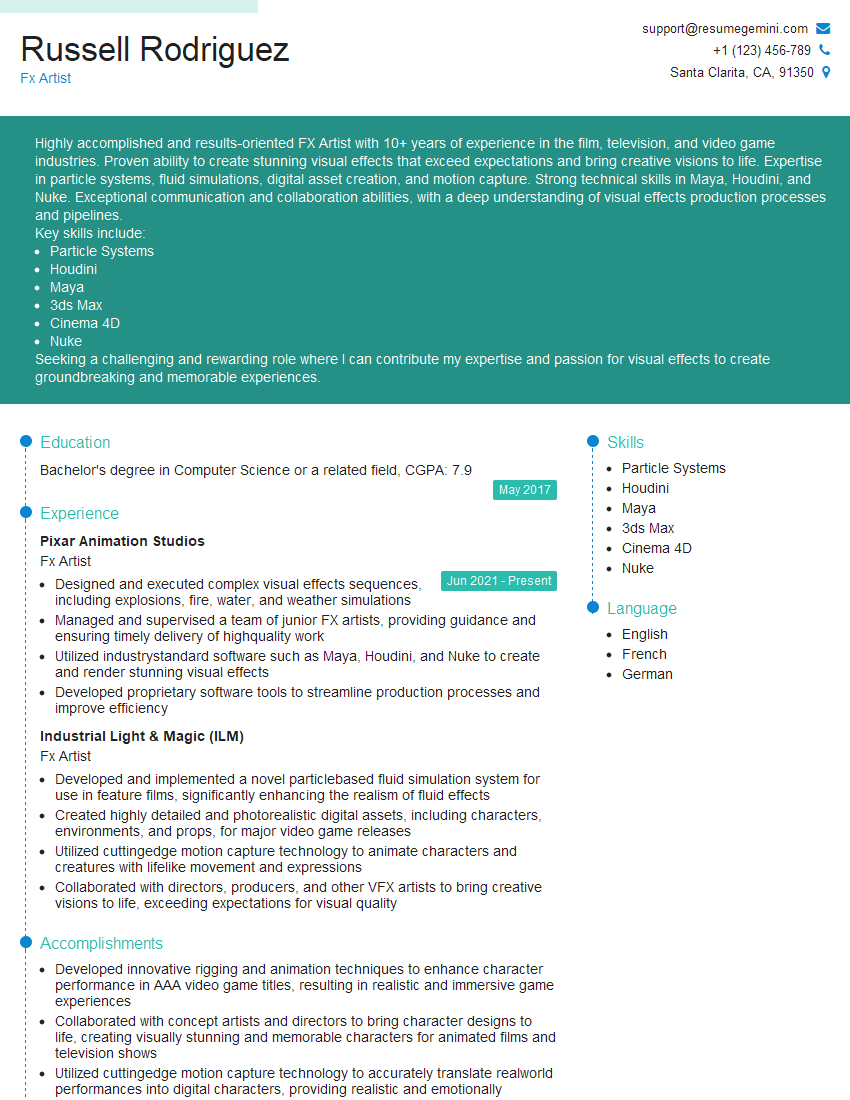
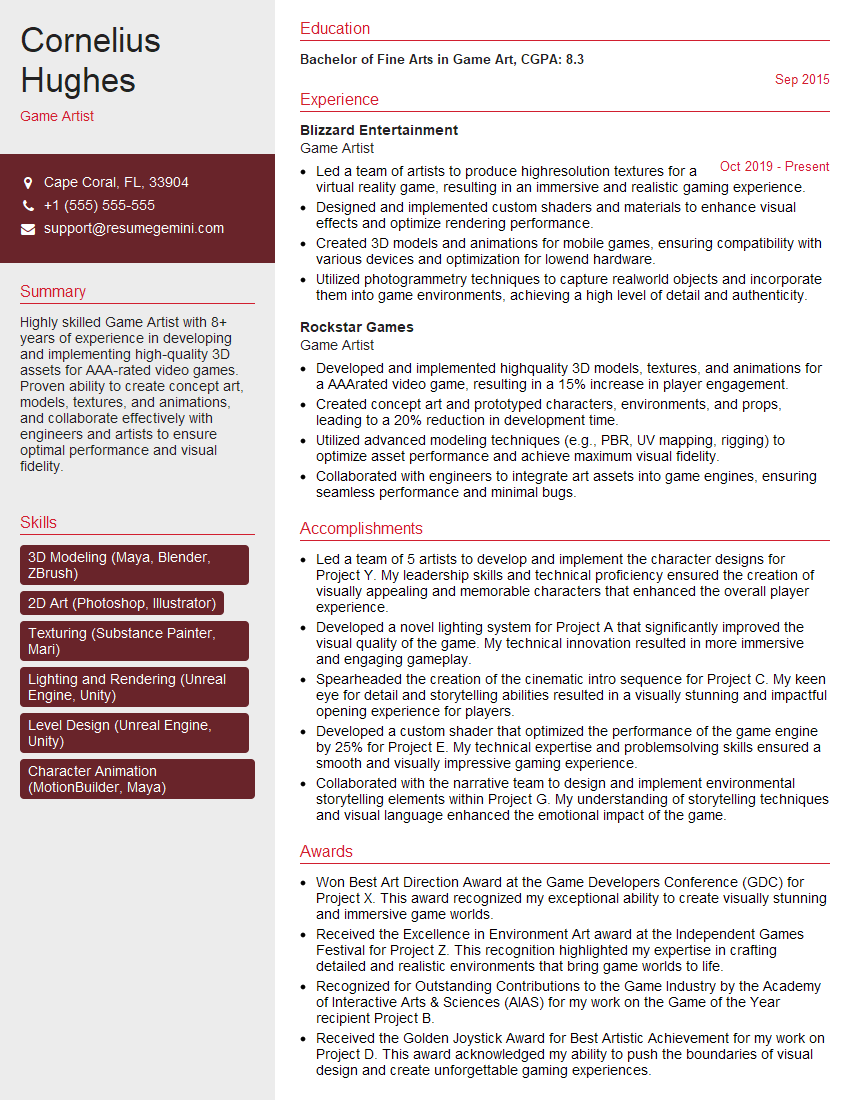
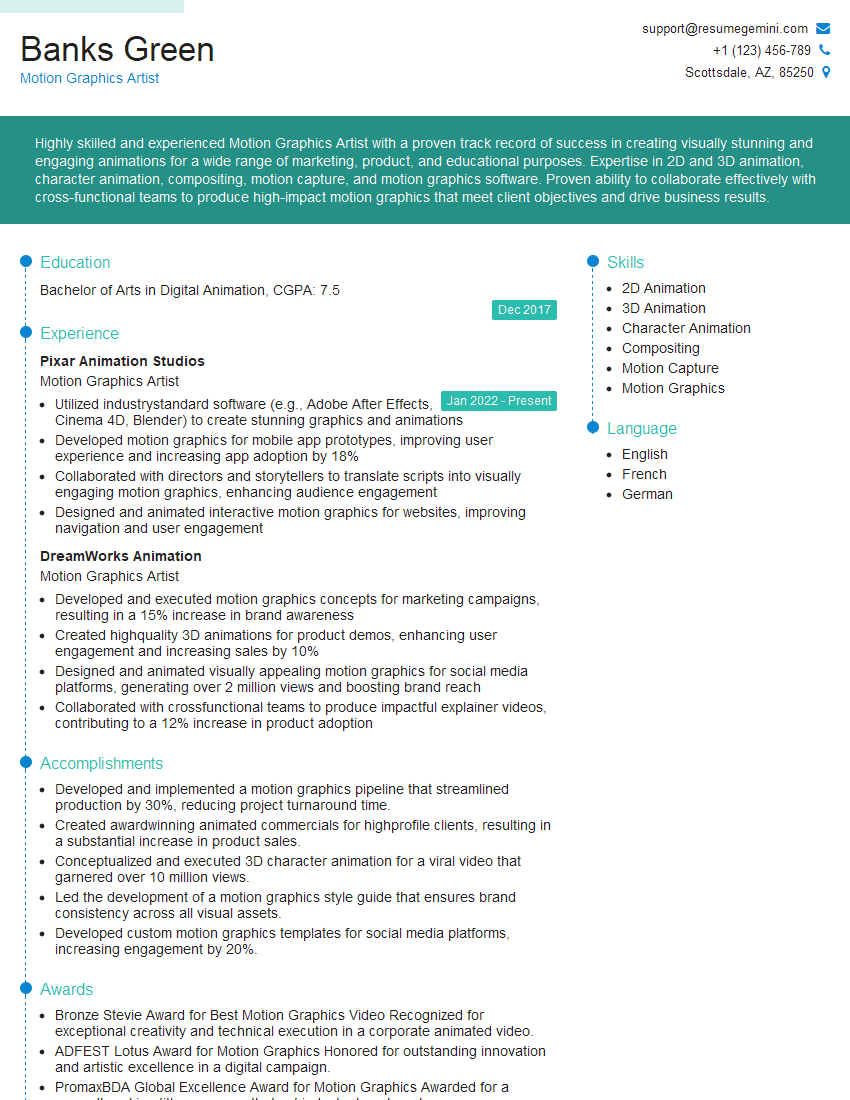
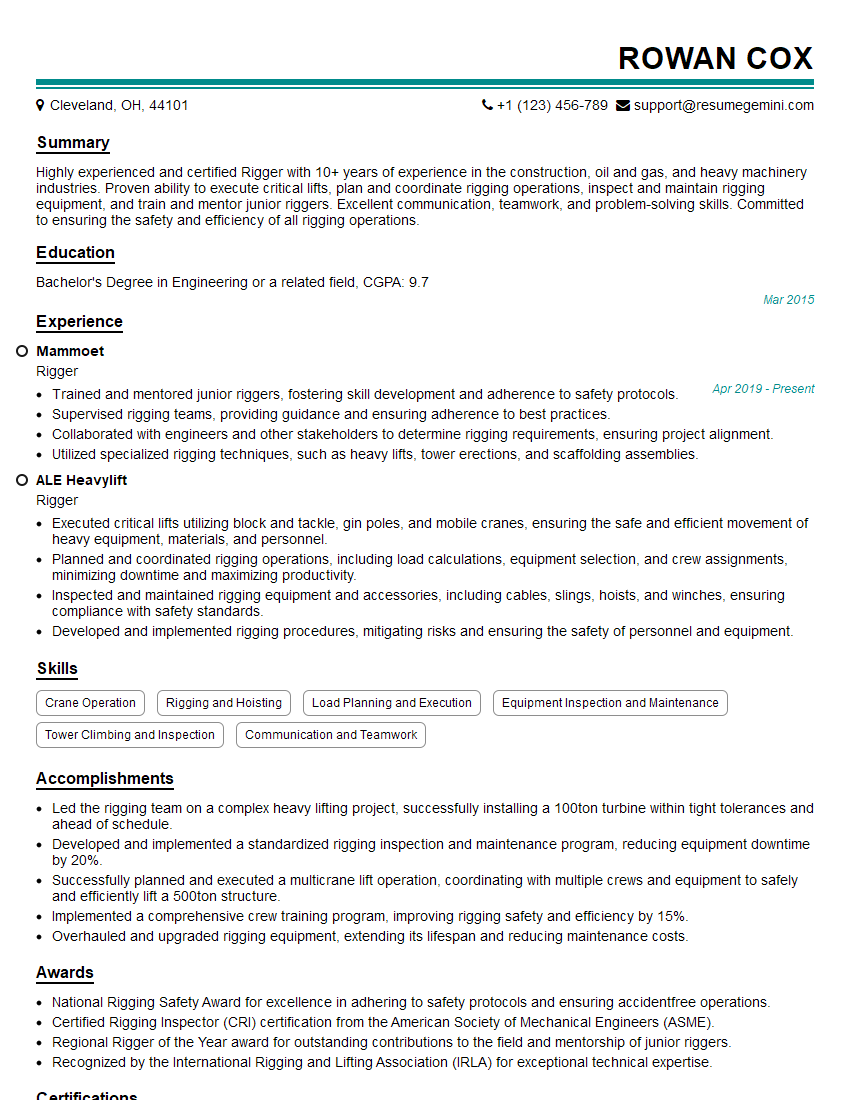
Mastering Autodesk Maya and 3ds Max opens doors to exciting careers in animation, VFX, game development, and architectural visualization. To maximize your job prospects, it’s crucial to present your skills effectively. An ATS-friendly resume is essential for getting noticed by recruiters and making a strong first impression. ResumeGemini is a trusted resource that can help you build a professional and impactful resume tailored to the industry’s requirements. We offer examples of resumes specifically designed for candidates with Autodesk Maya and 3ds Max expertise to guide you through the process. Invest time in crafting a compelling resume – it’s your first step towards landing your dream job!


Explore more articles
Users Rating of Our Blogs
Share Your Experience
We value your feedback! Please rate our content and share your thoughts (optional).
What Readers Say About Our Blog
Very informative content, great job.
good