Are you ready to stand out in your next interview? Understanding and preparing for Basic Computer Skills and Software Proficiency interview questions is a game-changer. In this blog, we’ve compiled key questions and expert advice to help you showcase your skills with confidence and precision. Let’s get started on your journey to acing the interview.
Questions Asked in Basic Computer Skills and Software Proficiency Interview
Q 1. What is the difference between hardware and software?
The difference between hardware and software is fundamental to understanding how computers work. Think of it like a car: hardware is the physical components – the engine, wheels, steering wheel, etc. – the tangible parts you can touch. In a computer, this includes the CPU, RAM, hard drive, monitor, keyboard, and mouse. Software, on the other hand, is the set of instructions – the code – that tells the hardware what to do. It’s the invisible part, like the driver’s instructions or the car’s operating system. Examples of software include operating systems like Windows or macOS, applications like Microsoft Word or Google Chrome, and even the simple games you play on your phone.
Q 2. Explain the functions of the CPU, RAM, and hard drive.
The CPU (Central Processing Unit), RAM (Random Access Memory), and hard drive are crucial components of a computer, each with distinct roles:
- CPU: The ‘brain’ of the computer. It executes instructions from software, performing calculations and processing data. Think of it as the car’s engine, responsible for power and movement. A faster CPU means quicker processing, leading to faster application response times.
- RAM: Short-term memory. It stores data the CPU is actively using. Imagine it as the car’s dashboard – displaying crucial information momentarily. When you close an application, the data in RAM is lost. More RAM allows you to run multiple programs simultaneously without slowing down.
- Hard Drive: Long-term storage. It permanently stores your files, programs, and operating system. This is like the car’s trunk – storing items for later use. Hard drives offer significantly more storage capacity than RAM, but accessing data takes longer.
Q 3. What operating systems are you familiar with?
I’m proficient with several operating systems, including Windows (various versions from Windows XP to Windows 11), macOS (from OS X to the latest versions), and various Linux distributions like Ubuntu and CentOS. My experience spans both desktop and server environments. This broad exposure allows me to understand the nuances of different operating systems and adapt my skills accordingly.
Q 4. How proficient are you with Microsoft Word, Excel, and PowerPoint?
I’m highly proficient in Microsoft Word, Excel, and PowerPoint. In Word, I’m skilled in document creation, formatting, advanced features like mail merge, and working with different document templates. My Excel skills extend to data entry, formula creation, pivot tables, charting, and data analysis. In PowerPoint, I can create compelling presentations with animations, transitions, and incorporate multimedia elements. I’ve used these tools extensively in previous roles for report generation, data visualization, and client presentations. For example, I once used Excel to create a comprehensive sales report, identifying key trends and insights that informed business decisions.
Q 5. Describe your experience with email clients (e.g., Outlook, Gmail).
I have extensive experience using various email clients, including Outlook, Gmail, and Thunderbird. I’m comfortable managing multiple accounts, organizing emails using folders and filters, utilizing calendar features for scheduling, and managing contacts. I’m familiar with features like email rules, signatures, and managing attachments. In a previous role, I managed over 100 emails daily using Outlook, implementing rules to automatically sort and prioritize incoming messages, ensuring efficient communication and time management.
Q 6. How do you troubleshoot common computer problems (e.g., slow internet, printer errors)?
Troubleshooting is a key part of my skillset. For slow internet, I would first check the physical connection, then look at router settings, check for malware or resource-intensive applications, and finally contact the internet service provider. For printer errors, I’d start by checking the printer’s power, ink/toner levels, paper jams, and connection to the computer. If the problem persists, I’d check the printer drivers and potentially reinstall them. My approach is systematic – starting with the simplest solutions before progressing to more complex ones. I use a combination of online resources and my own experience to diagnose and resolve these issues efficiently.
Q 7. What is your experience with internet browsers and search engines?
I’m proficient in using various internet browsers like Chrome, Firefox, Safari, and Edge. I understand browser extensions and settings, including privacy settings and security protocols. My search engine skills include using advanced search operators to refine results and efficiently find specific information. I frequently use multiple search engines to compare results and ensure comprehensive research. In my previous role, I used advanced search techniques to efficiently locate specific technical documentation and troubleshooting solutions, saving valuable time.
Q 8. Explain your understanding of file management and organization.
File management and organization are crucial for efficient and productive work. It involves the systematic process of storing, naming, and retrieving files to ensure easy access and prevent data loss. Think of it like organizing a well-stocked library – you wouldn’t want to search through a chaotic pile of books! Effective file management relies on a clear structure, logical naming conventions, and regular cleanup.
- Clear Structure: I prefer a hierarchical structure, using folders and subfolders to categorize files based on project, date, or type. For example, a project folder might contain subfolders for ‘Documents’, ‘Spreadsheets’, and ‘Images’.
- Logical Naming: I use descriptive and consistent file names. Instead of ‘document1.docx’, I’d prefer ‘ProjectX_Report_20240308.docx’. This makes it easy to find the right file quickly.
- Regular Cleanup: Regularly deleting outdated or unnecessary files is essential to maintain a clean and efficient system. I regularly review my files to archive or delete anything irrelevant.
In a professional setting, strong file management skills are essential for collaboration, data security, and meeting deadlines. A disorganized file system can lead to wasted time searching for files, missed deadlines, and even data loss.
Q 9. How comfortable are you with data entry and accuracy?
I’m extremely comfortable with data entry and prioritize accuracy above all else. I understand that even small errors can have significant consequences, especially in fields like accounting or research. My approach involves several key steps:
- Double-Checking: I always double-check entered data against the source material to ensure accuracy. This often involves comparing numbers and text carefully.
- Data Validation: Where possible, I utilize data validation tools or techniques (like using spreadsheet formulas to check for inconsistencies) to identify potential errors before they become problems.
- Consistent Formatting: I maintain consistent formatting throughout the data entry process. This makes it easier to identify anomalies and spot mistakes.
For example, when entering financial data, I’ll use formulas to cross-check totals and ensure that debits and credits balance. In a research setting, I’ll carefully verify citations and data points against original sources.
Q 10. What is your experience with different file formats (e.g., .doc, .pdf, .xls)?
I have extensive experience with various file formats, including .doc (Microsoft Word), .pdf (Portable Document Format), .xls (Microsoft Excel), .xlsx (Microsoft Excel), .pptx (Microsoft PowerPoint), .txt (plain text), .csv (comma separated values), .jpg (image), and .png (image). I understand the strengths and weaknesses of each format and choose the appropriate one for the task. For example, I’d use .pdf for archiving documents requiring a consistent visual presentation, .xlsx for spreadsheets requiring calculations and data analysis, and .docx for documents needing extensive editing and formatting.
My experience extends to handling less common formats as well, and I’m adept at converting between different formats when necessary using appropriate software.
Q 11. Describe your experience with cloud storage services (e.g., Google Drive, Dropbox).
I have significant experience using cloud storage services like Google Drive, Dropbox, and OneDrive. I understand the benefits of cloud storage, including accessibility from multiple devices, collaboration features, and automatic backups. I’m proficient in creating and managing folders, sharing files with collaborators, and utilizing version history to retrieve previous file versions.
In a professional context, I’ve used these services for collaborative projects, data backup and disaster recovery, and secure file sharing with clients. I’m also mindful of security best practices, such as using strong passwords and enabling two-factor authentication.
Q 12. How familiar are you with basic network concepts (e.g., LAN, WAN)?
I’m familiar with basic network concepts such as LAN (Local Area Network) and WAN (Wide Area Network). A LAN is a network connecting devices within a limited geographical area, such as a home or office, while a WAN connects devices over a larger geographical area, such as the internet. I understand the difference between wired and wireless networks and have experience troubleshooting basic network connectivity issues.
Understanding these concepts is vital for efficient and secure use of technology. For example, knowing the difference between LAN and WAN helps in understanding why a file might transfer quickly on a local network but take longer over the internet.
Q 13. What is your experience with presentation software?
My experience with presentation software, primarily Microsoft PowerPoint and Google Slides, is comprehensive. I can create compelling presentations that effectively communicate information to various audiences. This includes designing visually appealing slides, incorporating multimedia elements such as images and videos, and using animation and transitions to enhance engagement.
Beyond the basics, I’m comfortable customizing presentation templates, creating charts and graphs to visualize data, and delivering presentations effectively. I understand the importance of tailoring the content and style of a presentation to suit the specific audience and context.
Q 14. Describe your experience using spreadsheet software for data analysis.
I’m proficient in using spreadsheet software like Microsoft Excel and Google Sheets for data analysis. My skills include data cleaning, data manipulation, formula creation (e.g., SUM, AVERAGE, IF, VLOOKUP), pivot tables creation, chart generation, and data visualization. I’m capable of using these tools to identify trends, make predictions, and extract meaningful insights from large datasets.
For example, I’ve used spreadsheet software to analyze sales data to identify top-performing products and regions. I’ve also used it to create budgets, track project timelines, and perform statistical analysis. I understand the importance of data accuracy and validation to ensure the reliability of any analysis performed.
Q 15. How proficient are you with creating and formatting documents?
I’m highly proficient in creating and formatting documents using various software applications. My skills encompass everything from basic text editing to advanced formatting and layout design. I’m adept at using Microsoft Word, Google Docs, and Pages, and I’m comfortable working with different file formats like .docx, .doc, .pdf, and .rtf.
For example, I recently created a comprehensive marketing proposal using Word. I utilized features like styles, headers and footers, tables, and advanced formatting options to ensure a professional and visually appealing presentation. This included incorporating high-quality images and graphs, adjusting column widths for optimal readability, and using advanced features like mail merge to personalize the proposal for multiple recipients. I also routinely use Google Docs’ collaborative features for team projects, enabling real-time editing and feedback integration.
Beyond basic formatting, I understand the importance of accessibility. I’m familiar with creating documents that adhere to accessibility guidelines, ensuring they’re usable by people with disabilities. This involves proper use of headings, alternative text for images, and consistent formatting.
Career Expert Tips:
- Ace those interviews! Prepare effectively by reviewing the Top 50 Most Common Interview Questions on ResumeGemini.
- Navigate your job search with confidence! Explore a wide range of Career Tips on ResumeGemini. Learn about common challenges and recommendations to overcome them.
- Craft the perfect resume! Master the Art of Resume Writing with ResumeGemini’s guide. Showcase your unique qualifications and achievements effectively.
- Don’t miss out on holiday savings! Build your dream resume with ResumeGemini’s ATS optimized templates.
Q 16. How do you handle large volumes of data?
Handling large volumes of data requires a structured and efficient approach. My strategy involves using appropriate tools and techniques to organize, analyze, and manipulate the data effectively. This often involves leveraging spreadsheet software like Excel or Google Sheets, or database management systems (DBMS) like MySQL or PostgreSQL, depending on the data structure and required analysis.
For instance, when working with a large dataset of customer transactions, I would first import the data into a spreadsheet or database. Then, I would use filtering, sorting, and data cleaning techniques to remove any inconsistencies or errors. For more complex analyses, I would employ pivot tables, charting features, or programming languages like Python with libraries such as Pandas, to identify trends, patterns, and insights. Data visualization is key, so I would create graphs and charts to present the findings clearly and concisely.
The key is to break down the data into manageable chunks, apply appropriate analysis techniques, and ensure the integrity of the data throughout the process. Regular data backups are also crucial to mitigate the risk of data loss.
Q 17. What is your experience with databases?
I have experience working with relational databases, specifically MySQL and PostgreSQL. My experience encompasses database design, data entry, query creation (using SQL), data manipulation, and report generation. I understand database normalization principles and the importance of maintaining data integrity.
In a previous role, I was responsible for designing and maintaining a database for a small business. This involved creating tables, defining relationships between them, and implementing data validation rules to ensure data accuracy. I used SQL to create queries to retrieve specific information, generate reports, and perform data analysis. I’m also familiar with database administration tasks such as user management, backup and recovery, and performance tuning.
My understanding extends to the conceptual design of databases, including Entity-Relationship Diagrams (ERDs), to ensure a robust and scalable database system.
Q 18. How do you ensure data accuracy and integrity?
Ensuring data accuracy and integrity is paramount. My approach is multifaceted and involves several key steps. First, data validation techniques are crucial – setting up checks at the point of data entry to prevent incorrect data from being input in the first place. This might involve using data validation rules in spreadsheets or constraints in databases.
Secondly, data cleaning is essential. This involves identifying and correcting errors in existing data. This may include handling missing values, removing duplicates, and standardizing data formats. For example, ensuring consistency in date formats or addressing spelling errors.
Thirdly, regular data audits are necessary to identify any inconsistencies or anomalies. This might involve comparing data from different sources or running data quality checks. Version control systems for data, if applicable, are also extremely helpful in tracking changes and restoring previous versions if needed.
Finally, using appropriate tools and methodologies, like checksums or hashing algorithms, can help maintain data integrity during data transfer or storage. Choosing the right tools depends on the sensitivity of the data and the context of its usage.
Q 19. What is your experience with data backup and recovery?
My experience with data backup and recovery includes using both local and cloud-based solutions. I understand the importance of regular backups to mitigate data loss due to hardware failure, software glitches, or human error. I’m familiar with various backup strategies, including full, incremental, and differential backups.
In a previous role, I implemented a backup and recovery strategy that involved daily incremental backups to a local server and weekly full backups to a cloud storage service. This ensured that we could quickly restore data in case of a system failure. I also established a detailed recovery plan outlining the steps to restore data from the backups, ensuring a smooth and efficient recovery process.
Choosing the right backup strategy depends on several factors, including the size of the data, the frequency of changes, and the recovery time objective (RTO) and recovery point objective (RPO).
Q 20. How do you stay updated with new technologies and software?
Staying updated in the ever-evolving field of technology is crucial. I utilize several strategies to ensure I remain current with new technologies and software. I regularly read industry blogs, publications, and online articles focused on software development, data management, and relevant advancements.
I actively participate in online communities and forums, engaging in discussions and learning from the experiences of other professionals. Attending webinars and online courses keeps me up-to-date with the latest tools and techniques. Hands-on practice with new software or technologies is key, so I often dedicate time to experimenting with new tools and applying them to small projects. Finally, pursuing relevant certifications demonstrates ongoing commitment to professional development.
Q 21. Describe a time you had to solve a computer-related problem.
In a previous role, our company’s database experienced unexpected performance degradation. This resulted in slow response times and impacted productivity. I was tasked with diagnosing and resolving the issue.
My first step involved analyzing the database logs to identify potential bottlenecks. I discovered that several poorly optimized queries were causing excessive resource consumption. I then used SQL profiling tools to pinpoint the specific queries that were causing the problem. After identifying the culprits, I optimized these queries by using appropriate indexes and rewriting inefficient code. I also collaborated with the development team to review their database interaction procedures to ensure best practices were followed.
After implementing these changes, we observed a significant improvement in database performance. The response times returned to normal levels, restoring productivity. This experience emphasized the importance of regular database monitoring, query optimization, and effective collaboration in problem-solving.
Q 22. How would you handle a situation where a software program malfunctions?
When a software program malfunctions, my first step is to identify the nature of the problem. Is it a complete crash, a specific function not working, or an error message appearing? This helps determine the best course of action.
For example, if a program crashes unexpectedly, I’d first try to save any unsaved work (if possible) and then restart the program. If the problem persists, I would check for system updates and ensure I’m running the latest version of the software. I might also check the program’s help files or online forums for troubleshooting tips or known issues. If the issue seems to be related to a specific file or data entry, I might try creating a new file and recreating the data to see if the problem is data-specific. If all else fails, contacting the software’s technical support is a necessary step. I find it helpful to document my troubleshooting steps so I can clearly explain what I’ve already tried to support staff.
A less severe malfunction, like a frozen feature, might be resolved by simply restarting the feature or the application itself. Think of it like a computer needing a quick reboot to clear temporary errors. Carefully observing the error messages is crucial, as they often provide valuable clues about the problem.
Q 23. Explain your experience with using online collaboration tools.
I have extensive experience using online collaboration tools, including Google Workspace (Docs, Sheets, Slides), Microsoft 365 (Word, Excel, PowerPoint, Teams), and Slack. I’ve used these tools for collaborative writing projects, spreadsheet data analysis, presentations, and team communication.
For instance, in a recent project, we used Google Docs to collaboratively write a marketing report. The real-time editing capabilities allowed multiple team members to work simultaneously, see each other’s edits, and provide feedback instantly. This streamlined the writing process significantly and improved communication. Using the comment features, we could provide specific feedback on particular sections, making revisions easier and more efficient. Furthermore, Google Drive’s version history feature ensured we could easily revert to earlier versions if needed, avoiding data loss or unintended changes.
Similarly, in another project, we used Microsoft Teams for daily stand-up meetings and file sharing, making remote collaboration smoother and more efficient. The ability to chat, share files, and conduct video conferencing within one platform significantly improved team coordination and productivity.
Q 24. What is your typing speed and accuracy?
My typing speed is approximately 70 words per minute with an accuracy rate exceeding 98%. I’ve maintained this proficiency through consistent practice and focused attention on proper technique. I regularly use online typing tests to track my progress and identify areas for improvement.
Q 25. What is your experience with keyboard shortcuts?
I’m proficient in using a wide range of keyboard shortcuts across various applications. For instance, in Microsoft Word, I frequently use Ctrl+C (copy), Ctrl+X (cut), Ctrl+V (paste), Ctrl+Z (undo), and Ctrl+S (save). In web browsers, Ctrl+T (new tab), Ctrl+Shift+T (reopen closed tab), and Ctrl+F (find) are invaluable time-savers. I also use shortcuts for formatting in word processing software (bold, italic, underline) and navigation within programs. The use of keyboard shortcuts has significantly increased my efficiency in everyday tasks.
This isn’t just about speed; it’s about minimizing the need to constantly move my hands between the keyboard and the mouse, allowing for a more ergonomic and efficient workflow. I adapt my use of shortcuts to the specific application I am using.
Q 26. Describe your experience with different types of printers.
My experience with printers includes working with inkjet, laser, and thermal printers. Inkjet printers are suitable for high-quality color printing, but the running costs of ink can be high. Laser printers are faster and more cost-effective for large-volume black-and-white printing, ideal for office environments. I’ve also worked with thermal printers, commonly used for receipts and labels; these printers are known for their simplicity and low maintenance. I understand the strengths and weaknesses of each type and choose the appropriate printer based on the specific needs of the job.
Beyond the technology, I’m familiar with managing printer drivers, troubleshooting connectivity issues, and handling basic maintenance like changing toner cartridges or refilling ink tanks. Understanding the various print settings—like resolution, color depth, and paper size—allows me to optimize print jobs for both quality and efficiency.
Q 27. What is your understanding of cybersecurity best practices?
Cybersecurity best practices are crucial for protecting both personal and organizational data. My understanding encompasses several key areas:
- Strong Passwords: Using unique, complex passwords for each account, and utilizing password managers to store them securely.
- Software Updates: Regularly updating operating systems and software applications to patch security vulnerabilities. Think of it like getting regular check-ups to stay healthy; these updates protect your systems.
- Antivirus/Anti-malware: Employing reputable antivirus and anti-malware software and keeping it up-to-date to detect and remove threats.
- Firewall Protection: Utilizing firewalls to control network traffic and prevent unauthorized access to your devices and networks. A firewall acts like a gatekeeper, blocking unwanted visitors.
- Phishing Awareness: Being vigilant about phishing emails and suspicious links. Never clicking on links or opening attachments from unknown sources. It is like checking your candy before you eat it.
- Data Backups: Regularly backing up important data to prevent data loss in case of hardware failure or cyberattacks.
- Multi-Factor Authentication (MFA): Enabling MFA whenever possible to add an extra layer of security to online accounts. This is an extra step to ensure only authorized users can access your data.
I also understand the importance of data privacy and adhere to relevant regulations regarding data handling and protection.
Q 28. How familiar are you with using project management software?
I have experience using several project management software applications, including Asana, Trello, and Monday.com. I am familiar with their core functionalities such as task management, collaboration features, progress tracking, and reporting. I’ve used these tools to organize projects, assign tasks, set deadlines, and monitor progress.
For instance, in a previous role, we used Asana to manage a website redesign project. We created separate sections for different phases of the project, assigned tasks to team members, set deadlines, and tracked progress using the progress bar features. The ability to communicate within the platform itself, share files, and set dependencies between tasks streamlined the entire process. We could see at a glance what was completed, what was in progress, and what was upcoming, leading to better planning and execution.
My understanding extends to utilizing these platforms for various project methodologies, such as Agile or Kanban, adapting my approach to the project’s specific needs.
Key Topics to Learn for Basic Computer Skills and Software Proficiency Interview
- Operating Systems: Understanding the fundamental concepts of Windows, macOS, or Linux. This includes file management, basic troubleshooting, and navigating the user interface.
- Practical Application: Describe your experience managing files and folders efficiently, troubleshooting minor technical issues, and adapting to different operating systems.
- Software Applications (Word Processing): Proficiency in Microsoft Word (or equivalent) including formatting, creating documents, using templates, and advanced features like mail merge.
- Practical Application: Showcase your ability to create professional-looking documents, handle complex formatting tasks, and demonstrate efficient use of features.
- Software Applications (Spreadsheets): Proficiency in Microsoft Excel (or equivalent) including data entry, formulas, functions, charts, and data analysis basics.
- Practical Application: Highlight your experience with creating spreadsheets, using formulas to automate calculations, generating charts to visualize data, and performing simple data analysis.
- Software Applications (Presentations): Proficiency in Microsoft PowerPoint (or equivalent) including slide creation, animation, transitions, and incorporating multimedia elements.
- Practical Application: Demonstrate your ability to create engaging and informative presentations, effectively conveying information visually.
- Internet and Email: Understanding of internet browsing, email communication, online safety, and basic search engine optimization (SEO) concepts.
- Practical Application: Discuss your experience with professional email etiquette, efficient internet research, and awareness of online security best practices.
- Problem-solving and Troubleshooting: Ability to identify, analyze, and resolve basic computer issues independently. This includes describing your approach to troubleshooting.
- Practical Application: Give examples of times you successfully solved a computer problem, emphasizing your systematic approach and problem-solving skills.
Next Steps
Mastering Basic Computer Skills and Software Proficiency is crucial for success in today’s job market, opening doors to a wide range of opportunities. An ATS-friendly resume is your first impression – make it count! Build a strong, targeted resume that highlights your skills and experience effectively. ResumeGemini is a trusted resource to help you create a professional and impactful resume that grabs recruiters’ attention. Examples of resumes tailored to Basic Computer Skills and Software Proficiency are available to help guide you. Take the next step towards your career success!

Office Manager Resume Sample

Administrative Assistant Resume Sample
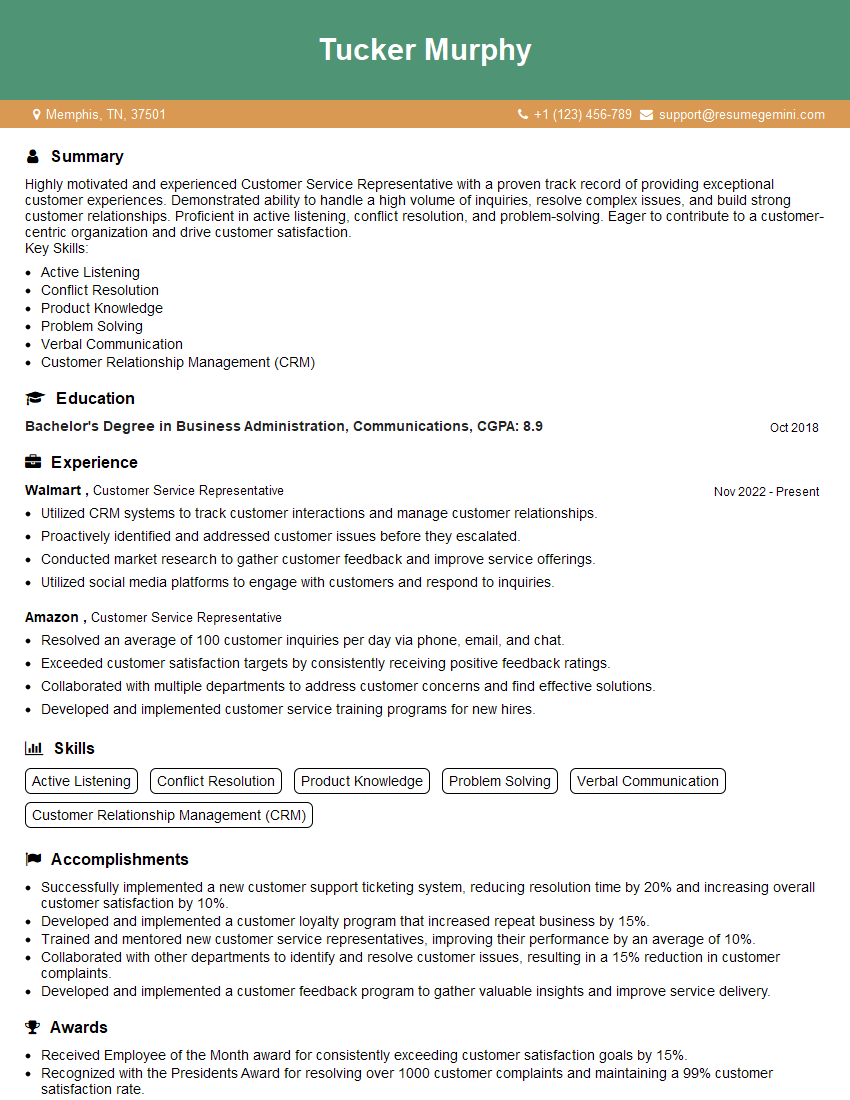
Customer Service Representative Resume Sample
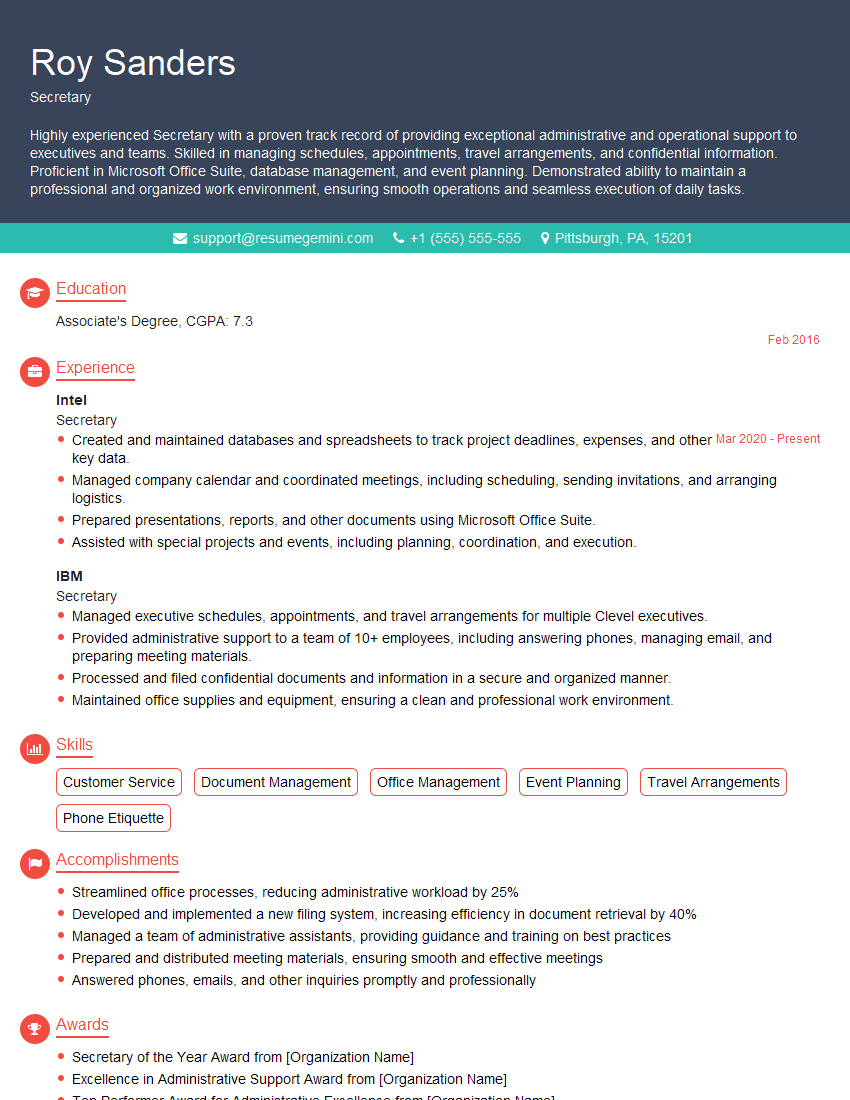
Secretary Resume Sample
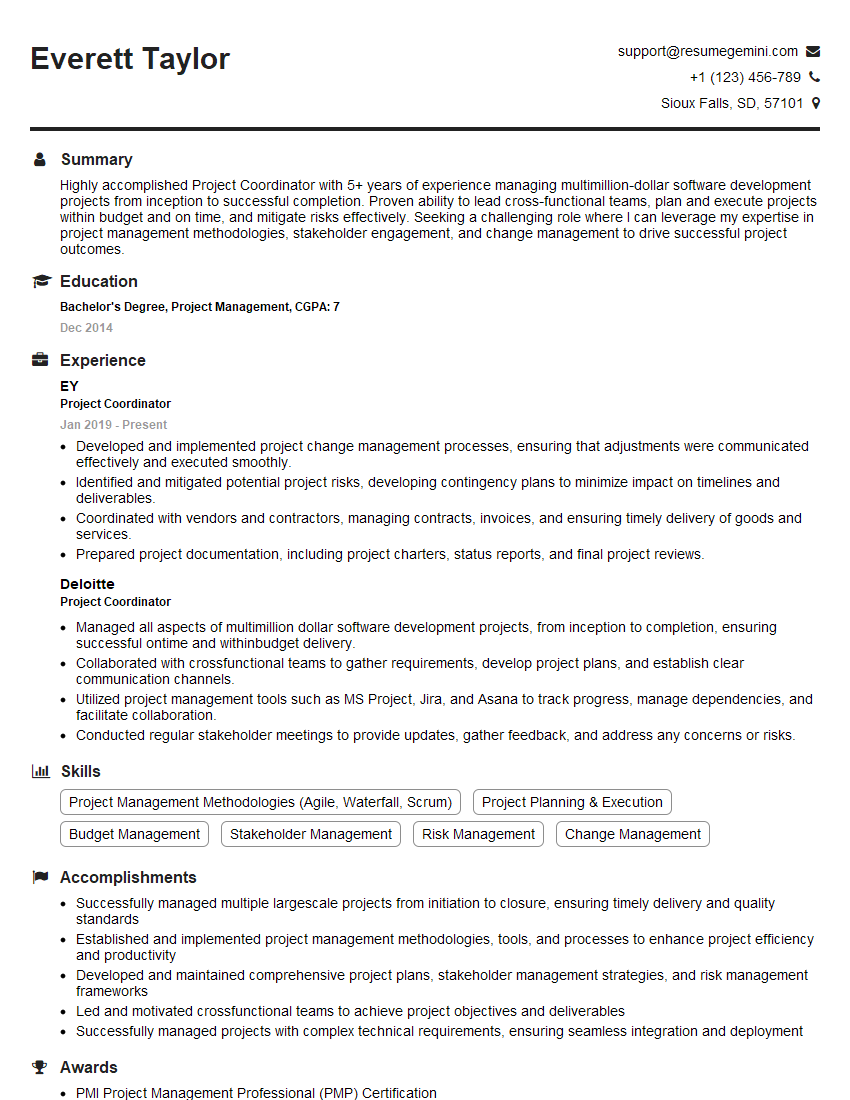
Project Coordinator Resume Sample

Social Media Manager Resume Sample
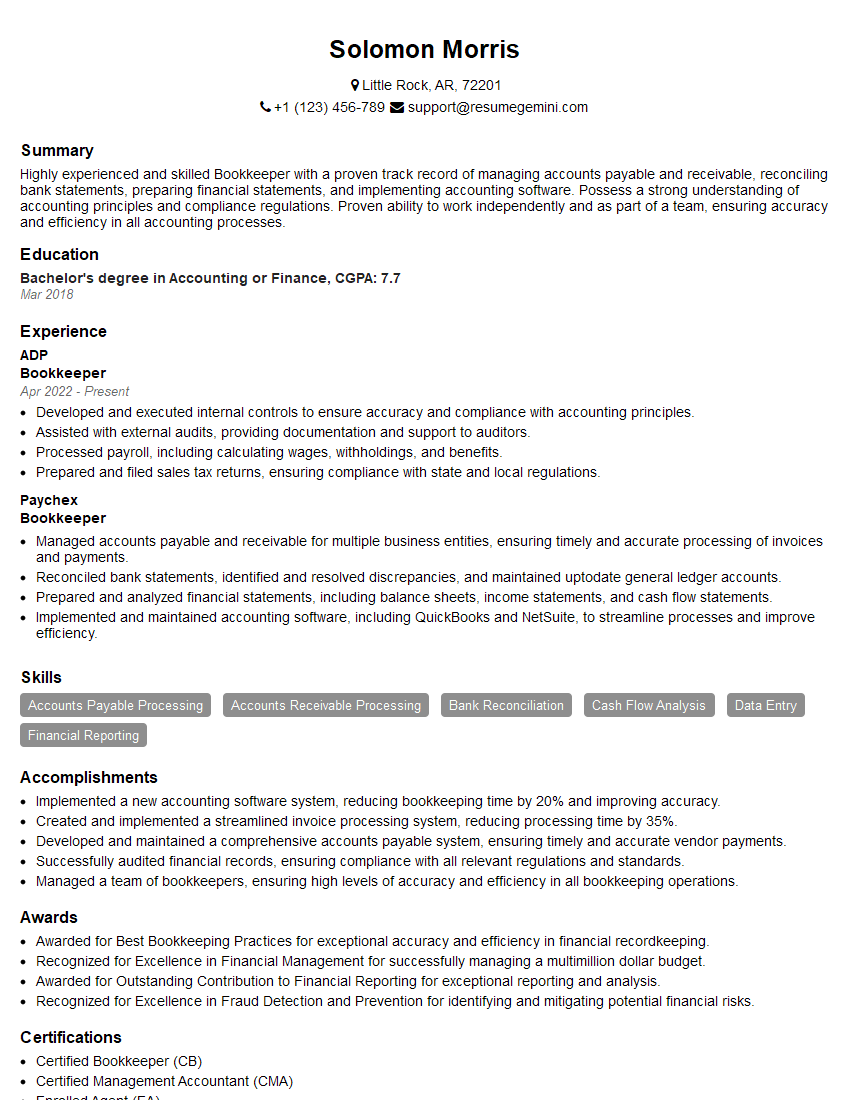
Bookkeeper Resume Sample
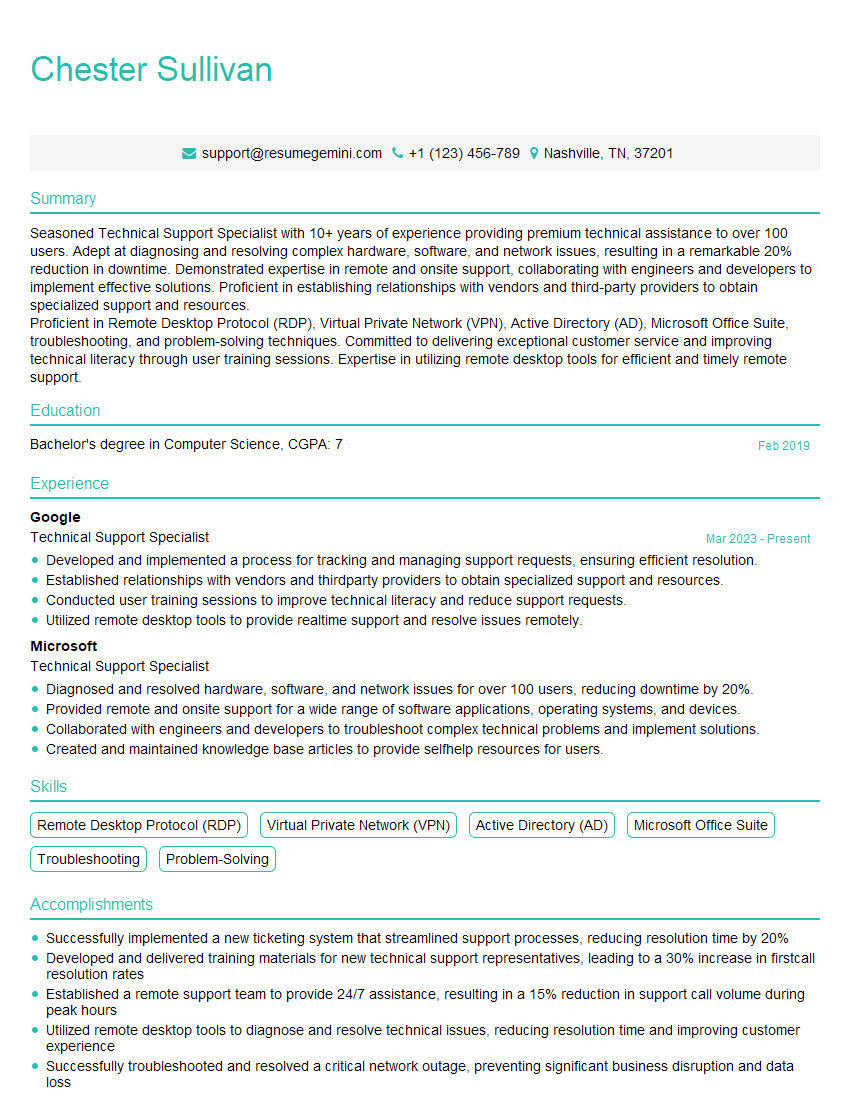
Technical Support Specialist Resume Sample
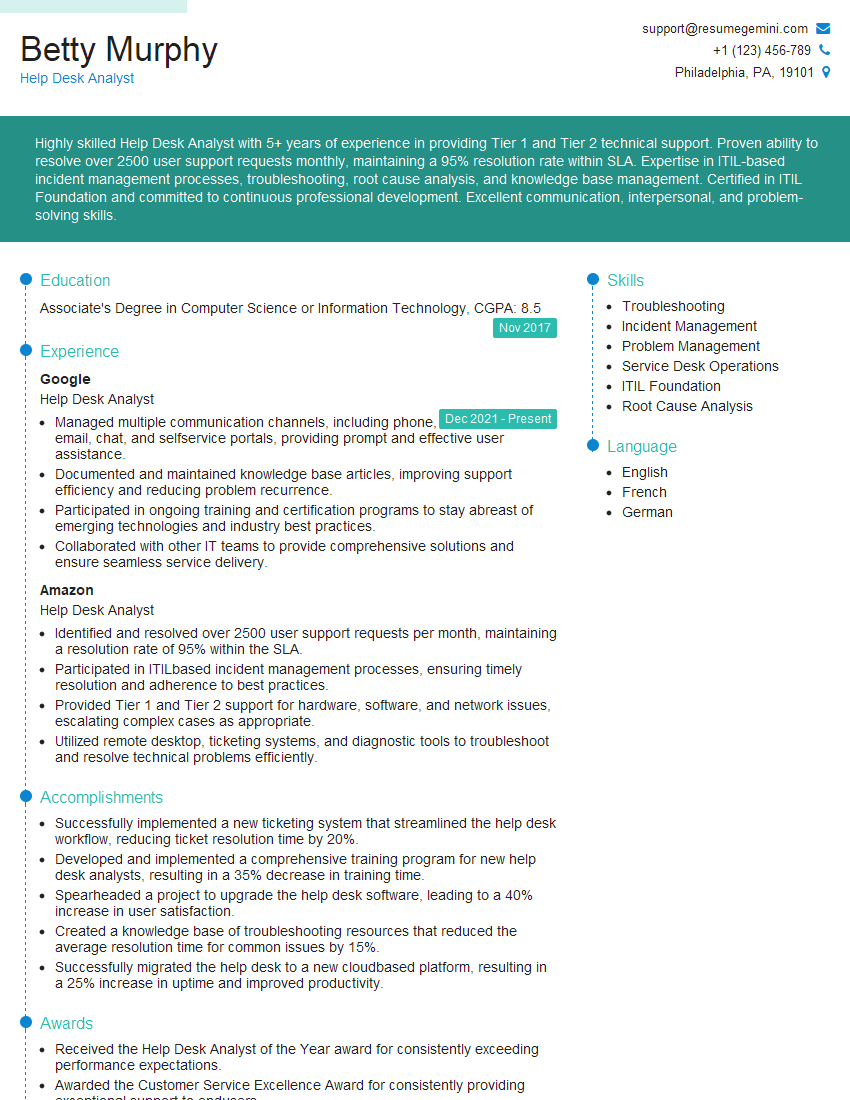
Help Desk Analyst Resume Sample
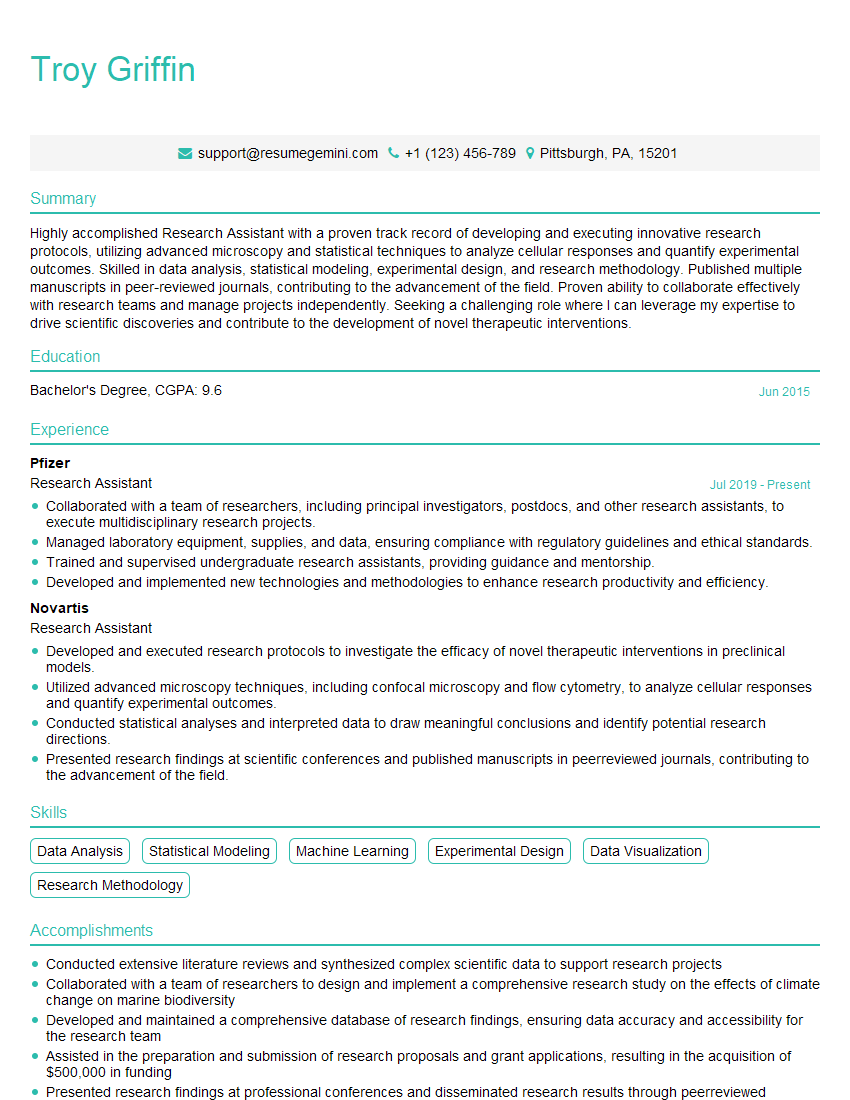
Research Assistant Resume Sample
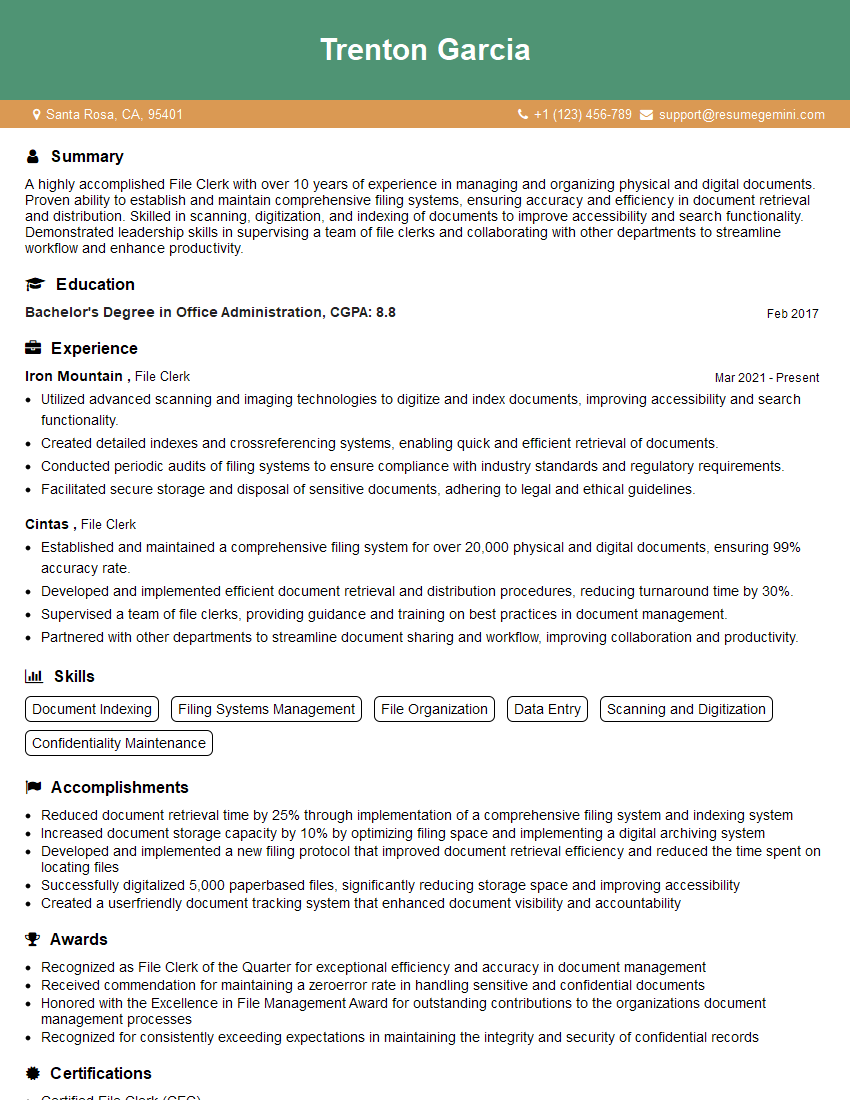
File Clerk Resume Sample
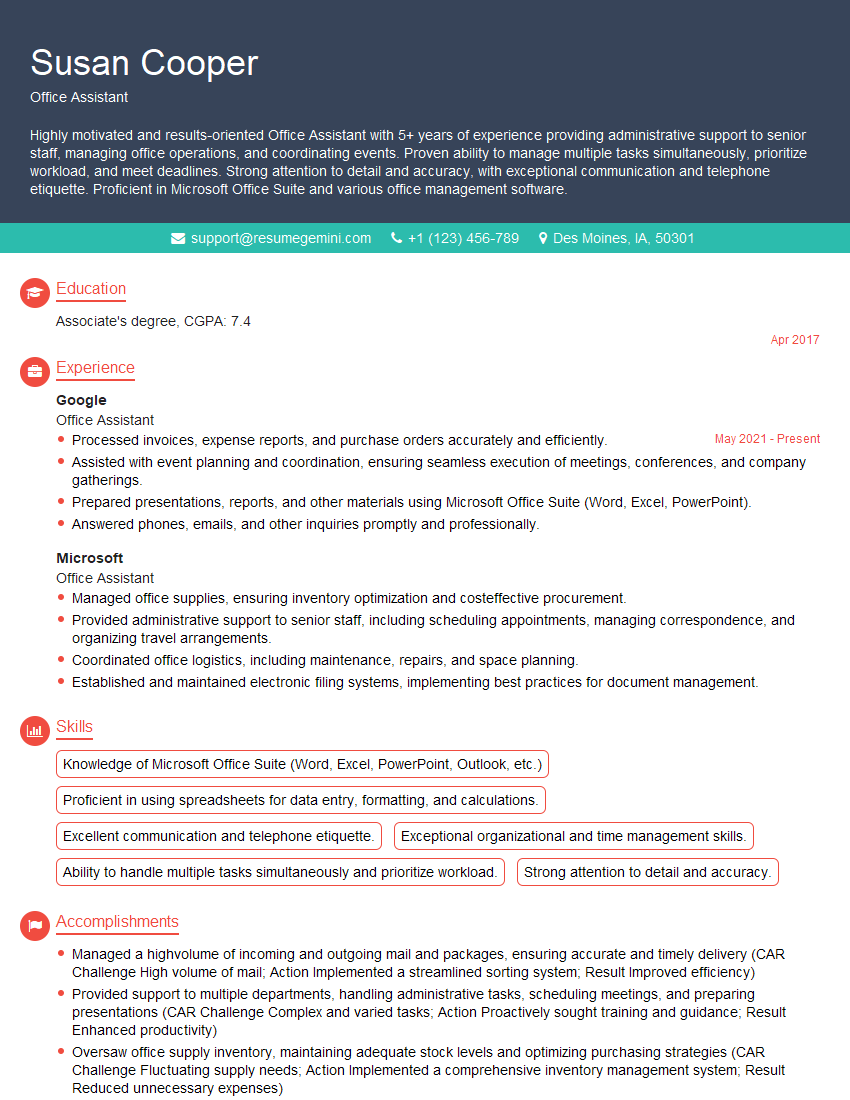
Office Assistant Resume Sample
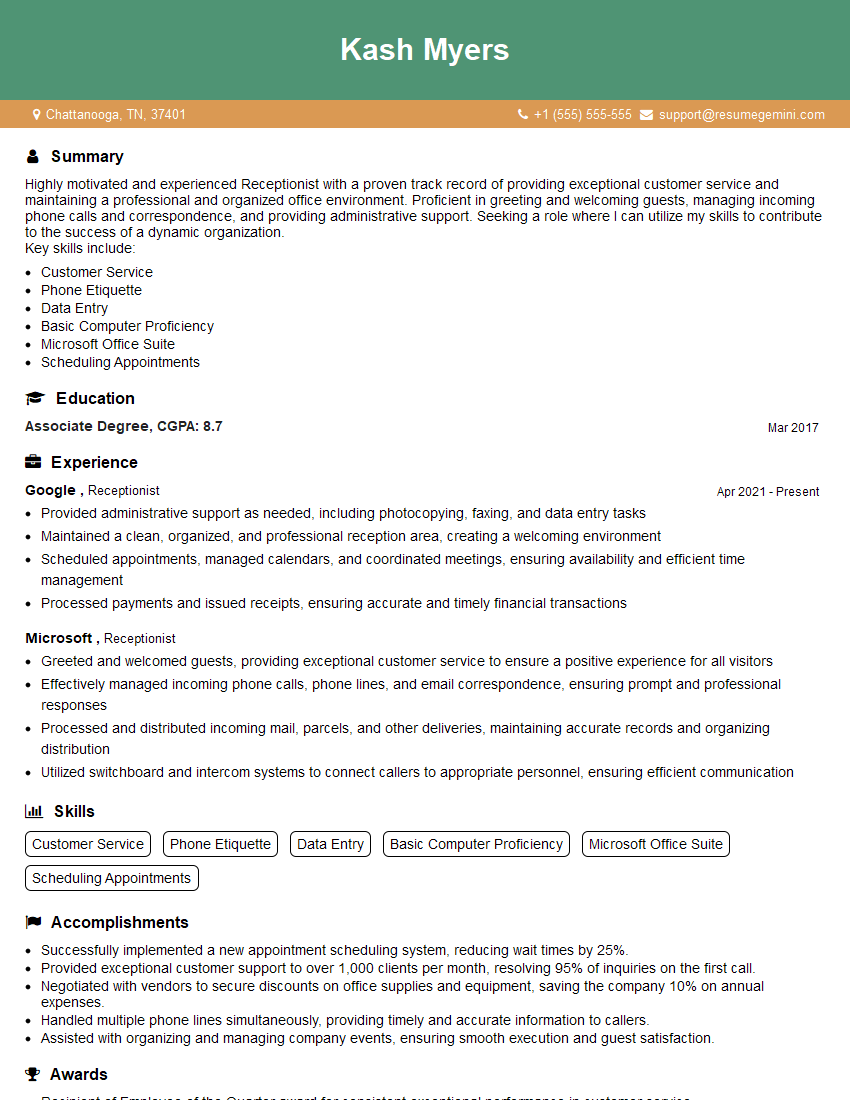
Receptionist Resume Sample

Executive Assistant Resume Sample

Data Entry Clerk Resume Sample

Content Creator Resume Sample
Explore more articles
Users Rating of Our Blogs
Share Your Experience
We value your feedback! Please rate our content and share your thoughts (optional).
What Readers Say About Our Blog
Very informative content, great job.
good