The thought of an interview can be nerve-wracking, but the right preparation can make all the difference. Explore this comprehensive guide to Digital Scanning and Image Manipulation interview questions and gain the confidence you need to showcase your abilities and secure the role.
Questions Asked in Digital Scanning and Image Manipulation Interview
Q 1. Explain the difference between raster and vector graphics.
Raster and vector graphics represent images fundamentally differently. Think of it like this: raster graphics are like a mosaic, made up of tiny colored squares called pixels. Vector graphics, on the other hand, are like blueprints, defined by mathematical equations describing lines, curves, and shapes.
- Raster Graphics: Examples include JPEG, PNG, and GIF. They are resolution-dependent; enlarging them makes them pixelated. They are best for photographs and images with complex color gradients.
- Vector Graphics: Examples include SVG and AI. They are resolution-independent; they can be scaled to any size without losing quality. They’re ideal for logos, illustrations, and line drawings where crisp lines are crucial.
In practice, choosing between raster and vector depends entirely on the intended use. A company logo should always be a vector graphic for use on websites, business cards, and billboards. A photograph, however, would be a raster image.
Q 2. Describe your experience with various scanning technologies (e.g., flatbed, sheetfed, microfilm).
My experience spans a wide range of scanning technologies. I’ve worked extensively with flatbed scanners for high-resolution scanning of documents, photographs, and artwork. Flatbeds offer versatility but can be slower for high-volume work. Sheetfed scanners are ideal for batch scanning, like digitizing large document archives, due to their speed. I’ve also had experience with microfilm scanners, a specialized technology requiring careful handling and often used for archival material. Each technology has its strengths and weaknesses; the best choice depends on the material being scanned and the project requirements. For example, when dealing with fragile documents, a flatbed with a non-contact scanning mode may be preferred to prevent damage.
Q 3. What image file formats are you familiar with (e.g., TIFF, JPEG, PNG, GIF)? Discuss their pros and cons.
I’m proficient with a variety of image file formats, each with its own advantages and disadvantages:
- TIFF (Tagged Image File Format): A lossless format excellent for archiving and high-quality image preservation, but file sizes are large.
- JPEG (Joint Photographic Experts Group): A lossy format providing high compression, resulting in smaller file sizes. Ideal for web images and photographs where some loss of quality is acceptable. It’s not suitable for images with sharp lines or text.
- PNG (Portable Network Graphics): A lossless format supporting transparency, making it suitable for web graphics with transparent backgrounds. File sizes can be larger than JPEGs.
- GIF (Graphics Interchange Format): A lossless format supporting animation and a limited color palette (256 colors). Well-suited for simple animations and logos but unsuitable for photographs.
The choice of format depends on the application. For example, a high-resolution image for printing would use TIFF, while a website image might use JPEG for its smaller file size. PNG would be preferable if transparency is needed.
Q 4. How do you handle color profiles and color management in image processing?
Color management is crucial for ensuring consistent color reproduction across different devices and workflows. I handle color profiles using industry-standard software like Adobe Photoshop and Lightroom. These programs allow me to embed or assign color profiles (like sRGB or Adobe RGB) to images. This ensures that the colors displayed on my monitor accurately represent the colors that will be printed or displayed on other screens. For instance, if an image is meant for web use, using the sRGB profile guarantees that the colors viewed on most monitors will be consistent. Without proper color management, colors can appear significantly different on various devices leading to misrepresentations.
Q 5. Explain the concept of image resolution and its impact on image quality.
Image resolution refers to the number of pixels per inch (PPI) or dots per inch (DPI) in an image. It directly impacts image quality and sharpness. A higher resolution means more detail and a sharper image, especially when enlarged. For example, a low-resolution image (e.g., 72 PPI) will look pixelated when printed at a larger size, while a high-resolution image (e.g., 300 PPI) will maintain sharpness. This is why photographs intended for printing require much higher resolution than those for online display. When working with scans, appropriate resolution selection, depending on the final use, is crucial to prevent unnecessary file sizes or lack of detail.
Q 6. What are some common image manipulation techniques you use for enhancement?
My enhancement techniques vary depending on the image and desired outcome, but commonly used methods include:
- Brightness and contrast adjustments: Balancing the overall light and dark tones to improve visibility.
- Color correction: Adjusting color balance and saturation to create a more appealing look.
- Sharpening: Enhancing the fine details and edges of the image.
- Noise reduction: Removing unwanted grain or speckles.
- Cropping and straightening: Improving composition and removing unwanted areas.
- Level and curve adjustments: Fine-tuning the tonal range of the image for greater control.
For instance, I might use noise reduction on a scanned photograph to minimize graininess, followed by sharpening to enhance details and contrast adjustments to improve the overall dynamic range.
Q 7. Describe your experience with image restoration techniques.
Image restoration is a more complex process aiming to recover lost or damaged information. Techniques I use include:
- Dust and scratch removal: Using cloning or healing tools to remove blemishes.
- Inpainting: Filling in missing parts of an image intelligently using algorithms that analyze surrounding pixels. This is often used for repairing damaged photographs.
- Color correction for faded images: Adjusting color balance to compensate for fading due to age or exposure.
- Warping and geometric correction: Correcting distortions or perspective issues.
For example, restoring a very old, faded photograph might involve carefully removing scratches, adjusting color balance to revive muted tones, and potentially using inpainting to fill in any significant losses.
Q 8. How do you identify and correct common image artifacts (e.g., noise, distortion)?
Identifying and correcting image artifacts is crucial for achieving high-quality results in digital scanning and image manipulation. Think of it like editing a film – you wouldn’t release a movie with distracting scratches or blurriness, right? Common artifacts include noise (random variations in pixel color), distortion (geometric inaccuracies), and compression artifacts (blockiness or other visual defects).
Noise Reduction: I use a variety of techniques depending on the noise type. For example, Gaussian noise (random speckles) can often be effectively reduced using tools like the ‘Reduce Noise’ filter in Photoshop. This filter uses algorithms to intelligently average pixel values, smoothing out the noise without significantly blurring details. More complex noise patterns might require more advanced techniques like wavelet denoising.
Distortion Correction: Geometric distortion (e.g., lens distortion, perspective distortion) can be corrected using tools like Photoshop’s ‘Lens Correction’ filter. This filter can analyze the image and automatically correct for various types of distortion, or I can manually adjust parameters to fine-tune the correction. For more complex distortion, using control points and transformations might be needed.
Compression Artifact Removal: This is often more challenging. Mild compression artifacts sometimes respond well to subtle sharpening or noise reduction, but severe artifacts often require rescanning or finding a higher-resolution source image. Sometimes, AI-powered upscaling techniques can help to mitigate the effects of heavy compression.
The key is careful observation and iterative refinement. I always start with non-destructive edits (adjustments that can be easily undone), and I preview changes frequently to avoid over-correction.
Q 9. What software packages are you proficient in (e.g., Adobe Photoshop, Lightroom, Capture One)?
My proficiency spans several leading software packages for image manipulation. I’m highly proficient in Adobe Photoshop, leveraging its extensive toolset for advanced retouching, restoration, and compositing tasks. I also have significant experience with Adobe Lightroom, particularly for batch processing, color grading, and efficient cataloging of large image collections. Furthermore, I’m comfortable using Capture One, known for its excellent raw file processing capabilities and color management.
Beyond these industry-standard applications, I have experience with specialized software such as DxO PhotoLab for advanced noise reduction and lens correction, and various open-source image manipulation tools depending on the specific requirements of the task.
Q 10. Describe your experience with batch processing and automation in image manipulation.
Batch processing and automation are essential for efficiently handling large volumes of images. Imagine having to manually adjust brightness and contrast for hundreds of scanned documents—that’s simply not feasible. In Adobe Photoshop and Lightroom, I use action scripts and presets to automate repetitive tasks. For instance, I can create an action that automatically adjusts brightness, contrast, and sharpness for a batch of images with specific settings, saving countless hours of work.
// Example of a basic Photoshop action (this is simplified for illustrative purposes)// ... steps to adjust brightness, contrast, sharpness ...
Furthermore, I utilize command-line tools and scripting languages (like Python) to integrate image processing tasks with other workflows and automate complex processes. This might include using imagemagick for bulk resizing and conversion or utilizing custom scripts to streamline metadata management across a large archive.
Q 11. How do you ensure the quality and consistency of scanned images?
Ensuring the quality and consistency of scanned images is paramount. This involves careful attention to several factors throughout the scanning process. First, I use high-resolution scanners with appropriate settings based on the type of document being scanned. Different settings are needed for photographs versus text documents.
Calibration: Regular calibration of the scanner is crucial to maintain consistent color accuracy. I perform regular test scans using a color chart to ensure that the scanner’s output matches the actual colors of the original documents.
Pre-scanning Preparation: This involves properly cleaning the scanner bed and ensuring the document is flat and free of wrinkles or creases that could lead to distortions or uneven lighting.
Post-processing: After scanning, I perform a thorough quality check, identifying and correcting any artifacts like dust, scratches, or uneven lighting using image editing software. I always ensure consistent color profiles and resolution across all scanned images.
Q 12. What is your experience with archiving and managing large digital image collections?
Archiving and managing large digital image collections require a structured approach. I’m experienced in utilizing various digital asset management (DAM) systems that provide features like metadata tagging, keywording, and efficient search capabilities. This allows for easy retrieval and organization of vast image collections.
File Organization: I typically organize images using a hierarchical folder structure, employing a naming convention that incorporates metadata (date, project, description). This aids in efficient file management and retrieval.
Backup and Redundancy: Data redundancy and backup strategies are crucial. I utilize cloud storage and local RAID systems to safeguard against data loss. Regular backups are scheduled to ensure the safety of the digital assets.
Metadata Management: Accurate and consistent metadata tagging is essential. I leverage tools and software designed to embed relevant metadata into image files to enhance searchability and future access.
Q 13. How do you handle large file sizes during scanning and processing?
Handling large file sizes during scanning and processing necessitates strategic approaches. One key strategy is to optimize the scanning resolution based on the intended use of the image. For web use, a lower resolution is acceptable, while print requires higher resolution.
Lossless vs. Lossy Compression: I use lossless compression (e.g., TIFF) for archiving and tasks requiring the highest image quality. For web use or situations where file size is paramount, lossy compression (e.g., JPEG) is used, balancing quality and file size. The level of compression is adjusted to minimize noticeable artifacts while achieving significant file size reductions.
Image Editing: Before saving images, I utilize image editing tools to reduce file size without compromising quality. This might involve removing excess data, cropping unwanted areas, and optimizing image resolution for its intended purpose.
Q 14. Explain your process for optimizing images for web and print.
Optimizing images for web and print requires different approaches, as each medium has its own specific requirements. Web images need to be optimized for fast loading times, typically using smaller file sizes and compressed formats. Print images require higher resolution and color accuracy to meet printing standards.
Web Optimization: For web images, I typically use JPEG or WebP formats with appropriate compression levels. I also resize images to fit common screen resolutions to avoid unnecessary data transfer.
Print Optimization: For print images, I use high-resolution TIFF or PSD files. I ensure accurate color profiles (e.g., sRGB for web, CMYK for print) to guarantee consistent color reproduction. I might also perform color correction and sharpening specifically tailored to the printing process.
This involves understanding the differences between color spaces, resolution requirements, and file formats needed for each medium. It’s a process of balancing image quality and file size to achieve the best results for the intended application.
Q 15. What is your experience with metadata and tagging of digital assets?
Metadata and tagging are crucial for efficient digital asset management. Think of it like organizing a massive library – without a system, finding a specific book (or image) becomes a nightmare. Metadata is the descriptive information embedded within a digital file, such as the date created, author, keywords, and copyright details. Tagging involves adding keywords or labels to the assets, enabling easier searching and retrieval.
In my experience, I utilize a variety of methods for metadata management, depending on the project and software available. For instance, I often use industry-standard metadata schemas like IPTC (International Press Telecommunications Council) for images, ensuring interoperability and compatibility across different platforms. I also leverage the built-in metadata capabilities of applications like Adobe Bridge and Lightroom Classic for more sophisticated tagging and keywording based on content, subject, and project needs. This enables powerful searching and filtering capabilities; for example, I can instantly retrieve all images taken in a specific location or those relating to a particular client project.
- Example: For a client archiving historical documents, I’d meticulously tag each scan with metadata including date, document type, subject matter, and archival reference numbers to ensure easy access and organization.
Career Expert Tips:
- Ace those interviews! Prepare effectively by reviewing the Top 50 Most Common Interview Questions on ResumeGemini.
- Navigate your job search with confidence! Explore a wide range of Career Tips on ResumeGemini. Learn about common challenges and recommendations to overcome them.
- Craft the perfect resume! Master the Art of Resume Writing with ResumeGemini’s guide. Showcase your unique qualifications and achievements effectively.
- Don’t miss out on holiday savings! Build your dream resume with ResumeGemini’s ATS optimized templates.
Q 16. Describe your workflow for converting various document types to digital format.
My workflow for converting documents to digital format is highly adaptable based on the document type and desired quality. It generally follows these steps:
- Assessment: I first examine the document to determine its type (paper, film, etc.), condition (fragile, stained), and the required resolution and output format. This informs my choice of scanner and settings.
- Scanning: I use high-resolution scanners, often flatbed for individual documents and fed scanners for bulk processing. I carefully adjust settings like resolution (DPI) based on the document’s detail and intended use. For fragile documents, I may opt for a book scanner or use specialized techniques to avoid damage.
- Pre-processing: This involves cleaning up the scans. This might include removing dust and scratches, adjusting brightness and contrast, and correcting skewed scans using image editing software like Adobe Photoshop or GIMP.
- Post-processing & Quality Control: Once scanned, I perform a quality check on a sample of documents to ensure the desired quality. This might involve evaluating image sharpness, color accuracy, and text clarity. Any necessary adjustments are made before processing the remaining files.
- File Conversion & Compression: Finally, I convert the scanned files to the required format (e.g., TIFF, JPEG, PDF) and use appropriate compression techniques to optimize file size without compromising quality. PDF/A is a preferred choice for archival purposes.
For example, when digitizing a large collection of historical blueprints, I would utilize a high-resolution fed scanner, focusing on accurate color reproduction and employing lossless compression to preserve detail. For quick digitization of simple documents, I might use a faster workflow with a lower resolution and JPEG compression.
Q 17. How do you troubleshoot common scanning and image processing problems?
Troubleshooting scanning and image processing problems requires a systematic approach. I start by identifying the nature of the problem, such as blurry images, color casts, or corrupted files.
- Blurry Images: This could stem from low DPI settings during scanning, motion blur (especially with fed scanners), or a problem with the scanner’s optics. The solution involves increasing the DPI, ensuring the document is stable during scanning, and potentially servicing or replacing the scanner.
- Color Casts: These are caused by improper white balance settings during scanning or inconsistent lighting conditions. Correcting this usually involves adjusting the white balance in image editing software.
- Skewed Scans: This can be solved using image correction tools to deskew the scanned image.
- Corrupted Files: File corruption can arise from various issues (hardware failure, software glitches). Prevention is key; using reliable hardware and software and regularly backing up data are vital steps. Recovery attempts may involve specialized data recovery software.
- Poor OCR Results: This usually indicates poor image quality (blurry text, low contrast) or the software isn’t optimal for the document type (e.g., handwritten text versus typed text). Re-scanning at higher resolution, enhancing contrast, and using different OCR software might solve this.
My approach is always to isolate the issue, test potential solutions, and document the process to prevent recurrence.
Q 18. Explain your understanding of color spaces (e.g., RGB, CMYK).
Color spaces define how colors are represented digitally. Understanding them is vital for accurate color reproduction across different devices and mediums.
- RGB (Red, Green, Blue): This is an additive color model used for displays like computer monitors and televisions. Mixing these three colors at varying intensities creates millions of other colors. The color values are expressed as triplets, e.g., (255, 0, 0) for pure red.
- CMYK (Cyan, Magenta, Yellow, Key/Black): This is a subtractive color model used for printing. It works by subtracting colors from white light to create the desired hues. This model is often used for printing because of the way inks interact with the paper.
The key difference lies in their application. RGB is suitable for digital displays, while CMYK is used for print production. Converting between these color spaces is often necessary, but it’s crucial to note that perfect color matching isn’t always achievable. Therefore, color management profiles (ICC profiles) are often used to ensure accuracy during the conversion process.
Q 19. What is your experience with image compression techniques?
Image compression techniques reduce file sizes without significant loss of quality. The choice of technique depends on the desired balance between file size and image quality.
- Lossless Compression: This preserves all image data, ensuring perfect reconstruction. Examples include TIFF, PNG, and GIF. These are ideal for archival purposes or when the highest image fidelity is required.
- Lossy Compression: This discards some image data to achieve greater compression. JPEG is a common example. It works by discarding less visually significant information. This allows for smaller file sizes, but some quality loss is inevitable. JPEG is appropriate for photographs where some visual quality loss is less noticeable.
Choosing the right compression method involves carefully considering the application. For archival purposes, lossless compression is preferred to ensure perfect preservation of the original image. For web use, where file size is paramount, a lossy compression like JPEG is often a more suitable choice.
I’ve worked with various compression methods for diverse projects, ranging from archiving high-resolution historical documents (lossless) to optimizing images for web publishing (lossy).
Q 20. How do you ensure the accuracy and integrity of scanned documents?
Ensuring the accuracy and integrity of scanned documents is paramount. Several strategies are involved:
- High-Resolution Scanning: Scanning at a sufficiently high DPI captures fine details and text, reducing potential loss of information.
- Regular Calibration: Regularly calibrating the scanner ensures consistent color and sharpness across scans.
- Image Enhancement Techniques: Using image editing software to adjust brightness, contrast, and remove artifacts maintains the quality of the scanned document.
- Metadata Management: Accurate and comprehensive metadata captures crucial information about the document, its origin, and processing details.
- Validation and Verification: Comparing scans with the original documents ensures accuracy and detects potential errors.
- Lossless Compression (for Archival): Using lossless compression methods preserves the original data, ensuring that the scanned document is a faithful digital representation.
- Checksums and Hashing: Employing checksums or hashing techniques provides a verification mechanism to detect any alterations or corruptions that occur to the file after scanning.
For a project involving legal documents, I’d employ the most rigorous methods, including detailed logging of the scanning process and using checksums to ensure the integrity of the digital copies over time. For less critical documents, a slightly less stringent approach may be taken, but preserving accuracy and reliability remains the utmost priority.
Q 21. Describe your experience with OCR (Optical Character Recognition) software.
Optical Character Recognition (OCR) software converts scanned images of text into editable digital text. My experience encompasses various OCR software packages, each with its strengths and weaknesses.
I often use ABBYY FineReader, Adobe Acrobat Pro’s OCR, and Tesseract OCR. The choice depends on several factors including the document type (printed, handwritten, complex layouts), language, and accuracy requirements. Handwritten text, for example, is generally more challenging for OCR software to accurately interpret than printed text. The quality of the scanned image significantly impacts accuracy; blurry or low-contrast images will yield poor results. Pre-processing the image to enhance clarity often improves OCR performance. Many programs allow for post-processing edits and corrections to the OCR results.
In practice, I always perform a manual review of the OCR output to ensure accuracy. OCR technology is not perfect; manual correction is frequently needed, especially for complex layouts or handwritten text. I’ve found that using a combination of high-quality scanning, effective pre-processing, a suitable OCR engine, and diligent post-processing review delivers the best results.
Q 22. How do you handle image copyright and intellectual property rights?
Handling image copyright and intellectual property rights is paramount in my work. It’s not just about avoiding legal trouble; it’s about ethical practice. Before undertaking any project involving images, I meticulously check for ownership and usage rights. This often involves searching for copyright notices, checking image metadata for licensing information (like Creative Commons licenses), or contacting the copyright holder directly to obtain permission. For example, if I’m scanning archival documents for a client, I would ensure I have explicit permission to digitize and potentially distribute or publish the resulting images. If using stock photos, I only use those with royalty-free licenses or ensure appropriate licensing fees are paid and properly attributed. I maintain detailed records of all permissions obtained and licensing agreements to demonstrate compliance and ensure complete transparency.
My workflow always incorporates this check as a crucial first step, preventing potential legal issues and maintaining professional integrity.
Q 23. Describe your experience with different scanning resolutions and their impact on file size.
Scanning resolution directly impacts image quality and file size. Higher resolutions (measured in dots per inch or DPI) capture more detail, resulting in larger file sizes. For example, a 300 DPI scan of a photograph will be significantly larger than a 150 DPI scan of the same image. A 300 DPI scan is suitable for high-quality printing or archival purposes, whereas 150 DPI might suffice for web use. The choice depends on the intended use. I frequently work with resolutions ranging from 150 DPI for quick previews to 600 DPI or higher for detailed archival scans where preserving fine detail is essential. Understanding this trade-off between resolution, file size, and storage needs is critical. I often consult with clients to determine the optimal resolution based on their budget, storage capacity, and the intended application of the scanned images. For example, for a historical document needing high quality preservation, I’d recommend at least 300 DPI, while for a quick digitization for online use, 150 DPI might be sufficient.
Q 24. What are the advantages and disadvantages of different image file formats for archiving?
Several image file formats cater to archiving needs, each with its strengths and weaknesses.
- TIFF (Tagged Image File Format): TIFF is a lossless format, meaning it preserves all image data. This is ideal for archiving, as no information is lost during compression. However, TIFF files can be very large.
- JPEG (Joint Photographic Experts Group): JPEG is a lossy format, meaning some data is discarded during compression to reduce file size. This makes it unsuitable for archival purposes where preserving image integrity is paramount, as repeated saving will degrade image quality over time. However, it’s widely used for its smaller file sizes and compatibility.
- PNG (Portable Network Graphics): PNG is a lossless format, offering a good balance between image quality and file size. It supports transparency, making it suitable for images with backgrounds that need to be removed. It’s a better choice than JPEG for archival purposes because it’s lossless.
For archival purposes, I usually prioritize lossless formats like TIFF or PNG to ensure long-term preservation of image quality. The choice often depends on storage constraints; if storage is limited, a compromise between image quality and file size needs to be considered.
Q 25. How do you maintain data security and confidentiality when handling sensitive images?
Data security and confidentiality are paramount when handling sensitive images. My practices involve several layers of protection:
- Access Control: I use secure storage solutions with robust access control, only granting access to authorized personnel. This includes password-protected folders and encrypted drives.
- Data Encryption: I utilize encryption both in transit and at rest. This means data is encrypted while being transferred and stored, preventing unauthorized access even if the storage medium is compromised.
- Regular Backups: Frequent backups to secure offsite locations prevent data loss and ensure business continuity.
- Compliance: I adhere to all relevant data protection regulations and industry best practices, ensuring compliance with rules like HIPAA (if applicable).
For example, if working with medical images, I would ensure all my procedures align with HIPAA regulations. Each project begins with a clear understanding of data sensitivity, and security measures are tailored accordingly.
Q 26. Describe a time you had to troubleshoot a complex image processing issue. What was the solution?
I once encountered a situation where scanned images of historical maps exhibited severe color distortion and banding after processing. The original scans appeared fine. The issue was traced back to a faulty color profile embedded in the scanner’s settings. The solution involved:
- Identifying the problem: Careful analysis of the images revealed consistent color shifts and banding patterns, indicating a color profile mismatch.
- Testing different profiles: I systematically tested different color profiles within the image editing software, carefully comparing the results with the original scans.
- Finding the correct profile: Through trial and error, I found that using the scanner’s native profile (which was incorrectly set) resolved the issue, creating accurate color reproduction.
- Implementing a permanent solution: I then ensured the scanner was properly configured with the correct color profile to avoid the problem recurring in future scans.
This experience highlighted the importance of understanding the impact of color profiles and the need for rigorous testing during image processing. It underscores the importance of thorough testing and proper calibration of equipment.
Q 27. What are your preferred methods for image backup and disaster recovery?
My preferred methods for image backup and disaster recovery involve a multi-layered approach:
- Redundant Local Storage: I maintain multiple local backups on different physical hard drives.
- Cloud Storage: I use cloud storage services (e.g., Amazon S3, Google Cloud Storage) for offsite backups, ensuring data redundancy and accessibility even if the local storage fails.
- Version Control: I utilize version control systems where applicable, tracking changes made to images over time and enabling easy restoration to previous versions. This is especially useful for large projects.
- Regular Testing: I regularly test the backups to verify their integrity and ensure that I can recover data successfully.
This strategy ensures that even in the event of a catastrophic failure (such as a hard drive crash or a fire), my image data can be recovered swiftly and effectively.
Q 28. How do you stay up-to-date with the latest technologies and trends in digital scanning and image manipulation?
Staying current in digital scanning and image manipulation requires continuous learning. I actively engage in several strategies:
- Professional Organizations: Membership in relevant professional organizations provides access to publications, conferences, and networking opportunities to learn about cutting-edge technologies and trends.
- Industry Publications and Websites: Regularly reading industry publications and blogs keeps me informed about the latest software, hardware, and techniques.
- Online Courses and Workshops: Participating in online courses and workshops allows me to acquire in-depth knowledge in specific areas of expertise.
- Hands-on Experimentation: I regularly experiment with new software and techniques to ensure I’m proficient in using the latest tools.
This multi-faceted approach allows me to adapt to technological advancements and to provide clients with the best possible service utilizing the most current techniques.
Key Topics to Learn for Digital Scanning and Image Manipulation Interview
- Scanning Technologies: Understand different scanner types (flatbed, sheetfed, drum), their resolutions (DPI), and color depth (bits per pixel). Consider the practical implications of choosing the right scanner for various projects.
- Image File Formats: Master the strengths and weaknesses of common formats like TIFF, JPEG, PNG, and GIF. Be prepared to discuss compression techniques and their impact on image quality and file size. Practical application: Choosing the optimal format for archival purposes versus web publishing.
- Image Preprocessing: Discuss techniques for correcting image defects like dust, scratches, and color casts. Explain the use of tools for cropping, resizing, and straightening images. Practical application: Preparing images for high-quality printing or online display.
- Image Enhancement and Restoration: Explore techniques for improving image clarity, contrast, and sharpness. Understand the principles of color correction and tone adjustments. Practical application: Restoring old photographs or improving the visual appeal of digital images.
- Color Management: Discuss color spaces (RGB, CMYK) and profiles (ICC). Explain the importance of consistent color management throughout the workflow. Practical application: Ensuring accurate color reproduction across different devices and outputs.
- Image Manipulation Software: Demonstrate familiarity with industry-standard software like Adobe Photoshop, GIMP, or similar applications. Be ready to discuss your experience with various tools and techniques.
- Workflow Optimization: Discuss strategies for efficient image processing, including batch processing and automation techniques. Practical application: Streamlining large-scale image manipulation projects.
- Digital Asset Management (DAM): Understanding the principles of organizing, storing, and retrieving digital images efficiently. Practical application: Implementing a robust DAM system for a large image library.
Next Steps
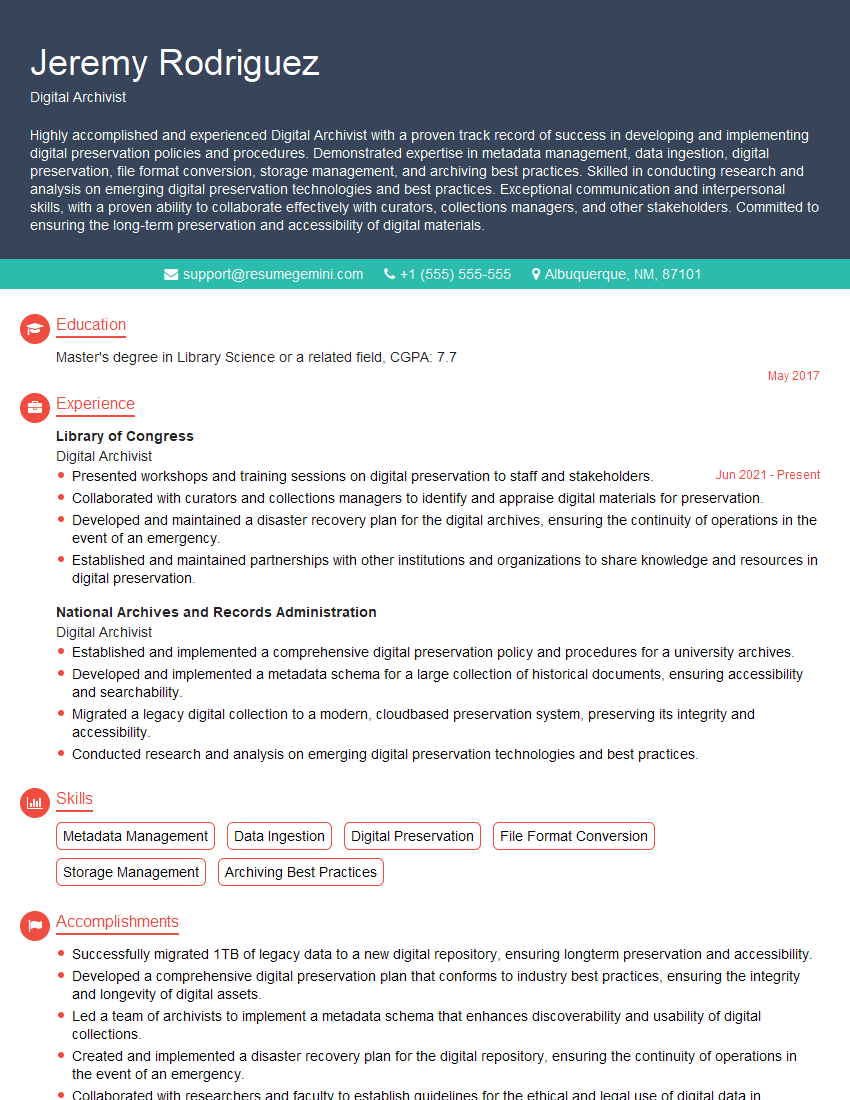
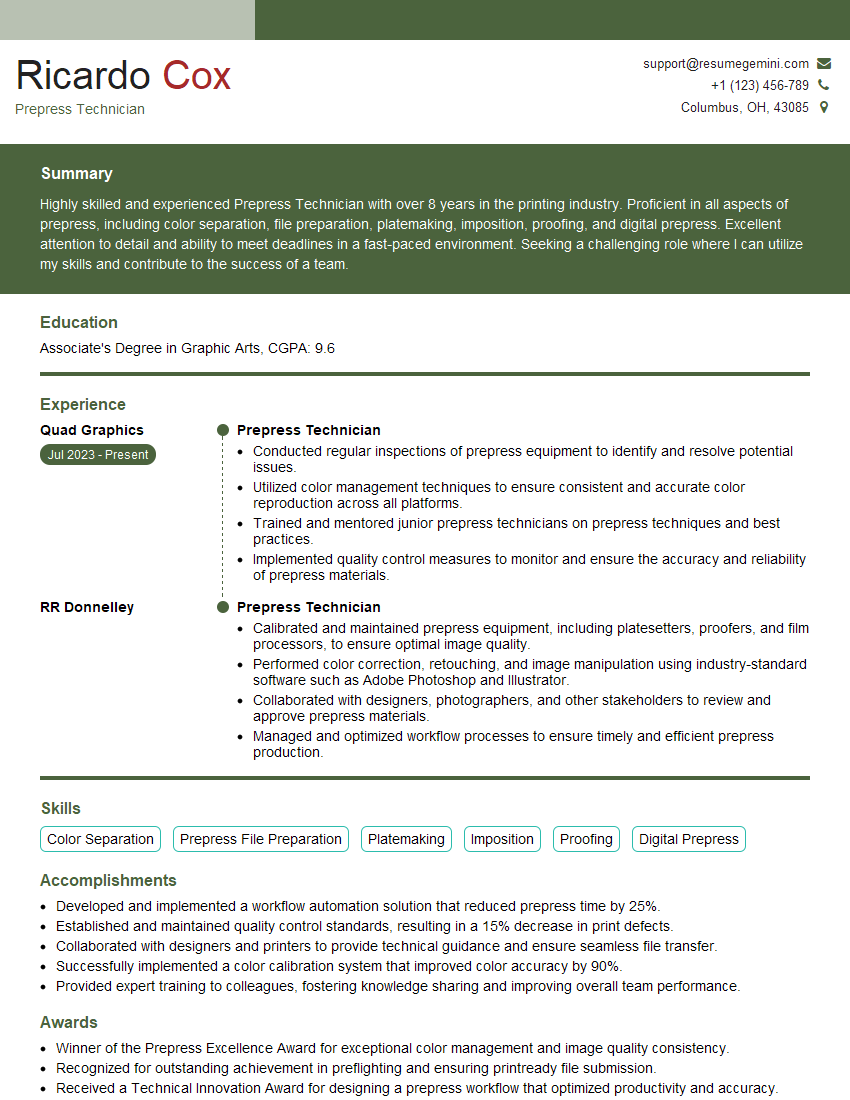
Mastering digital scanning and image manipulation is crucial for career advancement in fields like graphic design, archiving, photography, and publishing. A strong understanding of these skills makes you a highly valuable asset. To increase your job prospects, it’s essential to create a resume that effectively showcases your abilities to Applicant Tracking Systems (ATS). ResumeGemini is a trusted resource for building professional, ATS-friendly resumes that highlight your unique qualifications. We provide examples of resumes tailored specifically to Digital Scanning and Image Manipulation roles to help you get started.
Explore more articles
Users Rating of Our Blogs
Share Your Experience
We value your feedback! Please rate our content and share your thoughts (optional).
What Readers Say About Our Blog
Very informative content, great job.
good