The thought of an interview can be nerve-wracking, but the right preparation can make all the difference. Explore this comprehensive guide to Drafting and Design Software interview questions and gain the confidence you need to showcase your abilities and secure the role.
Questions Asked in Drafting and Design Software Interview
Q 1. Explain the difference between raster and vector graphics.
Raster and vector graphics are two fundamentally different ways of representing images digitally. Think of it like this: raster is like a mosaic, made of tiny colored squares (pixels), while vector is like a blueprint, made of mathematical equations describing lines and shapes.
- Raster Graphics: These are composed of a grid of pixels. Each pixel has a specific color and position. Examples include JPEG, PNG, and BMP files. They are great for photorealistic images but lose quality when scaled up (think of zooming in on a pixelated photo).
- Vector Graphics: These are defined by mathematical formulas. This means the image is scalable without loss of quality. You can zoom in infinitely and it will remain sharp. Examples include SVG, DXF, and DWG files (commonly used in CAD). They are ideal for logos, illustrations, and technical drawings where precision is crucial.
In drafting and design, we primarily use vector graphics because of their scalability and precision. Imagine designing a building plan – if we used raster, enlarging the drawing would make it blurry and unusable. Vector allows us to maintain crisp lines and accurate measurements at any scale.
Q 2. Describe your experience with AutoCAD.
I have extensive experience with AutoCAD, spanning over eight years. My proficiency encompasses 2D drafting, 3D modeling, and the creation of detailed construction documentation. I’ve utilized AutoCAD across various projects, including residential, commercial, and industrial designs. I’m comfortable with all aspects of the software, from creating basic geometric shapes to using advanced commands like parametric drawing and dynamic blocks. For example, on a recent project involving a large warehouse complex, I used AutoCAD to create detailed floor plans, elevations, and sections, ensuring accuracy and consistency throughout the design process. I’m also proficient in customizing AutoCAD’s interface and creating LISP routines for automating repetitive tasks, significantly improving efficiency.
Beyond standard drafting, I’ve leveraged AutoCAD’s data extraction capabilities for quantity take-offs and cost estimations. I’m also adept at working with external references (xrefs) to manage large and complex projects effectively. I’m confident in my ability to troubleshoot any issues that arise during the design process and can quickly adapt to new features and workflows.
Q 3. What are the benefits of using BIM software?
Building Information Modeling (BIM) software offers significant advantages over traditional 2D drafting methods. BIM creates a digital representation of the physical and functional characteristics of a building. This allows for greater coordination and collaboration among project stakeholders.
- Improved Collaboration: All project information resides in a central model, accessible to architects, engineers, contractors, and clients. This dramatically reduces errors caused by miscommunication.
- Enhanced Visualization: BIM allows for realistic 3D visualizations, giving clients a better understanding of the design before construction begins.
- Clash Detection: The software can identify potential clashes between different building systems (e.g., MEP systems within structural elements) early in the design process, preventing costly rework during construction.
- Quantity Takeoffs and Cost Estimation: BIM facilitates accurate quantity takeoffs and provides a basis for detailed cost estimations, improving budget control.
- Sustainable Design: BIM software can be used to analyze a building’s energy performance and environmental impact, helping to promote sustainable design practices.
For instance, on a recent project, BIM software helped us identify a clash between ductwork and a structural beam, avoiding significant delays and cost overruns during construction. The improved collaboration and visualization capabilities also enhanced communication with the client, leading to a smoother project delivery.
Q 4. How do you manage large and complex CAD files?
Managing large and complex CAD files requires a structured approach and the right tools. Here’s how I handle it:
- External References (Xrefs): I break down large projects into manageable components, each stored as a separate file, and then link them together using xrefs in the main drawing. This allows for easier modification and updating of individual components without impacting the entire file.
- Layer Management: A well-organized layer structure is essential. Each layer should have a clear purpose, and layers should be turned off when not needed to improve performance.
- Purge and Audit: Regularly purging unused data and auditing the drawing file helps reduce file size and prevent errors.
- Data Compression: Compressing the files using appropriate methods can significantly reduce file size.
- High-Performance Hardware: Utilizing a computer with sufficient RAM and processing power is crucial for efficient performance.
- Data Backup and Version Control: Regular backups are paramount to prevent data loss. A version control system can track changes and revert to previous versions if necessary.
For instance, when working on a large-scale infrastructure project, I divided the model into different sections (roads, bridges, utilities), each managed as a separate xref. This allowed multiple team members to work simultaneously without conflicts, while the main drawing provided an integrated view of the complete project.
Q 5. What are your preferred methods for creating 3D models?
My preferred methods for creating 3D models depend on the project’s complexity and requirements, but I’m proficient in several techniques:
- Extrusion: A simple and efficient method for creating 3D shapes from 2D profiles.
- Revolve: Rotating a 2D profile around an axis to create objects with rotational symmetry.
- Sweep: Creating complex 3D shapes by sweeping a profile along a path.
- Solid Modeling: Building 3D models by combining primitive shapes (cubes, spheres, cylinders) to create more complex geometries. This allows for precise control over the model’s dimensions and properties.
- Surface Modeling: Creating smooth, curved surfaces using NURBS curves and patches. This is ideal for organic shapes.
I often combine these methods to achieve the desired outcome. For example, I might use extrusion to create the basic building form, then use sweep to add details like stairs or ramps. My experience extends to using various 3D modeling software packages beyond AutoCAD, such as Revit and SketchUp, expanding my toolset and approach to project requirements.
Q 6. Explain your experience with different CAD file formats (DWG, DXF, etc.).
I have extensive experience with various CAD file formats, including DWG, DXF, and others. Understanding the nuances of these formats is crucial for seamless collaboration and data exchange.
- DWG: The native file format for AutoCAD, it retains all the drawing’s properties and features. It’s the most commonly used format in the industry and generally offers the best compatibility.
- DXF: A more widely compatible, text-based exchange format. While it can be imported and exported by numerous CAD applications, some information might be lost during the conversion process.
- Other Formats: I also have experience with other formats like SKP (SketchUp), RVT (Revit), and various 3D model formats (STL, OBJ) depending on the project needs.
My understanding of these formats allows me to seamlessly transfer designs between different software platforms, work with data from various sources, and ensure project data remains compatible for long-term use. For example, I might receive a design from an architect in DWG format, modify it in AutoCAD, and then export it as a DXF file for use by a structural engineer using a different CAD software.
Q 7. Describe your workflow for creating construction drawings.
My workflow for creating construction drawings involves several key steps:
- Project Understanding: Begin by thoroughly understanding the project requirements, including the design intent, building codes, and client specifications.
- Data Gathering: Gather all relevant information, such as site surveys, architectural plans, structural plans, and MEP drawings.
- Model Creation or Data Import: Create the 3D model (using BIM software if applicable) or import existing data into the chosen CAD software.
- Drawing Creation: Generate the required construction drawings, including floor plans, elevations, sections, details, and schedules. Maintaining consistent layer management and drawing standards is essential.
- Coordination and Collaboration: Coordinate with other disciplines to ensure consistency and avoid clashes. Share drawings for review and feedback.
- Revision Control: Maintain clear version control and track all revisions and changes.
- Quality Assurance: Thoroughly review and check the drawings for accuracy and completeness before issuing them.
- Final Output: Generate the final drawings in the required format for printing or distribution.
This structured workflow ensures the creation of accurate, consistent, and complete construction drawings, minimizing errors and facilitating smooth construction. For instance, on a recent residential project, this approach allowed us to efficiently produce detailed construction documents, leading to a smoother construction process and client satisfaction.
Q 8. How do you ensure accuracy and consistency in your drawings?
Accuracy and consistency in drawings are paramount. Think of it like building a house – a crooked foundation leads to a crooked house! I achieve this through a multi-pronged approach:
Strict adherence to standards: I always begin by setting up drawing templates with pre-defined layers, linetypes, text styles, and scales based on industry standards or client specifications. This ensures uniformity across all projects.
Employing Geometric Constraints: In CAD software, I extensively use geometric constraints (like fixing dimensions, aligning objects, and defining relationships) to prevent errors that arise from manual input or scaling. This is crucial for maintaining the intended geometry and minimizing discrepancies.
Regular Checks and Audits: I routinely review my work, employing both visual inspection and automated checks within the software to identify potential issues like dimension conflicts or missing elements. Imagine a proofreader meticulously checking a manuscript before publication—the same level of care is applied here.
Version Control: Using version control systems within the software (or cloud-based collaborative platforms) allows for tracking revisions and comparisons, preventing accidental overwrites and facilitating easy rollback to previous versions if needed. Think of it as saving multiple autosaves, but far more organized and comprehensive.
Q 9. How do you handle revisions and updates to existing drawings?
Handling revisions and updates efficiently requires a systematic approach. I use a combination of techniques:
Clear Change Logs: Every revision receives a detailed description, including the date, author, and the nature of the changes. This forms an audit trail for accountability and future reference. It’s like a historical record of the project’s evolution.
Layer Management: I employ layers to manage different revisions. For example, ‘Revision_A’, ‘Revision_B’, and so on, each containing the modifications made in each revision. This keeps the original drawing and subsequent revisions organized and easily comparable.
External References (Xrefs): For complex projects involving multiple drawings, I use external references (Xrefs) to link various drawings together. This allows for coordinated updates, ensuring that changes in one drawing automatically propagate to others that reference it. This is like using hyperlinks in a document – changes in one linked document affect others.
Revision Clouds: Highlighting the changes using revision clouds visually separates modifications from the original design, ensuring clarity and ease of understanding.
Q 10. What software are you proficient in, besides AutoCAD or Revit?
Beyond AutoCAD and Revit, I’m proficient in several other software packages:
SketchUp: Excellent for 3D modeling and conceptual design, particularly for architectural visualization and presentation models. It’s intuitive and offers a faster workflow than some heavier programs for initial concept development.
MicroStation: A robust CAD platform suitable for large-scale infrastructure projects. I find its handling of large datasets and coordinate systems very efficient.
Civil 3D: Specialized for civil engineering tasks, this software is invaluable for designing roads, drainage systems, and other civil infrastructure elements. Its tools streamline the creation of detailed designs.
Lumion: This is a powerful real-time rendering software that helps quickly generate high-quality visualizations from my 3D models. It’s incredibly helpful for client presentations.
Q 11. Explain your experience using layering and annotation in CAD software.
Layering and annotation are fundamental to creating organized and readable drawings. Imagine a well-organized filing cabinet versus a messy pile of papers – layering is the same for digital drawings.
Layering: I use layers to organize different aspects of the drawing, such as architecture, structure, MEP (Mechanical, Electrical, and Plumbing), and landscaping. Each layer contains specific elements, making it easy to control visibility and editing. For instance, I might have a separate layer for walls, doors, and windows, allowing me to turn off layers when focusing on a particular aspect.
Annotation: Annotation involves adding text, dimensions, and other markings to clarify the drawing. I use different styles and text sizes for different purposes (e.g., large dimensions for key elements, smaller text for notes). I also ensure proper layering of annotation to avoid obscuring important elements of the design.
Efficient layering and annotation are essential for clarity, collaboration, and easy modifications. They save time and frustration in the long run.
Q 12. How familiar are you with parametric modeling?
Parametric modeling is a powerful technique where geometric elements are defined by parameters and relationships. Think of it as a sophisticated recipe—change one ingredient, and the entire dish adapts accordingly.
My experience includes utilizing parametric modeling in Revit and other software packages for designing building components and systems. For example, defining a window family with parameters for width, height, and frame material. Changing one parameter automatically updates other related aspects of the design, like the area or the material quantity, thus ensuring consistency and reducing errors. It’s a highly efficient and accurate approach to design and greatly reduces the possibility of discrepancies.
Q 13. Describe your experience with rendering and visualization software.
Rendering and visualization are crucial for effective communication and client engagement. Imagine showing a client a detailed 3D model instead of just blueprints—it’s far more impactful!
My experience includes using various rendering and visualization tools like Lumion, V-Ray, and Enscape. These tools allow me to create photorealistic images and animations that showcase the design’s aesthetic appeal, functionality, and spatial characteristics. I have experience in creating walkthroughs, flyovers, and static renders to effectively communicate the design vision to clients and stakeholders.
Q 14. How do you incorporate client feedback into your designs?
Incorporating client feedback is a collaborative process that’s vital to a successful project. I typically follow these steps:
Active Listening: I ensure clear communication channels and actively listen to client concerns and suggestions during meetings and reviews.
Visual Aids: Using marked-up drawings or 3D models allows for easy visualization of proposed changes, facilitating smoother communication.
Iterative Design Process: I incorporate client feedback through iterative design cycles, allowing for multiple rounds of revisions and refinements. Think of it as a continuous dialogue—adjusting and improving the design until it aligns with the client’s vision.
Detailed Documentation: I meticulously document all changes, explaining the rationale behind each modification and ensuring that the client understands the implications of their feedback.
Q 15. Explain your process for troubleshooting technical issues in CAD software.
Troubleshooting CAD software issues requires a systematic approach. I begin by identifying the specific problem – is it a rendering issue, a file corruption, a plugin conflict, or something else? Then, I follow these steps:
- Reproduce the error: I try to consistently reproduce the issue to understand its triggers. This helps rule out random occurrences.
- Check the basics: This includes ensuring the software is up-to-date, system resources (RAM, disk space) are sufficient, and the graphics driver is current. A simple restart often fixes seemingly complex issues.
- Isolate the cause: If the problem persists, I systematically disable plugins or extensions to see if one is causing conflict. I might also test on a different computer or with a simpler model to see if the issue is software-specific or file-related.
- Consult documentation and online resources: Manufacturer help files, online forums, and knowledge bases are valuable resources. Searching for error messages often leads to solutions.
- Contact support: If I can’t resolve the problem myself, I contact the software vendor’s support team. Having detailed logs and steps to reproduce the issue is crucial for efficient support.
- Data Backup and Recovery: I always emphasize regular backups. In case of severe corruption, having a recent backup can save significant time and effort.
For example, I once encountered a rendering issue in Revit where complex models were crashing. By systematically reducing model complexity, I pinpointed a specific family file that was the root cause. After updating the family, the issue was resolved.
Career Expert Tips:
- Ace those interviews! Prepare effectively by reviewing the Top 50 Most Common Interview Questions on ResumeGemini.
- Navigate your job search with confidence! Explore a wide range of Career Tips on ResumeGemini. Learn about common challenges and recommendations to overcome them.
- Craft the perfect resume! Master the Art of Resume Writing with ResumeGemini’s guide. Showcase your unique qualifications and achievements effectively.
- Don’t miss out on holiday savings! Build your dream resume with ResumeGemini’s ATS optimized templates.
Q 16. What are your strategies for managing project deadlines?
Managing project deadlines effectively involves meticulous planning and proactive monitoring. My strategy includes:
- Detailed project breakdown: I divide complex projects into smaller, manageable tasks with clear deliverables and timelines. This allows for better tracking of progress.
- Prioritization: I prioritize tasks based on their urgency and impact, ensuring critical components are completed first.
- Regular progress checks: I schedule regular meetings with the team to review progress, identify potential roadblocks, and adjust plans as needed. This ensures we stay on track.
- Risk assessment and mitigation: I identify potential risks (e.g., software glitches, material delays) and develop contingency plans to minimize their impact on the timeline.
- Communication: Open and transparent communication with clients and team members is critical. This includes promptly reporting delays or challenges and proposing solutions.
- Time Tracking Software: Tools like Toggl or Asana can provide invaluable insight into time spent on different tasks allowing for better future estimation.
For instance, in a recent large-scale commercial building design project, we utilized a Gantt chart to visualize task dependencies and deadlines. This helped us identify potential bottlenecks and adjust task assignments efficiently, ensuring timely project completion.
Q 17. How do you maintain data integrity in a collaborative CAD environment?
Maintaining data integrity in a collaborative CAD environment is paramount. My strategies include:
- Version control systems: Using software like Autodesk Vault or similar solutions allows tracking changes, reverting to previous versions if needed, and managing file access permissions. This prevents accidental overwrites and ensures everyone works on the most up-to-date version.
- Centralized data storage: Storing all project files in a central, accessible location minimizes confusion and ensures consistency. Network drives or cloud-based storage solutions are ideal.
- Clear naming conventions: Implementing consistent file naming conventions (e.g., project name_date_revision) improves organization and avoids duplicates.
- Regular backups: Frequent, automated backups protect against data loss due to hardware failure or accidental deletion.
- Defined roles and responsibilities: Clear roles and responsibilities for file management prevent conflicts and ensure everyone understands their tasks.
- Data validation: Implementing checks and balances to ensure data accuracy before merging changes. This could include automated scripts or manual reviews.
For example, in a large-scale infrastructure project, we used Autodesk Vault to manage the project’s 3D models. Every change was logged, allowing us to track progress and easily revert to earlier versions if necessary. This system eliminated conflicts and ensured everyone worked with the same, updated information.
Q 18. What are your preferred methods for quality control of your work?
Quality control is a crucial aspect of my workflow. My methods include:
- Model checking: I use built-in software tools to check for geometry errors (e.g., gaps, intersections, overlapping elements) and ensure dimensional accuracy.
- Design reviews: Regular design reviews with peers or supervisors help identify potential issues early in the process. Fresh eyes often spot errors that I might overlook.
- Detailed documentation: Maintaining clear and comprehensive project documentation (drawings, specifications, notes) ensures that the design intent is clearly communicated and easily understood.
- Templates and standards: Using standardized templates and drawing styles ensures consistency and minimizes errors. This is particularly valuable in collaborative projects.
- Dimensional verification: Independent checking of dimensions and calculations to ensure accuracy. This often involves cross-referencing with other drawings or calculations.
- 3D Modeling Checks: Utilizing tools within the CAD software to identify potential clashes or interferences between different building systems.
For example, before finalizing a design for a complex bridge structure, we conducted a thorough model check using the software’s built-in analysis tools. This identified and corrected several subtle geometry errors that could have had significant structural implications.
Q 19. Explain your understanding of building codes and regulations.
My understanding of building codes and regulations is comprehensive. I’m familiar with both local and national codes, including those related to accessibility, fire safety, structural integrity, and environmental sustainability. I use code-checking software where available to ensure compliance.
I understand that codes are not static; they evolve to reflect technological advancements and safety improvements. Staying current on code changes is an ongoing process that involves subscribing to code updates, attending relevant seminars, and networking with other professionals. Understanding the rationale behind codes is as important as knowing the specific requirements. This allows me to make informed design decisions and propose creative solutions within code limits.
For example, I recently worked on a project requiring extensive knowledge of ADA (Americans with Disabilities Act) accessibility guidelines for ramps, doorways, and restroom design. Understanding these specific requirements enabled me to design a compliant and functional space that meets the needs of all users.
Q 20. How do you stay updated on new technologies and software developments?
Staying updated on new technologies and software developments is essential in this field. My approach includes:
- Industry publications and websites: I regularly read industry publications, blogs, and websites to stay informed about the latest advancements in CAD software and related technologies.
- Webinars and online courses: Participating in webinars and online courses offered by software vendors and industry organizations provides valuable insights into new features and techniques.
- Conferences and trade shows: Attending industry conferences and trade shows allows me to network with peers and learn from experts in the field. It’s a fantastic opportunity to see new technologies firsthand.
- Software updates and tutorials: I consistently update my CAD software and explore new features through the provided tutorials and online documentation. I encourage experimentation to discover new workflow efficiencies.
- Professional organizations: Joining professional organizations (e.g., AIA, ASCE) provides access to resources, training, and networking opportunities.
For example, I recently completed a course on Generative Design which allowed me to incorporate this powerful new technique into my workflow, significantly improving design optimization and efficiency on complex projects.
Q 21. Describe your experience with using templates and standards in CAD.
Templates and standards are crucial for maintaining consistency and efficiency in CAD projects. I have extensive experience using and developing templates for various project types (e.g., architectural, structural, MEP).
Templates ensure that all drawings adhere to a consistent style guide, including layer organization, text styles, line weights, and annotation standards. This simplifies collaboration, improves readability, and minimizes errors. They also help to automate repetitive tasks, speeding up the design process. For instance, a well-structured architectural template includes pre-defined layers for walls, doors, windows, and other elements, making it quicker to build a model.
I also regularly develop and maintain standardized families or components within the CAD software. This ensures that elements like doors, windows, and structural members are consistent across all projects. This improves design efficiency and reduces the chance of errors or inconsistencies in design.
For example, in a recent project, we utilized a custom-designed Revit template that incorporated our company’s branding, layer standards, and family libraries. This ensured consistent quality and allowed the team to focus on design rather than formatting issues.
Q 22. Explain your experience with creating and managing drawing sheets.
Creating and managing drawing sheets is fundamental to effective design communication. My experience encompasses the entire lifecycle, from initial sheet setup and organization to final revision control. I’m proficient in using title blocks, revision clouds, and sheet numbering schemes to maintain consistent and easily understandable documentation.
For example, in a recent HVAC project, I implemented a system using a standardized title block containing project name, sheet number, revision level, date, and designer’s initials. This ensured clarity and traceability throughout the project’s multiple revisions. I also utilize nested folders and naming conventions within the CAD software to manage large projects efficiently, making it easy to locate specific sheets quickly. Furthermore, I’m adept at utilizing layers and layer management to organize elements within individual sheets, improving drawing clarity and simplifying the revision process. I am familiar with various plotting options, ensuring drawings are scaled and formatted correctly for different purposes, from digital distribution to hard-copy printing.
Q 23. What is your experience with using plugins or extensions in your CAD software?
Plugins and extensions significantly enhance CAD software functionality. My experience spans several popular plugins, including those that automate repetitive tasks, enhance visualization, and integrate with other software. I’ve used plugins for generating automated reports from drawing data, creating advanced 3D renderings, and streamlining the process of exporting drawings to various formats.
For instance, in a past project, I utilized a plugin that automated the creation of material lists directly from the model. This saved considerable time and reduced the risk of human error compared to manual data entry. I am also comfortable evaluating and selecting appropriate plugins based on project needs, understanding the potential impact on software performance, and familiarizing myself with their specific functionality and potential limitations.
Q 24. How would you approach a project with conflicting design requirements?
Conflicting design requirements are inevitable. My approach involves a structured process of communication, compromise, and documentation. First, I meticulously document all requirements, highlighting the points of conflict. I then engage in collaborative discussions with stakeholders – architects, engineers, clients – to understand the priorities and trade-offs involved. This often requires translating technical details into layman’s terms to ensure everyone is on the same page.
Next, I explore different design solutions, creating alternative layouts or models to assess the feasibility and implications of each option. This process is often iterative, involving multiple rounds of discussions and design revisions until a mutually acceptable solution is reached. Finally, all design decisions and their justifications are thoroughly documented to avoid future ambiguities and disputes. Consider it like a carefully negotiated agreement; it’s essential to document the compromises made to achieve consensus.
Q 25. Explain your process for creating detailed shop drawings.
Creating detailed shop drawings requires precision and a deep understanding of construction practices. My process begins with thoroughly reviewing the design specifications and collaborating with contractors to understand their needs. I ensure the drawings accurately reflect all relevant information, including dimensions, materials, tolerances, and installation details. I pay close attention to clarity, using appropriate line weights, annotations, and callouts to avoid ambiguity.
For example, when creating shop drawings for a custom staircase, I would include detailed sections showing the stringer layout, tread and riser dimensions, and baluster spacing. I’d utilize different line types to clearly distinguish between structural elements and details, making the drawings easy for fabricators and installers to understand and execute. Each sheet includes relevant notes, specifications, and possibly even 3D models for complex geometries, enabling seamless fabrication and installation. The final drawings are thoroughly checked and reviewed for accuracy before release to ensure a smooth and efficient construction process.
Q 26. How familiar are you with different types of dimensioning and annotation?
I’m highly familiar with various dimensioning and annotation techniques. This includes linear, angular, radial, and ordinate dimensioning. I understand the importance of proper dimensioning practices to ensure accuracy and clarity in construction documents. Beyond standard dimensioning, I’m proficient in applying various annotation methods, such as leader lines, notes, symbols, and section markers, to clearly communicate design intent.
For example, I can accurately dimension complex curved surfaces using radial dimensions or create detailed sections using section lines and annotations to show hidden aspects. I am also knowledgeable about different dimension styles and formatting, following industry standards and company guidelines to ensure consistent presentation across all drawings. I understand how to apply tolerances to dimensions to reflect acceptable variations during construction.
Q 27. Describe your experience working with different coordinate systems.
Working with different coordinate systems is crucial for accurate modeling and design. I am proficient in using various systems, including Cartesian (X, Y, Z), polar, and cylindrical coordinate systems. Understanding these systems allows for precise placement and manipulation of design elements, especially in complex 3D models. My experience includes working with local and global coordinate systems, understanding their implications on model geometry and referencing.
For instance, in a large-scale infrastructure project, using a global coordinate system ensures that all elements are accurately positioned relative to a common reference point, while local coordinate systems can be used for more detailed work on individual components. I understand how to transform coordinates between different systems to ensure consistency and accuracy throughout the project.
Q 28. What are your strengths and weaknesses in using drafting and design software?
My strengths lie in my proficiency with various drafting and design software packages, my ability to produce accurate and detailed drawings, and my strong problem-solving skills in navigating complex design challenges. I thrive in collaborative environments and am adept at communicating technical information effectively to both technical and non-technical audiences.
One area for improvement is my knowledge of the newest features in some of the more specialized CAD plugins. While I readily adapt to new technologies, I aim to dedicate time to further explore and master the advanced capabilities of less commonly used plugins to broaden my capabilities and increase efficiency.
Key Topics to Learn for Drafting and Design Software Interview
- Fundamentals of CAD Software: Understanding the user interface, navigation, and basic drawing tools across various platforms (AutoCAD, Revit, SolidWorks, etc.). This includes exploring 2D and 3D modeling techniques.
- Practical Application: Practice creating detailed drawings from sketches or conceptual designs. Focus on projects that showcase your proficiency in dimensioning, annotation, and layering techniques. Consider creating a portfolio showcasing your work.
- Advanced Modeling Techniques: Explore parametric modeling, surface modeling, and solid modeling. Understand the strengths and limitations of each approach and how to choose the best method for a given project.
- Blueprint Reading and Interpretation: Demonstrate your ability to understand and interpret existing blueprints and technical drawings. Practice extracting critical information and identifying potential issues.
- Design Principles and Best Practices: Showcase your knowledge of design standards, including considerations for manufacturability, sustainability, and accessibility. Understanding ergonomics and design for different materials is also crucial.
- Software-Specific Features: Familiarize yourself with the advanced features of the specific software you’ll be using during the interview. This might include customization, automation, or specific industry-related plugins.
- Problem-Solving and Troubleshooting: Be prepared to discuss how you approach challenges in the design process. Highlight your ability to identify and resolve errors efficiently and effectively within the software.
- Collaboration and Teamwork: Understanding file sharing, version control, and collaborative workflows within the design software is essential, especially in a professional setting.
Next Steps
Mastering Drafting and Design Software is crucial for a successful and rewarding career in engineering, architecture, or other related fields. Proficiency in these tools directly translates to higher earning potential and increased job opportunities. To maximize your chances of landing your dream role, creating a strong, ATS-friendly resume is essential. ResumeGemini is a trusted resource to help you build a professional resume that highlights your skills and experience effectively. Examples of resumes tailored to Drafting and Design Software professionals are available to help you get started.
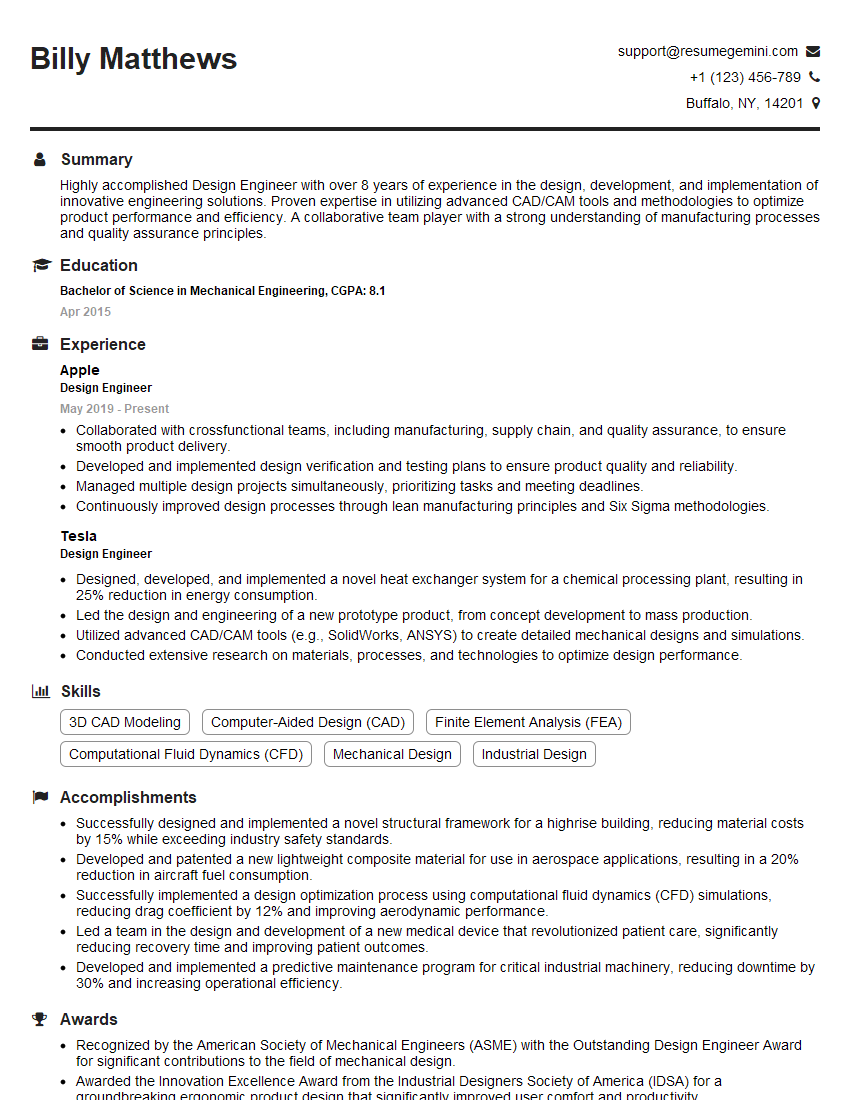
Design Engineer Resume Sample
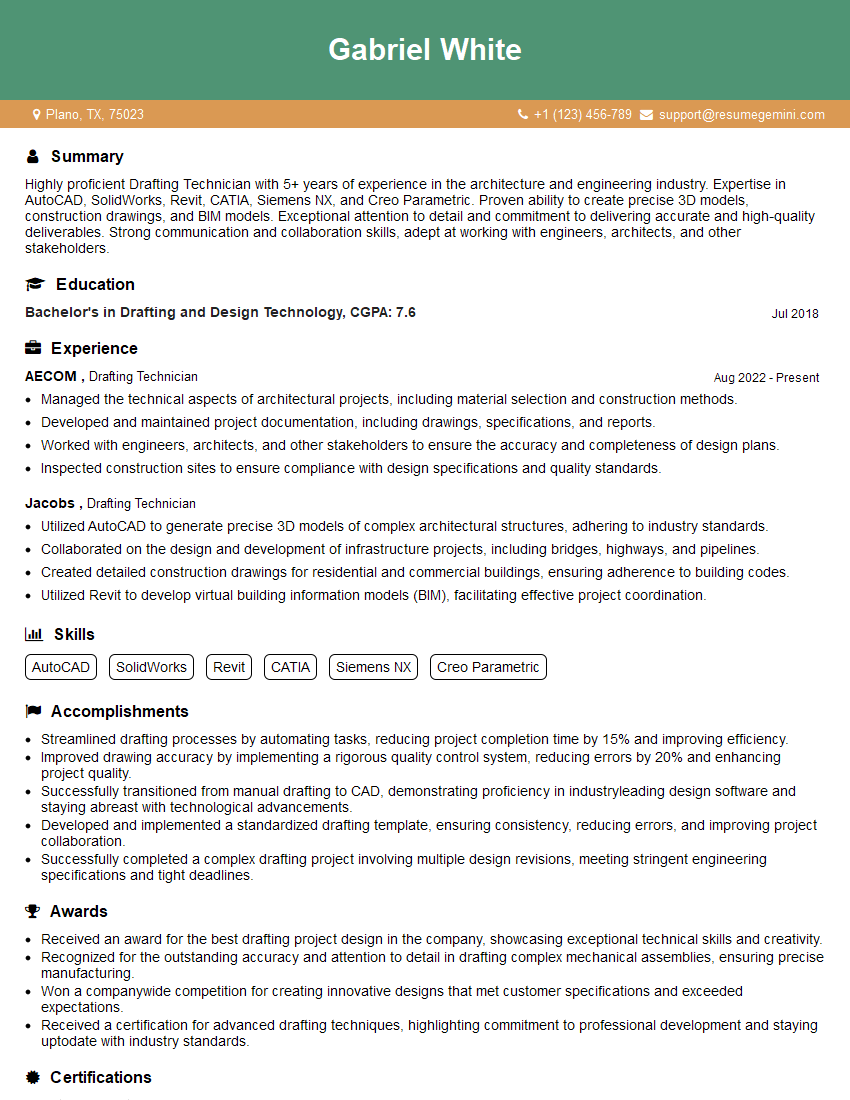
Drafting Technician Resume Sample
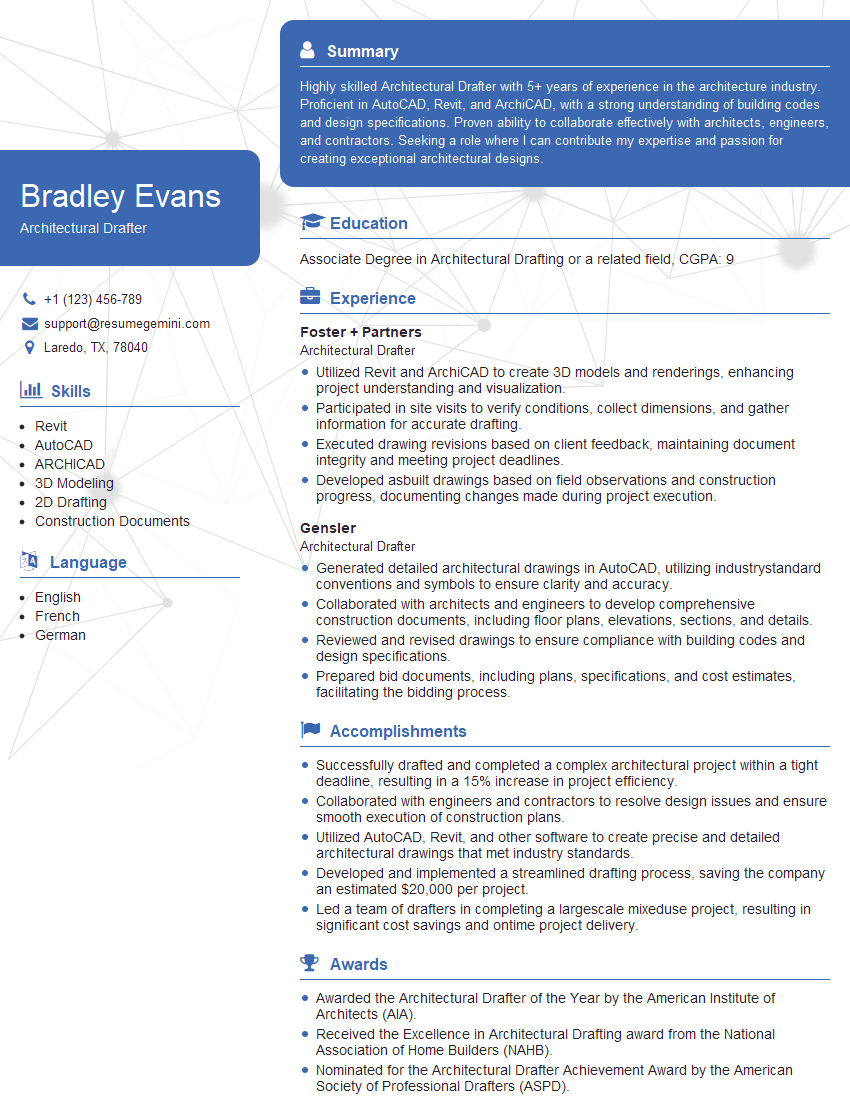
Architectural Drafter Resume Sample
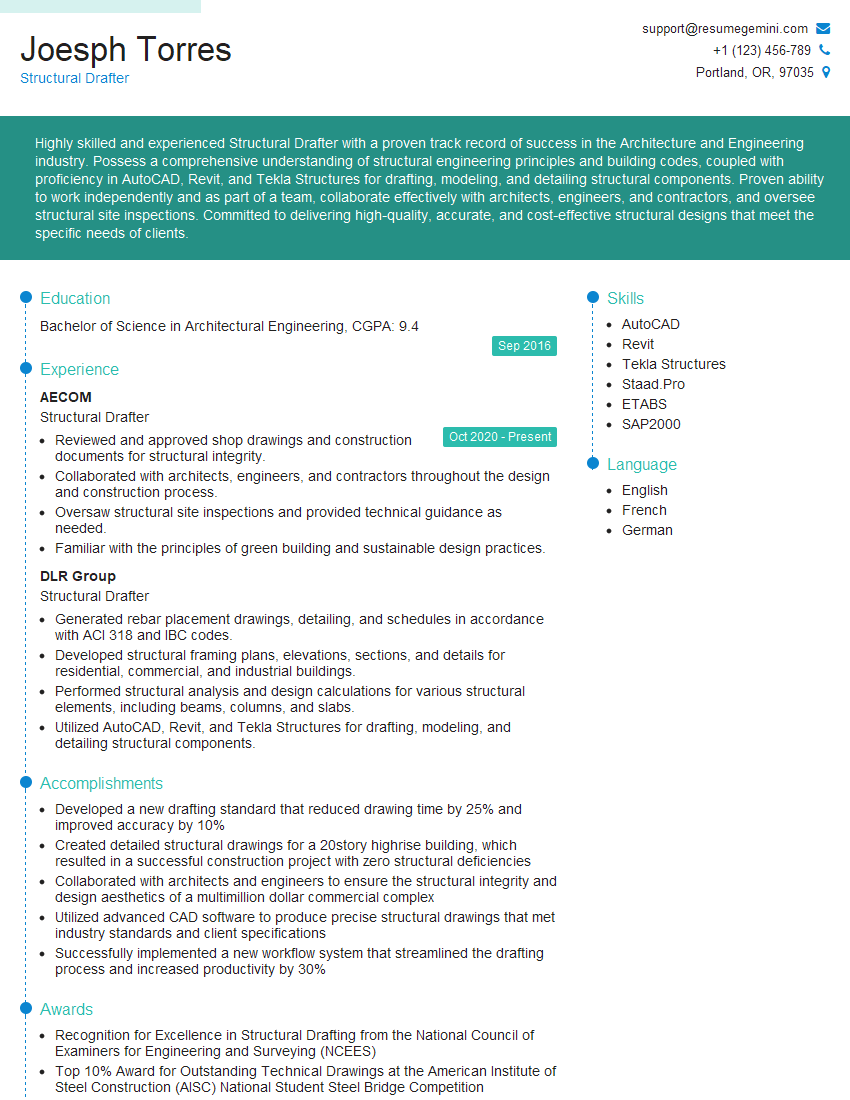
Structural Drafter Resume Sample
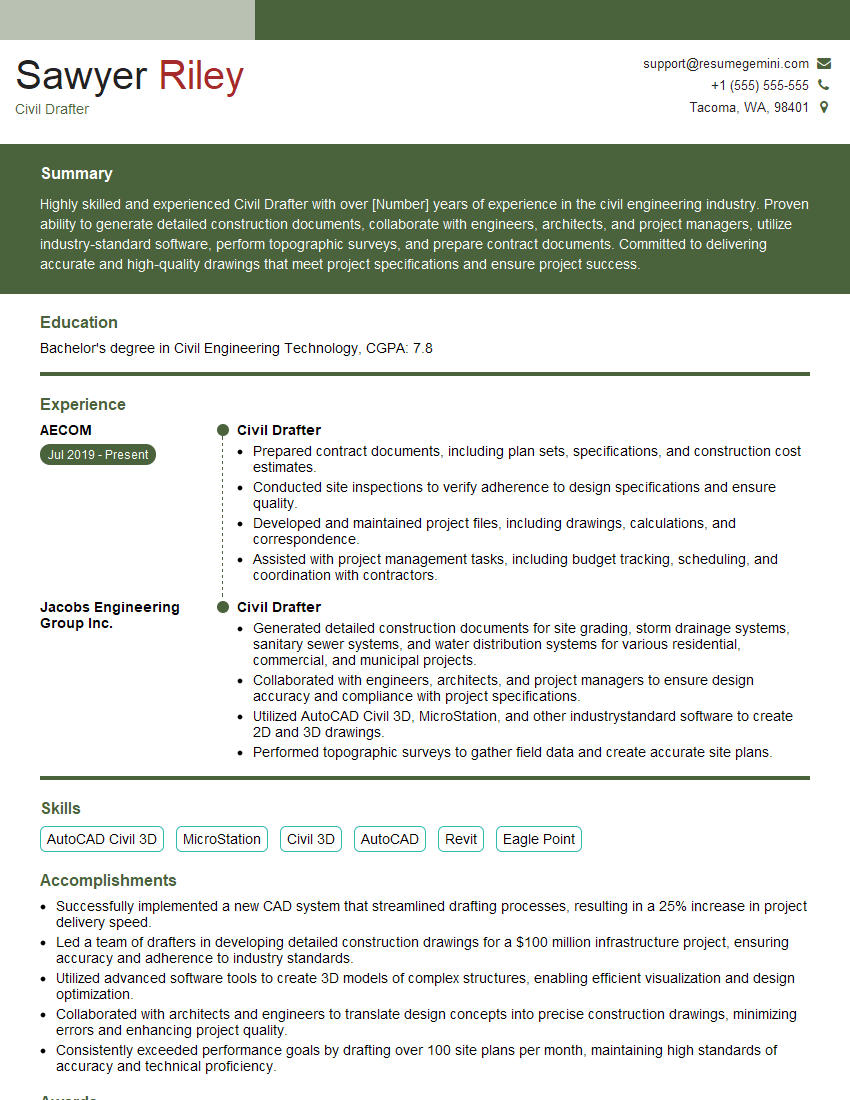
Civil Drafter Resume Sample
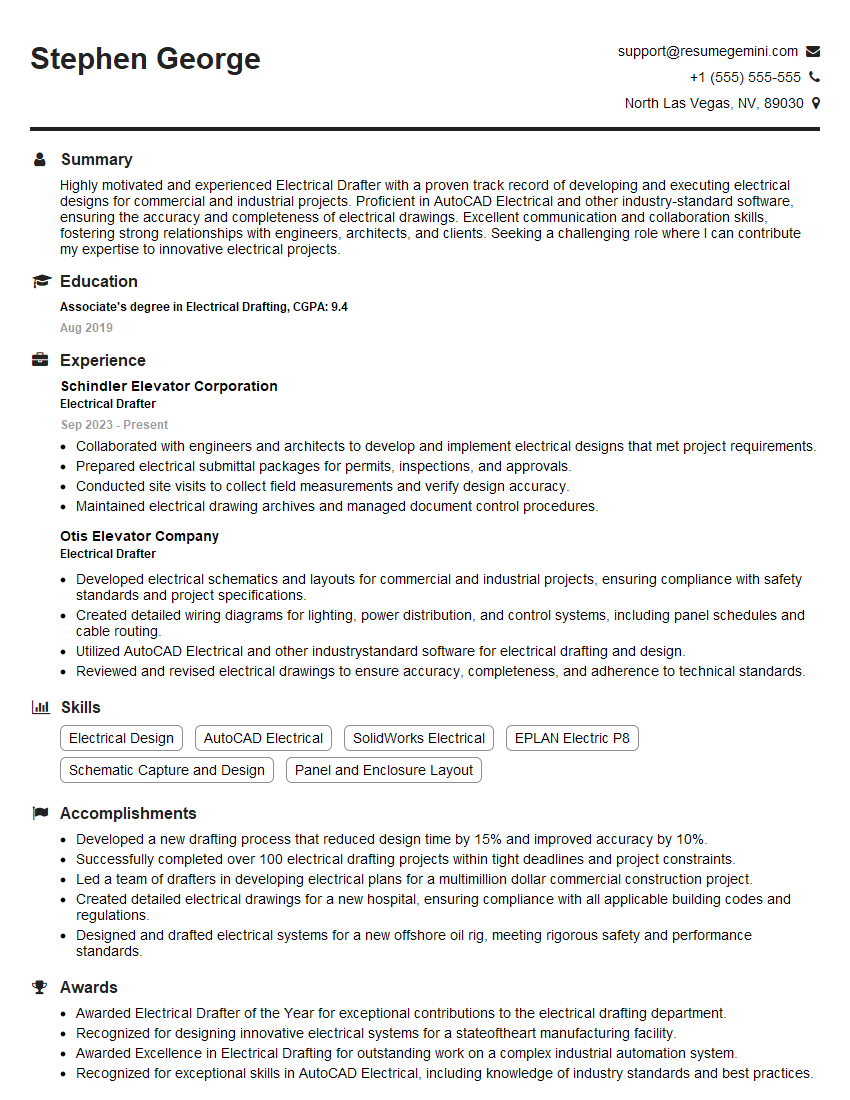
Electrical Drafter Resume Sample
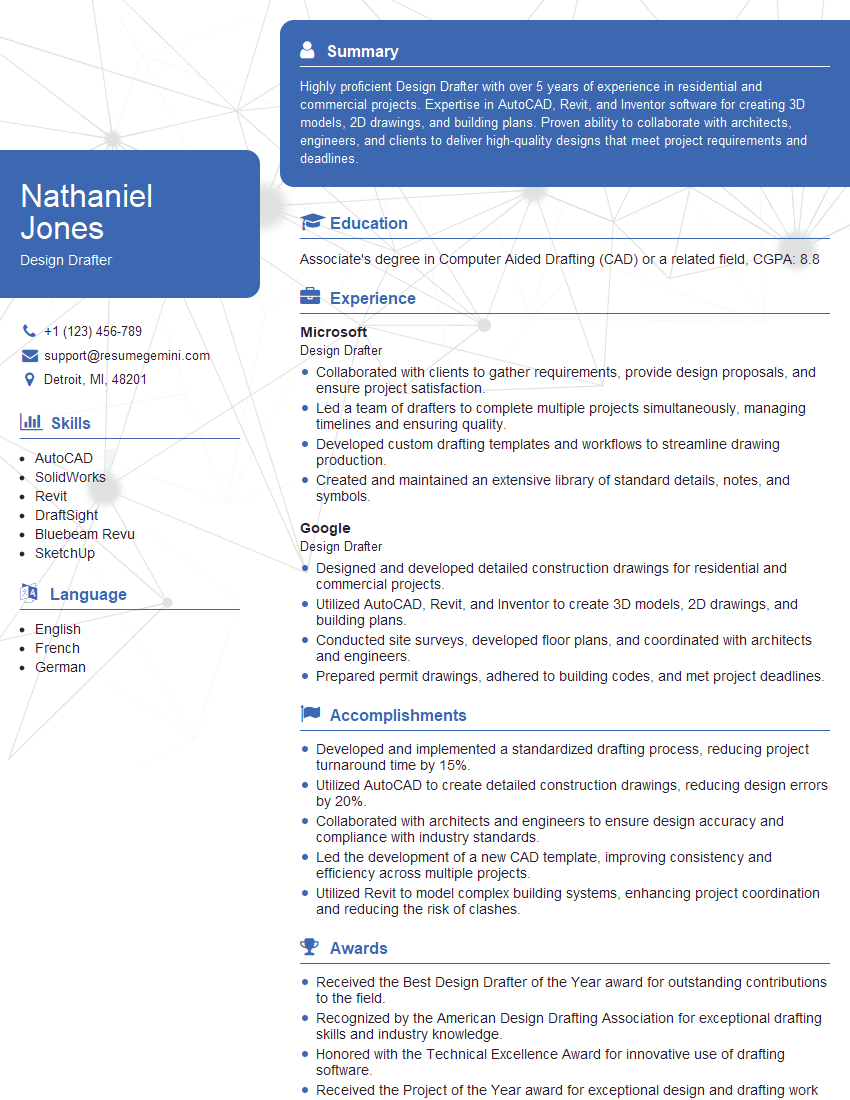
Design Drafter Resume Sample
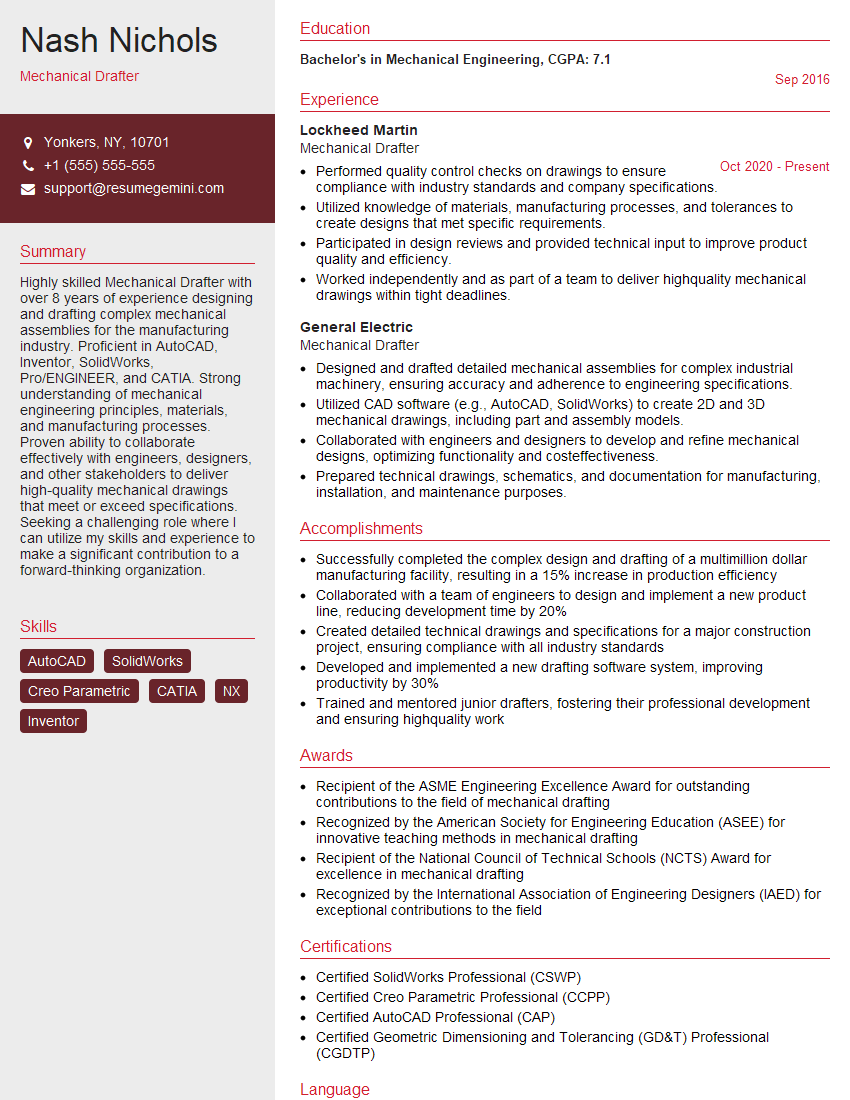
Mechanical Drafter Resume Sample
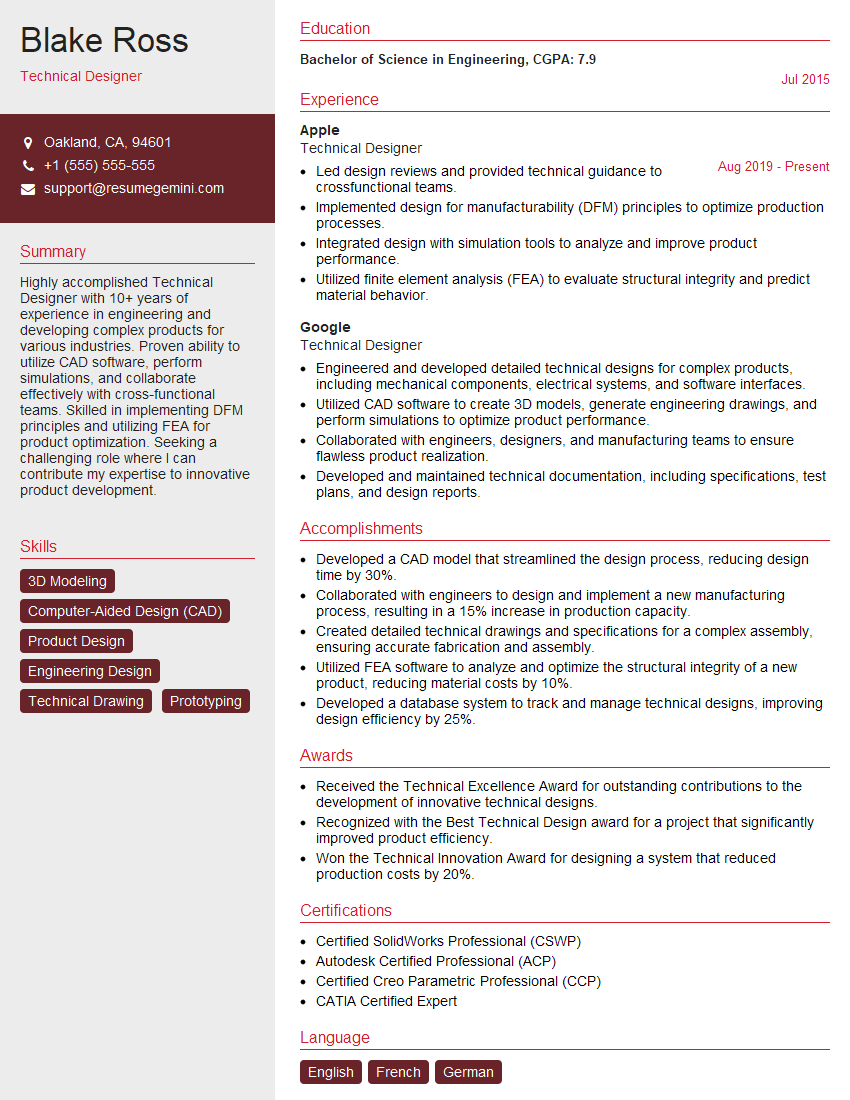
Technical Designer Resume Sample

3D Modeler Resume Sample
Explore more articles
Users Rating of Our Blogs
Share Your Experience
We value your feedback! Please rate our content and share your thoughts (optional).
What Readers Say About Our Blog
Very informative content, great job.
good