Cracking a skill-specific interview, like one for PDF Editing and Manipulation, requires understanding the nuances of the role. In this blog, we present the questions you’re most likely to encounter, along with insights into how to answer them effectively. Let’s ensure you’re ready to make a strong impression.
Questions Asked in PDF Editing and Manipulation Interview
Q 1. Explain the difference between vector and raster graphics in a PDF context.
In the context of PDFs, understanding the difference between vector and raster graphics is crucial for editing and file size optimization. Think of it like this: raster graphics are like a mosaic—made up of tiny squares called pixels. Vector graphics, on the other hand, are like mathematical descriptions of shapes. They are defined by points, lines, and curves.
- Raster Graphics (e.g., JPEG, PNG): These images lose quality when scaled up, as you’re essentially stretching those pixels. They are good for photorealistic images but can lead to large PDF file sizes.
- Vector Graphics (e.g., SVG, EPS): These images maintain sharpness and detail at any size because the computer redraws them based on the mathematical formulas, not pixel data. They are perfect for logos, illustrations, and text; resulting in smaller, more scalable PDFs.
For example, a company logo created as a vector graphic in a PDF will look crisp and clear when enlarged on a billboard, unlike a rasterized logo which would appear blurry and pixelated.
Q 2. Describe your experience with various PDF editing software (e.g., Adobe Acrobat, Nitro PDF, PDFsam).
My experience with PDF editing software is extensive, encompassing both industry-standard applications and specialized tools. I’m highly proficient in Adobe Acrobat Pro, considered the gold standard for its comprehensive features, including advanced editing, OCR, and security options. I’ve used it extensively for tasks ranging from creating interactive forms to digitally signing legal documents.
I’m also familiar with Nitro PDF Pro, a strong alternative offering a similar feature set to Acrobat at a potentially lower cost. Its user interface is generally considered intuitive, making it suitable for users of varying skill levels. Finally, for specific tasks like merging, splitting, and reorganizing pages, I’ve effectively used PDFsam (PDF Split and Merge) – a free, open-source tool that excels in these specialized areas.
Each tool has its strengths. Acrobat’s power comes with a steeper learning curve and price tag, Nitro offers a solid balance, and PDFsam is ideal for focused page manipulation tasks.
Q 3. How do you ensure the security of sensitive PDF documents?
Securing sensitive PDF documents requires a multi-layered approach. Simple password protection is a basic starting point, but for truly sensitive information, more robust measures are necessary.
- Password Protection: This restricts access, requiring a password to open and often to modify the document.
- Encryption: This uses algorithms to scramble the document’s data, making it unreadable without the decryption key. Stronger encryption algorithms (like AES 256-bit) offer superior protection.
- Digital Signatures: These verify the document’s authenticity and integrity, proving it hasn’t been tampered with. They also identify the signer.
- Access Control: Depending on the software, you can restrict printing, copying, or editing capabilities.
- Watermark: A visible watermark can deter unauthorized distribution and clearly mark the document as confidential.
For instance, a legal contract would benefit from password protection, encryption, digital signatures, and possibly restrictions on printing or copying to ensure its confidentiality and prevent unauthorized alterations.
Q 4. How would you optimize a large PDF file for faster download speeds?
Optimizing a large PDF for faster download speeds involves a combination of techniques targeting both file size and content. The goal is to reduce the overall file size without compromising critical visual quality.
- Image Compression: Reduce the resolution and file size of images without noticeable loss of quality. Tools within PDF editors often provide this functionality.
- Remove Unnecessary Objects: Delete any unnecessary objects or layers that might be bloating the file, including unused fonts or embedded images.
- Convert to a Smaller Color Space: If possible, converting images from RGB (millions of colors) to CMYK (fewer colors) can decrease file size without significantly affecting the visual appearance, especially for print-oriented documents.
- Downsample Images: If high-resolution images are not necessary, lowering their resolution (DPI) can drastically reduce the file size. A 300 DPI image is often overkill for online use; 150 DPI may suffice.
- Compress the PDF: Many PDF editors offer a compression function to reduce the file size. Choose an appropriate compression level; higher levels may take longer but result in a smaller file.
For example, if a large architectural plan contains high-resolution photos, compressing those photos and then compressing the overall PDF can lead to significant reductions in download time without substantial visual degradation.
Q 5. What methods do you use to merge, split, or rearrange PDF pages?
Merging, splitting, and rearranging PDF pages are common tasks. I utilize a combination of software and techniques depending on the complexity and scale of the project.
- Adobe Acrobat Pro: For complex scenarios involving the rearrangement, merging, and splitting of pages along with other edits, Acrobat Pro offers the most intuitive and powerful interface.
- PDFsam Basic (free): For simple merging and splitting tasks, this open-source tool is quick and efficient. It excels at batch processing multiple PDF files.
- Command-line tools (for automation): For larger-scale tasks involving many files, command-line tools can automate the process, significantly improving efficiency.
Imagine needing to combine several chapters of a manuscript into a single document. I might use PDFsam to merge them efficiently. If a particular section needs rearranging, Acrobat’s page manipulation features would prove invaluable.
Q 6. How do you handle embedded fonts within PDFs?
Embedded fonts are crucial for ensuring consistent text appearance across different systems. A font embedded in a PDF file ensures that the document will display correctly even if the recipient’s system lacks that specific font.
However, embedding all fonts can significantly increase file size. Therefore, a crucial aspect of PDF management is understanding which fonts to embed and how to manage them effectively.
- Subset Embedding: This involves embedding only the characters used in the document, dramatically reducing file size compared to embedding the entire font. This is usually the preferred method.
- Full Embedding: This embeds the entire font, ensuring complete consistency but at a cost of increased file size. This is usually necessary only when using highly specialized or unusual fonts.
- Font Selection: Choosing commonly available fonts (like Arial or Times New Roman) reduces the likelihood of embedding issues and can sometimes avoid embedding altogether.
For instance, when preparing a marketing brochure, using a standard font reduces the file size and eliminates the risk of font substitution issues while ensuring easy viewing for recipients regardless of the device.
Q 7. Explain your experience with digital signature implementation in PDFs.
Digital signature implementation in PDFs is critical for ensuring document authenticity, integrity, and non-repudiation. My experience spans different methods and considerations.
- Software Integration: I’m proficient in using the digital signature functionalities within Adobe Acrobat and other PDF editors. This typically involves selecting a digital certificate, signing the document, and verifying the signature.
- Certificate Management: I understand the importance of using trusted digital certificates from reputable Certificate Authorities (CAs). These certificates ensure that the signature can be reliably verified.
- Security Considerations: I’m aware of the security implications and best practices, including the use of strong encryption algorithms and the protection of private keys.
- Legal Compliance: I’m mindful of legal and regulatory requirements related to digital signatures, understanding the differences between simple and advanced signatures and their relevance in different contexts.
For example, when preparing a legally binding agreement, the use of a digital signature from a trusted CA is crucial to guarantee the document’s authenticity and to meet legal compliance standards.
Q 8. Describe your process for correcting errors in scanned PDF documents (OCR).
Correcting errors in scanned PDFs, a process often involving Optical Character Recognition (OCR), requires a multi-step approach. Think of it like proofreading a handwritten document – it takes time and attention to detail. First, I use a robust OCR software to convert the scanned image into editable text. The accuracy of this step significantly impacts the overall quality. Many programs offer different OCR engines, and choosing the right one depends on the document’s complexity and language. Next, I carefully review the resulting text, comparing it to the original scanned image. This is where I identify and correct OCR errors, such as misspellings, incorrect character recognition, or missing words. The process can be aided by features like spell checking and context analysis built into the PDF editor. For particularly challenging documents, I might use a combination of manual correction and automated tools. Finally, I meticulously review the entire corrected document one more time to ensure that all errors have been fixed and the final output is accurate.
For instance, I once worked on a scanned legal document with faded ink. The initial OCR results were riddled with errors. I used a higher-quality OCR engine, and combined manual corrections with the software’s built-in spell checking to achieve high accuracy. The result was a fully editable and error-free version ready for use.
Q 9. How do you troubleshoot common PDF issues like corrupted files or missing fonts?
Troubleshooting PDF issues requires a systematic approach. Corrupted files are often caused by incomplete downloads, software errors, or disk issues. I typically try opening the PDF in a different PDF reader – sometimes a seemingly incompatible file might be handled successfully by another application. If that fails, I might try repairing the file using specialized repair tools designed to recover damaged PDF data. Think of it as recovering data from a partially damaged hard drive; the success rate varies depending on the extent of the corruption.
Missing fonts can be a bit trickier. The PDF might be missing the embedded fonts needed to correctly display the text. My approach is usually to check the PDF properties to identify the missing fonts. Then, I try embedding the necessary fonts, which can usually be done through the PDF editor. Sometimes, the font might be an uncommon one, so I search online for it and then embed it. Alternatively, I might substitute the missing font with a similar one, which might lead to slight visual differences but ensures the document remains readable. I always aim to preserve the original document’s formatting as much as possible.
Q 10. What are the different compression methods used in PDFs and their implications?
PDFs utilize various compression methods to manage file size. The choice of method influences the final file size and image quality. Consider it like choosing the level of compression when you zip a folder of files – higher compression means smaller size but can also lead to some loss of quality.
- JPEG Compression: Excellent for images and photographs. It’s lossy, meaning some information is sacrificed for smaller file size. The degree of compression can be adjusted, trading file size for image quality.
- ZIP Compression: Commonly used for text and vector graphics. It’s lossless, which means that no information is lost during compression. It’s ideal when preserving every detail is crucial.
- CCIT (Group 3 and Group 4): Used primarily for black and white or grayscale images such as scanned documents. Group 4 generally offers better compression.
- FLate Compression: Often the default, it provides a balance between file size and speed. Used for text and vector graphics.
The implications depend on the content. For image-heavy PDFs, JPEG compression offers the best compromise between file size and quality. For text-dominant PDFs, lossless compression maintains accuracy. Choosing the right compression method is vital for balancing file size and quality in a practical setting.
Q 11. Explain your experience with PDF accessibility (e.g., tagging, alternative text).
PDF accessibility is crucial for inclusivity. I have extensive experience creating accessible PDFs, focusing on proper tagging, alternative text, and other accessibility features. Think of it as providing an audio description for a video; making content usable for everyone.
Tagging involves structuring the PDF content logically using tags that describe elements like headings, paragraphs, tables, and images. Screen readers use these tags to navigate and interpret the document for visually impaired users. Alternative text (alt text) is essential for images. It provides a textual description of the image, enabling screen readers to convey the image’s content to users. I ensure that alt text is clear, concise, and accurate. Other aspects include using sufficient color contrast, logical reading order, and avoiding the use of color alone to convey information. In a recent project involving legal documents, I implemented comprehensive tagging and alt text to ensure accessibility for all users, including those with visual impairments. This included careful tagging of tables, ensuring the relationship between rows and columns were clear to assistive technologies.
Q 12. How do you create fillable PDF forms?
Creating fillable PDF forms involves using PDF editing software with form-creation capabilities. It’s like designing a digital questionnaire. The process usually starts by defining the form’s layout and then adding interactive form fields. This might include text fields for user input, checkboxes, radio buttons, dropdown menus, date pickers, and more. You can set properties like field names, validation rules (e.g., requiring a certain input type), and default values. Finally, before deploying the form, I thoroughly test it to ensure all fields are working as expected. Many software programs allow for advanced form design, including calculations, conditional logic, and data validation rules.
For example, I recently created a fillable employee onboarding form with fields for personal information, emergency contacts, and signature verification. I implemented validation to ensure the correct data type was entered in each field and also used calculation capabilities to automatically calculate certain values based on user inputs. This was a significantly more efficient way of handling new employee onboarding compared to manual paper-based systems.
Q 13. How do you manage version control for PDFs in a collaborative environment?
Managing PDF version control in a collaborative environment is essential to avoid confusion and maintain document integrity. I typically utilize a version control system integrated with a cloud-based storage service. Think of it like tracking changes in a collaborative document on Google Docs. Each revision is saved with a timestamp and a description, enabling easy tracking of who made what changes, when, and why. This makes collaboration straightforward and reduces the risk of overwriting previous versions unintentionally. Popular collaboration and version control solutions offer commenting capabilities, allowing team members to discuss edits without altering the actual PDF content. This allows for review and approval processes before finalizing a document.
For example, in a recent project, we used a cloud-based solution that provided a complete history of revisions. Each change was documented, allowing us to effortlessly revert to previous versions if needed. We also used the commenting features to resolve any discrepancies efficiently.
Q 14. Describe your experience with automating PDF workflows.
Automating PDF workflows significantly increases efficiency and reduces manual effort. I’ve extensive experience in automating tasks such as merging, splitting, watermarking, converting, and compressing PDFs using scripting languages like Python and dedicated PDF automation tools. These tools often offer APIs that allow integration with other software, enabling complex workflows. Think of it as creating a pipeline for handling documents; each step is automated, resulting in smooth and rapid processing. I typically use scripting or software tools to accomplish this. I find that a well-designed automated workflow can dramatically reduce the time and effort required to perform repetitive tasks, allowing for a higher volume of PDF processing.
For instance, I once built a Python script that automatically merged hundreds of individual PDF invoices into a single consolidated report, applied watermarks, and compressed the resulting file – a task that would have been prohibitively time-consuming to do manually.
Q 15. What is the difference between PDF/A and PDF/X standards?
PDF/A and PDF/X are both PDF standards designed for archiving and exchanging documents, but they serve distinct purposes. Think of it like this: PDF/A is for long-term preservation, ensuring the document remains viewable decades later, while PDF/X focuses on reliable color reproduction for print.
- PDF/A (PDF/Archive): Prioritizes long-term archival. It restricts features that might become obsolete or incompatible over time, ensuring the document can be opened reliably many years later. Different PDF/A versions exist, each with varying levels of compliance. For instance, PDF/A-1a is the most restrictive, while PDF/A-3 allows for more embedding of fonts and images.
- PDF/X (PDF/Exchange): Aims for consistent color representation across different printing devices. It specifies how colors are defined and managed, ensuring the printed output matches the on-screen preview as closely as possible. Various PDF/X profiles cater to specific print requirements, like PDF/X-1a for simple documents and PDF/X-4 for complex ones with transparency and embedded fonts.
In essence, if you need to ensure your document remains readable in the future, choose PDF/A. If accurate color printing is your primary concern, select PDF/X.
Career Expert Tips:
- Ace those interviews! Prepare effectively by reviewing the Top 50 Most Common Interview Questions on ResumeGemini.
- Navigate your job search with confidence! Explore a wide range of Career Tips on ResumeGemini. Learn about common challenges and recommendations to overcome them.
- Craft the perfect resume! Master the Art of Resume Writing with ResumeGemini’s guide. Showcase your unique qualifications and achievements effectively.
- Don’t miss out on holiday savings! Build your dream resume with ResumeGemini’s ATS optimized templates.
Q 16. How do you ensure color consistency across different PDF viewers?
Color consistency across different PDF viewers relies on several strategies. The most critical is using a color profile – a set of data that defines how colors are interpreted. Imagine a color profile as a translator, ensuring the same color appears consistently on various displays and printers.
- Using a Standard Color Profile: Embed a profile like sRGB (for screen) or ISO Coated v2 (for print) within the PDF. This ensures that each viewer interprets the colors based on a pre-defined standard, minimizing variations.
- Converting to CMYK (for print): If the PDF is intended for professional printing, convert the colorspace to CMYK (Cyan, Magenta, Yellow, Key/Black) during the PDF creation process. This makes the color data compatible with standard printing workflows and minimizes potential discrepancies.
- Color Management Software: Professional PDF creation tools offer advanced color management features. These tools can help you adjust and calibrate colors to ensure consistent output across various devices. They typically allow you to select profiles and apply color transformations.
By utilizing these techniques, you reduce the chances of encountering color mismatches, ensuring consistent output regardless of the PDF viewer or print device.
Q 17. How would you create a searchable PDF from a scanned document?
Turning a scanned document into a searchable PDF requires Optical Character Recognition (OCR) technology. OCR software essentially reads the image of text and converts it into machine-readable text, enabling search capabilities.
- Scan the Document: Scan your physical document at a high resolution (at least 300 DPI) to capture the text clearly.
- Use OCR Software: Employ OCR software – many PDF editors include this functionality, or standalone programs like Adobe Acrobat Pro or Tesseract OCR are readily available. These tools analyze the scanned image and extract the text.
- Review and Edit: After OCR, always review the results for accuracy. OCR isn’t perfect and may misinterpret some characters. Correct any errors to maintain accuracy.
- Save as Searchable PDF: Finally, save the document as a searchable PDF. The resulting PDF will contain both image data (of the original scan) and text data that allows for searching and text selection.
Think of it like this: OCR acts as a translator for the computer, converting the visual representation of text into a format it understands. This allows you to search and edit the extracted text as if it was originally typed.
Q 18. What techniques do you use to redact sensitive information in a PDF?
Redacting sensitive information in a PDF is crucial for data protection. Simply deleting text is insufficient; malicious users can sometimes recover deleted data. Effective redaction involves completely obscuring the information.
- Blacking Out Text: This involves covering the sensitive information with a black rectangle. Many PDF editors have built-in redaction tools that accomplish this. This is better than just deleting the text, because the deleted content is still sometimes recoverable.
- Permanent Redaction: Some PDF editors offer ‘permanent redaction’ options, which completely remove the information from the PDF file, making it truly unrecoverable. This method is considered the most secure.
- Sanitization: Before redaction, consider the importance of metadata. This could contain information such as author name, modification dates, or other sensitive data. Sanitizing the metadata is a crucial part of securing the document. Many tools allow you to clear or modify metadata.
The choice of method depends on the sensitivity of the information. For highly sensitive data, permanent redaction is recommended. Always verify the redaction process to ensure no trace of the original information remains.
Q 19. How do you handle different PDF metadata?
PDF metadata is like a document’s behind-the-scenes information. It holds details such as the author, creation date, title, keywords, and other attributes. Managing metadata is crucial for organization, searchability, and security.
- Viewing Metadata: Most PDF viewers allow you to access the metadata. You can often find it in ‘File’ > ‘Properties’ or a similar menu option.
- Editing Metadata: Many PDF editors allow editing existing metadata or adding new information. This is vital for improving searchability and organization. For example, adding specific keywords can significantly improve search results.
- Removing Metadata: Sensitive information can be embedded in metadata. Removing or sanitizing metadata before sharing or archiving documents is essential for protecting privacy and security. Many professional PDF editors provide features for removing unwanted metadata.
Proper metadata management improves the overall usability of the PDF. Imagine searching for a document using keywords you previously added to the metadata – it’s a powerful tool for efficient document management.
Q 20. Explain your understanding of PDF bookmarks and hyperlinks.
PDF bookmarks and hyperlinks enhance navigation and organization within a PDF. Bookmarks act as a table of contents, allowing quick access to different sections, while hyperlinks enable navigation to other parts of the same document or even to external websites or files.
- Bookmarks: These are hierarchical entries that represent sections or chapters within a PDF. They’re akin to a physical book’s table of contents, enabling users to quickly jump to specific pages. Creating bookmarks improves a document’s usability, especially for longer, complex documents.
- Hyperlinks: These allow navigation to different parts of the PDF or external resources. You can create internal hyperlinks linking to specific pages or bookmarks, as well as external hyperlinks to websites, emails, or other files. This is useful for creating interactive PDFs, guiding users to additional information or resources.
For instance, a technical manual might use bookmarks to organize chapters and hyperlinks to reference relevant figures or external specifications. Both features greatly enhance the user experience and increase the document’s accessibility.
Q 21. Describe your experience with Bates numbering in PDFs.
Bates numbering is the process of adding sequential numbers to a series of PDF pages or documents, typically used in legal or archival contexts. Think of it as a unique identifier for each page or document.
- Purpose: Bates numbering provides a consistent and easily identifiable numbering system, making it easier to track and manage large sets of documents. It’s particularly important for legal proceedings, where accurate tracking is critical.
- Process: Most professional PDF editors offer Bates numbering functionality. You usually specify a starting number, a numbering format (e.g., ‘00001’, ‘A-001’), and the placement of the number on each page. The software automatically adds the numbers to each page.
- Applications: Bates numbering is commonly used in legal discovery, where it helps in organizing and tracking numerous documents associated with a case. It’s also valuable for archiving documents and ensures efficient retrieval.
The result is a consistent, easily searchable set of documents, significantly reducing the risk of misplacing or losing track of crucial information. It’s a fundamental tool in managing large document sets within a controlled and organized system.
Q 22. How do you deal with password-protected PDFs?
Dealing with password-protected PDFs depends on the type of password. There are two main types: owner passwords and user passwords. An owner password restricts changes to the document, like editing or printing. A user password only restricts access to the document itself.
For user passwords, you need the correct password to open the PDF. Simple as that! There’s no way around it without illegal means, which is unethical and potentially illegal.
For owner passwords, things are more complex. You might be able to open the PDF, but you can’t edit, print, or copy content without the password. Some software offers password cracking tools, but these should only be used on PDFs you own and have legitimately forgotten the password for. Trying to crack passwords for documents you don’t own is illegal and unethical. In many professional settings, the best course of action is to contact the owner of the PDF to obtain the password.
In my experience, using legitimate software with appropriate permissions is crucial for professional PDF handling to maintain ethical and legal compliance.
Q 23. How would you convert a Word document into a high-quality PDF?
Converting a Word document (.doc or .docx) to a high-quality PDF involves choosing the right method to preserve formatting, images, and fonts. A simple print-to-PDF option might suffice for basic documents, but for complex ones, dedicated software offers better control.
For best results, I recommend using a dedicated PDF creation tool like Adobe Acrobat Pro or similar professional software. These applications allow for advanced options such as setting the PDF version (for compatibility), embedding fonts (to prevent font substitution), and optimizing the PDF for size and quality. They often have better handling of complex layouts, tables, and images than a simple print-to-PDF function.
When using the ‘print to PDF’ feature in applications like Word, it’s crucial to select a high-quality printer setting in the print dialog. Choosing a high-resolution setting and ensuring ‘Print Background Colors and Images’ is selected can significantly impact the final PDF’s quality. However, this method isn’t always foolproof for documents with very complex formatting.
For example, converting a document with embedded fonts that aren’t commonly available on other systems might necessitate embedding those fonts into the PDF to ensure consistent rendering across different platforms.
Q 24. What are the challenges of editing PDFs created by different applications?
Editing PDFs created by different applications presents several challenges primarily due to variations in how applications structure and embed content.
- Inconsistent Formatting: Different applications use different techniques to render fonts, images, and other elements. A PDF created in Microsoft Word might appear slightly different when edited in Adobe Acrobat, resulting in layout shifts or font discrepancies.
- Compatibility Issues: Older PDF versions or those created by less-common applications can lack support for certain features. Trying to edit an older PDF using a newer editor might cause problems or data loss.
- Embedded Objects and Fonts: PDFs frequently contain embedded objects (images, videos) and fonts. If these elements aren’t properly embedded or supported by the editing software, the edit process might cause problems in rendering or even data corruption.
- OCR Errors: If you’re dealing with a scanned PDF (a PDF made from a scanned image), then errors from Optical Character Recognition (OCR) can hinder editing. The software might have difficulty recognizing text accurately which can lead to incorrect edits.
To minimize these challenges, always try to use the application that initially created the PDF for editing. If that’s not an option, select a PDF editor known for its broad compatibility and robust handling of various PDF formats and features.
Q 25. Explain your understanding of PDF layers and transparency.
PDF layers function similarly to layers in image editing software like Photoshop. They allow you to organize and manage different elements within a PDF separately. This is particularly useful for complex documents with multiple text blocks, images, and other components. Think of it like stacking transparent sheets of paper; each layer can be independently edited, hidden, or shown without affecting the others.
Transparency refers to the degree to which a layer or element allows underlying content to be visible. A fully opaque layer completely obscures what’s beneath, while a fully transparent layer is invisible. Partial transparency allows for blending of elements. This is commonly used to create visual effects like watermarks or to seamlessly integrate elements into the background.
For example, a designer might use layers to create a sophisticated marketing brochure. One layer might hold the background image, another the company logo, another the text, and finally, a layer for special effects like drop shadows. They can then adjust the transparency of individual elements to create a visually appealing final result.
Q 26. How do you ensure the integrity and authenticity of a PDF document?
Ensuring the integrity and authenticity of a PDF requires a multi-faceted approach, often employing digital signatures and other security measures.
- Digital Signatures: A digital signature verifies the authorship and prevents unauthorized modifications. When a document is digitally signed, a cryptographic hash of the document is created and encrypted using the signer’s private key. The recipient can then verify the signature using the signer’s public key. Any alteration to the PDF after signing will invalidate the signature.
- Version Control: Maintaining multiple versions of the PDF and tracking changes using tools like version control systems helps track modifications and ensures accountability.
- Watermarking: Adding watermarks with sensitive information or timestamps can deter unauthorized use or distribution.
- Password Protection: Restricting access with passwords as previously discussed adds a layer of security.
- Encryption: Encrypting the PDF using strong encryption algorithms protects the content from unauthorized access. This is especially vital for sensitive documents.
In a professional setting, these measures are essential to maintain trust, accountability, and legal compliance, particularly when dealing with contracts, financial documents, or other legally important information.
Q 27. Describe your experience using command-line tools for PDF manipulation (if applicable).
Yes, I have experience using command-line tools for PDF manipulation. Tools like pdftk and pdfjam are powerful and efficient for batch processing and automation.
pdftk (PDF Toolkit) is particularly versatile. It can be used for tasks such as merging PDFs (pdftk input1.pdf input2.pdf cat output.pdf), splitting PDFs (pdftk input.pdf burst output_%02d.pdf), and stamping PDFs with watermarks or other content.
pdfjam is excellent for tasks like creating booklets or manipulating page layouts. For example, you can use it to rotate pages or create custom page arrangements.
Using these tools enhances productivity significantly when dealing with large numbers of PDFs, enabling automation of repetitive tasks. I’ve used these tools extensively for tasks such as automating report generation and managing large archives of documents. A strong understanding of shell scripting and command-line tools is essential to maximize the efficiency of these powerful utilities in professional workflows.
Key Topics to Learn for PDF Editing and Manipulation Interview
- PDF Structure and Metadata: Understanding the underlying structure of PDF files, including layers, objects, and metadata. Practical application: Troubleshooting corrupted PDFs and optimizing file size.
- Editing and Manipulation Techniques: Mastering techniques such as adding/removing text and images, manipulating pages (rotation, extraction, insertion), and form filling. Practical application: Creating professional-looking reports and documents from various sources.
- Security and Encryption: Knowledge of PDF security features, including password protection, digital signatures, and permission settings. Practical application: Ensuring sensitive document confidentiality and authenticity.
- PDF Accessibility: Understanding accessibility best practices for PDFs, including tagging and alternative text for images. Practical application: Creating inclusive documents accessible to users with disabilities.
- Software Proficiency: Demonstrating expertise in various PDF editing software (Adobe Acrobat, Foxit PhantomPDF, etc.). Practical application: Efficiently handling diverse PDF manipulation tasks across different platforms.
- Automation and Scripting: Familiarity with automating PDF processes using scripting languages (e.g., JavaScript, Python) for increased efficiency. Practical application: Streamlining repetitive tasks and integrating PDF manipulation into workflows.
- Troubleshooting and Problem Solving: Ability to diagnose and resolve common PDF-related issues, such as corrupted files, font rendering problems, and compatibility issues. Practical application: Maintaining a high level of productivity and minimizing disruptions.
Next Steps
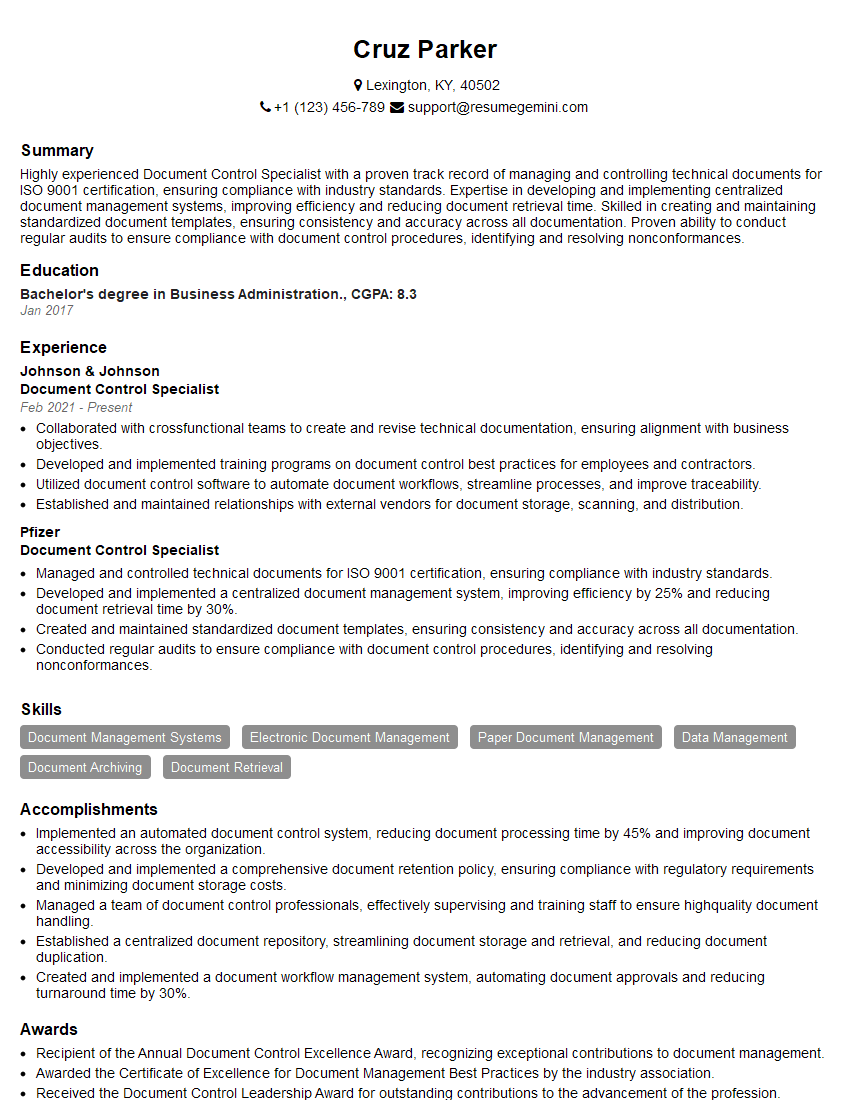
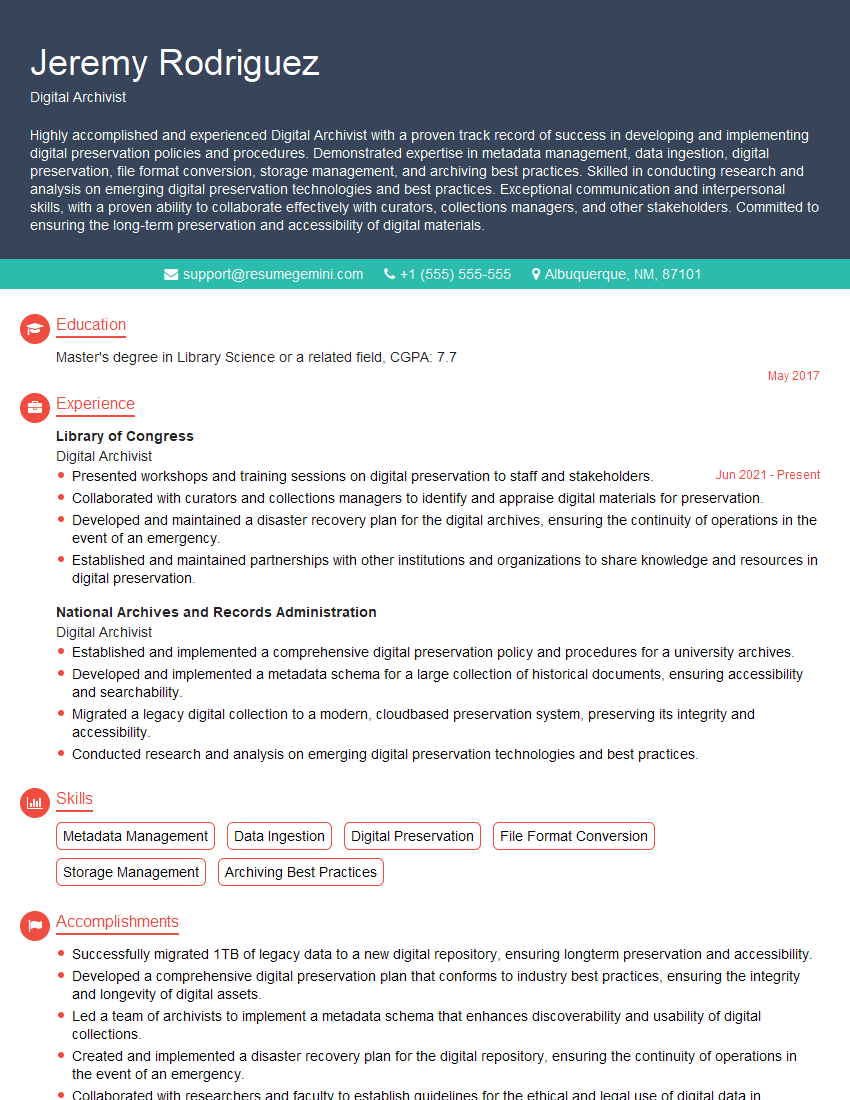
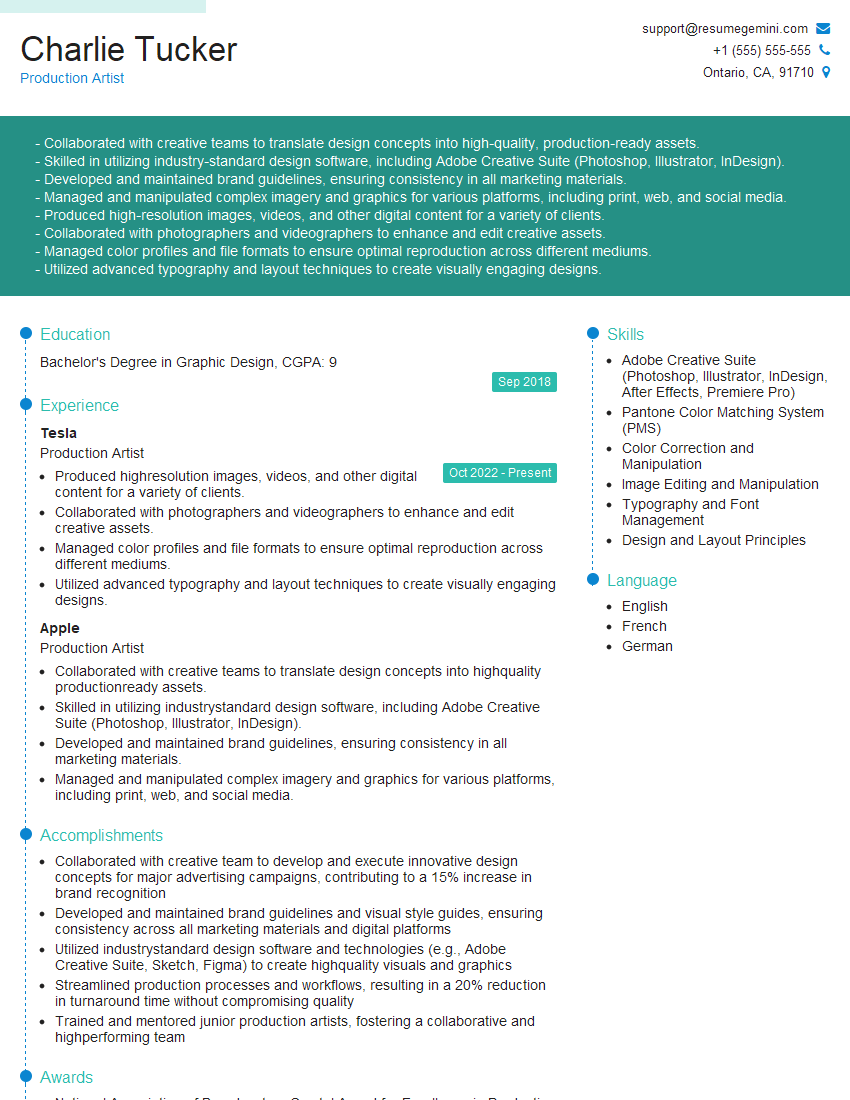
Mastering PDF editing and manipulation is a highly valuable skill in today’s digital landscape, opening doors to diverse and exciting career opportunities across various industries. A strong understanding of these techniques will significantly enhance your productivity and problem-solving abilities. To maximize your job prospects, it’s crucial to present your skills effectively. Creating an ATS-friendly resume is essential for getting your application noticed. We highly recommend using ResumeGemini to build a professional and impactful resume that highlights your expertise in PDF editing and manipulation. ResumeGemini offers tools and resources to help you craft a winning resume, and examples of resumes tailored to this field are available to guide you.

Explore more articles
Users Rating of Our Blogs
Share Your Experience
We value your feedback! Please rate our content and share your thoughts (optional).
What Readers Say About Our Blog
Very informative content, great job.
good