Cracking a skill-specific interview, like one for Photo Editing and Manipulation, requires understanding the nuances of the role. In this blog, we present the questions you’re most likely to encounter, along with insights into how to answer them effectively. Let’s ensure you’re ready to make a strong impression.
Questions Asked in Photo Editing and Manipulation Interview
Q 1. Explain the difference between raster and vector graphics.
Raster and vector graphics represent images fundamentally differently. Think of it like this: raster graphics are like a mosaic, composed of tiny squares called pixels. Each pixel has its own color information. Vector graphics, on the other hand, are like blueprints, defined by mathematical equations that describe lines, curves, and shapes.
Raster Graphics (e.g., JPEG, PNG, TIFF): These are ideal for photorealistic images, where subtle color gradations are crucial. They lose quality when scaled up (making them blurry) because you’re essentially stretching those pixels. They’re also usually larger file sizes.
Vector Graphics (e.g., SVG, AI, EPS): These are perfect for logos, illustrations, and scalable designs. Because they’re based on mathematical formulas, they can be scaled to any size without losing quality. They generally result in smaller file sizes than raster images of comparable complexity.
- Example: A photograph would be best represented as a raster graphic, while a company logo would be better suited as a vector graphic.
Q 2. What are the advantages and disadvantages of using different file formats (JPEG, PNG, TIFF, etc.)?
Different file formats offer trade-offs between file size, image quality, and features. Let’s look at some common ones:
- JPEG (JPG): Uses lossy compression, meaning some image data is discarded to reduce file size. Great for photographs and images with smooth color transitions, but not suitable for images with sharp lines or text.
- PNG: Uses lossless compression, preserving all image data. Supports transparency, making it ideal for graphics with transparent backgrounds or sharp lines. File sizes are generally larger than JPEGs.
- TIFF: A lossless format that supports high color depths and is often used for archival purposes or professional printing. Excellent quality but very large file sizes.
- GIF: Supports animation and limited color palettes. Useful for simple animations and small graphics but lacks the color depth and quality of other formats.
In practice: I would choose JPEG for web photos where file size is a priority, PNG for website graphics that need transparency, and TIFF for print materials where the highest quality is needed.
Q 3. Describe your experience with color correction and color profiles.
Color correction and color profiles are crucial for ensuring consistent and accurate color representation across different devices and workflows. Color correction involves adjusting the colors in an image to achieve a desired look or to correct inconsistencies. Color profiles, on the other hand, are standardized descriptions of a color space, ensuring that colors are interpreted correctly.
My experience includes working with various color spaces like sRGB (for web) and Adobe RGB (for print) and understanding how different monitors and printers can interpret colors differently. I routinely use tools within my editing software to calibrate monitors, manage color profiles, and apply specific color correction techniques like white balance adjustment, curves, and color balance to achieve accurate and visually appealing results. For example, I might use a color profile to ensure that a print matches the colors seen on my calibrated screen.
Q 4. How do you handle high-resolution images for web and print?
High-resolution images require different handling for web and print. For web, large file sizes lead to slow loading times. For print, high resolution is essential for sharp, detailed output.
For Web: I’d typically resize and optimize high-resolution images for web use. This involves reducing the dimensions and file size while maintaining acceptable quality. Tools like Photoshop’s ‘Save for Web’ function are invaluable. I’d usually aim for a resolution appropriate for the screen size (e.g., 72-150 DPI).
For Print: High-resolution images (300 DPI or higher) are essential for crisp print output. I would ensure the image is at the correct resolution and color space before sending it to the printer. Any resizing would be done carefully to avoid quality loss.
Q 5. What software are you proficient in (Photoshop, Lightroom, GIMP, etc.)?
I’m proficient in Adobe Photoshop, Adobe Lightroom, and GIMP. Photoshop is my primary tool for complex image manipulations, retouching, and compositing. Lightroom excels in organizing, editing, and color-grading large batches of photos. GIMP is a valuable open-source alternative for tasks where a less resource-intensive solution is appropriate.
My proficiency extends to mastering each software’s key features, including layers, masking, adjustment layers, brushes, and various filters. I understand their strengths and weaknesses and adapt my workflow based on the specific needs of the project.
Q 6. Explain your workflow for retouching portraits.
My portrait retouching workflow typically involves these steps:
- Initial Assessment: Carefully evaluate the image, identifying areas needing attention.
- Basic Adjustments: Correcting exposure, contrast, white balance, and sharpening.
- Skin Retouching: Removing blemishes and imperfections using tools like the Healing Brush, Clone Stamp, and Patch tool. I focus on maintaining a natural look, avoiding overly smoothed or artificial results.
- Frequency Separation (Optional): Separating the image into frequency layers for detailed skin texture adjustments, preserving skin texture while smoothing imperfections.
- Eye Enhancement: Brightening and enhancing eyes for a more captivating look, often involving dodging and burning techniques.
- Color Grading: Adjusting colors for a cohesive and aesthetically pleasing result.
- Final Sharpening and Export: Applying a final sharpening and saving the image in the appropriate format for its intended use.
Q 7. How do you remove blemishes and imperfections from images?
Removing blemishes and imperfections depends on the type and severity of the imperfection and often involves a combination of techniques. For minor blemishes, I might use the Healing Brush tool in Photoshop. This cleverly samples surrounding pixels to seamlessly blend the blemish away. For more significant imperfections or textures, I might use the Clone Stamp tool to copy a similar, unblemished area and carefully paint over the blemish. The Patch tool offers a more automated way to fill in imperfections by selecting a problematic area and replacing it with a sample from another region.
For more advanced retouching, I might employ frequency separation, a technique that separates the image into texture and color layers. This allows for precise adjustments to texture and color independently, resulting in a smoother appearance without losing detail.
The key is to always maintain a natural look. Overly aggressive retouching can create an unrealistic and unnatural appearance.
Q 8. Describe your experience with masking and layering techniques.
Masking and layering are fundamental techniques in photo editing, allowing for precise control over image elements. Think of it like working with transparent sheets of acetate: you can place different images (layers) on top of each other, revealing or concealing parts using masks.
Masking involves selecting specific areas of an image to edit, protecting the rest. There are various mask types: layer masks (non-destructive edits, easily reversible), vector masks (precise selections based on shapes), and quick masks (interactive selection refinement).
- Example: Removing a distracting background from a portrait. A layer mask would let me carefully select and remove the background while preserving the fine details of the subject’s hair and clothing.
- Practical Application: In commercial photography, masking is essential for product retouching, removing blemishes, and compositing images for advertising.
Layering allows arranging multiple images or elements in a stack, changing their opacity, blending modes, and order to create complex compositions.
- Example: Creating a surreal image by layering a photo of a person onto a landscape photo. I could adjust the opacity to blend the elements seamlessly.
- Practical Application: Layering is crucial for creating photo manipulations, collages, and adding special effects.
Proficiency in both masking and layering techniques is key to achieving high-quality, professional results. Understanding the different blending modes, opacity settings, and layer adjustments opens up a world of creative possibilities.
Q 9. How do you manage large image files efficiently?
Managing large image files efficiently requires a multi-pronged approach focusing on storage, editing workflow, and file format.
- Storage: Using external hard drives or cloud storage solutions (like Dropbox or Google Drive) is crucial for archiving high-resolution images. Organizing files logically within folders helps for easy retrieval.
- Workflow: Working in a non-destructive way – using adjustment layers and smart objects instead of directly editing pixels – allows for changes without altering the original image, saving space and retaining quality. Saving intermediary versions of your work also allows for easy revisions.
- File Format: Saving images in lossless formats like TIFF or PSD preserves image quality but results in larger file sizes. For web use, using lossy formats like JPEG which compress the image is acceptable and space-saving.
- Software: Employing image editing software designed to handle large files efficiently is key. Software with capabilities like proxy files (using smaller, faster preview files for smoother editing) is beneficial.
Example: When working on a large project with hundreds of high-resolution images, I always organize them into clearly labeled folders and use a cloud storage service for backups and collaboration. I prefer using TIFF for archival purposes and JPEG for web-optimized versions.
Q 10. How do you ensure color consistency across different images?
Color consistency across different images is paramount for a professional look, especially in projects like photo series or catalogs. Here’s how I achieve it:
- Color Profiles: Ensuring all images are using the same color profile (e.g., sRGB or Adobe RGB) is crucial. Inconsistent profiles can lead to significant color shifts.
- Reference Image: Selecting a single image as a color reference helps maintain consistency by matching the color balance and tones of the other images to that reference image.
- Color Correction Tools: Using tools like White Balance, Levels, and Curves allows for targeted color adjustments to match images.
- Calibration: Having a calibrated monitor ensures what you see on screen is an accurate representation of the final output.
Example: For a product photography shoot, I’d set up a consistent lighting scenario to minimize color variation between images. I would then use a reference image and color correction tools to fine-tune the color balance of all images, ensuring a uniform appearance.
Q 11. Explain your understanding of image resolution and DPI.
Image resolution refers to the number of pixels that make up an image (e.g., 3000 x 2000 pixels). Higher resolution means more detail and sharper images. DPI (dots per inch) describes the printer output resolution, indicating the number of ink dots printed per inch.
Resolution directly impacts image quality. Higher resolution images can be printed larger without losing detail. Low-resolution images will appear pixelated when enlarged.
DPI is crucial for print purposes. While DPI doesn’t directly affect the image’s resolution, it determines the quality of the printed output. A higher DPI generally results in a sharper print. For web use, DPI is less critical since screens display pixels differently.
Example: A 300 DPI image printed at 8×10 inches will have a finer detail than a 72 DPI image printed at the same size. For web display, a 72 DPI image is usually sufficient.
Q 12. How do you work with clients to understand their vision for an image?
Understanding a client’s vision is critical for successful image editing. I begin with a thorough consultation to clarify their goals and expectations.
- Initial Briefing: I request detailed information about their project, including mood boards, style guides, target audience, and desired outcome (e.g., website banner, magazine cover, social media post).
- Open Communication: Throughout the process, I actively communicate progress, seek feedback, and provide revisions to ensure alignment with their vision.
- Reference Images: Asking clients to share reference images of styles or effects they like is extremely helpful in setting the editing direction.
- Feedback Incorporation: I actively solicit client feedback at various stages and readily incorporate changes as needed, ensuring the final result meets their satisfaction.
Example: For a real estate project, I had a call with the client to discuss the desired mood (bright, airy, warm) and the specific aspects they wanted highlighted. They provided several reference images and feedback during each revision stage. This led to images that perfectly represented their property and exceeded their expectations.
Q 13. Describe a time you had to overcome a challenging image editing task.
I once faced a challenging task involving restoring a severely damaged historical photograph. The image was faded, torn, and had significant scratches and water stains.
The Solution: I approached this in a systematic way:
- Scanning & Enhancement: I first carefully scanned the photograph at a high resolution. I then used noise reduction techniques to minimize grain and employed advanced cloning and healing tools to remove minor imperfections.
- Color Correction: To restore the original color palette, I employed color balancing and selective color adjustments, carefully referencing any remaining color information in less-damaged sections.
- Texture Replacement: For larger tears and damage, I painstakingly reconstructed the missing sections using a combination of cloning, patching, and texture synthesis techniques.
- Final Sharpening: Finally, I subtly sharpened the image to enhance detail while maintaining naturalness.
The result was a significantly improved image, preserving the historical value while making it more aesthetically pleasing and accessible. This project emphasized the importance of patience, attention to detail, and a versatile skillset in image restoration.
Q 14. What are some common image editing pitfalls to avoid?
Several common pitfalls can significantly impact image quality and professionalism. Here are some to avoid:
- Over-sharpening: Excessive sharpening creates halos and unnatural artifacts, making the image look grainy and artificial.
- Over-saturation: Overly saturated colors look unrealistic and jarring. Subtle adjustments are key for achieving a natural look.
- Poor Cloning/Healing: Using cloning and healing tools without attention to detail results in obvious imperfections and inconsistencies.
- Ignoring Color Balance: Neglecting color correction can result in images with unrealistic or inconsistent colors.
- Incorrect File Format Selection: Saving images in low-resolution or lossy formats for print work will negatively impact the final product.
Example: Over-sharpening a portrait can make the skin look grainy and unnatural. Similarly, over-saturating a landscape can make the colors look unrealistic. Careful attention to detail and a balanced approach to editing is crucial for achieving professional-quality results.
Q 15. How do you stay updated with the latest trends in photo editing and manipulation?
Staying current in the dynamic field of photo editing requires a multi-pronged approach. I actively follow industry blogs and publications like PetaPixel and Digital Photography School, which offer insightful articles on new software updates, emerging techniques, and creative trends. I also participate in online communities and forums, such as those on Reddit and Facebook groups dedicated to photo editing, where I can engage with other professionals, share knowledge, and learn from their experiences. Additionally, I regularly attend webinars and online workshops offered by Adobe, Skylum, and other leading software developers. Finally, I experiment hands-on with new software and plugins, pushing my creative boundaries and staying abreast of technological advancements.
Think of it like staying updated with any skill – it’s a continuous learning process. It’s not just about knowing the *what*, but also the *why* and *how* behind each technique. This allows me to choose the best tools and methods for any given project.
Career Expert Tips:
- Ace those interviews! Prepare effectively by reviewing the Top 50 Most Common Interview Questions on ResumeGemini.
- Navigate your job search with confidence! Explore a wide range of Career Tips on ResumeGemini. Learn about common challenges and recommendations to overcome them.
- Craft the perfect resume! Master the Art of Resume Writing with ResumeGemini’s guide. Showcase your unique qualifications and achievements effectively.
- Don’t miss out on holiday savings! Build your dream resume with ResumeGemini’s ATS optimized templates.
Q 16. Explain your experience with HDR imaging techniques.
HDR (High Dynamic Range) imaging is a powerful technique for capturing and displaying a greater range of tonal detail than a standard photograph. My experience encompasses both capturing HDR images in the field and post-processing them in software. In the field, I utilize bracketing – capturing a series of images at different exposures – to capture both the highlights and shadows effectively. I’ve worked with various cameras and techniques to optimize this process, experimenting with different exposure settings and bracketing intervals to achieve optimal results depending on the scene’s lighting conditions.
In post-processing, I primarily use software like Adobe Photoshop and Lightroom to merge the bracketed exposures. These programs offer advanced tools for aligning the images, tone mapping (adjusting the brightness and contrast to create a balanced image), and masking to fine-tune the final result. I’m also proficient in using different HDR merging algorithms, choosing the best approach based on the specific image and desired outcome. For example, sometimes a more realistic approach is needed, while other times a more stylized, dramatic effect is desired. I’ve used HDR extensively in landscape photography, architectural photography, and even product photography to showcase details otherwise lost in standard images.
Q 17. How do you create composite images?
Creating composite images involves seamlessly blending multiple images together to create a single, cohesive image. The process begins with careful selection of source images that complement each other. Next, I use selection tools in Photoshop, like the pen tool, lasso tool, or quick selection tool, to isolate the elements I want to composite. Masking is crucial for blending elements seamlessly. I frequently employ layer masks and adjustment layers to control the opacity and blending modes, ensuring a natural transition between the elements. Color correction and matching are important aspects, ensuring that the colors and tones of the different elements harmoniously blend. Finally, retouching and refinement are often necessary to erase any visible seams or imperfections.
For example, I might composite a person into a fantasy landscape, requiring careful selection of the person, removal of the background, color correction to match the lighting of the landscape, and meticulous masking to integrate them seamlessly.
Q 18. Describe your experience with using actions and presets.
Actions and presets are invaluable time-saving tools in my workflow. Actions are essentially recorded sequences of editing steps that can be applied to multiple images with a single click. This streamlines repetitive tasks, allowing for consistency and efficiency. I create custom actions for specific processes, such as my signature color grading style or a standardized retouching workflow. Presets, on the other hand, are stored configurations of settings for adjustments such as curves, color balance, and sharpening. They offer a quicker way to achieve a desired look and feel. I use both extensively in my workflow, tailoring them to my individual needs and preferences, but always maintaining the ability to fine-tune the results manually to suit each image’s unique characteristics.
For instance, I might create an action for a specific style of portrait retouching, applying the same steps consistently to multiple images. I might also create presets for different color grading styles to quickly experiment and achieve a particular mood or atmosphere.
Q 19. What are your preferred methods for sharpening images?
Sharpening images is a critical step in post-processing. My preferred methods involve a multi-step approach to avoid over-sharpening or introducing artifacts. I start with a low-level, unsharp mask applied globally, then refine it using local adjustments with the brush tool or by masking specific areas. This ensures that I sharpen only where needed, preserving details and avoiding halos around edges. I might also use frequency separation techniques for advanced sharpening, separating the image into base and detail layers to achieve a more refined and natural result. The choice of sharpening technique depends on the image and its intended use – web images often require less aggressive sharpening than images for print.
Over-sharpening can lead to a harsh, unnatural look. A subtle, careful approach is key to achieving natural-looking sharpness.
Q 20. How do you handle different lighting conditions in your editing process?
Handling diverse lighting conditions is crucial for achieving aesthetically pleasing and realistic results. My editing process adapts to the specific lighting scenario. For images with harsh shadows and highlights, I use tools like curves and levels to adjust the overall tonal range and recover detail in both the shadows and highlights. I often employ techniques like dodging and burning to selectively lighten or darken specific areas. Color correction is also critical; I carefully adjust white balance and color casts to ensure accurate and consistent color representation. For images shot in low light, I might use noise reduction techniques while preserving as much detail as possible. Understanding the interplay of light and shadow is essential. For example, if an image is underexposed, I wouldn’t simply brighten the entire image; I’d selectively adjust areas to maintain a natural balance and avoid a washed-out look.
Q 21. Explain your understanding of image compression techniques.
Image compression techniques are used to reduce the file size of images while minimizing the loss of visual quality. I’m familiar with various compression algorithms, including lossy and lossless compression. Lossy compression, such as JPEG, discards some image data to achieve significant file size reduction. It’s suitable for web use or when smaller file sizes are prioritized over absolute image fidelity. Lossless compression, such as PNG, preserves all image data, resulting in larger file sizes but superior image quality. This is generally preferred for images intended for print or situations where maximum detail is crucial. The choice of compression method depends heavily on the final application and the acceptable level of quality loss. I understand the trade-offs involved and tailor my approach accordingly. For example, a photo intended for a website might use a high-quality JPEG with moderate compression, whereas an image destined for a high-resolution print would demand a lossless format.
Q 22. What are some ethical considerations in photo manipulation?
Ethical considerations in photo manipulation are paramount. It’s about maintaining the integrity of the image and avoiding misleading the viewer. This involves being transparent about any alterations made, avoiding deceptive practices that could misrepresent reality or individuals, and respecting the subjects’ rights and dignity. For instance, significantly altering someone’s appearance without their consent is unethical. Similarly, presenting a manipulated image as a candid or unaltered shot is deceptive. Ethical photo manipulation is about enhancing, not fabricating or distorting, the truth.
- Transparency: Always disclose any significant manipulations to your audience. For example, if you’ve retouched blemishes or adjusted colors substantially, it’s good practice to mention this.
- Truthfulness: Avoid manipulations that distort the facts or create false impressions. Do not fabricate elements that were not originally in the scene.
- Consent: Obtain consent whenever altering images of identifiable individuals. Especially for commercial use, model releases are crucial.
Consider a news photograph: subtly adjusting the contrast is acceptable, but drastically changing the scene to alter its narrative is unethical and potentially harmful. My approach always prioritizes truth and honesty.
Q 23. How do you handle image copyright and usage rights?
Handling image copyright and usage rights is fundamental. I always ensure I have the legal right to use any images I incorporate into my projects. This involves understanding the differences between copyright-free, Creative Commons, and images under exclusive copyright. For commercially licensed images, I always obtain necessary permissions and provide proper attribution when required.
- Copyright-Free Images: These images are free for use, but it’s vital to check the specific terms of use. Some might require attribution.
- Creative Commons Licenses: These images come with varying levels of permission, so understanding the specific license (like CC0 or CC BY-SA) is crucial. Each license defines what you can and cannot do with the image.
- Exclusive Copyright Images: Using these images necessitates purchasing licenses from the copyright holder or obtaining explicit permission.
- Model Releases and Property Releases: For images containing identifiable people or property, I always get the necessary releases to avoid legal complications.
Ignoring these guidelines can lead to legal disputes and reputational damage. I maintain meticulous records of image sources and licensing agreements to ensure compliance.
Q 24. Describe your experience with batch processing images.
Batch processing is invaluable for efficiency, particularly when dealing with large numbers of images. I’m proficient in using software like Adobe Photoshop and Lightroom to automate repetitive tasks. This can include resizing, color correction, watermarking, or applying presets to multiple images simultaneously. For example, I often use Lightroom’s powerful cataloging and processing capabilities to apply consistent edits across a series of photos from a photoshoot.
My workflow usually involves organizing images, applying initial adjustments in Lightroom (e.g., white balance, exposure), and then selectively importing the ones needing more refined work in Photoshop for individual touch-ups or composite work. Batch processing in Photoshop often involves actions or scripts for tasks like applying filters or resizing. I can create custom actions to automate complex edits based on specific needs of a project.
I recently used batch processing to prepare hundreds of product photos for an e-commerce client. I used Lightroom to automatically resize and sharpen all the images, apply a consistent color profile, and add watermarks. This saved significant time compared to editing each photo individually.
Q 25. How do you utilize adjustment layers effectively?
Adjustment layers are essential for non-destructive editing. They allow you to modify the appearance of an image without directly altering the original pixel data. This allows for flexibility and easy adjustments later. This means I can go back and change the settings of an adjustment layer without having to undo steps or recreate the effect.
- Flexibility: You can easily adjust the intensity, blending mode, or mask of an adjustment layer without affecting other parts of the image. This means experimentation is easier.
- Non-Destructive Editing: The original image remains untouched, allowing for unlimited revisions without losing quality. This is crucial for professional image editing.
- Targeted Adjustments: Using layer masks allows precise application of adjustments to specific areas of an image.
For instance, I might use a Curves adjustment layer to subtly boost the contrast of a portrait while simultaneously using a selective color adjustment layer to enhance the saturation of the subject’s eyes. This approach gives me granular control over various aspects of the image without affecting the base image itself.
Q 26. How familiar are you with non-destructive editing techniques?
I’m highly proficient in non-destructive editing techniques. This is my preferred method for almost all my work, as it prioritizes flexibility, preserving image quality, and making it easy to revert changes. Non-destructive editing ensures that I can revisit and adjust my work later without compromising the original file. This is particularly useful when working on projects that may require multiple revisions or collaborations.
Smart Objects in Photoshop are a prime example of this. They allow you to apply transformations and filters without permanently altering the original image data. Similarly, adjustment layers and using layer masks in Photoshop are crucial components of my non-destructive workflow. In Lightroom, the entire editing process operates non-destructively, making it incredibly effective for large-scale image organization and processing.
My experience shows this commitment to non-destructive editing helps minimize potential errors and preserves the integrity of the original image data throughout the editing process.
Q 27. Explain your experience with working with RAW image files.
RAW image files are my preferred format because they contain significantly more image data compared to JPEGs. This means more flexibility in post-processing. The ability to make extensive adjustments to white balance, exposure, contrast, and sharpness without significant loss of detail is crucial. Working with RAW files enables me to recover highlights and shadows more effectively, preserving image quality even in challenging shooting conditions.
My workflow typically starts in Adobe Lightroom where I perform initial adjustments such as white balance, exposure, and contrast. I then selectively edit specific images in Photoshop for more refined work such as retouching, compositing, or advanced color grading. I utilize the flexibility of RAW files to meticulously refine the image’s overall look and feel, while minimizing the introduction of artifacts or noise.
For instance, recently I worked on landscape photography where I was able to recover details in the bright sky and dark shadows using the RAW file’s dynamic range. This allowed me to produce a much richer and more detailed final image than would have been possible from a JPEG.
Q 28. Describe your process for delivering final edited images to clients.
Delivering final edited images to clients is as important as the editing process itself. I focus on providing high-quality images in the desired format and size, along with a professional presentation. I typically offer various file formats based on client needs, from high-resolution TIFFs for printing to optimized JPEGs for web use. My process usually includes:
- File Formats and Resolution: I deliver images in the appropriate format (JPEG, TIFF, PNG) and resolution (DPI) for the intended application (print, web, etc.).
- Color Profiles: I ensure consistent color across different platforms by using appropriate color profiles (e.g., sRGB for web, Adobe RGB for print).
- File Organization: Files are neatly organized and labeled clearly to avoid confusion. I typically use a consistent file-naming convention.
- Client Communication: I maintain open communication with the client regarding the delivery process and any special requirements.
- Review and Feedback: I provide the client with an opportunity to review the final images and provide feedback before final delivery.
I always aim to exceed client expectations by providing a seamless delivery process, and ensuring the images are presented in a way that is both professional and user-friendly. A recent project involved delivering a large batch of product photos for a client’s e-commerce website. I delivered compressed JPEGs, optimized for web use, alongside high-resolution TIFFs for future print materials, ensuring their needs were met across different platforms.
Key Topics to Learn for Photo Editing and Manipulation Interview
- Image Fundamentals: Understanding color spaces (RGB, CMYK), resolution, file formats (JPEG, TIFF, PNG, RAW), and bit depth. Practical application: Explaining the trade-offs between file size and image quality for different project needs.
- Non-Destructive Editing: Mastering techniques like layers, masks, and adjustment layers in software like Photoshop or GIMP. Practical application: Demonstrating the ability to edit images without permanently altering the original file, allowing for flexibility and revisions.
- Color Correction and Enhancement: Techniques for white balance correction, color grading, and tonal adjustments. Practical application: Correcting color casts and enhancing the overall mood and vibrancy of an image.
- Retouching and Restoration: Removing blemishes, repairing damaged areas, and restoring old photographs. Practical application: Describing your approach to retouching, including techniques like cloning, healing, and frequency separation.
- Image Composition and Manipulation: Understanding the rules of composition and applying techniques like cropping, resizing, and perspective correction. Practical application: Improving the visual appeal of an image by strategically adjusting its elements.
- Software Proficiency: Demonstrating expertise in industry-standard software such as Adobe Photoshop, Lightroom, or other relevant tools. Practical application: Highlighting specific features and workflows you’re proficient in, and your ability to adapt to new software.
- Workflow Optimization: Developing efficient and organized workflows for image editing projects. Practical application: Explaining how you manage large volumes of images and maintain consistency in your editing process.
- File Management and Organization: Implementing effective strategies for naming conventions, file storage, and backup procedures. Practical application: Describing your methods for keeping your projects organized and easily accessible.
Next Steps
Mastering photo editing and manipulation is crucial for career advancement in various creative fields, from graphic design and advertising to photography and web development. A strong grasp of these skills demonstrates technical proficiency and creative problem-solving abilities, highly valued by employers. To maximize your job prospects, crafting an ATS-friendly resume is essential. ResumeGemini is a trusted resource that can help you build a professional and impactful resume, showcasing your skills effectively. Examples of resumes tailored to Photo Editing and Manipulation are available to guide you.
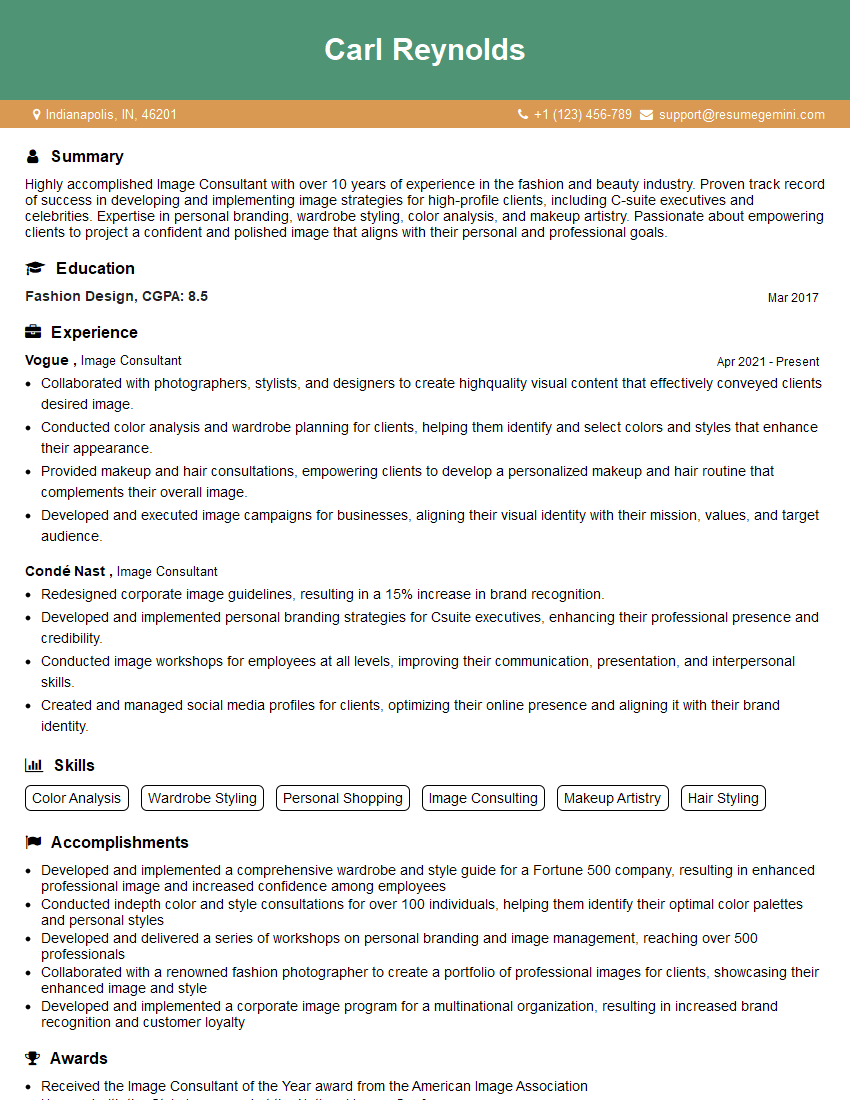
Image Consultant Resume Sample

Multimedia Specialist Resume Sample
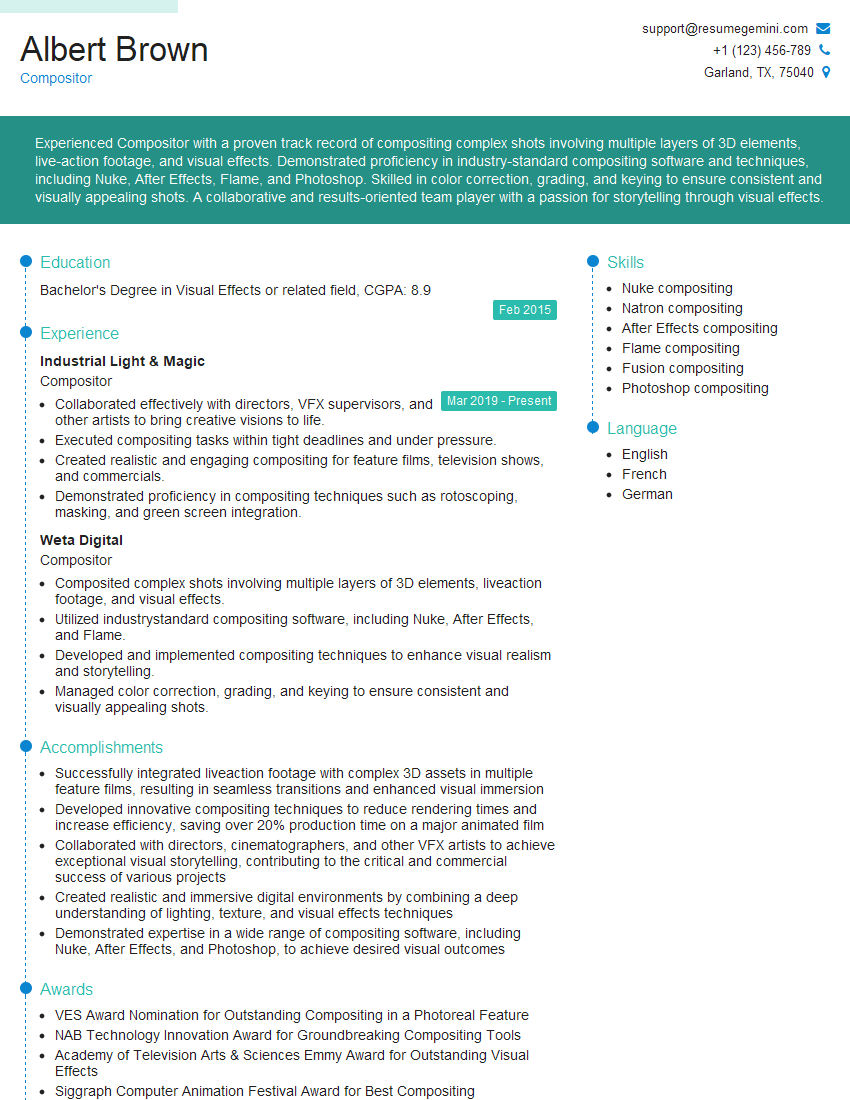
Compositor Resume Sample
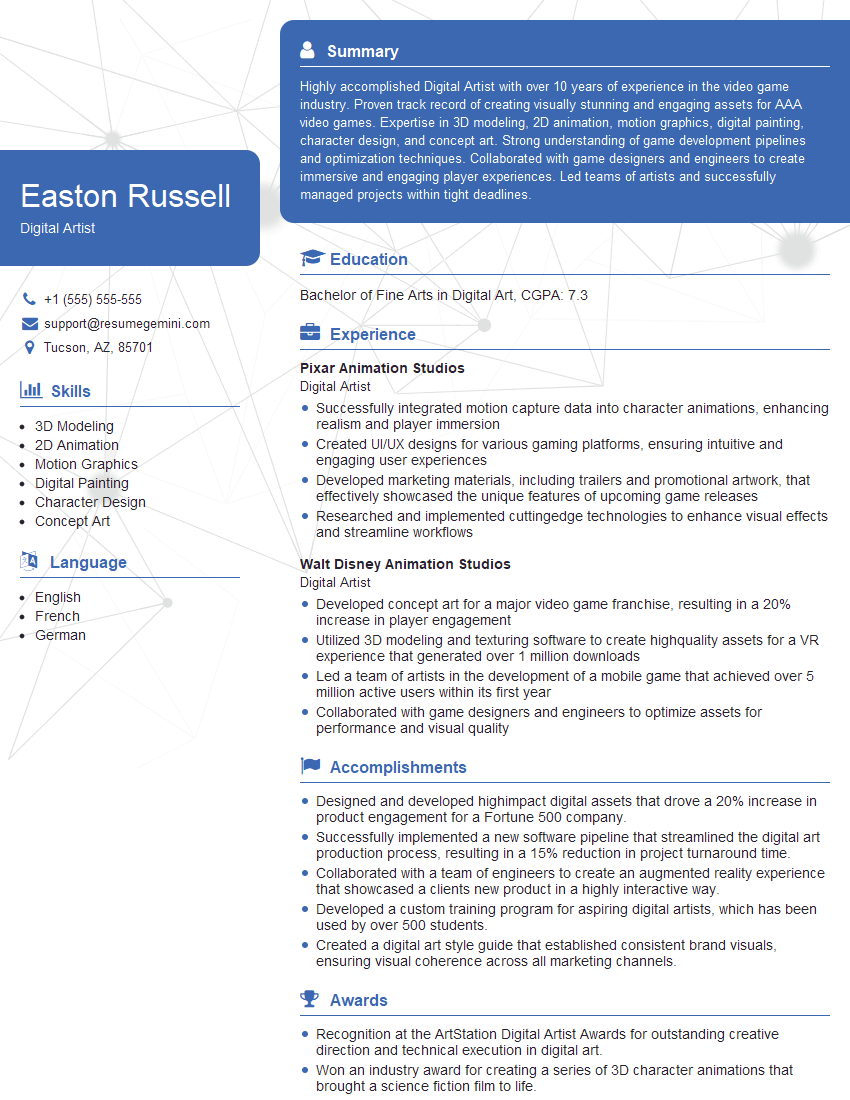
Digital Artist Resume Sample

Graphic Designer Resume Sample
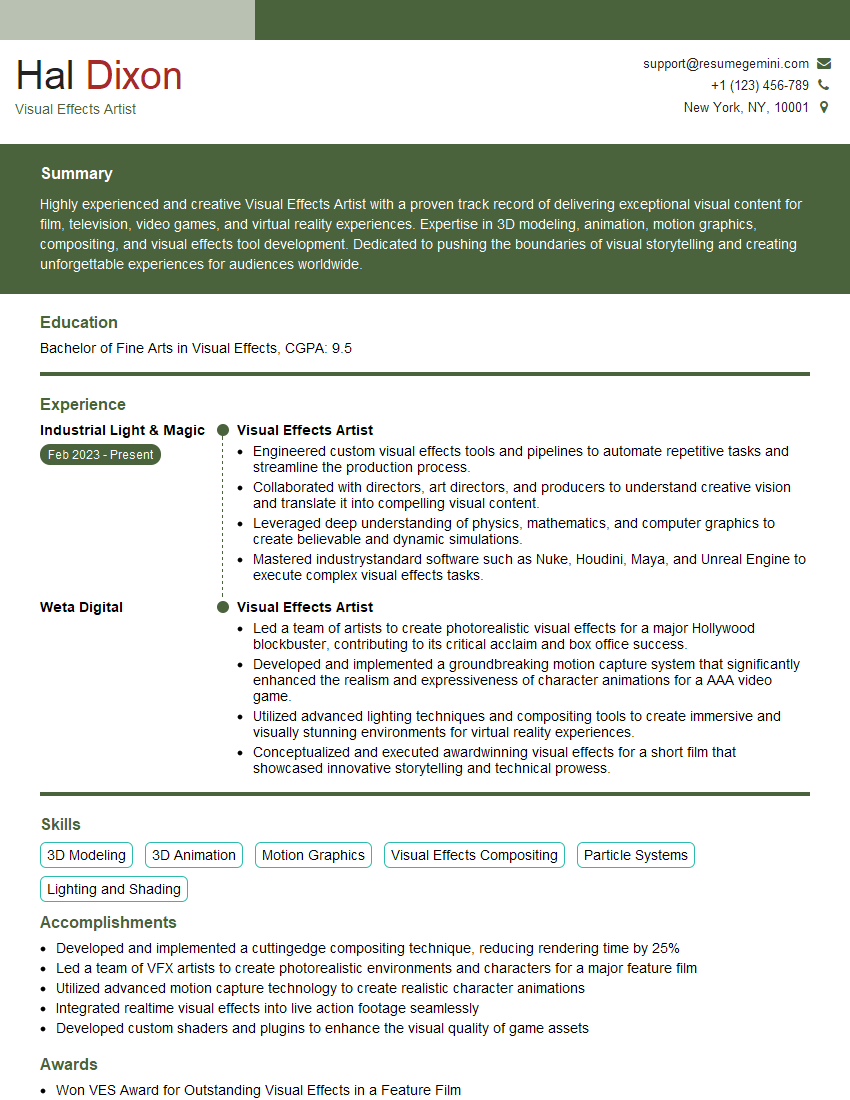
Visual Effects Artist Resume Sample
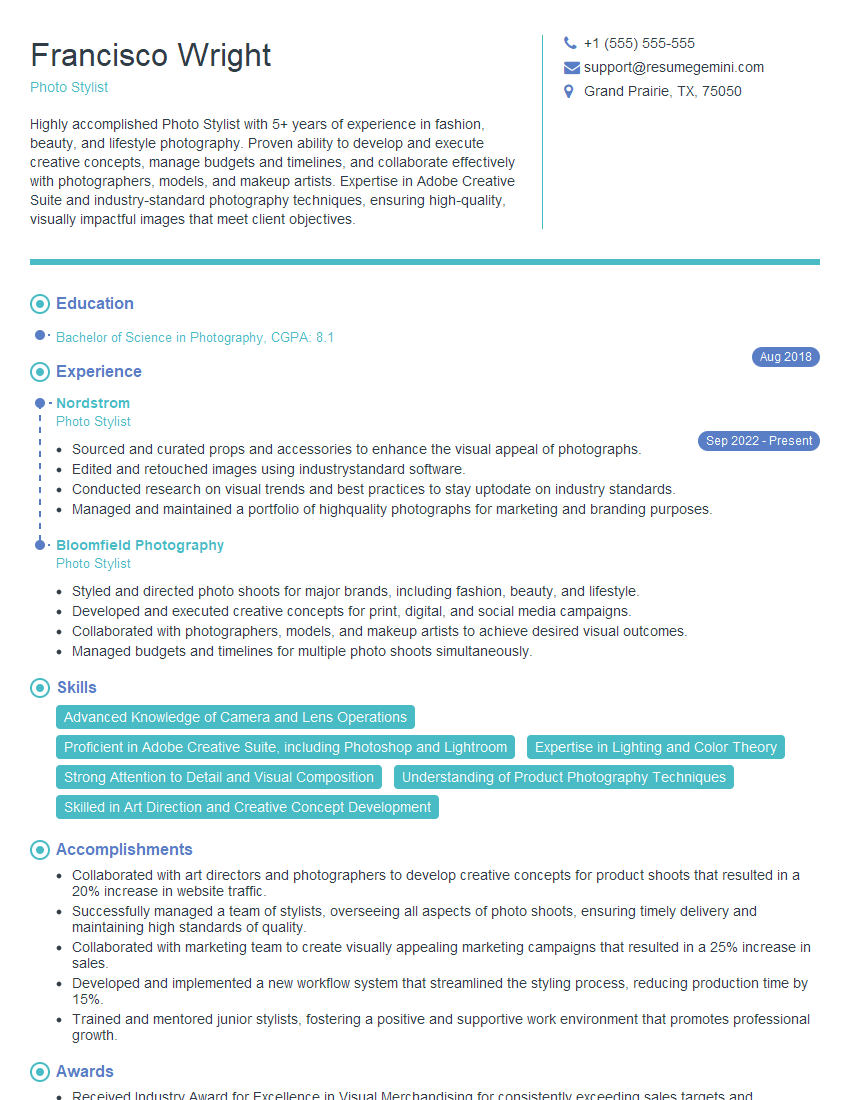
Photo Stylist Resume Sample

Photo Editor Resume Sample
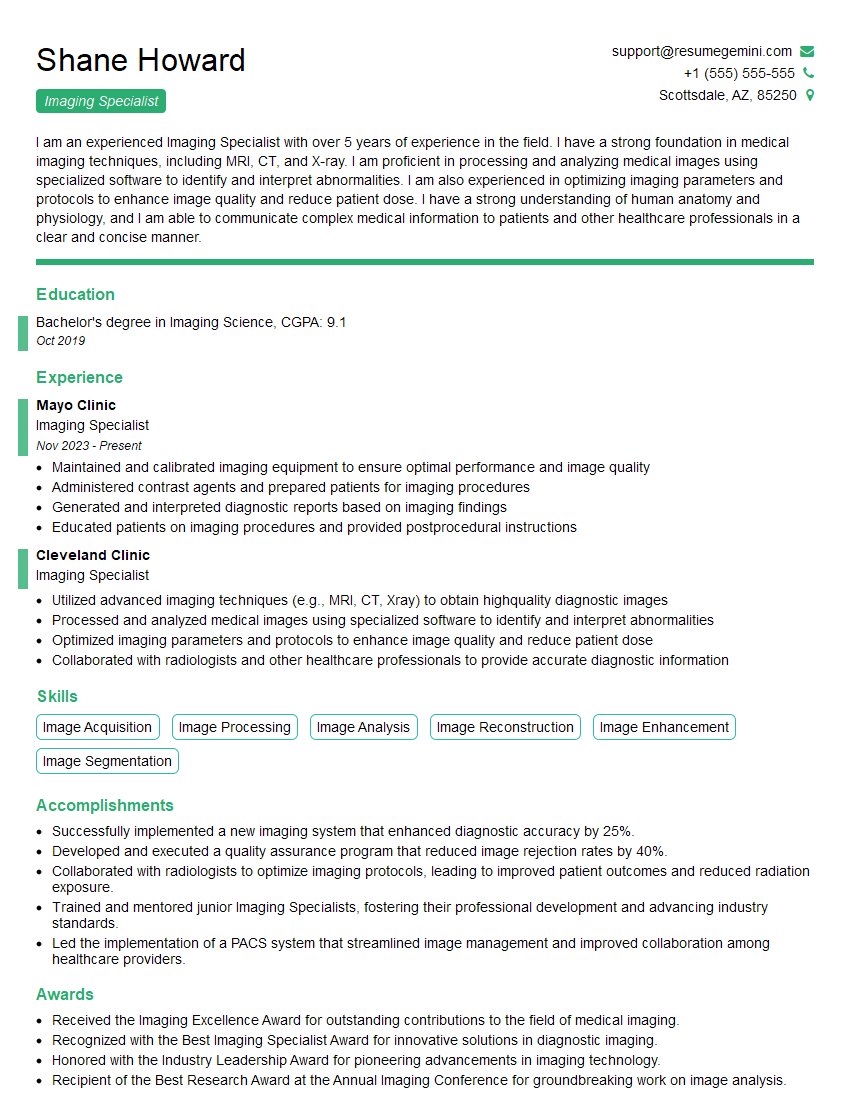
Imaging Specialist Resume Sample
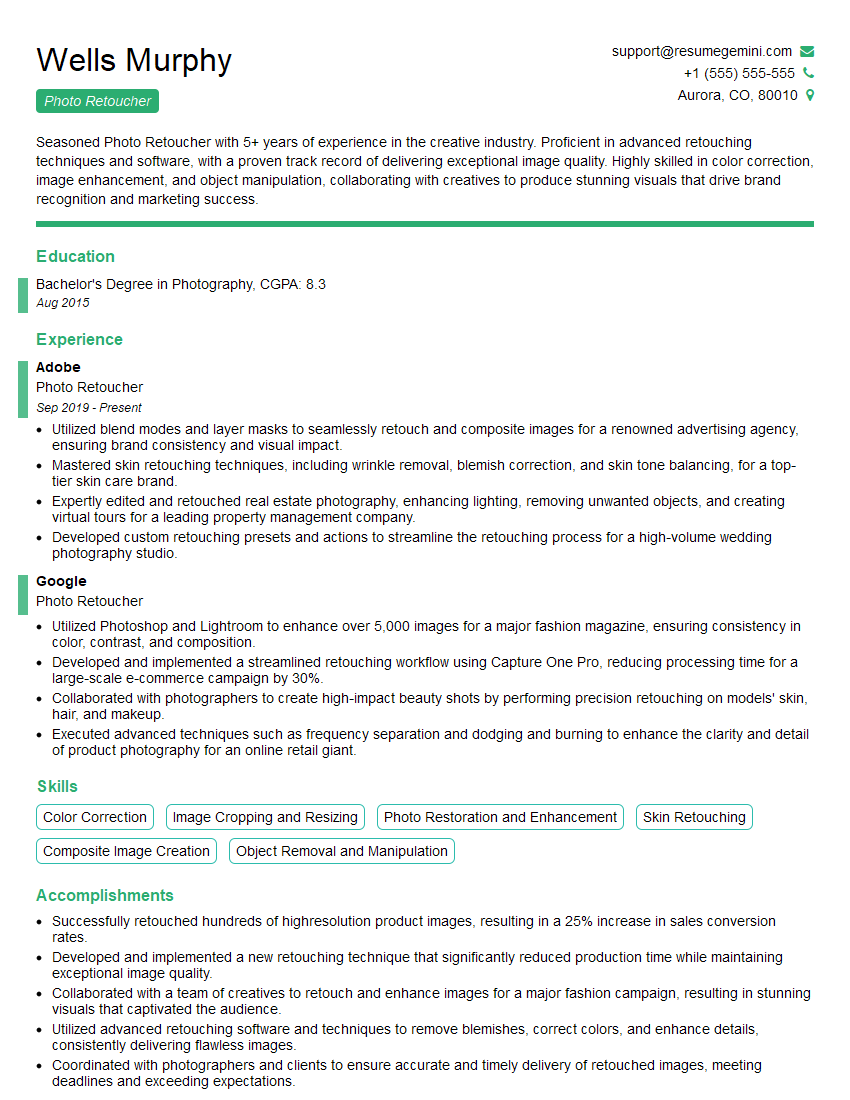
Photo Retoucher Resume Sample
Explore more articles
Users Rating of Our Blogs
Share Your Experience
We value your feedback! Please rate our content and share your thoughts (optional).
What Readers Say About Our Blog
Very informative content, great job.
good