Every successful interview starts with knowing what to expect. In this blog, we’ll take you through the top Proficiency in Adobe Creative Suite (Photoshop, Illustrator, InDesign) interview questions, breaking them down with expert tips to help you deliver impactful answers. Step into your next interview fully prepared and ready to succeed.
Questions Asked in Proficiency in Adobe Creative Suite (Photoshop, Illustrator, InDesign) Interview
Q 1. Explain your workflow for creating a print-ready document in InDesign.
My workflow for creating a print-ready document in InDesign begins with meticulous planning. I start by defining the document’s specifications – page size, margins, bleeds, and the number of pages. This ensures the final output meets print requirements and avoids costly mistakes.
Next, I create master pages to maintain consistency across the document. This is crucial for elements like page numbers, headers, and footers. Then, I import high-resolution images and vector graphics, carefully considering their placement and scaling to avoid pixelation or distortion. I always check the image resolution (300 DPI is standard for print) before importing to ensure quality.
I carefully organize my content using text frames and image frames, ensuring accurate alignment and spacing. I thoroughly proofread and edit the text, employing InDesign’s powerful typographic controls to enhance readability and visual appeal. Before exporting, I create a packaging file which includes all linked images and fonts, ensuring a smooth process for the print house. Finally, I export the document as a PDF/X-1a compliant file, a standard format for professional printing, guaranteeing consistent color representation across different devices.
For example, when designing a brochure, I’d establish a three-panel layout with appropriate bleeds, create master pages for consistent header and footer design, and then populate each panel with high-resolution images and text, consistently applying styles to ensure brand consistency.
Q 2. How do you handle high-resolution images in Photoshop for web and print?
Handling high-resolution images in Photoshop for both web and print requires understanding the differences in required resolution and file formats. For print, I typically work with images at 300 DPI (dots per inch), ensuring crispness and detail. For web, I optimize images for size and speed, usually at 72 DPI. This is because screen resolutions are much lower than print resolutions. Using higher resolution images on a website is inefficient, increasing loading time.
To prepare an image for print, I would ensure it’s in CMYK color mode and at 300 DPI. For web, I’d convert it to sRGB and save it as a JPEG or PNG, depending on the desired level of image quality and transparency needs. I might also use techniques like layer compression or resizing to minimize file size without significant quality loss.
Imagine preparing a product shot for an online store and also for a print catalog. For the online store, a sharply compressed JPEG would be ideal, while for the catalog, a high-resolution CMYK TIFF would be necessary.
Q 3. Describe your experience with color management in Adobe applications.
Color management is paramount in my workflow. I always work in a color-managed workspace, ensuring consistent color representation across different applications and devices. In Photoshop, Illustrator, and InDesign, I define my working color space (usually sRGB for web and Adobe RGB for print) and convert images to this space. This ensures accurate color reproduction throughout the design process. I also profile my monitor using a colorimeter to guarantee what I see on screen closely matches the final printed output.
I use color profiles (ICC profiles) to manage color consistency. Each profile defines the color characteristics of a device (monitor, printer, scanner). When transferring images between devices, the color profiles ensure they are interpreted accurately. For print jobs, I always provide the print shop with the correct color profiles to prevent color shifts during the printing process. Ignoring this step can lead to significant color variations between the screen preview and the final print.
For instance, a project involving a client’s specific Pantone colors requires meticulous color management. I incorporate their Pantone color swatches into my design, ensuring that the printed results match their brand guidelines precisely.
Q 4. What are the advantages of using vector graphics over raster graphics?
Vector graphics, unlike raster graphics, are made up of mathematical equations that define lines and curves. This means they can be scaled to any size without losing quality. Raster graphics, on the other hand, are composed of pixels and will become pixelated when enlarged. This fundamental difference has significant implications for design.
- Scalability: Vector graphics are infinitely scalable. You can enlarge them without losing detail, making them ideal for logos, illustrations, and other elements that need to be used at various sizes.
- File Size: Vector files are generally smaller than raster files of comparable complexity.
- Editing: Vector graphics are easily editable. Individual components can be modified and manipulated without affecting the overall image quality.
For example, a logo created in Illustrator as a vector graphic can be used on a business card, a website banner, and a billboard without any loss of quality, while a raster logo would become blurry when scaled up.
Q 5. How do you create and manage layers effectively in Photoshop?
Effective layer management in Photoshop is crucial for efficient workflow and non-destructive editing. My approach prioritizes organization and clear naming conventions. I begin by creating layers for each distinct element in my design, such as background, text, and images. I name each layer descriptively to easily identify its function. I use layer groups to organize related layers, creating a hierarchical structure that makes it easy to find and manipulate specific elements. I also use layer masks to non-destructively edit images, making it possible to modify parts of an image without affecting other parts.
For example, when retouching a photograph, I might create separate layers for adjustments like brightness and contrast, allowing me to easily adjust these settings later without affecting other edits. This is far better than making changes directly to the base image, which is destructive editing. Color adjustments are also often done on separate adjustment layers, preserving the original image information.
Q 6. Explain the difference between RGB and CMYK color modes.
RGB (Red, Green, Blue) and CMYK (Cyan, Magenta, Yellow, Key – black) are two different color modes used for different purposes. RGB is an additive color model used for screens (monitors, TVs, and phones). It combines red, green, and blue light to produce a wide range of colors. CMYK, on the other hand, is a subtractive color model used for printing. It works by subtracting colors from white light using cyan, magenta, yellow, and black inks.
The key difference lies in how colors are created. RGB adds light to create color; CMYK subtracts light. This means an image in RGB will typically look different when printed in CMYK. Therefore, it’s crucial to convert images to CMYK before sending them to print to ensure accurate color representation.
Think of it like mixing paints. RGB is like shining different colored lights on a black canvas, while CMYK is like mixing different colored paints on a white canvas.
Q 7. Describe your process for creating a logo in Illustrator.
My process for creating a logo in Illustrator starts with a thorough understanding of the client’s brand identity and target audience. I begin by sketching several concepts, exploring different typographic treatments and visual styles. Once I have a few strong directions, I refine them digitally in Illustrator using vector tools. I carefully craft the shapes and text, ensuring clean lines, appropriate kerning, and consistent spacing.
I experiment with different color palettes and ensure the logo is versatile, working well in different sizes and contexts (e.g., monochrome, full-color, web, print). I build the logo using vector shapes and text, maintaining its scalability. I then create different versions of the logo for various applications (e.g., horizontal, vertical, icon). Finally, I export the logo in various formats (AI, EPS, SVG, PNG) to accommodate different design needs. I always maintain the original source file (AI) for future edits and modifications.
For example, when creating a logo for a tech startup, I’d incorporate modern, clean lines and geometric shapes, experimenting with different font combinations to reflect the company’s innovative and forward-thinking nature. I’d provide various versions – full-color, grayscale, and a single-color version for different applications.
Q 8. How do you use the Pathfinder tool in Illustrator?
The Pathfinder tool in Illustrator is a powerful set of functions that allows you to combine, subtract, intersect, and otherwise manipulate multiple shapes and paths. Think of it as a digital Swiss Army knife for your vector artwork. It’s indispensable for creating complex shapes from simpler ones.
- Combine: Merges selected shapes into a single, unified shape.
- Subtract: Removes the overlapping area of one shape from another.
- Intersect: Keeps only the overlapping area of selected shapes.
- Exclude: Keeps everything *except* the overlapping area of selected shapes.
- Divide: Splits intersecting shapes into individual components.
For example, you might use the Subtract function to create a circle with a hole in the middle by subtracting a smaller circle from a larger one. The Divide function is great for creating intricate designs from overlapping shapes, like creating cutouts in a logo design or unique patterns for a textile design.
To use it, select the shapes you want to manipulate, go to the Pathfinder panel (Window > Pathfinder), and select the desired operation. It’s important to have shapes properly layered and selected to achieve the desired result. Experimenting with different combinations will reveal its full potential and make you a more efficient Illustrator user.
Q 9. How do you create and manage master pages in InDesign?
Master pages in InDesign are like templates for your document. They allow you to create consistent layouts, styles, and page numbers across multiple pages, saving you significant time and effort. Think of them as pre-designed blueprints for each page type.
Creating a Master Page: Open the Pages panel (Window > Pages), click the ‘Create Master Page’ button (looks like a small page icon with a plus symbol), and choose a name for your master page. You can then add design elements like headers, footers, page numbers, and other recurring elements to this master page.
Managing Master Pages: You can have multiple master pages for different page types (e.g., a master page for your chapter pages, another for your table of contents). The Pages panel shows you which pages are based on which master page. To apply a master page to a specific page, simply drag and drop the master page onto the desired page in the Pages panel.
Example: Imagine designing a brochure. You could create one master page for the left-hand pages with a consistent header and footer, and another master page for the right-hand pages with a different layout. By using master pages, every left and right page will automatically have the correct layout and elements.
Editing master pages updates all pages based on that master. However, you can always override elements on individual pages, giving you flexibility without compromising consistency. This is a fundamental aspect of efficient InDesign workflow for creating multi-page documents.
Q 10. Explain your experience with creating and applying styles in InDesign.
Styles in InDesign are a cornerstone of efficient and consistent design. They allow you to apply formatting such as font, size, color, spacing, and paragraph styles with a single click, ensuring uniformity throughout a document. This means less manual work and less chance of inconsistencies.
Creating Styles: You create styles by selecting an element with the desired formatting (e.g., a paragraph with specific font and size), then going to the Styles panel (Window > Styles), and clicking the ‘New Style’ button (a small square with a plus sign). InDesign will automatically save the style. You can create paragraph styles, character styles, object styles (for controlling the appearance of graphics), and table styles.
Applying Styles: Once created, you simply select the text or object, and click the style you want to apply from the Styles panel. You can also edit styles to apply changes to all elements using that style.
Example: Imagine you need to apply a specific heading style to multiple chapters. Instead of manually setting the font, size, and color for each heading, you create a ‘Heading 1’ style and then apply it to every heading, ensuring consistency. If you need to make a change to the heading style, updating it once updates it everywhere.
My experience includes creating style sheets for large, complex documents, which involved designing a consistent visual language through carefully crafted styles. Managing and updating these styles during the project’s lifecycle is crucial for efficiency and maintaining design consistency. I’ve also used styles extensively in creating brand guidelines and style guides, ensuring consistent use of brand assets across all documents.
Q 11. How do you optimize images for web use in Photoshop?
Optimizing images for web use in Photoshop is crucial for fast loading times and a smooth user experience. It involves reducing file size without sacrificing too much image quality. The key is finding the right balance.
Methods for Optimization:
- Reduce Image Dimensions: Make the image only as large as it needs to be on the web. Oversized images take longer to download. Crop out unnecessary areas.
- Save for Web (Legacy): This feature (File > Export > Save for Web (Legacy)) allows you to choose between different formats (JPEG, PNG, GIF) and adjust compression settings. Experiment with different settings to see how compression affects file size and image quality.
- Choose the Right Format: JPEG is generally good for photos; PNG is better for graphics with sharp lines and transparency; GIF is best for animations or images with limited colors. PNG-8 is a smaller file size than PNG-24, but lacks transparency support.
- Compression: Use a high compression setting for JPEGs to reduce file size, but be careful not to over-compress, which can lead to noticeable artifacts. PNGs generally retain more quality at lower file sizes.
- Lossy vs. Lossless Compression: JPEG uses lossy compression, meaning some image data is discarded to reduce file size. PNG uses lossless compression, meaning no image data is lost, resulting in larger file sizes.
Example: A high-resolution photo intended for a website header may be 2MB. By reducing its dimensions and saving it as a JPEG with a high compression setting, you could easily reduce its size to under 100KB with minimal visible quality loss, dramatically improving website load times.
Understanding the relationship between file size, image quality, and file format is vital for effective web optimization.
Q 12. What are your preferred keyboard shortcuts in Photoshop, Illustrator, and InDesign?
Keyboard shortcuts are essential for boosting productivity in Adobe Creative Suite. They allow for a much faster workflow than using menus.
Photoshop:
Ctrl+Z (Cmd+Z): UndoCtrl+S (Cmd+S): SaveCtrl+J (Cmd+J): Duplicate LayerCtrl+T (Cmd+T): Free TransformCtrl+Shift+Alt+S (Cmd+Shift+Option+S): Save for Web (Legacy)
Illustrator:
Ctrl+Z (Cmd+Z): UndoCtrl+S (Cmd+S): SaveCtrl+C (Cmd+C): CopyCtrl+V (Cmd+V): PasteV: Selection ToolA: Direct Selection Tool
InDesign:
Ctrl+Z (Cmd+Z): UndoCtrl+S (Cmd+S): SaveCtrl+A (Cmd+A): Select AllF7: Paragraph Styles PanelF8: Character Styles Panel
These are just a few of many; I regularly use many more shortcuts specific to tasks, such as layer management, masking, and more depending on the context. Mastering keyboard shortcuts dramatically speeds up work and allows for more fluid creation.
Q 13. Describe your experience with using layer masks in Photoshop.
Layer masks in Photoshop are non-destructive editing tools that allow you to hide portions of a layer without permanently deleting them. Think of it as a stencil that reveals or conceals parts of an image. This is crucial for preserving editing flexibility and allows for easier adjustments later.
Creating a Layer Mask: There are several ways to create a layer mask. The most common method is to select the layer you want to mask, then click the ‘Add Layer Mask’ button (a rectangular icon with a circle inside) at the bottom of the Layers panel. A white mask is added. White reveals the layer, black hides it, and shades of gray create transparency.
Editing a Layer Mask: You can paint on the mask with black and white to selectively reveal or hide parts of the layer. A soft brush is ideal for creating smooth transitions. You can also use other tools like the gradient tool to create gradual fades.
Example: Imagine you’ve added a shadow layer to a photo. Instead of hard edges, you want a soft transition. A layer mask allows you to softly blend the shadow’s edges by painting black on the mask to gradually fade the shadow away. The original shadow layer remains unchanged, enabling adjustments at any time.
Layer masks are an essential tool in my workflow for retouching images, creating composites, and producing high-quality imagery. They are indispensable for non-destructive editing and ensuring flexibility for future adjustments.
Q 14. How do you create and edit text frames in InDesign?
Text frames in InDesign are containers for your text. They control the flow and placement of text within your document. Unlike simply typing on a page, text frames provide control and allow for complex layouts.
Creating a Text Frame: You create a text frame by using the Type tool (T), clicking and dragging on your page to create a box. You can then type directly into the text frame.
Editing a Text Frame: You can resize a text frame by dragging its handles, and you can add text using the Type tool, or by importing text from another file. If the text exceeds the frame size, a small plus symbol appears at the bottom, indicating an overflow. You can then add more text frames to continue the text flow, which is essential for creating multi-page documents.
Example: When designing a brochure, you would typically create different text frames for headings, body copy, captions, and other elements, controlling their size and placement for optimal readability and visual appeal. You can also use text frames to wrap text around images, creating more dynamic layouts.
My experience includes using text frames extensively for complex document designs requiring intricate text wrapping, columns, and text flows across multiple pages. Mastery of text frames is key to creating professional layouts in InDesign.
Q 15. Explain your knowledge of bleed and margins in print design.
Bleed and margins are crucial in print design to ensure your final printed piece looks exactly as intended. Imagine you’re creating a postcard – you want the image to go all the way to the edge, right? That’s where bleed comes in. Margins, on the other hand, define the safe area for your text and important design elements, preventing them from being trimmed off during the printing process.
Bleed: This is extra area added to the edges of your design. It’s typically 1/8th of an inch (or 3mm) on all sides. During printing, the paper is trimmed, and the bleed ensures that your design extends to the very edge of the finished piece, preventing unsightly white borders. If you don’t add bleed, you’ll likely see a thin white line around your design after printing.
Margins: These define the safe area within your design where you place crucial elements like text and logos. Think of margins as a buffer zone. They are typically set to 0.25 inch (or 6mm) on all sides, or even larger depending on the design and printing process. This ensures these key elements are not accidentally cut off during the trimming process.
Example: When designing a flyer, I ensure the background image extends beyond the final trim size by the bleed amount, while crucial text is placed comfortably within the defined margins. This guarantees a professional and clean final product.
Career Expert Tips:
- Ace those interviews! Prepare effectively by reviewing the Top 50 Most Common Interview Questions on ResumeGemini.
- Navigate your job search with confidence! Explore a wide range of Career Tips on ResumeGemini. Learn about common challenges and recommendations to overcome them.
- Craft the perfect resume! Master the Art of Resume Writing with ResumeGemini’s guide. Showcase your unique qualifications and achievements effectively.
- Don’t miss out on holiday savings! Build your dream resume with ResumeGemini’s ATS optimized templates.
Q 16. How do you work with different file formats (e.g., PDF, AI, PSD, EPS)?
Working with various file formats is a daily necessity in my workflow. Each format serves a specific purpose, and understanding their strengths and weaknesses is essential for efficient design and collaboration.
- PSD (Photoshop Document): This is my go-to format for raster-based images, offering layer-based editing, which allows for non-destructive editing, and flexibility in image manipulation. I use it for photo retouching, image compositing, and creating highly detailed graphics.
- AI (Adobe Illustrator Document): This is my choice for vector-based graphics. Vector graphics are resolution-independent, which means they can be scaled to any size without losing quality. I use AI for logos, illustrations, and typography-heavy designs that need to be scaled for various applications (web, print, etc.).
- EPS (Encapsulated PostScript): This is a versatile format, frequently used for vector graphics and for exchanging artwork between different applications. While less common now, its compatibility makes it a useful format for older programs or ensuring compatibility across different software.
- PDF (Portable Document Format): This is my final output format for print jobs, offering excellent print quality and cross-platform compatibility. I usually create press-ready PDFs with appropriate color profiles (CMYK) and bleed settings to ensure accurate color reproduction and avoid problems during printing. Different PDF settings are important—I might use a smaller PDF for web use, preserving file size and ensuring fast downloads.
Understanding these file types allows me to seamlessly transition between applications, ensuring consistency and high-quality results throughout the design process. For instance, I might create a logo in Illustrator (AI), then export it as a high-resolution PNG for use on a website, and finally incorporate it into a print layout in InDesign as a placed PDF.
Q 17. Describe your experience with using the pen tool in Illustrator.
The Pen Tool in Illustrator is my most trusted tool for creating precise vector shapes and illustrations. It’s powerful and versatile but takes practice to master. I’ve used it extensively for everything from creating intricate logos and illustrations to precisely tracing images.
My approach: I start with a clear vision of the shape. I meticulously place anchor points (the little squares that define the shape’s curves and lines), ensuring smooth curves and sharp corners where needed. The Pen Tool allows for incredible precision; by using the keyboard shortcuts for manipulating curves (e.g., Command/Ctrl + to add points and Command/Ctrl – to subtract), I refine the curves and ensure a clean line.
Example: When designing a logo, I utilize the Pen Tool to carefully shape each element, ensuring perfect symmetry and smooth lines. This attention to detail results in logos that look sharp at any size and across various media.
Troubleshooting: It’s vital to use the direct selection tool (white arrow) to precisely adjust curves or individual points after drawing a path. Understanding the difference between corner points and smooth points is paramount to creating curves and straight lines accurately.
Q 18. How do you troubleshoot common printing issues?
Troubleshooting printing issues requires a systematic approach. My process involves identifying the problem, isolating the cause, and implementing a solution. I start by analyzing the issue: Is the color off? Are there registration problems (colors not aligning)? Is there banding or other artifacts in the image?
- Color Issues: Often this points to a color profile mismatch between my design file and the printer. I always make sure my file is in the correct CMYK color space for print, and I double-check the printer’s color profile settings.
- Registration Problems: This indicates a problem with the printer’s alignment. This usually requires contacting the print shop, as it’s related to the printer’s hardware or calibration.
- Image Artifacts: Low-resolution images, insufficient bleed, or improper file formats can all cause problems. Careful examination of the final PDF to ensure high enough resolution is key.
- Software issues: Sometimes a problem lies in the software itself. Checking for updated drivers or ensuring that my file is correctly flattened (where applicable) can resolve problems.
Example: I recently encountered banding in a print job. By carefully examining the file, I found the image resolution was too low. Resolving this by sourcing a higher-resolution image or optimizing the existing one immediately fixed the banding issue.
Q 19. What are some best practices for organizing your files?
Organized files are the cornerstone of efficient design. My method uses a clear folder structure that prioritizes project-based organization, and always uses descriptive file names. My system ensures I can easily locate and manage any file I need.
- Project Folders: Each project resides in its own folder, containing all related files: images, source files, final output files, and client communications.
- Subfolders: Within each project folder, I have subfolders for images, vector files, and documents. This maintains a highly organized system within the project folder.
- Descriptive File Names: File names are detailed and descriptive, following a consistent naming convention (e.g., Project Name_Date_Version.psd). This eliminates any guesswork when retrieving files.
- Regular Archiving: After project completion, projects are archived to an external drive.
This approach makes finding assets quick and easy—crucial when working on multiple projects simultaneously and collaborating with clients or colleagues.
Q 20. How do you ensure consistency in your design across multiple documents?
Maintaining design consistency across multiple documents is essential for brand recognition and a professional image. My strategy incorporates several techniques:
- Style Guides: I develop comprehensive style guides that include brand colors, fonts, and image styles. This document serves as the single source of truth, ensuring everyone involved uses the same elements.
- Master Pages (InDesign): In InDesign, master pages allow me to define consistent layouts and styles across multiple pages or documents, including headers, footers, and page numbers. Any changes made to the master page automatically update all linked pages.
- Adobe Libraries (CC Libraries): This feature allows me to store and reuse design assets (colors, graphics, fonts, and more) across different projects and applications. Any changes in the library instantly update all associated documents.
- Templates: I create templates for frequently used document types, ensuring consistent layouts and styles from project to project. This saves time and ensures brand uniformity.
Example: When designing a series of brochures for a client, I create a master InDesign document with consistent branding elements and then link them to other documents. This way, any update to the branding guidelines instantly updates all associated brochures.
Q 21. Explain your experience with using the type tool in InDesign.
InDesign’s type tool is a powerful instrument for creating professional-looking layouts. My experience goes beyond simple text entry; I leverage its features to produce precise typography for various design needs.
Features I frequently utilize:
- Paragraph Styles: I create and manage paragraph styles to maintain consistent formatting across different text blocks. This allows for quick adjustments and easy updates to the entire document’s typography.
- Character Styles: Similar to paragraph styles, these control character-level formatting, like font size, kerning, and tracking, ensuring consistent styling of specific words or phrases.
- Typographic Controls: I have a keen understanding of typographic concepts like kerning, tracking, leading, and justification to create balanced and visually appealing text blocks.
- Text Frames and Columns: I skillfully manipulate text frames and columns to create clean and organized layouts. This is key to achieving optimal readability across the pages.
Example: When designing a multi-page brochure, I use paragraph styles for body text and headings, ensuring consistency in font size, leading, and justification. Character styles handle specific text elements, like italicized titles or emphasized keywords, providing a unified and polished design.
Q 22. Describe your experience working with different typefaces.
My experience with typefaces spans a wide range, from classic serif fonts like Times New Roman and Garamond, which lend a sense of elegance and tradition, to modern sans-serif fonts like Helvetica and Open Sans, offering clean and contemporary aesthetics. I also have extensive experience with display fonts, script fonts, and even custom-designed fonts. The choice of typeface is never arbitrary; it’s a critical design decision driven by the project’s purpose and target audience. For example, a children’s book might benefit from a playful script font, while a corporate report would call for a more serious serif or sans-serif option. I consider factors like readability, legibility, and the overall mood the font conveys when making selections. I’m proficient in using Adobe Illustrator and InDesign’s extensive font libraries and know how to manage font families and their variants (bold, italic, condensed, etc.) to achieve optimal visual hierarchy and brand consistency.
For instance, in a recent project designing a website for a law firm, I chose a sophisticated serif font for headings to project authority and a clean sans-serif for body text to ensure readability. The contrast improved the overall user experience and reinforced the firm’s professional image.
Q 23. How do you create interactive PDF documents in Acrobat Pro?
Creating interactive PDFs in Acrobat Pro is straightforward, using its built-in tools. The process typically involves adding interactive elements like buttons, hyperlinks, form fields, and multimedia content to a static PDF. This transforms a passive document into a dynamic experience.
- Buttons: These allow users to navigate to different sections of the PDF, trigger actions (like opening a link), or submit forms.
- Hyperlinks: These link to external websites, internal PDF pages, or even email addresses, adding context and further information.
- Form Fields: These enable readers to fill out forms directly within the PDF, collecting data efficiently. Different fields are available: text fields, checkboxes, radio buttons, drop-down lists, etc.
- Multimedia: Adding audio or video clips enhances engagement. This can be useful for presentations, tutorials, or providing further context to the content.
For example, I recently created an interactive training manual as a PDF. I used buttons to guide users through each module, hyperlinks to access additional resources, and form fields for quizzes to assess their comprehension. This resulted in a far more engaging and effective training solution compared to a traditional static PDF.
Q 24. Explain your experience with creating vector illustrations for various purposes.
My experience in creating vector illustrations is extensive, using Adobe Illustrator primarily. I’ve produced illustrations for various applications, including logos, branding materials, website graphics, infographics, and icons. The scalability and crispness of vector graphics make them ideal for numerous purposes. Unlike raster images, they don’t lose quality when resized.
I’m comfortable using a variety of techniques, from working with basic shapes and the pen tool to employing more advanced features like the blend tool, pathfinder panel, and live paint bucket to create intricate and complex designs. My workflow typically involves sketching initial concepts, refining them digitally, and then meticulously creating the final artwork, paying close attention to detail and ensuring consistency in style and color palettes. I’ve often collaborated with designers and developers to ensure the illustrations seamlessly integrate into the broader project.
For instance, I recently created a series of icons for a mobile app. The vector nature of the illustrations guaranteed that they remained sharp and clear regardless of the screen size and resolution. The client was very pleased with the adaptability and professional look of the design.
Q 25. What techniques do you use to retouch images in Photoshop?
Retouching images in Photoshop is a multifaceted skill involving a range of techniques. It depends heavily on the desired outcome and the nature of the imperfections needing correction. My approach is always non-destructive wherever possible.
- Spot Healing Brush: Quickly removes blemishes and minor imperfections.
- Clone Stamp Tool: Replaces areas with textures from other parts of the image to seamlessly blend imperfections.
- Patch Tool: Selects a problematic area and replaces it with a sampled texture from a different region of the image.
- Frequency Separation: Separates the image into frequency layers to correct texture and color independently, offering more precise control over retouching.
- Dodge and Burn Tools: Used to subtly lighten or darken specific areas to enhance contrast and shape.
- Liquify Tool: For more dramatic adjustments such as reshaping features, this tool allows for non-destructive warping and manipulation of the image.
I prioritize subtle, natural-looking edits, aiming for realism rather than overly processed results. For example, when retouching portraits, I might subtly smooth skin imperfections while maintaining natural texture and avoiding an artificial, airbrushed look.
Q 26. How do you use smart objects in Photoshop?
Smart Objects in Photoshop are powerful tools that allow for non-destructive editing. They essentially act as containers for layers, images, or even entire compositions. The key advantage is that any edits made to a Smart Object are applied non-destructively; the original content remains intact, allowing for easy adjustments and revisions later in the workflow.
I utilize Smart Objects frequently for:
- Maintaining image quality: When incorporating high-resolution images, working with them as Smart Objects prevents degradation during scaling or transformations.
- Centralized editing: If an image is used multiple times in a document, editing it once as a Smart Object updates all instances simultaneously.
- Layer styles and filters: Applying layer styles and filters to Smart Objects maintains their editability. They can be modified or removed without affecting the original content.
- Version control: The ability to revert to previous versions helps manage revisions.
For instance, in a branding project, I used a logo as a Smart Object. This allowed me to easily update the logo across all marketing materials while preserving the original logo file, making future adjustments a breeze.
Q 27. Explain your experience with creating and using templates in InDesign.
Creating and using templates in InDesign is fundamental to efficient workflow and maintaining brand consistency. I extensively use templates for various projects, including brochures, flyers, newsletters, and annual reports. A well-structured template ensures consistency in design elements, typography, and layout, simplifying the process of creating multiple similar documents.
My template creation involves establishing master pages containing recurring design elements such as headers, footers, page numbers, and consistent styles. I then create text and image frames, setting up placeholders for content. This structure allows for quick and easy population with client-specific content without altering the underlying design. Using styles within the template helps maintain consistency in text formatting, ensuring uniformity across all pages.
For example, a company newsletter might have a template with pre-defined sections for news articles, event announcements, and contact information. This would ensure a consistent look and feel across multiple issues, streamlining the design and editing process. The use of styles, such as paragraph and character styles for consistent formatting, makes it easy for even non-designers to contribute while retaining brand coherence.
Q 28. How do you handle client feedback and revisions effectively?
Handling client feedback and revisions effectively is crucial. My approach focuses on clear communication, organization, and a collaborative spirit. I always ensure that I fully understand the client’s vision and provide regular updates throughout the project.
When receiving feedback, I carefully document all revisions, clarifying ambiguities and asking clarifying questions when needed. I organize revisions using a system that clearly distinguishes between different revisions (e.g., version numbers) and make revisions in a non-destructive way where possible, allowing for easy comparison and reversion. I utilize version control systems to track changes and ensure that the client can review and approve changes efficiently. I present revisions in a clear and concise manner, highlighting the changes made and their impact on the overall design. This transparent approach builds trust and ensures everyone is on the same page.
For instance, during a recent website redesign, I employed a collaborative online platform where the client could leave comments directly on design mockups. This fostered clear communication and allowed for easy tracking and implementation of revisions, resulting in a seamless workflow and a satisfied client.
Key Topics to Learn for Proficiency in Adobe Creative Suite (Photoshop, Illustrator, InDesign) Interview
- Photoshop: Image manipulation, retouching, layer management, masking techniques, color correction, file formats, non-destructive editing workflows.
- Practical Application (Photoshop): Explain how you’d retouch a product image for e-commerce, or prepare images for print with specific color profiles and resolutions.
- Illustrator: Vector graphics, creating and manipulating shapes, using the pen tool, working with type, creating and applying styles, exporting artwork for various uses.
- Practical Application (Illustrator): Describe your process for designing a logo, creating a complex illustration, or preparing artwork for screen printing.
- InDesign: Page layout, master pages, text and image formatting, working with styles and templates, creating multi-page documents, pre-flighting for print.
- Practical Application (InDesign): Outline your workflow for designing a brochure, a multi-page report, or a book layout, including considerations for print production.
- Cross-Application Workflow: Discuss how you seamlessly integrate Photoshop, Illustrator, and InDesign for a cohesive project. For instance, preparing assets created in Illustrator for use within an InDesign layout.
- File Management & Organization: Explain your strategies for organizing files, naming conventions, and maintaining a structured workflow to ensure efficient collaboration and project management.
- Troubleshooting & Problem Solving: Be prepared to discuss instances where you encountered challenges using the Creative Suite and how you effectively resolved them.
Next Steps
Mastering the Adobe Creative Suite (Photoshop, Illustrator, InDesign) is crucial for career advancement in design and related fields. A strong command of these tools demonstrates your practical skills and creative potential to prospective employers. To significantly boost your job prospects, create a compelling and ATS-friendly resume that highlights your abilities. ResumeGemini is a trusted resource that can help you build a professional resume tailored to showcase your expertise. Examples of resumes specifically designed for candidates proficient in Adobe Creative Suite (Photoshop, Illustrator, InDesign) are available to help guide you.

Art Director Resume Sample

Creative Director Resume Sample

Web Designer Resume Sample
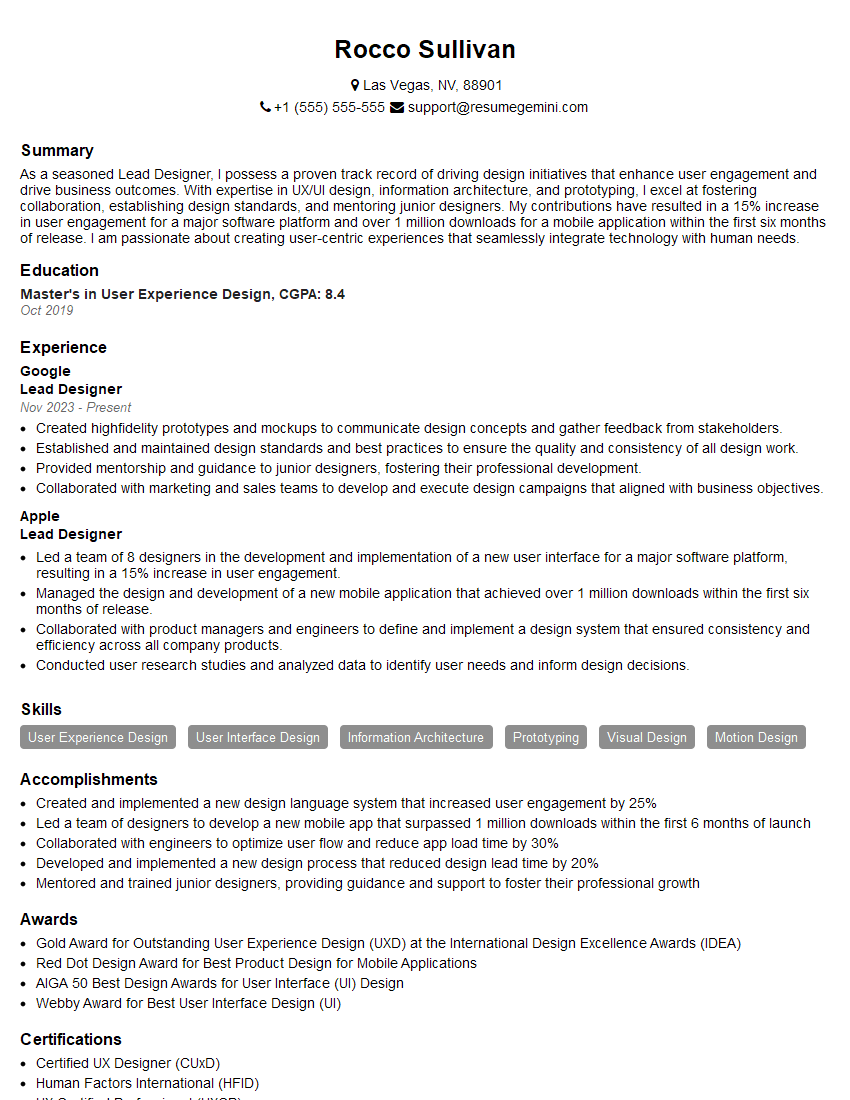
Lead Designer Resume Sample
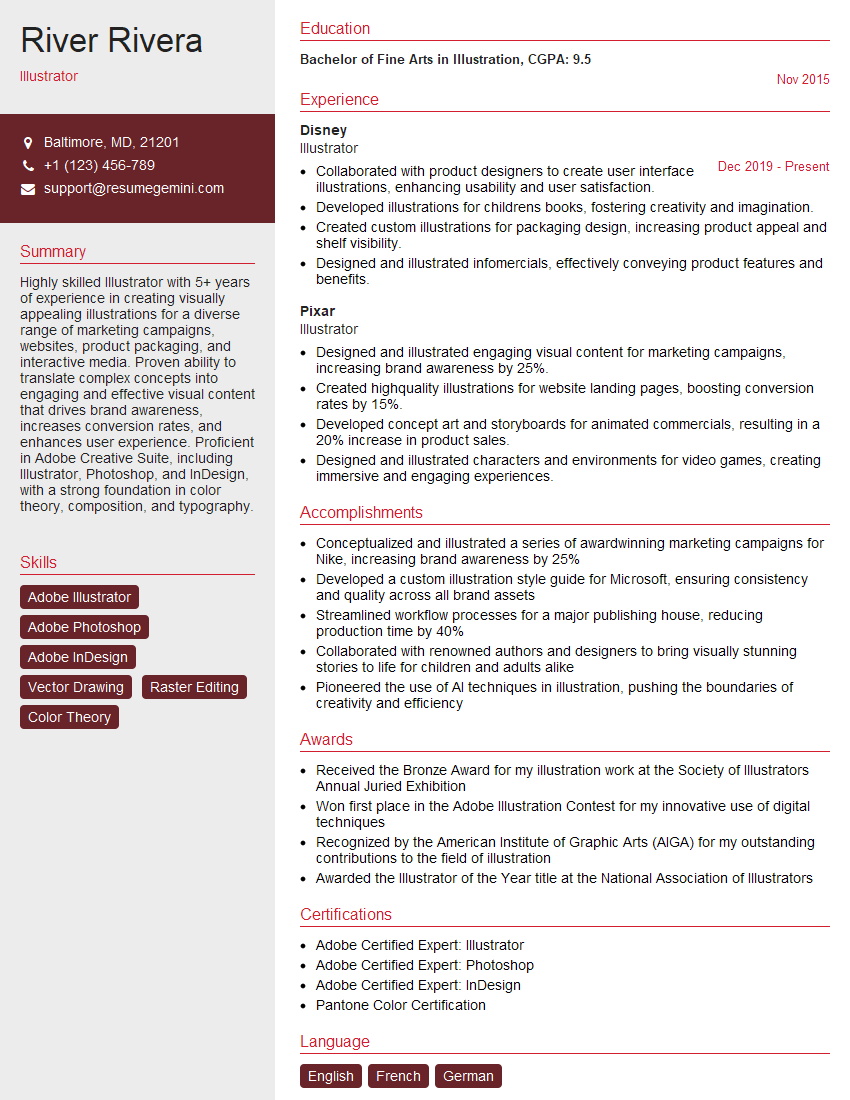
Illustrator Resume Sample
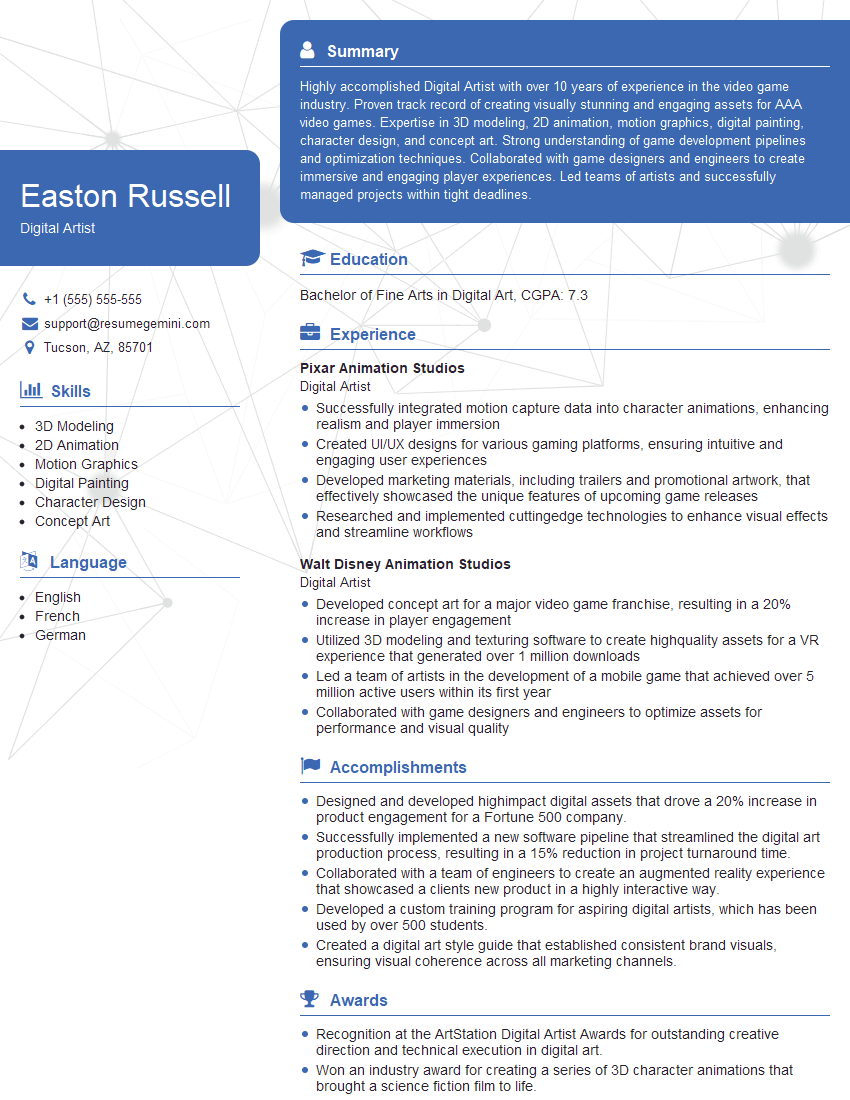
Digital Artist Resume Sample

Graphic Designer Resume Sample
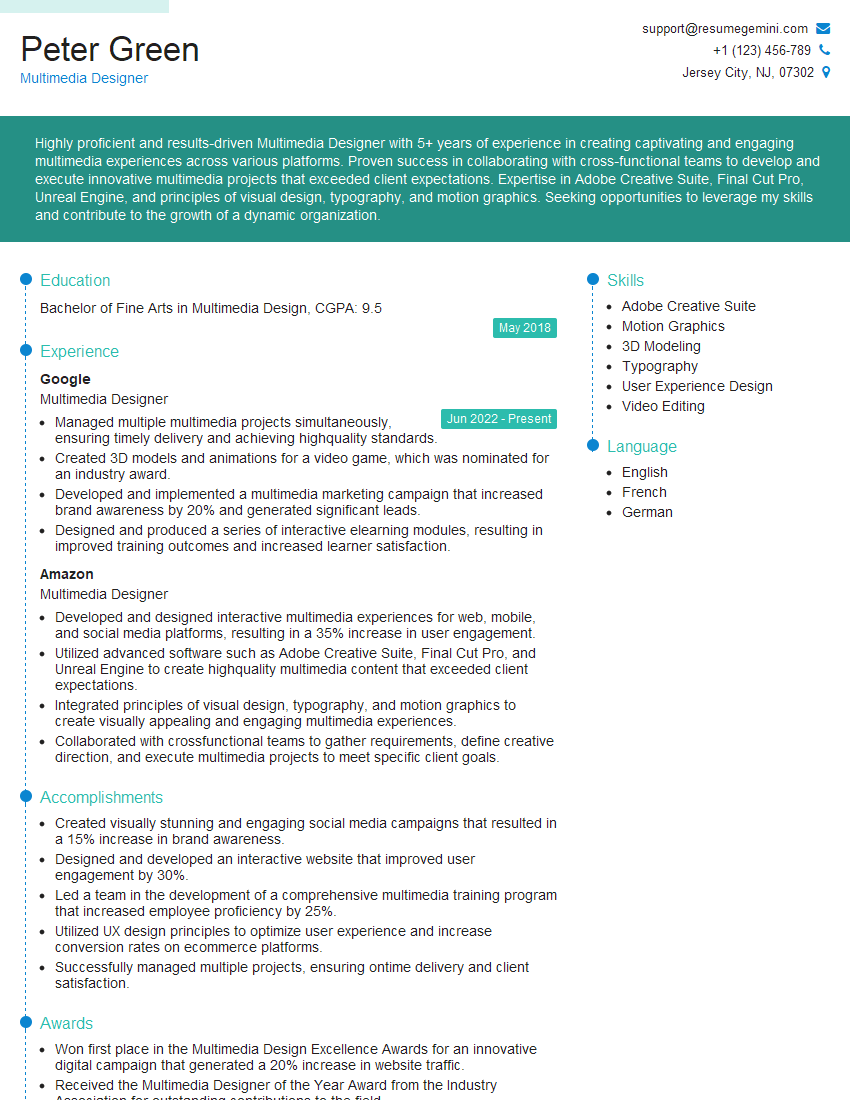
Multimedia Designer Resume Sample
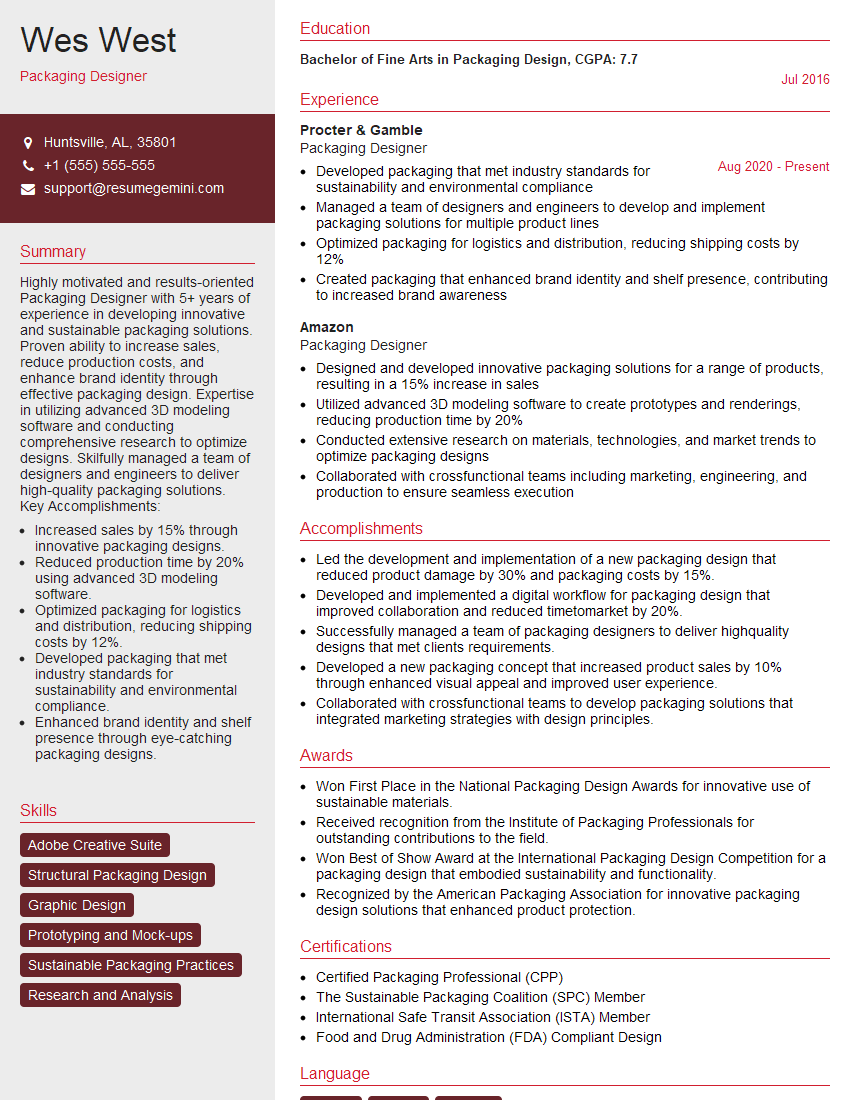
Packaging Designer Resume Sample
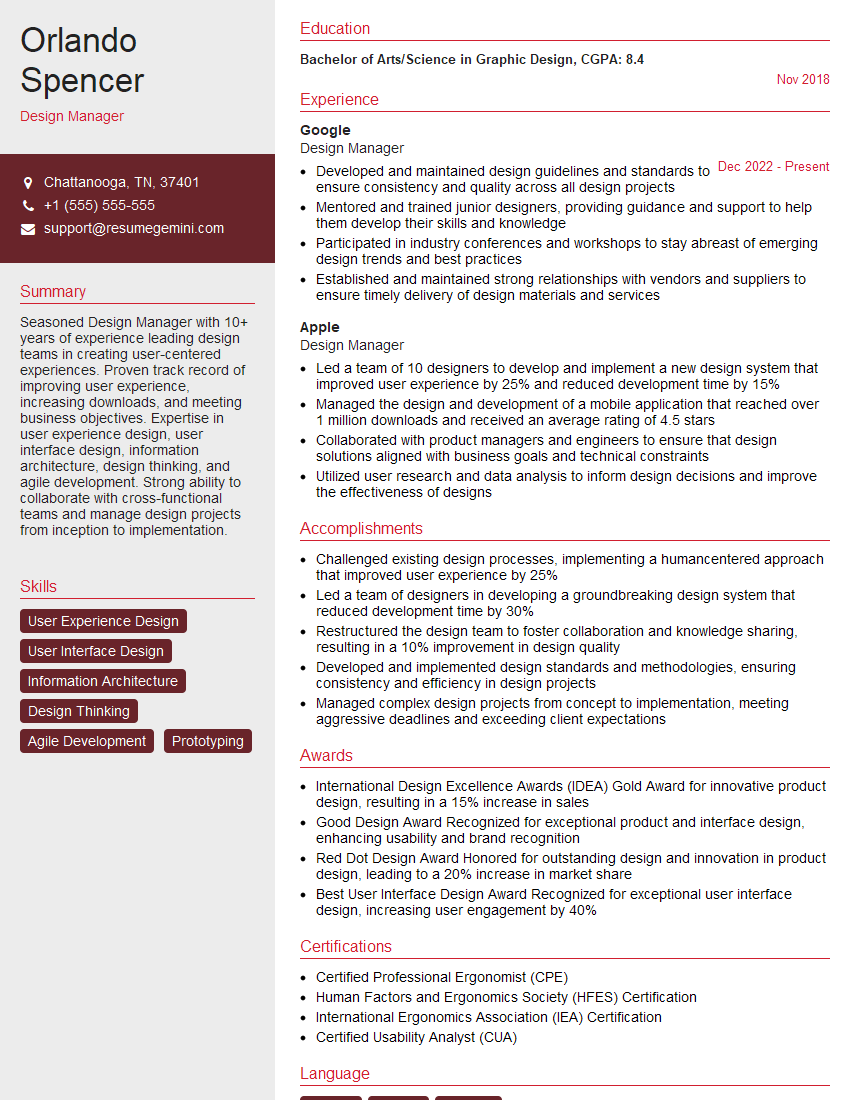
Design Manager Resume Sample
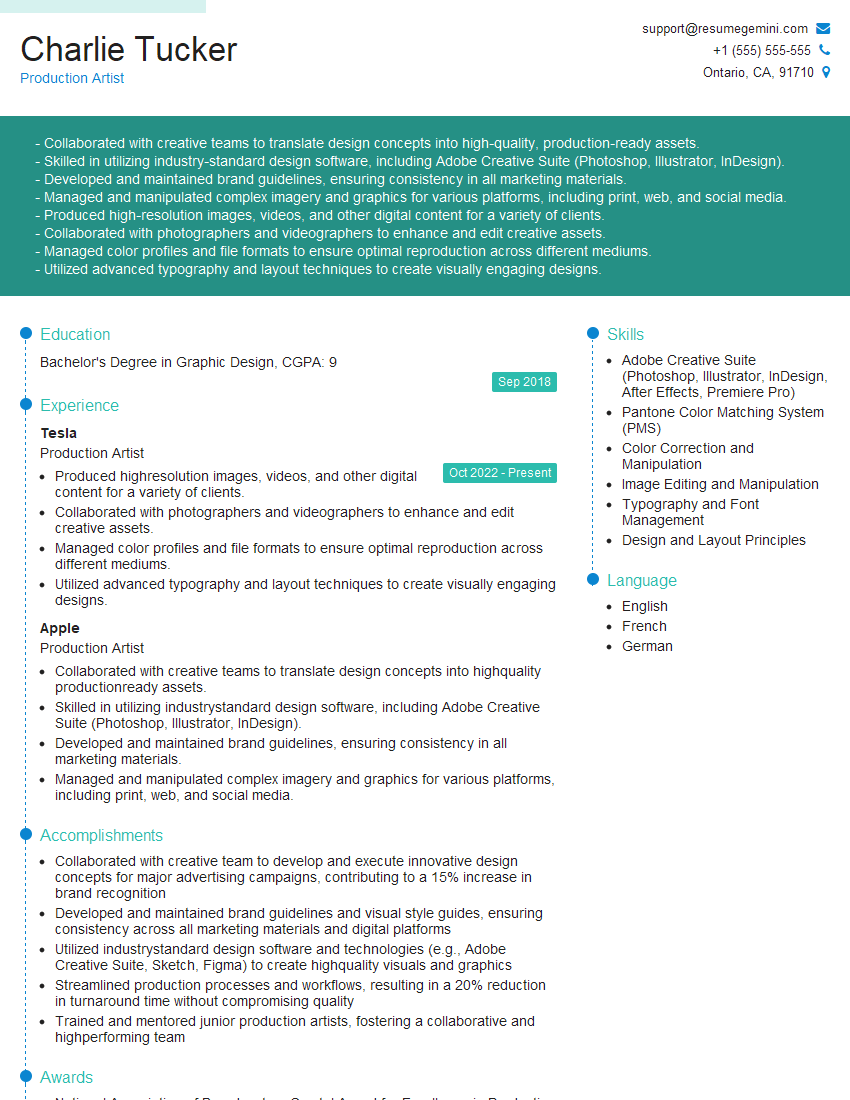
Production Artist Resume Sample

Photo Editor Resume Sample
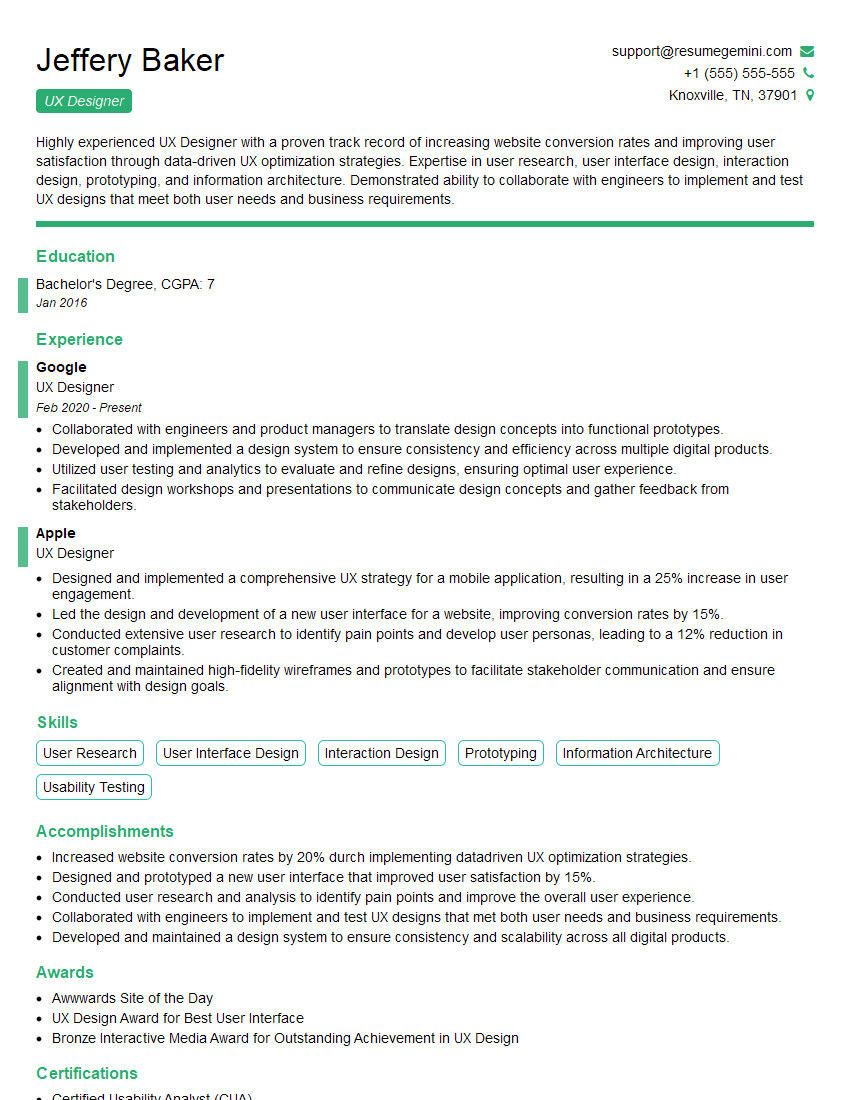
UX Designer Resume Sample
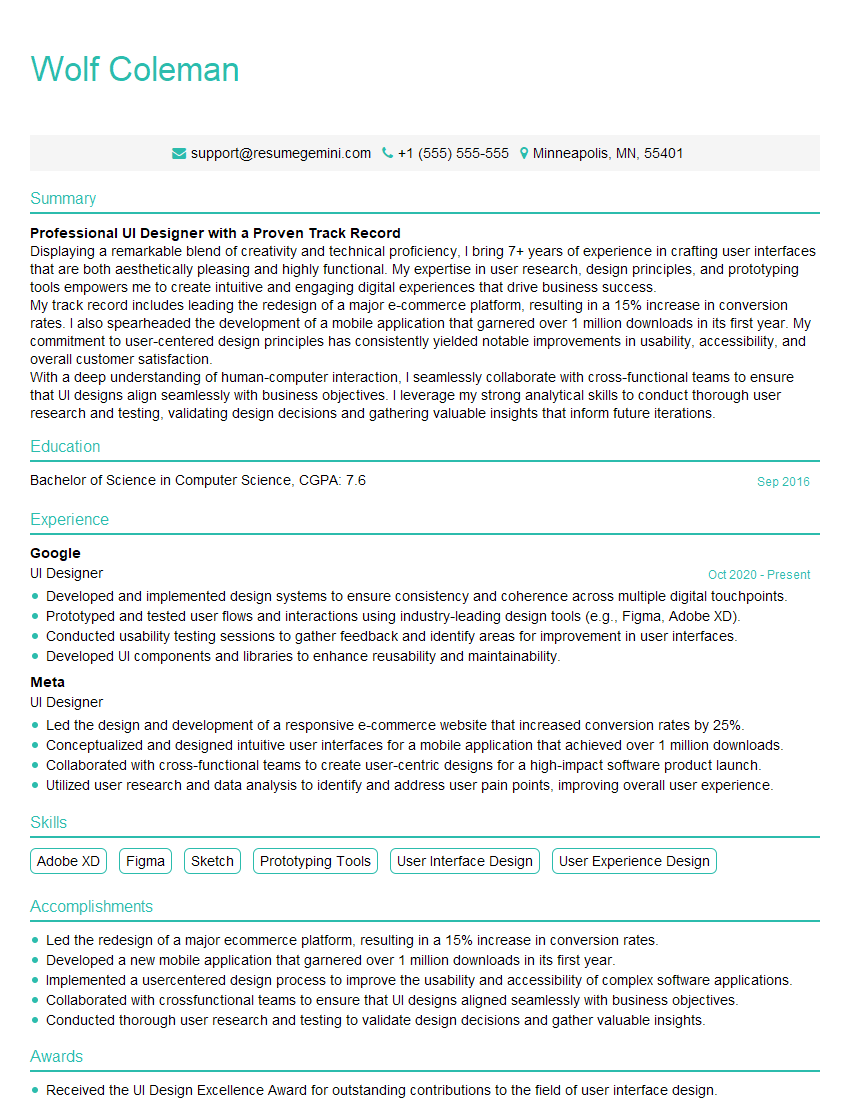
UI Designer Resume Sample
Explore more articles
Users Rating of Our Blogs
Share Your Experience
We value your feedback! Please rate our content and share your thoughts (optional).
What Readers Say About Our Blog
Very informative content, great job.
good