Cracking a skill-specific interview, like one for Studio Pro Tools, requires understanding the nuances of the role. In this blog, we present the questions you’re most likely to encounter, along with insights into how to answer them effectively. Let’s ensure you’re ready to make a strong impression.
Questions Asked in Studio Pro Tools Interview
Q 1. Explain the difference between destructive and non-destructive editing in Pro Tools.
In Pro Tools, the core difference between destructive and non-destructive editing lies in how changes are applied to your audio. Destructive editing permanently alters the original audio file, while non-destructive editing preserves the original audio, allowing you to revert changes or experiment without losing your source material. Think of it like writing in pen versus pencil: pen is destructive (you can’t erase), while pencil is non-destructive (you can erase mistakes).
Destructive editing examples include normalizing, clipping, or applying fades directly to audio regions. These actions directly modify the waveform data. Once done, you can’t easily undo these alterations without reimporting the original file.
Non-destructive editing involves using techniques like using plugins on aux tracks, applying automation to parameters, or utilizing edits within the Edit window that don’t overwrite the original audio. This approach keeps your original audio pristine, offering flexibility. For instance, adding a compressor as a send effect on an aux track is non-destructive. You can disable the effect, adjust parameters, or even remove it entirely without affecting the original audio region.
Choosing between destructive and non-destructive editing depends on your workflow and the stage of production. During initial editing and experimenting, non-destructive methods are generally preferred for maximum flexibility. As you near final mixdown, destructive editing might be used to finalize certain choices for increased efficiency and to reduce session file size.
Q 2. Describe your experience with Pro Tools automation.
Pro Tools automation is a powerful tool I use extensively for dynamic and nuanced control over virtually any parameter within a session. This includes volume, panning, EQ settings, plugin parameters, and even send levels. My experience ranges from simple volume rides to complex, multi-parameter automation curves, often generated using the automation lanes in the Edit window.
I commonly use automation for tasks such as:
- Creating subtle volume changes to enhance the natural flow of a performance.
- Adding dynamic movement to instruments, bringing certain elements forward or receding them in the mix.
- Automating filter sweeps for creative effects.
- Implementing precise level adjustments to maintain consistent levels across a track.
I find that drawing smooth automation curves using a combination of Bézier curves and freehand drawing produces very natural results. Using read automation from a previous take provides useful starting points. I also frequently use automation write modes like ‘Touch’ and ‘Latch’ for precise control. For more complex tasks, writing automation using MIDI controllers provides another level of expressive control. Understanding the interplay between different automation modes and strategies is crucial for achieving precise and musically compelling results.
Q 3. How do you manage large session files in Pro Tools to maintain performance?
Managing large Pro Tools sessions to prevent performance issues requires a proactive approach. It’s like tidying up a large workspace – you can’t just ignore the mess.
My strategies include:
- Consolidation: Regularly consolidating tracks that no longer require editing. This reduces the number of audio files Pro Tools needs to manage, improving responsiveness and reducing load times. I consolidate after committing edits on a track rather than leave them as edits.
- Bounce to Disk: For complex processing chains or instrument tracks with multiple layers, bouncing to disk creates a new audio file containing the processed audio. This frees up CPU resources. Remember to check and archive your original tracks.
- Freezing Tracks: Freezing tracks renders the track’s audio and plugins, which significantly reduces CPU load during playback and editing. This is especially helpful with heavily processed tracks. However, remember to unfreeze if you need to make adjustments.
- Off-line bounce: For very large sessions, I might consider offline bouncing, rendering audio files while leaving the session closed. This allows the CPU to operate unhindered.
- Using Sample Rate and Bit Depth appropriately: Starting with an appropriate sample rate and bit depth (e.g. 44.1kHz/24-bit is often sufficient) helps to avoid unnecessary data.
- Archiving Unused Files: Regularly archive unused files, media files, and unused tracks to prevent unnecessary space allocation and improve session loading times.
By consistently applying these techniques, I can maintain optimal performance even in sessions with hundreds of tracks and countless hours of audio.
Q 4. What are your preferred methods for noise reduction and restoration in Pro Tools?
Noise reduction and restoration are critical aspects of my Pro Tools workflow. My preferred methods leverage both built-in Pro Tools tools and high-quality third-party plugins.
For noise reduction, I often start with Pro Tools’ built-in Noise Reduction tool. I create a noise print from a representative section of noise-only audio, then apply the reduction to the affected regions. For more nuanced or complex noise reduction, I rely on plugins such as iZotope RX, which offers advanced algorithms that can tackle various noise types, from background hum to clicks and pops, with precision. The key is to use noise reduction judiciously to avoid artifacts. The more information you give the plugin, the more accurately it can remove unwanted sounds.
For audio restoration, I use a multifaceted approach based on the nature of the problem: iZotope RX excels in repairing various audio problems, addressing issues such as clicks, crackles, and even more complex artifacts. I also use spectral editing techniques in RX to fine-tune the restoration process.
The choice between these tools depends on the type and severity of the issue. For simple hum reduction, the built-in Pro Tools tool might suffice. For more complex issues or intricate repairs, a powerful plugin such as iZotope RX is essential.
Q 5. Explain your workflow for creating and editing MIDI tracks in Pro Tools.
My MIDI workflow in Pro Tools is efficient and focused on organization and clear labeling. I start by creating MIDI tracks, each clearly named according to the instrument or sound it represents.
I typically record MIDI data using a MIDI keyboard controller or by drawing MIDI notes directly into the MIDI editor. I then use the editor’s tools for editing notes, velocity, and other MIDI parameters. This includes manipulating note duration, pitch, and velocity to shape the performance and musical expression. The MIDI editor’s quantization features help to clean up performance imperfections and align notes to a grid. I often use automation to control various MIDI parameters to bring more dynamics and expression into the final output.
I regularly use different MIDI plugins like synthesizers, samplers and drum machines for playback and sound shaping. I use the various editing tools within Pro Tools to shape and refine MIDI data, taking into account note velocities, quantization, and other nuances. I make extensive use of automation to control expression and dynamics during the arrangement stage.
For larger projects, I maintain well-organized folders and naming conventions to track different elements across MIDI tracks and audio regions.
Q 6. How do you handle audio latency issues in Pro Tools?
Audio latency, or delay, is a common challenge in Pro Tools, but one that can be effectively managed. It manifests as a delay between when you play a note and when you hear it. Several factors contribute to latency, including buffer size, drivers, and plugins.
My approach to minimizing latency involves:
- Adjusting Buffer Size: The buffer size determines how much audio data Pro Tools processes at once. A smaller buffer size results in lower latency but higher CPU load. I typically experiment to find the smallest buffer size that maintains smooth playback, adjusting it based on the session’s complexity. This is a balance between responsiveness and preventing dropouts.
- Updating Drivers: Ensuring that all my audio interface drivers are up-to-date is crucial for minimizing latency caused by driver inefficiencies.
- Low-Latency Plugins: Opting for low-latency plugins minimizes their contribution to overall latency. Some plugins require more CPU power than others to process; choosing those optimized for speed aids in keeping the latency down.
- Using Hardware Monitoring: If my audio interface supports hardware monitoring (direct monitoring), I use it to eliminate the latency incurred by processing audio through the computer. This allows direct listening without delay. However, the caveat here is that any plugin processing is not applied during monitoring.
- Software Monitoring (compensating for latency): If I must use software monitoring, Pro Tools allows me to compensate for latency by adjusting the setting within the preferences. This is usually crucial when using many plugins or in-the-box processing.
Through careful management of these factors, I can keep latency to a minimum, ensuring a responsive and pleasant recording and mixing experience.
Q 7. Describe your experience with various Pro Tools plugins (e.g., EQ, compression, reverb).
My experience with Pro Tools plugins is extensive, encompassing a wide range of EQs, compressors, reverbs, and other processing tools. I’m proficient in utilizing both stock Pro Tools plugins and various high-quality third-party offerings.
For EQ, I frequently use Pro Tools’ built-in EQ III, as well as Waves plugins like Q10 and API 550A for detailed frequency shaping. The choice depends on the desired sound; the Pro Tools EQ offers a versatile and efficient workflow while Waves offers different tonal characteristics to match the specific project.
In terms of compression, I use a variety of plugins depending on the desired effect. Pro Tools’ built-in compressor can suffice for many applications, but I also use Waves plugins such as CLA-76 and API 2500 for more colored compression. For parallel compression, I will often use a mix of plugins. My selection of compressor plugins largely depends on the character I am trying to achieve for a certain track or a specific instrument.
For reverb, I frequently use Lexicon and Waves plugins, preferring their natural sounds and high-quality algorithms. The reverb choice is dependent on the character I’m aiming for. A large plate reverb might be used on vocals while a smaller hall reverb may be suitable for instruments.
I routinely apply these plugins across several instruments and vocals, constantly refining their parameters to optimize the sonic landscape. This is an iterative process.
Q 8. How familiar are you with Pro Tools’ various routing options (e.g., aux sends, busses)?
Pro Tools offers a robust routing system crucial for complex projects. Think of it like a sophisticated telephone exchange for your audio. At its core, you have tracks, which are your individual audio signals (like individual phone lines). Aux sends act as copies of your tracks, allowing you to send a signal to an effects processor (a separate ‘phone’ or ‘operator’) without affecting the original track. Buses are like larger ‘trunk lines,’ collecting signals from multiple tracks to create submixes (combining several ‘phone’ conversations). For example, you might send all your drum tracks to a drum bus for compression and EQ before sending the processed bus signal to the main stereo mix. This is crucial for efficient workflow and managing levels.
The process of routing involves using the ‘Send’ controls on individual tracks to adjust the level of signal going to the Aux or Bus. Each Aux and Bus has its own inputs and outputs. They then get routed to outputs, which might be your physical outputs, your monitor mix or digital outputs for further processing or mixing. Understanding how to create and manage these routes is foundational to effective audio mixing and mastering, allowing you to keep track of specific signal flows and maintain organizational control even in the largest projects.
Q 9. Explain your experience with using external hardware with Pro Tools.
My experience with external hardware in Pro Tools is extensive. I’ve worked with various interfaces (such as Avid interfaces, Universal Audio Apollo, and RME), outboard processors (compressors, EQs, reverbs), and even MIDI controllers. For instance, I recently used an Antelope Audio interface with a Neve 1073 preamp for recording vocals, then used its ADAT outputs to send the processed signal to Pro Tools. This process ensures the analog warmth of the preamp is maintained while still enabling the precision of digital editing. This type of workflow is extremely common in high-end recording studios, where analog hardware still plays a big role in shaping the sound.
Proper setup is crucial. This involves correctly configuring the interface within Pro Tools, matching sample rates and bit depths, and meticulously setting up routing so your external gear’s output appears as inputs in Pro Tools, and your Pro Tools outputs reach the external hardware properly. Troubleshooting hardware issues, like latency or connectivity problems, requires a systematic approach, starting with checking cable connections, confirming proper sample rate/bit depth synchronization, and examining the I/O configuration in both the hardware and Pro Tools.
Q 10. What are your methods for organizing and managing tracks within a Pro Tools session?
Organizing Pro Tools sessions is essential for efficient workflow, especially in large projects. My approach involves a multi-layered system. First, I use color-coding to visually group tracks by instrument or function (e.g., drums, vocals, guitars). Second, I employ clear and descriptive track names, avoiding generic labels. Third, I use folders to organize tracks into logical groupings, for instance, grouping all vocal tracks into a ‘Vocals’ folder, sub-folders within that for various harmonies or double-tracking. This enables quick identification, and makes finding and managing tracks less time-consuming.
Beyond track naming and folders, I use the ‘track freeze’ function to reduce CPU load on complex sessions. I also regularly save my work, creating frequent backups and employing version control (using either Pro Tools’ built-in save functionality or by creating copies with incremental version numbers). Finally, I make liberal use of markers and comments to annotate important sections, particularly when collaborating with other engineers. A well-organized session is not just about aesthetics but is paramount for project continuity and efficient collaboration.
Q 11. Describe your experience with using Pro Tools for surround sound mixing.
Surround sound mixing in Pro Tools demands a thorough understanding of speaker configurations (5.1, 7.1, etc.) and panning techniques. I’ve worked extensively with 5.1 mixes for film and video game projects. The process starts with setting up the correct surround sound configuration within Pro Tools, usually by creating specific output channels for each speaker. This often involves using a dedicated surround panner plugin and carefully managing the placement of sounds in the surround field, ensuring a cohesive and immersive listening experience.
The crucial aspect is balancing the center channel (dialogue) with the surround channels (atmospherics and effects) while maintaining a smooth transition between different channels. Careful consideration is given to frequency balancing across speakers to avoid imbalances. This often requires using dedicated surround-monitoring hardware and applying specific mixing techniques to create an optimal surround sound image. Proper room acoustics are also vital for accurate monitoring of a surround sound mix.
Q 12. How do you troubleshoot common Pro Tools errors and issues?
Troubleshooting Pro Tools issues often requires a systematic approach. My first step is to check the obvious: are the audio interfaces connected correctly? Is the sample rate consistent throughout? Often, simple hardware or software conflicts cause problems. Many errors stem from session corruption, therefore, consistent saving is very important. Next, I’ll consult the Pro Tools documentation and online forums, looking for solutions to specific error messages. If I’m encountering unexpected audio behavior, I’ll check buffer settings and CPU usage. Sometimes, simply restarting the computer or Pro Tools is sufficient.
More complex problems may require more advanced troubleshooting. If I am dealing with problems after a session is already in progress, I have learned to often create a new session and reimport media to test whether the problem is indeed from the session itself, or if it is an internal conflict within the application. For more persistent issues, I’ve learned the importance of backing up the session files before attempting drastic steps, such as reinstalling plugins or drivers. Always be methodical; document your steps, test solutions systematically, and don’t hesitate to search for assistance online or from other audio professionals.
Q 13. What are your preferred methods for editing dialogue in Pro Tools?
Editing dialogue in Pro Tools relies heavily on precision and attention to detail. My workflow begins with noise reduction and restoration. I typically use dedicated plugins to remove background noise and hiss. Then, I carefully edit out any unwanted sounds like coughs, clicks, or breaths. For this task, I favor using the ‘Ripple Edit’ mode, since it avoids damaging the integrity of the audio. This is especially important when dealing with time-sensitive elements like dialogue.
Once the audio is clean, I focus on timing and consistency. I might use tools like the ‘time compression/expansion’ tool to subtly adjust the timing and create a smoother flow, or use crossfades to minimize harsh edits. Finally, I apply subtle EQ and compression to improve the clarity and presence of the dialogue, ensuring it’s intelligible and matches the overall tone of the production. The process is time-consuming, requiring patience and a keen ear.
Q 14. Explain your workflow for creating a sound design element in Pro Tools.
Creating a sound design element in Pro Tools is a creative process that combines sampling, synthesis, and effects processing. My workflow usually starts with sourcing sounds. I might sample from existing audio recordings or use virtual synthesizers to generate sounds. Once I have a base sound, I manipulate it using various effects. I might use EQ to shape the frequency response, creating particular timbres or removing unwanted noise. Compression might be used to control dynamics, adding punch or sustain. Reverb adds space, while delay creates rhythm.
The key is experimentation. I often layer multiple sounds and effects to achieve the desired outcome. For example, I might layer a synthesized drone with a manipulated foley sound and then apply a reverb and delay to create a textured, atmospheric element. Automation is very useful to manipulate parameters over time and create dynamic soundscapes. Saving various stages of the creation process allows for flexibility and exploration, offering a variety of directions as the process evolves, and ensuring the ability to go back to a previous version should the process reach a dead end.
Q 15. How do you implement and manage timecode in Pro Tools?
Timecode in Pro Tools is crucial for synchronization across multiple devices and projects. It’s essentially a numerical representation of time, allowing you to precisely locate and reference audio and video events. You manage timecode in several ways:
- Setting the Timecode: You can set the timecode source (internal or external) from the Setup menu. An external source might be a dedicated timecode generator, which is vital for multi-camera shoots or syncing with other digital audio workstations (DAWs).
- Displaying Timecode: Pro Tools displays timecode in the transport bar, rulers, and within the Edit window. You can customize how it’s displayed (e.g., HH:MM:SS:FF or SMPTE format). This allows for easy navigation within your project.
- Using Timecode for Synchronization: When importing files, ensure the timecode embedded in the files matches your project’s timecode. This seamless integration prevents timing issues when assembling audio from multiple sources, like a Foley session, dialogue tracks, or sound effects.
- Working with Timecode in External Devices: Pro Tools seamlessly integrates with external devices using various protocols such as MTC (MIDI Time Code) and LTC (Linear Time Code), which allows for precise synchronization between audio and video editing systems.
For instance, I once worked on a project involving a film score where we needed precise sync with the video. Setting up an external timecode generator and ensuring the timecode was consistently reflected in both Pro Tools and the video editing software was critical for a smooth workflow.
Career Expert Tips:
- Ace those interviews! Prepare effectively by reviewing the Top 50 Most Common Interview Questions on ResumeGemini.
- Navigate your job search with confidence! Explore a wide range of Career Tips on ResumeGemini. Learn about common challenges and recommendations to overcome them.
- Craft the perfect resume! Master the Art of Resume Writing with ResumeGemini’s guide. Showcase your unique qualifications and achievements effectively.
- Don’t miss out on holiday savings! Build your dream resume with ResumeGemini’s ATS optimized templates.
Q 16. What is your experience with Pro Tools’ élastique time-stretching algorithm?
Pro Tools’ élastique time-stretching algorithm is a game-changer for audio editing. It allows you to change the tempo or length of audio without drastically affecting the audio quality. Unlike older methods that often introduced artifacts, élastique uses sophisticated algorithms to preserve the natural sound of the audio.
My experience with it includes using it frequently for tasks like:
- Tempo Changes: Adjusting the tempo of a musical performance without altering the pitch is easily achievable with élastique. This is extremely helpful in music post-production for syncing music to picture.
- Warping Audio: Creating rhythmic variations and subtle timing adjustments in audio is simple with the different modes available, such as ‘Time’ or ‘Beat’. This ensures that the sound retains natural variations.
- Audio Editing Flexibility: Creating seamless transitions and extending or shortening sections while maintaining quality is achievable, which drastically improves editing workflow.
I’ve found that understanding the different algorithms within élastique (e.g., ‘Polyphonic’ for complex audio) and experimenting with the various settings is essential for getting optimal results. A good understanding of the ‘formant’ preservation aspect ensures that the resulting sound remains natural even during large tempo changes. It saved me countless hours on a recent project where I needed to adjust the tempo of a live band performance to sync with the picture.
Q 17. How do you use markers and regions effectively in Pro Tools?
Markers and regions are essential organizational tools in Pro Tools. Markers are like bookmarks, indicating specific points in time, while regions represent sections of audio or MIDI data. Effective usage involves:
- Markers for Navigation: Setting markers at important events (e.g., cue points, dialogue changes, musical phrases) allows for quick navigation within long sessions.
- Regions for Grouping: Using regions to group related audio files together allows for efficient selection, processing, and mixing. This is vital when working with complex projects.
- Color-Coding: Assigning different colors to regions or markers enhances visual organization and helps identify specific audio sections easily, aiding both individual and team workflow.
- Markers and Regions in Automation: Using markers in combination with automation allows you to create complex workflows. Creating automation based on the location of markers and regions allows for targeted effects.
In a recent project, I used color-coded regions to separate dialogue, sound effects, and music stems, making mix sessions significantly more organized and efficient. I also used markers to indicate specific actions or edits for the director, improving communication significantly.
Q 18. Describe your experience with Pro Tools’ clip gain and fader automation.
Clip gain and fader automation are crucial for dynamic mixing and mastering in Pro Tools. Clip gain adjusts the overall level of a single clip or region, while fader automation controls the level of a track over time.
- Clip Gain for Individual Adjustments: Fine-tuning the level of individual audio clips before they reach the main mix is vital, especially if some parts were recorded at varying volumes.
- Fader Automation for Dynamic Mixing: Creating fader automation lets you shape the levels of each track throughout the session; you might lower the music during dialogue scenes, for example. This creates an overall polish to the final result.
- Combining Clip Gain and Fader Automation: Both methods work in tandem; clip gain might handle initial level setting and the fader automation will handle the subtle dynamic adjustment needed in post-production. This approach creates a well-defined mix.
- Automation Techniques: Learning various automation methods, such as write, touch, and trim modes, allows for a range of creative and flexible adjustments. This is critical to control automation parameters such as speed, smoothness, and precision.
I frequently use clip gain to match the levels of individual dialogue lines before applying overall fader automation to create a smooth, natural dynamic range in my mixes. It allows me to fine-tune each element individually to achieve a professional polish.
Q 19. How familiar are you with different sample rates and bit depths in Pro Tools?
Sample rate and bit depth are fundamental aspects of digital audio. The sample rate determines how many audio samples are taken per second (measured in kHz), affecting the frequency range, while the bit depth determines the resolution of each sample (measured in bits), impacting the dynamic range and noise floor.
- Sample Rate Considerations: Higher sample rates (e.g., 96kHz, 192kHz) capture a wider range of frequencies, suitable for high-fidelity recordings, whereas lower sample rates (e.g., 44.1kHz) are more common for broadcast and distribution. Each rate has unique strengths and trade-offs in terms of file sizes and processing power needed.
- Bit Depth Implications: Higher bit depths (e.g., 24-bit) offer a greater dynamic range and less quantization noise, resulting in cleaner audio, but higher storage space requirements. Lower bit depths (e.g., 16-bit) are more common for CD audio and general broadcast, offering smaller files at the cost of a lower dynamic range.
- Choosing the Right Settings: The selection depends on the project requirements. High-fidelity recordings may necessitate higher sample rates and bit depths, whereas a broadcast mix might not require such high resolution. It’s about maximizing quality while remaining mindful of file sizes and processing power.
I always consider the ultimate delivery format when choosing sample rates and bit depths for projects. For example, while I might record at 96kHz/24-bit in the studio, I might export at a lower resolution for online distribution to reduce file size and facilitate better streaming performance.
Q 20. Explain your understanding of phase cancellation and how to address it in Pro Tools.
Phase cancellation occurs when two or more sound waves with similar frequencies are out of sync, leading to destructive interference and a reduction in overall volume or a muddy sound. It’s often caused by multiple microphones picking up the same sound source or improper delay settings in effects processing.
- Identifying Phase Cancellation: Listen for a lack of clarity, a thinner sound, or a loss of bass frequencies. Using a phase correlation meter can help to visualize phase issues.
- Addressing Phase Cancellation: Several strategies exist for managing phase cancellation. These include:
- Mono Recording: If the phase problem is in a recording, re-recording using one microphone is the simplest solution.
- Time Alignment: Adjusting the timing of the conflicting tracks to ensure proper alignment using Pro Tools’ delay compensation features, can help to lessen or resolve the issue.
- Mixing Techniques: Using panning or EQ to create space between the conflicting tracks can minimize the effects of phase cancellation. Careful placement and adjustments are key.
- Signal Processing: The right choice of equalisation (EQ) can be helpful, but too much can negatively affect the overall quality of the track. You must carefully listen to find the right solution.
In one instance, I encountered phase cancellation during a stereo recording session. By carefully analyzing the waveforms and using Pro Tools’ phase correlation meter, I was able to identify the offending tracks and address the issue by using time alignment and EQ adjustments, leading to a much clearer mix.
Q 21. How do you use playlists effectively within a Pro Tools session?
Playlists in Pro Tools are incredibly useful for creating variations of a session without overwriting the original material. Think of them as parallel universes of your project where you can experiment with edits, mixing decisions, or automation without affecting the base edit.
- Creating Variations: Each playlist allows you to make independent edits and adjustments. This is invaluable for trying different mixing approaches or exploring alternative edits.
- A/B Comparisons: Switching between playlists enables easy comparison of different versions, allowing for informed decisions. This is extremely helpful in collaboration or when seeking feedback.
- Non-Destructive Workflow: Playlists create a non-destructive workflow, making it easy to revert to previous edits if necessary and ensure that your original work is always safe.
- Version Control: You can use playlists to effectively manage different revisions or edits of a mix or arrangement. This is crucial in professional workflows.
During a recent project, I used playlists to experiment with different vocal arrangements and mixing approaches. This allowed me to showcase several options to the client and make a more informed final decision. The non-destructive nature of playlists saved me considerable time and effort.
Q 22. Describe your experience with using Pro Tools for video syncing.
My experience with video syncing in Pro Tools is extensive. It’s a crucial part of many projects I’ve worked on, from film scoring to podcast post-production. The process usually begins by importing the video file into Pro Tools, making sure the correct timecode is embedded and recognized. I then use the ‘Spot’ tool to precisely align audio clips to specific video frames. For more complex projects, I frequently utilize the ‘Elastic Time’ feature to stretch or compress audio without pitch shifting, allowing me to smoothly adjust timing discrepancies between audio and video. For example, I recently worked on a documentary where the audio was slightly out of sync due to camera shake. Elastic Time proved invaluable in creating a seamless final product without noticeable audio artifacts.
Another vital technique I use is creating a separate ‘sync track’ with a distinct, easily identifiable audio cue (often a clap). This provides a reliable reference point for aligning the audio and video, especially when dealing with multiple takes or different camera angles. After the sync, I usually consolidate all the audio tracks for better workflow management.
Q 23. What are some best practices for archiving and backing up Pro Tools sessions?
Archiving and backing up Pro Tools sessions is paramount to prevent data loss and ensure project longevity. My approach is a multi-layered strategy involving both local and cloud-based backups. Locally, I use a RAID system – Redundant Array of Independent Disks – for storing my project files, which offers redundancy and speed. Imagine it as having multiple copies of your session spread across several hard drives, so if one fails, your data remains safe.
Beyond local storage, I regularly back up my sessions to a cloud storage service like Backblaze or CrashPlan. This provides an offsite backup, protecting against disasters such as theft or fire. I schedule automatic backups to occur daily or even hourly for critical projects. Finally, I also maintain a version history of my sessions, regularly saving under different names (e.g., ‘Project_v1’, ‘Project_v2’). This allows me to revert to earlier versions if needed, much like using version control software like Git, but specifically for Pro Tools sessions.
Q 24. Explain your experience with using third-party plugins within Pro Tools.
Third-party plugins are an integral part of my Pro Tools workflow, significantly expanding its capabilities beyond its native offerings. I regularly use plugins for various tasks including equalization, compression, reverb, and more specialized effects. For example, I frequently use Waves plugins for mastering and mixing, iZotope RX for audio restoration, and FabFilter plugins for detailed EQ and dynamics processing. Before using any plugin, I always ensure compatibility with my Pro Tools version and operating system to avoid any unexpected issues.
Integrating third-party plugins is usually straightforward; most are installed through the plugin manager within Pro Tools. However, it’s important to understand the plugin’s requirements and its potential impact on the CPU usage. Using resource-intensive plugins on a large session can lead to latency or even crashes, so I frequently monitor my CPU and RAM usage during playback.
Q 25. Describe your experience with Pro Tools’ various metering options.
Pro Tools offers a comprehensive suite of metering options crucial for ensuring professional-grade audio. I regularly use the built-in meters to monitor levels, preventing clipping and maintaining a consistent dynamic range. The standard VU meters provide a visual representation of the audio signal’s level, while the peak meters display the highest level reached by the signal. These are essential for preventing distortion. I also use the integrated LUFS meters, especially when preparing for broadcast or streaming, to ensure the mix adheres to loudness standards.
Beyond the standard meters, Pro Tools allows for customization. For instance, I can adjust the meter’s ballistics (how quickly they respond to changes in the audio level) or choose different metering scales. I sometimes add third-party metering plugins for more detailed analysis, particularly when working on complex mixes requiring precise control of dynamics and loudness.
Q 26. How do you handle the challenges of working with a large number of tracks in Pro Tools?
Working with a large number of tracks in Pro Tools demands a structured and organized approach. My strategy involves using extensive track folders to group related tracks (e.g., drums, vocals, guitars). This keeps the session visually manageable and reduces confusion. Think of it as organizing files in your computer – folders make it easy to locate what you need.
I also rely on color-coding tracks to quickly identify their function, such as assigning different colors to instruments or vocal harmonies. Furthermore, using track groups allows for efficient processing and automation. For instance, I can apply the same effects to a group of instruments or automate fader movements for multiple tracks simultaneously. Finally, if the session becomes exceptionally large, I sometimes consider bouncing down unused tracks to audio files, reducing the number of active tracks and improving performance.
Q 27. What methods do you use for collaboration and version control in Pro Tools?
Collaboration and version control are essential in professional audio production. While Pro Tools doesn’t have built-in version control like Git, I use several strategies to maintain organized teamwork and track changes. We often utilize cloud storage services (like Dropbox or Google Drive) that enable multiple users to access and modify the session simultaneously. This approach requires careful planning to avoid conflicting edits; we might assign different sections of the project to various team members.
To maintain version control, we diligently save multiple versions of the project, clearly labeling them with dates and descriptions of changes. This resembles using a version control system but is less automated. Alternatively, for larger collaborative projects, we occasionally utilize a system where one team member acts as the main editor, merging changes from others after thorough review. Regular communication and clear documentation are crucial for successful teamwork and version management within Pro Tools projects.
Key Topics to Learn for Studio Pro Tools Interview
- Audio Interface and Hardware Setup: Understanding different audio interfaces, their connectivity, and troubleshooting common hardware issues.
- Session Setup and Management: Creating new sessions, managing tracks, buses, and folders efficiently, and understanding session archiving and backup strategies.
- Recording and Editing: Mastering techniques for recording audio, using punch-in/punch-out, editing audio clips, and applying basic audio manipulation.
- MIDI Editing and Sequencing: Working with MIDI data, editing MIDI events, creating MIDI tracks, and using virtual instruments.
- Mixing and Mastering Fundamentals: Understanding basic mixing concepts like EQ, compression, reverb, delay, and panning, and applying these techniques effectively. Familiarizing yourself with mastering principles and common tools.
- Signal Flow and Routing: Understanding how audio signals move through a Pro Tools session, and using aux sends, busses, and inserts to shape the sound.
- Plugin Management and Workflow: Understanding how to manage and utilize audio and MIDI plugins effectively, and optimizing workflow for efficiency.
- Advanced Editing Techniques: Exploring more advanced editing functionalities like clip gain automation, automation writing, and using the Elastic Audio features.
- Troubleshooting Common Issues: Developing problem-solving skills to tackle common issues such as audio dropouts, latency problems, and plugin conflicts.
- Pro Tools Keyboard Shortcuts: Learning and utilizing essential keyboard shortcuts for faster and more efficient workflow.
Next Steps
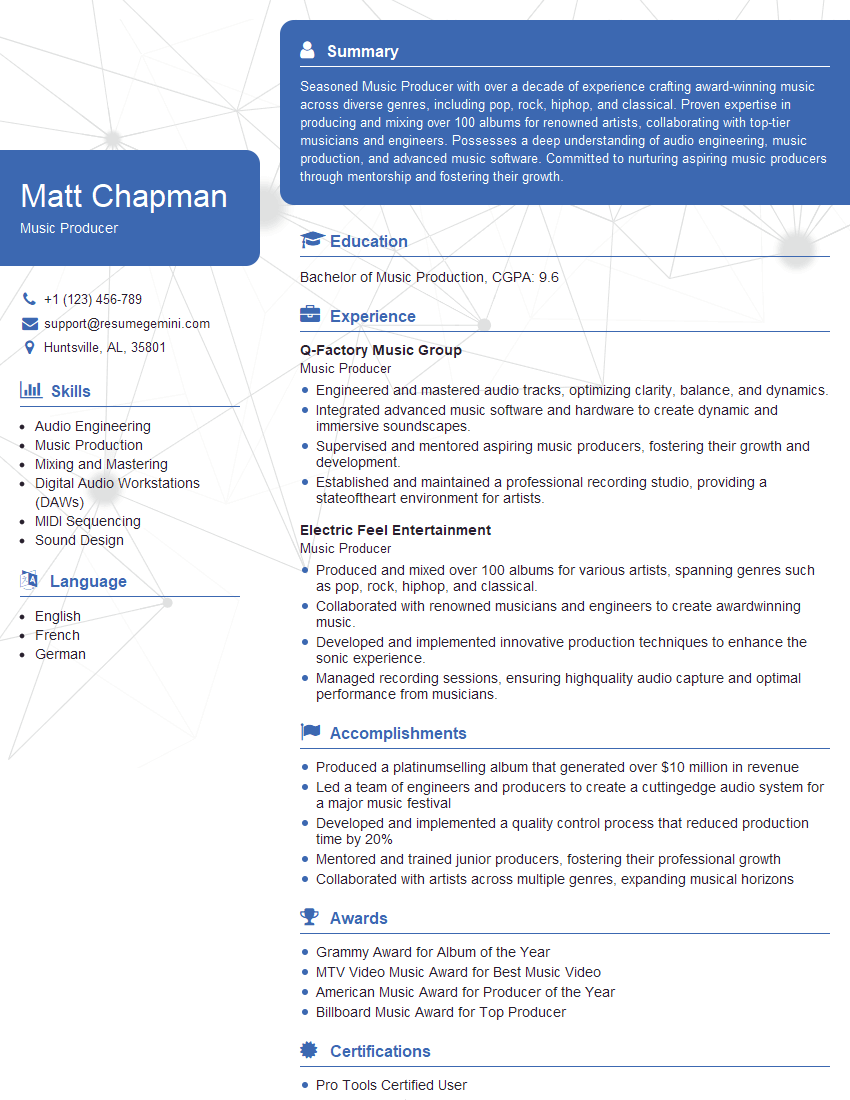
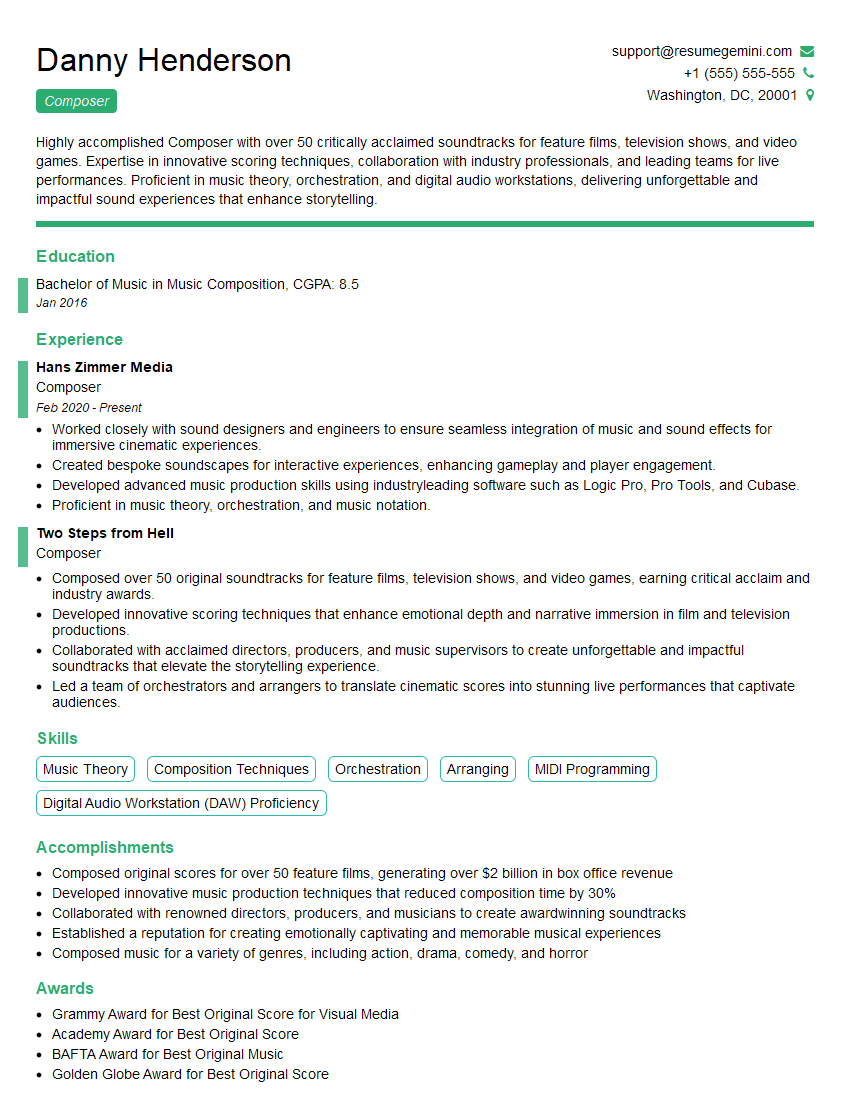
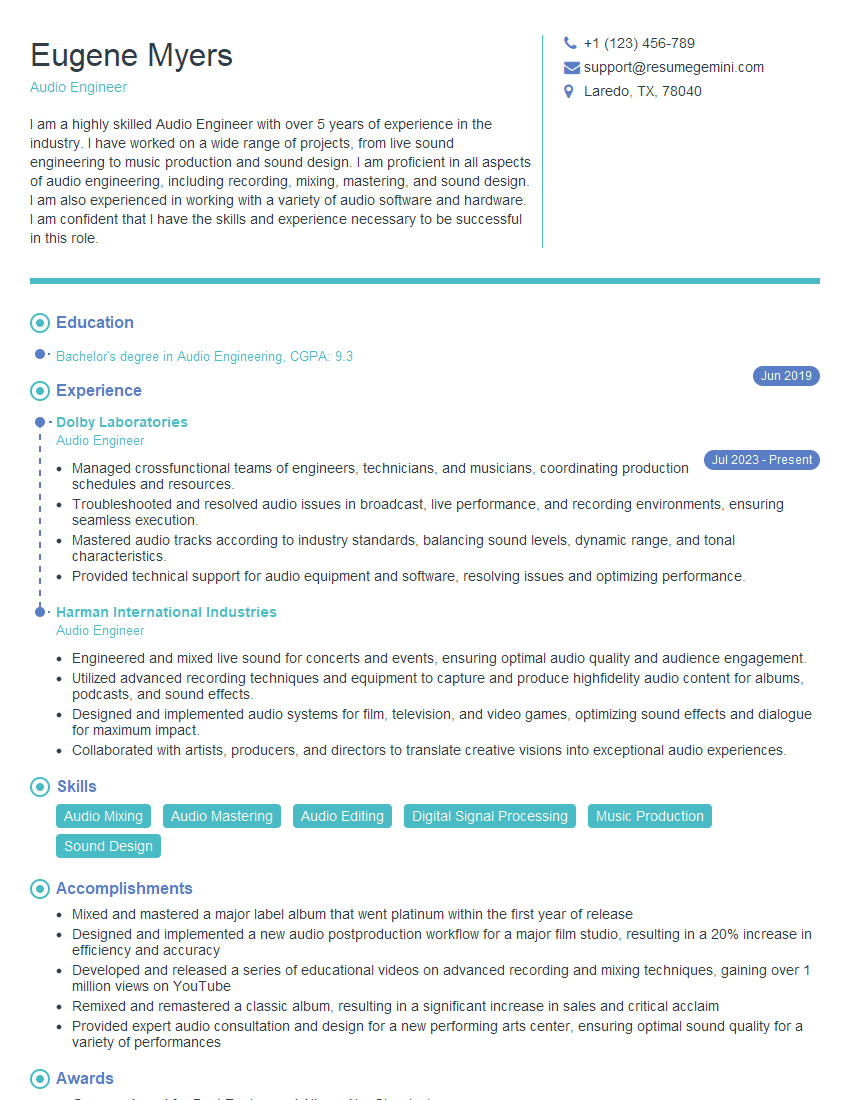
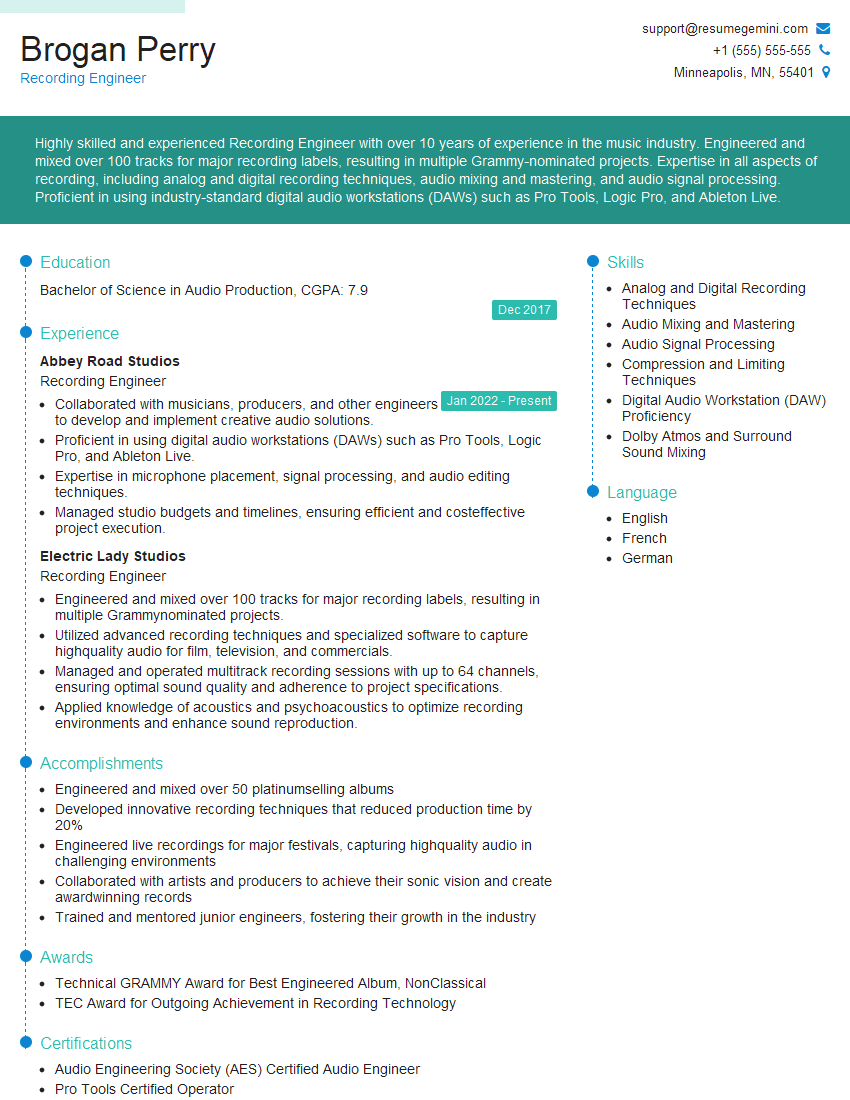
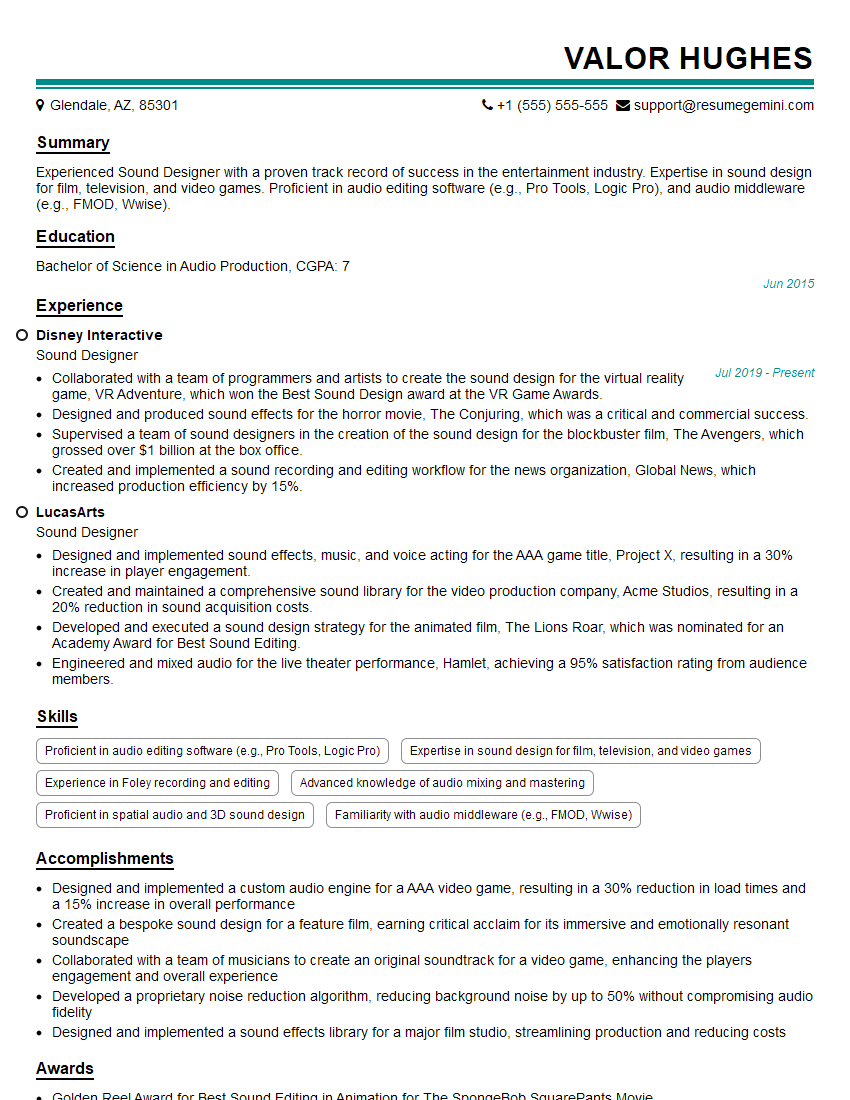
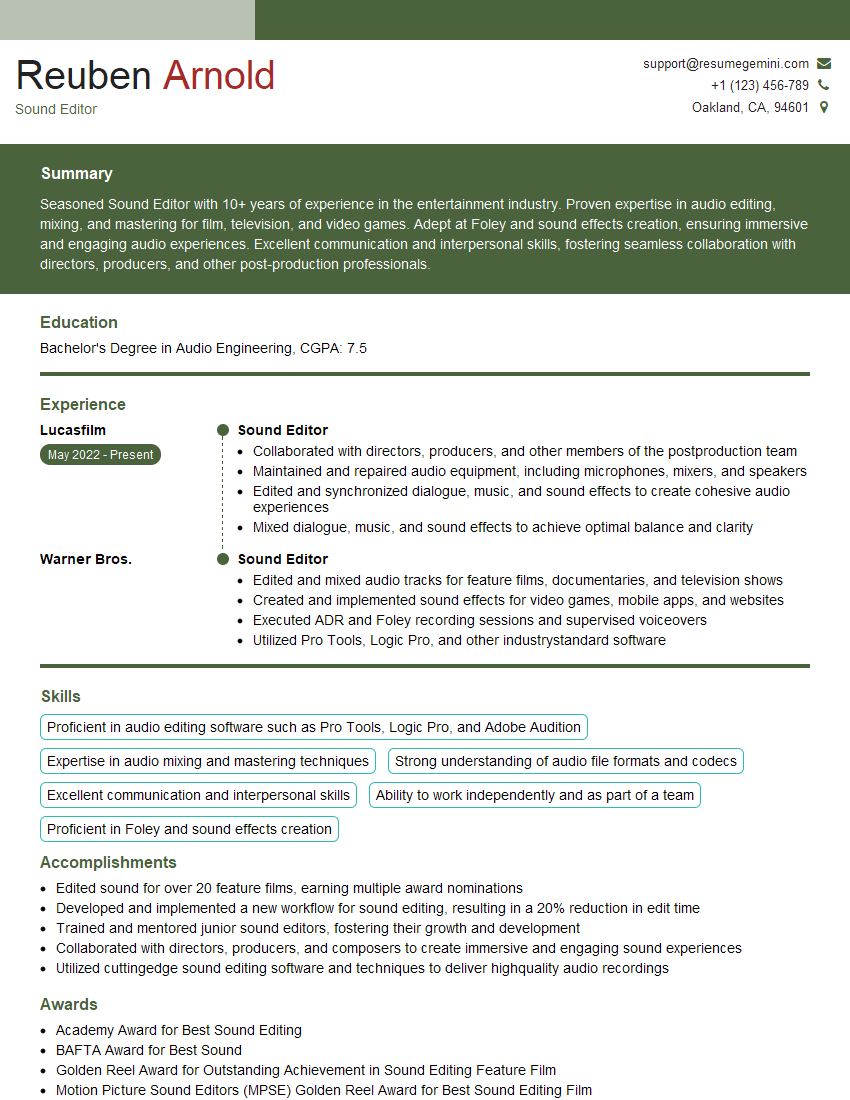
Mastering Studio Pro Tools significantly enhances your career prospects in audio engineering, music production, and related fields. A strong understanding of its capabilities demonstrates valuable technical skills and efficiency. To increase your chances of landing your dream role, creating an ATS-friendly resume is crucial. ResumeGemini is a trusted resource to help you build a professional and impactful resume that highlights your skills effectively. Examples of resumes tailored to Studio Pro Tools expertise are provided to help guide your resume building process.

Explore more articles
Users Rating of Our Blogs
Share Your Experience
We value your feedback! Please rate our content and share your thoughts (optional).
What Readers Say About Our Blog
Very informative content, great job.
good