Unlock your full potential by mastering the most common Visual Presentation Techniques interview questions. This blog offers a deep dive into the critical topics, ensuring you’re not only prepared to answer but to excel. With these insights, you’ll approach your interview with clarity and confidence.
Questions Asked in Visual Presentation Techniques Interview
Q 1. Explain the difference between infographics and data visualization.
While both infographics and data visualization aim to communicate information visually, they differ in scope and purpose. Data visualization is a broader term encompassing any visual representation of data, focusing on revealing patterns, trends, and insights. Think of scatter plots, bar charts, or line graphs showcasing sales figures over time. Infographics, on the other hand, are a specific type of data visualization designed to present complex information concisely and engagingly, often incorporating visuals like icons, illustrations, and minimal text. They prioritize storytelling and simplifying information for a broader audience. For example, an infographic might explain the steps of a complex process using icons and minimal text, while a data visualization might present a detailed analysis of that process using a combination of charts and graphs.
Imagine comparing a detailed scientific research paper (data visualization) to a visually appealing summary of the paper’s key findings for a news article (infographic). Both convey information, but one targets a specialist audience and the other prioritizes wider understanding.
Q 2. What are the key principles of effective visual communication?
Effective visual communication hinges on several key principles:
- Clarity: The message must be easily understood; avoid clutter and ambiguity. Use clear fonts, appropriate colors, and concise labeling.
- Conciseness: Avoid unnecessary information. Focus on the key message and present it efficiently. Think ‘less is more’.
- Consistency: Maintain a consistent style throughout the presentation, from fonts and colors to chart types and visual elements.
- Relevance: All visual elements should directly support the message and target audience.
- Accessibility: Design for inclusivity, considering colorblindness, visual impairments, and different cognitive abilities.
- Storytelling: Structure the presentation as a narrative to engage the audience and make the information memorable. Think about the beginning, middle, and end of your ‘visual story’.
Imagine presenting sales data. A cluttered chart with too much detail obscures the key trend (lack of clarity). A concise chart highlighting only the year-over-year growth is far more effective.
Q 3. Describe your process for designing a presentation for a technical audience.
My process for designing a presentation for a technical audience involves several key steps:
- Understanding the Audience and Objective: I begin by deeply understanding the audience’s technical expertise and the presentation’s goal. What specific knowledge do they possess? What do I want them to learn or take away?
- Data Preparation and Analysis: I meticulously clean and analyze the data to extract the most relevant insights. I need to ensure the data is accurate and presented in a way that supports my key message.
- Visual Design and Selection: I choose visuals appropriate for a technical audience. This might involve complex charts like network diagrams or detailed graphs, but always ensuring clarity and simplicity. A simple, well-designed graph is always preferable to a cluttered, complex one.
- Content Structure and Narrative: I structure the presentation logically, progressing from the most fundamental concepts to more complex details. I often incorporate a narrative, weaving the data points into a compelling story.
- Iteration and Feedback: I iterate on the design based on feedback, refining the visuals and content until it’s clear, concise, and engaging for the technical audience. I often seek feedback from peers or the intended audience itself.
For example, when presenting complex algorithms, I might use flowcharts and pseudocode to simplify the explanation. Simple charts can sometimes be misleading for a technical audience, so a deep understanding of the audience is key.
Q 4. How do you choose the right type of chart or graph for a specific dataset?
Choosing the right chart depends on the type of data and the message you want to convey. Here’s a simplified guide:
- Bar charts: Compare categories.
- Line charts: Show trends over time.
- Scatter plots: Explore correlations between two variables.
- Pie charts: Show proportions of a whole (use sparingly, as they can be difficult to interpret for many data points).
- Area charts: Similar to line charts but emphasize the magnitude of change over time.
- Heatmaps: Show data density or correlation using color intensity.
- Network diagrams: Show relationships between entities.
For example, comparing quarterly sales across different regions would be best represented by a bar chart. Showing the growth of a company over several years is best done using a line graph. Understanding the data’s context and the desired message is critical before choosing the appropriate chart.
Q 5. How do you ensure accessibility in your visual presentations?
Accessibility in visual presentations is paramount. My approach includes:
- Color Contrast: Using sufficient color contrast between text and background to ensure readability for people with color vision deficiencies. I use tools to check color contrast ratios.
- Alternative Text for Images: Providing descriptive alternative text for all images, allowing screen readers to convey the image’s meaning to visually impaired users.
- Font Choice and Size: Selecting clear, legible fonts and ensuring sufficient text size for easy readability. I typically avoid overly decorative or difficult-to-read fonts.
- Captioning and Transcripts: Providing captions for videos and transcripts for audio content to cater to users with hearing impairments.
- Keyboard Navigation: Designing presentations that are navigable using only a keyboard for users who cannot use a mouse.
For example, I use colorblind-friendly color palettes and ensure sufficient text size to meet WCAG (Web Content Accessibility Guidelines) standards. Failing to do this severely limits the audience that can fully understand and appreciate the presented information.
Q 6. What software or tools are you proficient in for creating visual presentations?
I am proficient in a range of software and tools for creating visual presentations, including:
- Microsoft PowerPoint: For creating standard presentations, leveraging its charting and diagramming capabilities.
- Adobe Illustrator & Photoshop: For creating custom illustrations, icons, and graphics.
- Tableau & Power BI: For interactive data visualization and dashboard creation.
- Python with libraries like Matplotlib and Seaborn: For creating custom visualizations and automating the presentation creation process.
- Google Slides: For collaborative presentation development and easy sharing.
The choice of tool depends on the project’s complexity and specific requirements. For example, I might use Tableau for interactive data exploration, but PowerPoint for a final, polished presentation to a client.
Q 7. Describe your experience with creating interactive presentations.
I have extensive experience in creating interactive presentations, leveraging the capabilities of tools like Tableau, Power BI, and custom Python scripts. Interactive elements significantly enhance audience engagement and understanding.
For instance, in a presentation on sales data, I might incorporate interactive dashboards allowing the audience to filter data by region, product, or time period. In another project, I developed an interactive simulation using Python to showcase a complex logistical process, allowing users to adjust parameters and observe the impact in real-time. This far surpasses a static presentation by enabling deeper exploration and a more intuitive understanding of the topic. Such interactive elements often involve carefully considering user experience, ensuring the interactive parts enhance comprehension rather than confusing the audience.
Q 8. How do you handle feedback on your visual presentations?
Feedback is crucial for refining visual presentations. I approach it as an iterative process, valuing both constructive criticism and audience reaction. I actively solicit feedback through various channels – post-presentation surveys, informal discussions, and even incorporating peer reviews during the design phase. I listen carefully, categorize feedback into themes (e.g., clarity, design, content), and then prioritize which suggestions to implement based on their impact and feasibility. For instance, if feedback consistently points to a confusing chart, I’ll redesign it for better clarity. If the overall message isn’t landing, I might revisit the narrative structure. I document all feedback and changes made, creating a record for future presentations and improving my design process over time.
Q 9. How do you incorporate storytelling into your visual presentations?
Storytelling is the heart of an engaging presentation. Instead of simply presenting data points, I frame information within a compelling narrative arc. This involves identifying the core message (the ‘moral of the story’), creating relatable characters (often the audience or stakeholders), and establishing a clear conflict or challenge that the presentation addresses. Visual elements, such as images, animations, and transitions, reinforce the narrative flow, guiding the audience through the story. For example, in a presentation on market trends, I might begin by depicting a challenge faced by the industry, then introduce solutions as ‘acts’ in the story, leading to a satisfying conclusion illustrating the benefits of my proposal. Each visual should contribute to building the narrative and maintaining the audience’s emotional investment.
Q 10. Explain your understanding of visual hierarchy and its importance.
Visual hierarchy is the arrangement of elements on a slide to guide the viewer’s eye and emphasize key information. It uses visual cues like size, color, contrast, and placement to create a clear path through the presentation. The most important information should be prominent, while less critical details should recede into the background. Think of it like a roadmap: you wouldn’t want all the roads to be equally emphasized; some need to be clearly marked as highways, others as local streets. Ignoring visual hierarchy can lead to a cluttered, confusing slide. For instance, using a large, bold headline, a slightly smaller subtitle, and then smaller body text creates a natural hierarchy. Similarly, contrasting colors can highlight key data points in a chart. A well-structured visual hierarchy ensures the audience focuses on the right elements in the right order, improving comprehension and retention.
Q 11. How do you ensure your visual presentations are consistent with brand guidelines?
Maintaining brand consistency is paramount. Before starting any design, I meticulously review the brand guidelines, paying close attention to logo usage, color palettes, typography, and imagery style. I use the brand’s official style guide as my bible, ensuring every element – from font choices to image selections – adheres to the established standards. I may use brand-approved templates to streamline the process and ensure consistency across all presentations. Tools like Adobe Creative Suite and design systems are crucial here, as they often have features allowing you to lock in brand colors and fonts, minimizing the risk of deviations. Consistency strengthens brand recognition and builds trust, providing a professional and unified brand image.
Q 12. What are some common pitfalls to avoid when designing visual presentations?
Many pitfalls can hinder effective presentations. Some common ones include:
- Overcrowding slides: Too much text or imagery makes presentations hard to follow.
- Poor readability: Using inappropriate font sizes, colors, or contrast makes text difficult to read.
- Inconsistent design: Lack of a unified style throughout the presentation looks unprofessional.
- Ignoring the audience: Failing to tailor content and style to the audience’s understanding and expectations.
- Inappropriate visuals: Using low-resolution images, poorly designed charts, or irrelevant graphics detracts from the message.
- Lack of clear narrative: Without a compelling storyline, the presentation may feel disjointed.
Q 13. How do you measure the effectiveness of your visual presentations?
Measuring effectiveness goes beyond simply gauging audience satisfaction. I employ a multifaceted approach. Post-presentation surveys help assess audience understanding and engagement, gathering qualitative and quantitative data on content clarity and overall impact. I also analyze presentation analytics (if available, such as engagement metrics from online platforms) and track key performance indicators (KPIs) linked to the presentation’s objectives. For instance, if the presentation aims to increase sales, I’d track sales figures after the presentation. Informal feedback from stakeholders and direct observation of audience behavior during the presentation also provide valuable insights. By combining these methods, I gain a comprehensive understanding of the presentation’s effectiveness, allowing for continuous improvement.
Q 14. Describe your experience with A/B testing different design choices.
A/B testing allows for data-driven design choices. I’ve extensively used A/B testing to compare different design elements, such as headline variations, image choices, or color palettes. The process typically involves creating two or more versions of a slide or even the entire presentation, then distributing them to different audience segments. I track metrics such as engagement time, click-through rates (if applicable), and survey responses to determine which version performs better. This data provides concrete evidence supporting specific design decisions, leading to more effective and impactful presentations. For example, I might test two headlines for the same slide, one benefit-driven and the other problem-solving, then measure which one generates higher engagement based on audience interaction.
Q 15. How do you adapt your presentation style for different audiences?
Adapting presentation style to different audiences is crucial for effective communication. It’s about tailoring the message, delivery, and visual elements to resonate with the specific knowledge, interests, and expectations of your viewers. I approach this by first understanding my audience’s background. Are they technical experts, senior management, or a general public? What are their prior experiences with the subject matter? What are their likely expectations regarding the level of detail and formality?
- Technical Audiences: I’d use more detailed data, technical jargon (carefully defined), and focus on the ‘how’ and ‘why’ behind the information. Charts and graphs would be precise and data-rich.
- Executive Audiences: I’d prioritize high-level insights, key takeaways, and impactful visuals. Conciseness is key, emphasizing the ‘what’ and ‘so what’ of the data. I might use fewer words and rely heavily on visually striking charts summarizing key performance indicators (KPIs).
- General Public: I’d use simple language, avoid jargon, and incorporate engaging visuals like compelling imagery or short videos to maintain interest. The focus shifts to storytelling and relating the information to the audience’s everyday experiences.
For example, presenting a complex algorithm to software engineers would differ dramatically from presenting the algorithm’s impact on user experience to a marketing team. The former would benefit from detailed code explanations and diagrams, while the latter would need a simplified overview focusing on the end-user benefits.
Career Expert Tips:
- Ace those interviews! Prepare effectively by reviewing the Top 50 Most Common Interview Questions on ResumeGemini.
- Navigate your job search with confidence! Explore a wide range of Career Tips on ResumeGemini. Learn about common challenges and recommendations to overcome them.
- Craft the perfect resume! Master the Art of Resume Writing with ResumeGemini’s guide. Showcase your unique qualifications and achievements effectively.
- Don’t miss out on holiday savings! Build your dream resume with ResumeGemini’s ATS optimized templates.
Q 16. What are your preferred methods for presenting data in a concise and engaging way?
Presenting data concisely and engagingly involves careful selection of visuals and a focus on storytelling. I prefer using a combination of methods depending on the data and the message. My go-to methods include:
- Interactive charts and graphs: Tools like Tableau or Power BI allow for dynamic exploration of data, empowering the audience to interact with the information. This increases engagement compared to static visuals.
- Data visualization best practices: I leverage techniques like Tufte’s principles of graphical excellence to ensure clarity, precision, and minimal chartjunk. This means focusing on the data itself and not overwhelming the audience with unnecessary visual elements.
- Infographics: For summarizing complex information, infographics blend visuals, text, and data to create a compelling narrative. They are perfect for simplifying complex data into easy-to-understand points.
- Storytelling with data: Instead of just presenting data points, I embed them within a narrative to illustrate trends, insights, and their importance. This helps connect the data to a bigger picture and increase memorability.
For example, instead of simply showing a bar chart of sales figures, I might incorporate a brief story about the factors that contributed to the growth or decline, making the data more relatable and memorable.
Q 17. Describe a time you had to create a presentation under tight deadlines.
I once had to create a 20-slide presentation on a new product launch for a major client, with only 36 hours to complete it. Time management and prioritization were paramount. I started by outlining the core message and key takeaways, then sketched out the presentation’s structure. This helped prioritize the essential information. I used pre-designed templates to save time on layout. Instead of creating every visual from scratch, I leveraged existing stock photography and icons, focusing on creating high-impact charts and graphs efficiently. To ensure quality, I followed a simplified design approach, focusing on clarity and conciseness rather than excessive visual complexity. I also utilized automated tools for tasks such as creating charts from spreadsheets. The final presentation successfully conveyed all the key information despite the tight deadline, demonstrating my ability to efficiently manage time under pressure.
Q 18. How do you handle conflicting design preferences from stakeholders?
Handling conflicting design preferences requires skillful negotiation and a collaborative approach. It’s essential to understand the reasons behind each preference. My strategy involves:
- Active listening and understanding: I take time to fully understand each stakeholder’s perspective and the rationale behind their preferences. Asking clarifying questions is crucial. Why do they prefer this color? What message do they want to convey?
- Finding common ground: I search for overlapping preferences or design elements that satisfy multiple stakeholders. Sometimes, subtle adjustments can significantly alleviate conflicts.
- Presenting options and rationale: I present multiple design options with explanations for each, highlighting the advantages and disadvantages. This promotes a data-driven discussion.
- Prioritizing key elements: Based on the overall message and the audience, I identify the most crucial aspects of the design and prioritize those based on feedback. Minor preferences can sometimes be sacrificed for the overall effectiveness.
- Documentation and agreement: Once a decision is reached, I thoroughly document the agreed-upon design choices and obtain formal approval from all relevant stakeholders to avoid future misunderstandings.
The key is to facilitate a discussion that leads to a compromise that maintains the presentation’s overall effectiveness and respects the valuable input of everyone involved. It’s about building consensus, not dictating design.
Q 19. How familiar are you with color theory and its impact on visual communication?
Color theory is fundamental to effective visual communication. I’m highly familiar with its principles, understanding how color impacts mood, readability, and the overall message of a presentation. I consider:
- Color psychology: Different colors evoke different emotions and associations. For example, blues tend to project calmness and trustworthiness, while reds often signal excitement or urgency. Using colors appropriately can subtly influence the audience’s perception.
- Color harmony: I apply principles of color harmony, such as complementary, analogous, or triadic color schemes, to create visually pleasing and balanced presentations. This ensures that the colors work together seamlessly.
- Accessibility: I’m mindful of color contrast and accessibility guidelines (WCAG) to ensure the presentation is legible for everyone, including people with visual impairments. Sufficient contrast between text and background is crucial.
- Brand consistency: When working for a client, I align the color palette with their brand guidelines to ensure consistency and recognition.
For instance, I wouldn’t use a bright red background with green text because the contrast would be poor and difficult to read. I’d choose a color palette that aligns with the client’s brand identity and enhances the message conveyed.
Q 20. Explain your experience with using typography to enhance visual presentations.
Typography plays a crucial role in enhancing the readability and overall aesthetic appeal of presentations. My experience encompasses a range of typographic considerations:
- Font selection: I carefully choose fonts that are legible and appropriate for the presentation’s tone. Serif fonts are often suitable for body text, while sans-serif fonts can work well for headings. I avoid using too many different fonts to maintain consistency.
- Hierarchy and emphasis: I use font size, weight, and style to create visual hierarchy, guiding the audience’s eye to the most important information. Headings should be clearly distinguished from body text.
- Kerning and tracking: I fine-tune the spacing between letters (kerning) and words (tracking) to optimize readability. This ensures that the text isn’t cramped or too spread out.
- White space: I use sufficient white space around text to avoid a cluttered appearance and improve readability. Adequate spacing improves the overall presentation clarity.
For example, I would use a clean, readable sans-serif font like Open Sans for body text and a bolder, more prominent sans-serif font like Roboto for headings to create a clear visual hierarchy and improve readability. Effective use of typography makes a presentation professional and easily digestible.
Q 21. How do you create visually appealing presentations with limited resources?
Creating visually appealing presentations with limited resources requires creativity and strategic thinking. My approach focuses on:
- Leveraging free resources: I utilize free stock photo websites, icon libraries, and free font options to minimize costs. Many high-quality resources are readily available online.
- Simple and effective designs: I avoid overly complex designs that require many expensive elements. A clean and minimalist design is often more impactful than a cluttered one.
- Repurposing existing materials: If possible, I reuse previously created visuals or templates to save time and effort.
- Focusing on strong visuals: Even without access to premium visuals, a well-structured presentation with strong charts, simple illustrations, and clear text can make a significant impact.
- Creative use of text: Effective use of typography and minimal text is vital. I focus on conveying ideas clearly and concisely.
For example, I could use a free stock photo as a background image, pair it with a simple, yet elegant font, and use a few well-designed charts to create a professional-looking presentation even with a small budget. Creativity and resourceful planning make it possible to overcome resource limitations.
Q 22. What is your process for gathering and analyzing data for visualization?
My process for gathering and analyzing data for visualization begins with a deep understanding of the objective. What story are we trying to tell? What key insights need to be communicated? Once the objective is clear, I identify the relevant data sources. This might involve querying databases, extracting information from spreadsheets, or conducting surveys. The next step is crucial: data cleaning and transformation. This involves handling missing values, identifying outliers, and ensuring data consistency. Only then do I move to analysis. I explore the data using descriptive statistics, identifying trends, correlations, and key patterns. The choice of visualization technique depends entirely on this analysis; a bar chart might be perfect for comparing categories, while a line chart might be better for showing trends over time. For instance, if I’m analyzing sales data, I might use a geographic map to show regional performance and a line graph to illustrate sales trends over several months. This iterative process ensures the visualization accurately and effectively communicates the insights derived from the data.
Q 23. Explain your understanding of Gestalt principles in design.
Gestalt principles are fundamental to effective visual design. They describe how humans perceive visual elements as a whole rather than individual parts. Understanding these principles is key to creating visually appealing and easily understandable presentations. Key principles include:
- Proximity: Elements placed close together are perceived as a group. Think of bullet points in a list – their closeness groups them visually.
- Similarity: Similar elements are perceived as related. For example, using the same font style and color for headings creates visual consistency and grouping.
- Closure: Our brains tend to complete incomplete shapes. This can be used to create intriguing and memorable logos or graphics.
- Continuity: We tend to perceive elements as continuous lines or curves rather than a series of disconnected elements. A smooth line graph embodies this principle.
- Figure/Ground: We distinguish figures from their background. This is vital for ensuring your key information stands out.
For example, in a presentation about marketing campaign performance, I would use proximity to group data related to each campaign, similarity to maintain a consistent style, and figure/ground to make the key performance indicators (KPIs) clearly stand out against a less prominent background.
Q 24. How do you maintain a consistent visual style across multiple presentations?
Maintaining consistent visual style across multiple presentations is achieved through meticulous planning and the use of templates. I create a style guide that dictates specific choices: fonts (including headings and body text), colors (brand palette), image styles, and chart types. This style guide acts as a blueprint for every presentation. Using presentation software’s master slide features and pre-designed templates is very helpful in ensuring uniformity. By setting default styles and formats, I can maintain consistency even when multiple team members are involved. For example, a company might have a specific brand font and color scheme. A consistent style strengthens brand identity and contributes to better recall and recognition.
Q 25. What are your strategies for creating impactful visual narratives?
Creating impactful visual narratives involves more than just pretty charts and graphs. It’s about storytelling. I begin by outlining the narrative arc – establishing a clear beginning, middle, and end. Each slide should contribute to the overall story. I use visual elements to support the narrative, not simply to decorate. Data visualizations should be strategically placed to support key arguments. I also employ storytelling techniques, such as using metaphors and analogies to make complex data more relatable. For instance, comparing growth to a climbing mountain can make a financial report much more engaging. A strong call to action at the end leaves a lasting impact.
Q 26. How do you ensure your visual presentations are appropriate for the chosen medium (e.g., print, web, presentation software)?
Adapting visualizations to different media requires careful consideration of resolution, aspect ratios, and interactivity. Print requires high-resolution images and a focus on clear, concise design. Web presentations demand responsive design to adapt to various screen sizes. Presentation software offers interactive elements like animations and transitions, but these should be used judiciously to avoid overwhelming the audience. For a printed brochure, I would focus on crisp, high-resolution images and a clean layout. A web presentation would be designed to be responsive, potentially incorporating interactive elements like data hover effects. A slide deck might include subtle animations to guide the audience’s eye.
Q 27. Describe your experience with incorporating animation or motion graphics into presentations.
My experience with animation and motion graphics focuses on purposeful integration, not gratuitous embellishment. Animation can be incredibly effective for illustrating processes, highlighting key data points, or adding dynamism to a presentation. However, overuse can be distracting. I carefully select animations that enhance understanding rather than detract from the message. For example, I might use a simple animation to show the growth of a company’s revenue over time, or a short animated infographic to explain a complex process. Tools like After Effects or even built-in animation features in presentation software are used depending on the project complexity and available resources. The key is to prioritize clarity and avoid overwhelming the audience with excessive motion.
Q 28. How do you balance aesthetics and functionality in your visual designs?
Balancing aesthetics and functionality is crucial. A beautiful presentation is useless if it fails to communicate its message effectively. I achieve this balance by prioritizing clarity and understanding. Visually appealing design elements, such as a consistent color palette and well-chosen typography, enhance the presentation’s aesthetic appeal, while clear data visualization and a logical flow ensure functionality. Think of it like this: the aesthetics are the packaging, while the functionality is the product itself. Both are crucial for success. I often iterate through several design options, seeking feedback to ensure that both the visual and the functional aspects meet the needs of the audience and the purpose of the presentation.
Key Topics to Learn for Visual Presentation Techniques Interview
- Design Principles: Understanding fundamental design principles like balance, contrast, proximity, and repetition, and their application in various presentation formats.
- Visual Hierarchy & Storytelling: Mastering techniques to guide the audience’s eye and create a compelling narrative through visual elements and strategic sequencing.
- Data Visualization: Choosing appropriate chart types (bar graphs, line graphs, pie charts, etc.) to effectively communicate data insights and avoid misinterpretations.
- Color Theory & Psychology: Utilizing color palettes to evoke specific emotions, enhance readability, and maintain brand consistency.
- Typography & Readability: Selecting appropriate fonts, font sizes, and line spacing to ensure clear and engaging text presentation.
- Software Proficiency: Demonstrating competency in presentation software (PowerPoint, Keynote, Google Slides) and potentially specialized design tools.
- Presentation Structure & Delivery: Knowing how to structure a presentation logically, incorporate effective transitions, and deliver it confidently.
- Audience Analysis & Adaptability: Tailoring presentations to specific audiences and adapting the content and delivery based on their needs and understanding.
- Accessibility Considerations: Designing presentations that are inclusive and accessible to all audiences, including those with disabilities.
- Visual Communication Best Practices: Understanding the nuances of communicating effectively through visuals, minimizing distractions, and maximizing impact.
Next Steps
Mastering Visual Presentation Techniques is crucial for career advancement in many fields, allowing you to communicate ideas clearly, persuasively, and memorably. A strong resume is your first impression – ensure yours is ATS-friendly to maximize your job prospects. ResumeGemini can significantly enhance your resume-building experience, helping you craft a compelling document that showcases your skills and achievements. Examples of resumes tailored to Visual Presentation Techniques are available to help you get started.

E-Learning Developer Resume Sample

Information Architect Resume Sample

Web Designer Resume Sample
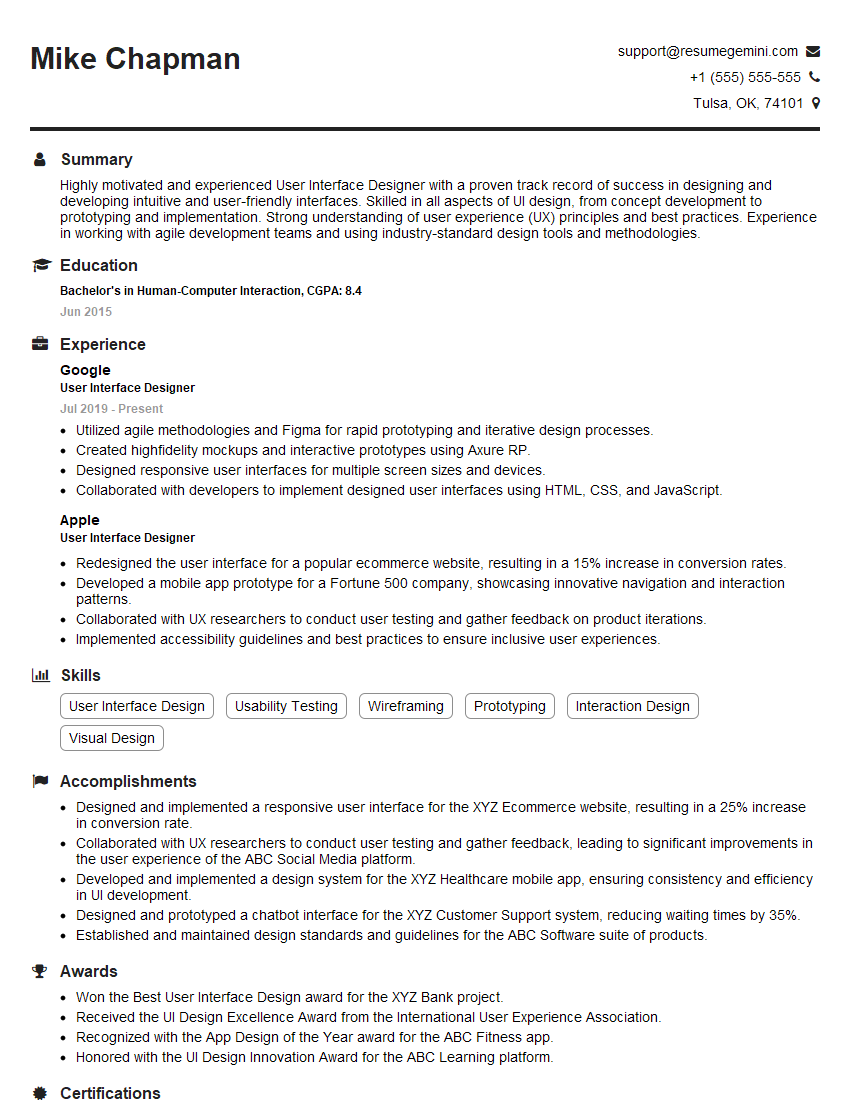
User Interface Designer Resume Sample
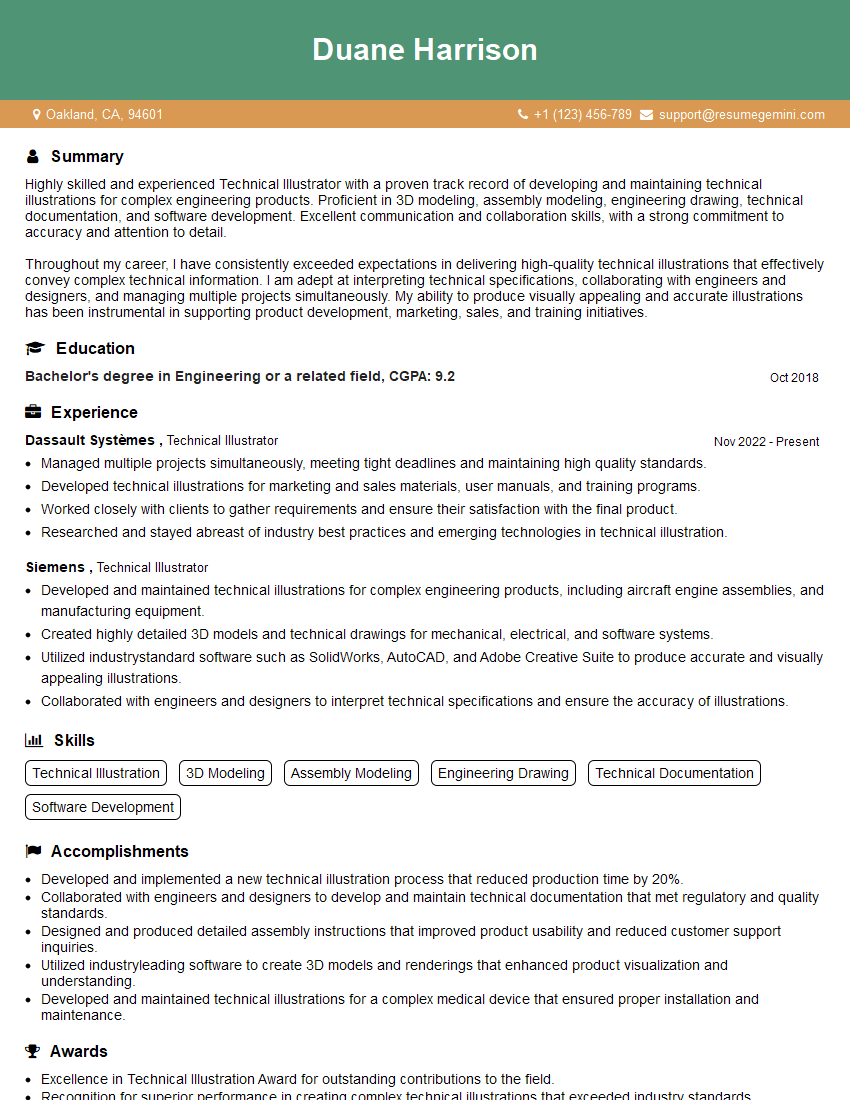
Technical Illustrator Resume Sample

Multimedia Specialist Resume Sample
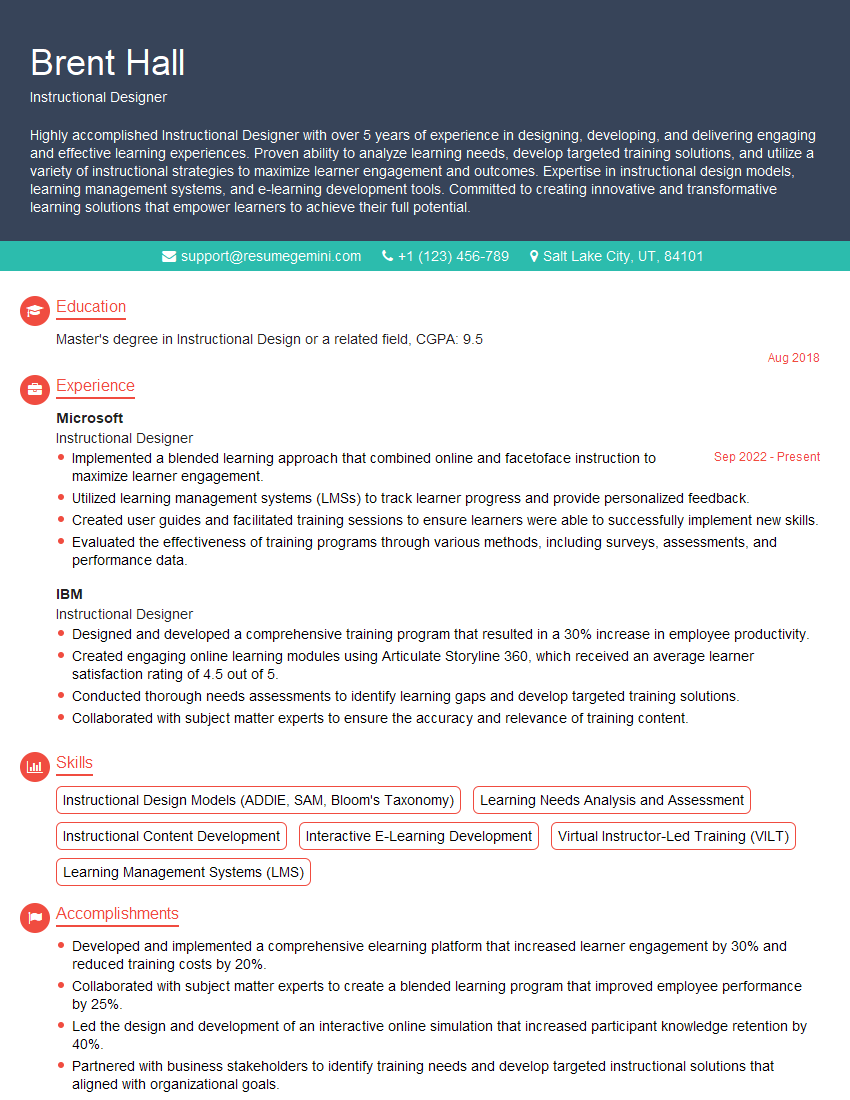
Instructional Designer Resume Sample
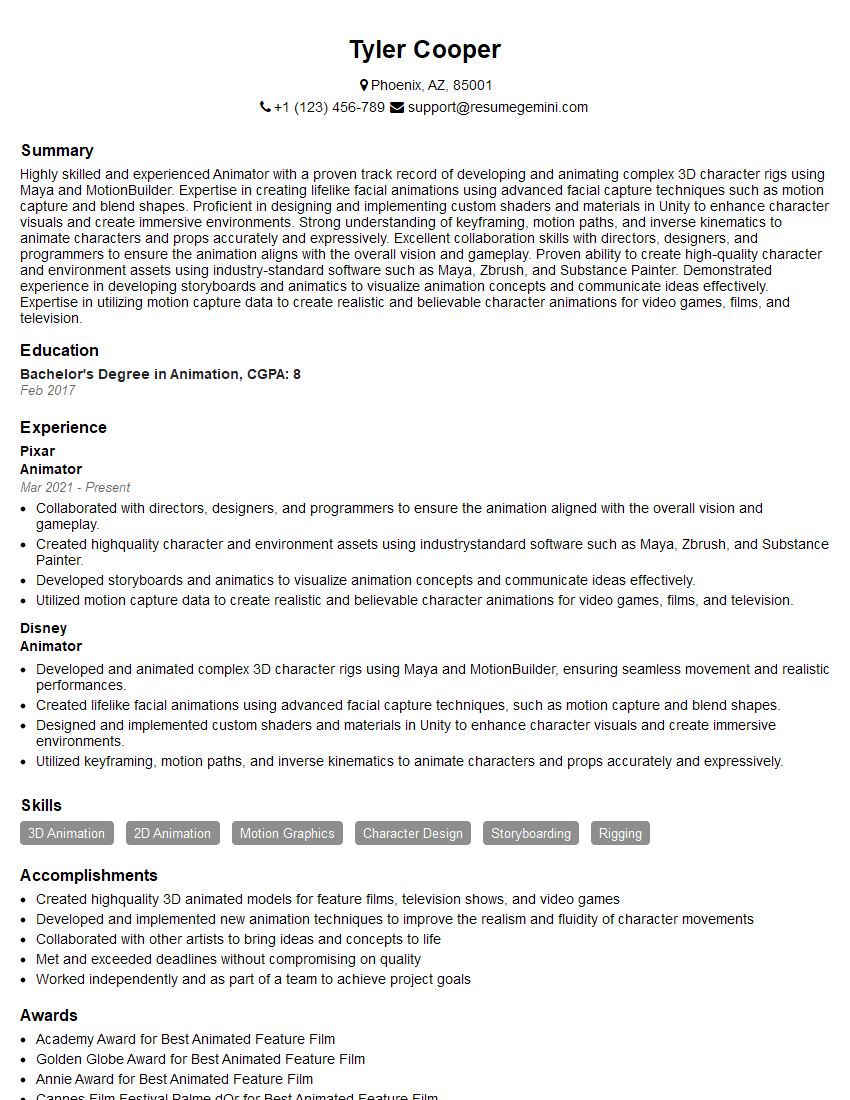
Animator Resume Sample

Graphic Designer Resume Sample
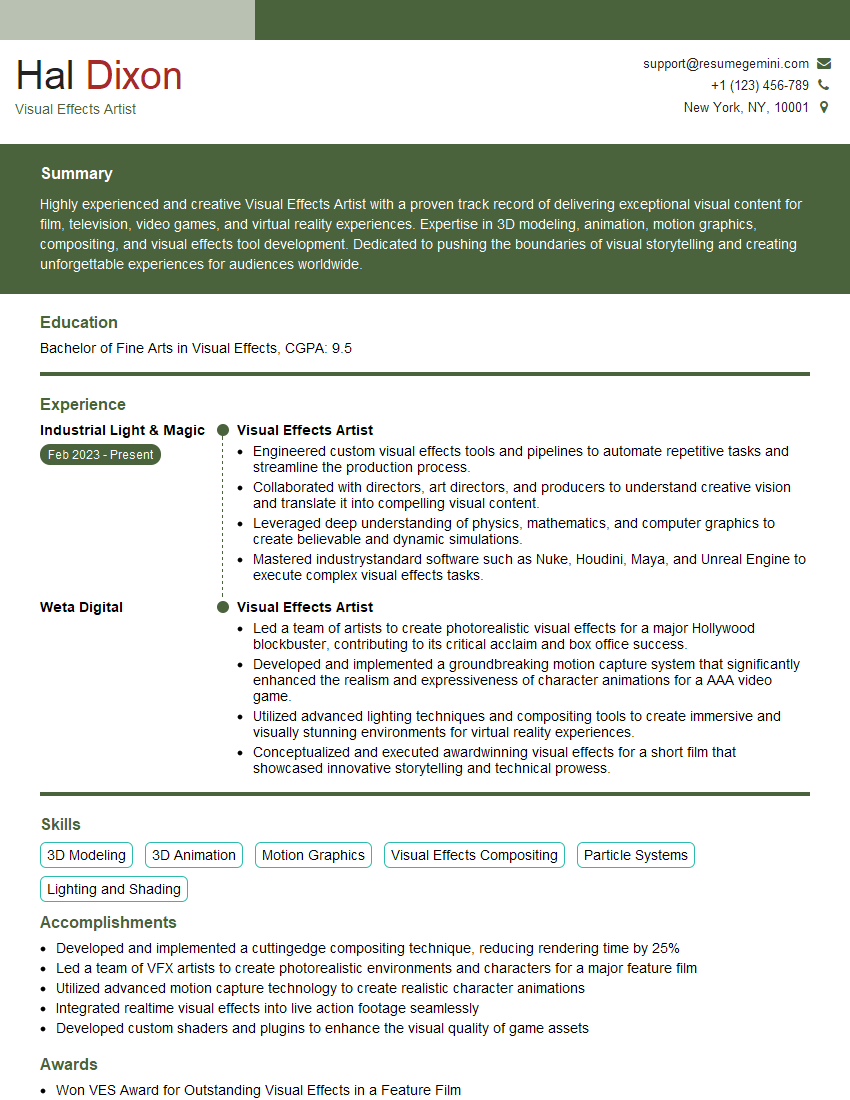
Visual Effects Artist Resume Sample
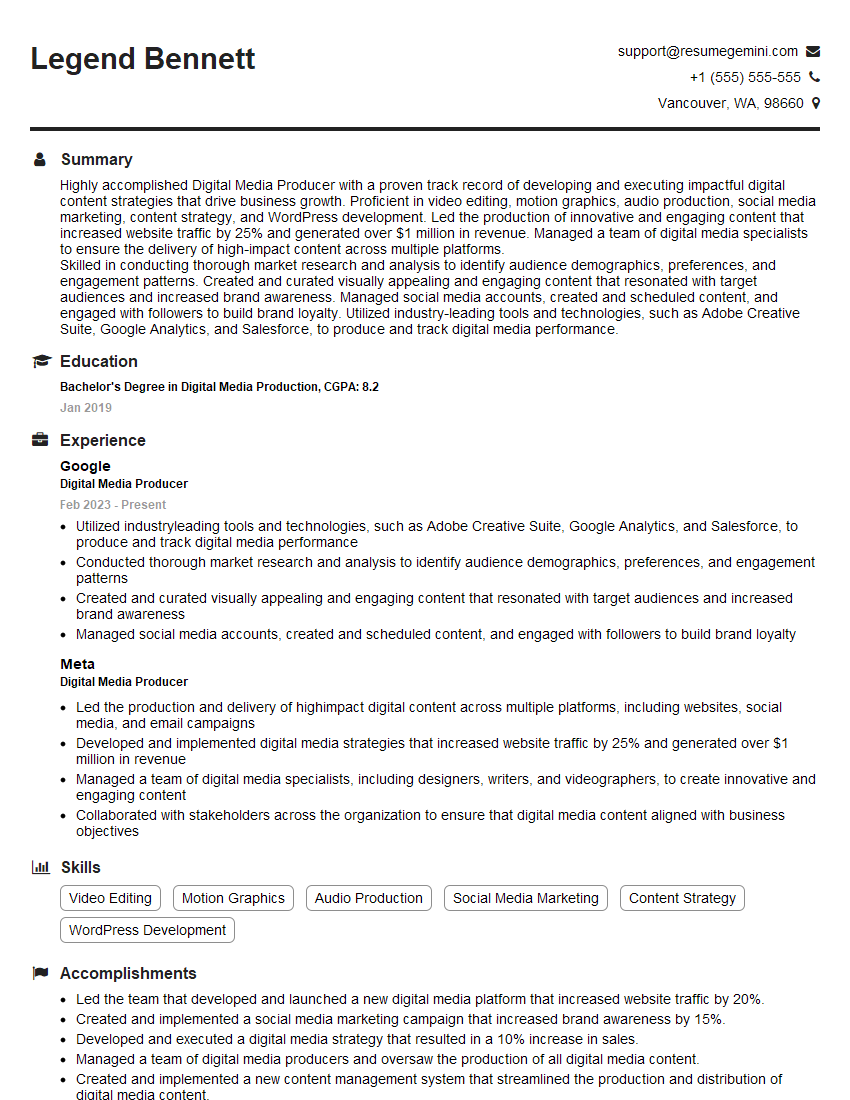
Digital Media Producer Resume Sample
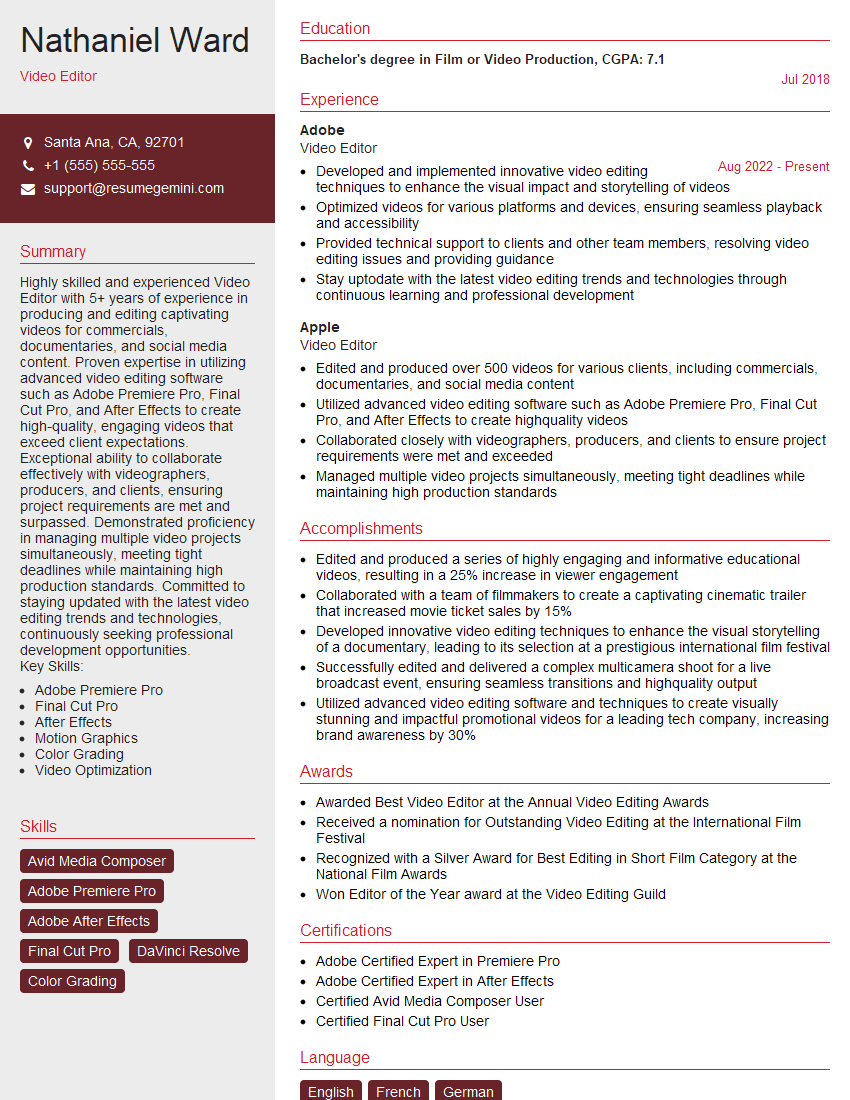
Video Editor Resume Sample
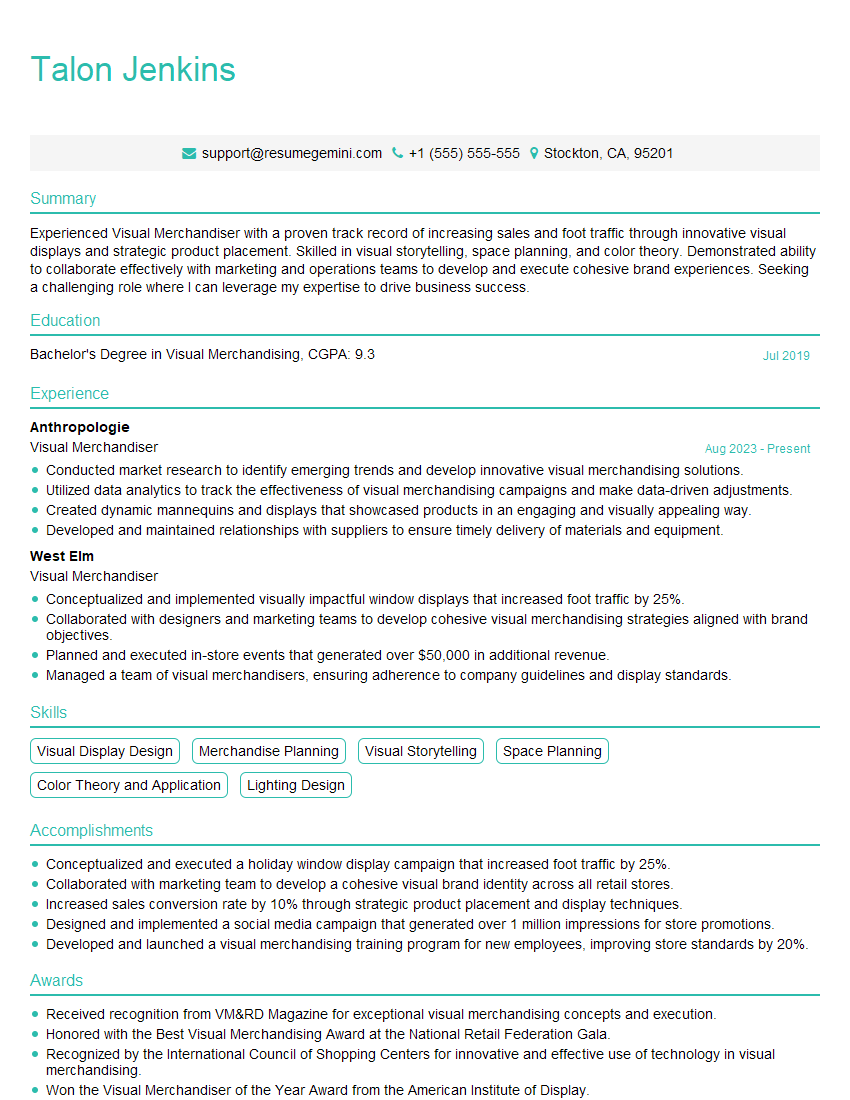
Visual Merchandiser Resume Sample
Explore more articles
Users Rating of Our Blogs
Share Your Experience
We value your feedback! Please rate our content and share your thoughts (optional).
What Readers Say About Our Blog
Very informative content, great job.
good